

Account Settings
Personal profile and preferences
Billing
Organization balance and plans
Support
Help and tickets
AI Employees
Working on agents together
Terminology
The platform interface uses the term Organization (/organization, the Create organization button in the context switcher menu). In everyday speech and marketing materials, you’ll often see the synonym Company — they mean the same thing.
In this documentation, we use “Organization” as the main term and mention “Company” the first time for those who are used to it.
Personal account vs organization
The platform has two contexts at once, and you can switch between them in one click:
What you need to know:
- Agents don’t “move” automatically. Personal agents stay in your personal context; organization agents stay inside the organization. Create an agent in the right context from the start.
- Billing is separate. Charges for a personal conversation come from your personal balance. Charges in an organization come from its own balance.
- Only owners and admins can invite people to an organization. Regular members see the list of others but can’t add new ones.
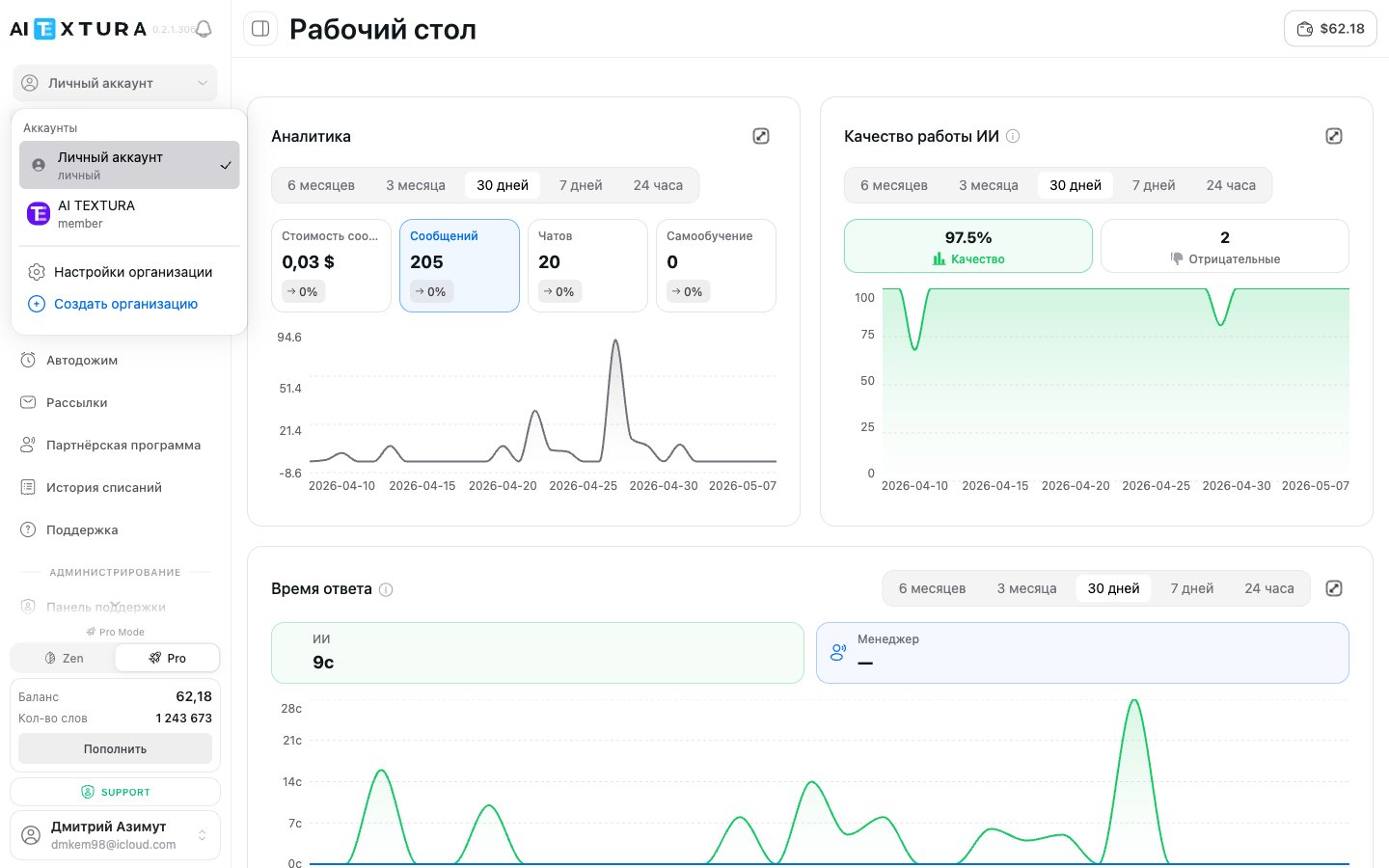
Context switcher
The context switcher button is at the top of the sidebar, above the main menu. Clicking it opens the “Select organization” drop-down menu. The menu includes:- Current context — the checked item at the top (your personal account or one of your organizations).
- Your organizations — with your role in each (Owner, Admin, Member).
- Organization settings — goes to
/organization?tab=generalfor the current organization. - Create organization — opens the form for creating a new one.
Creating an organization
1
Open the context switcher
Click the context switcher button at the top of the sidebar.
2
Click Create organization
The button to create a new organization is at the bottom of the drop-down menu.
3
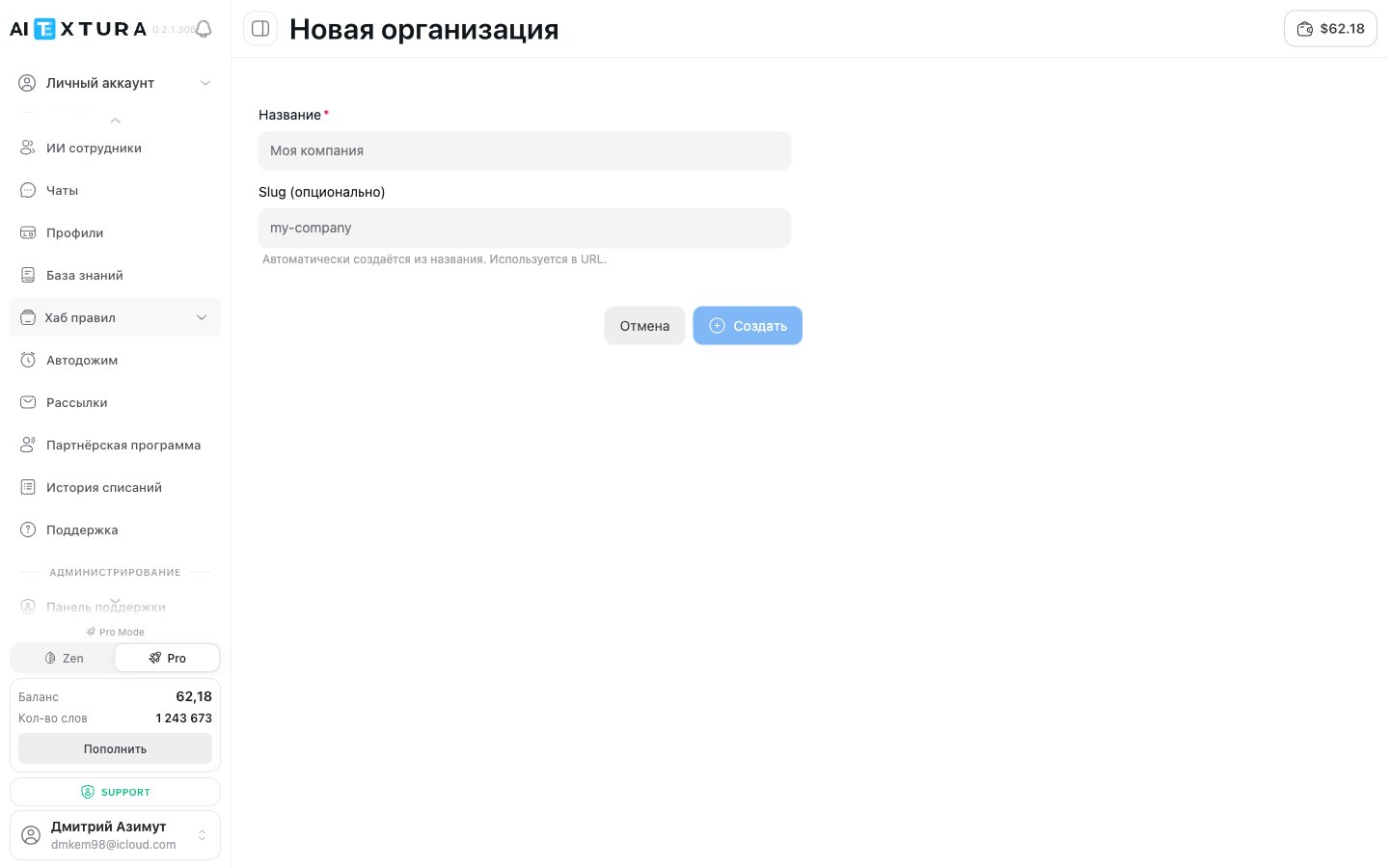
Enter a name
The Name field is required. It’s the organization’s visible name in the switcher and in the header.
4
Enter a slug (optional)
The Slug field accepts Latin letters, digits, and hyphens. It’s used in the URL (
/o/<slug>/...). If you leave it empty, it’s generated automatically from the name.5
Click Create
After creation, the platform automatically switches the context to the new organization. You’re its owner.
You can create several organizations — for example, for different clients or business lines. All of them are available in the switcher.
Organization settings
The/organization section has two tabs: General and Members.
General tab
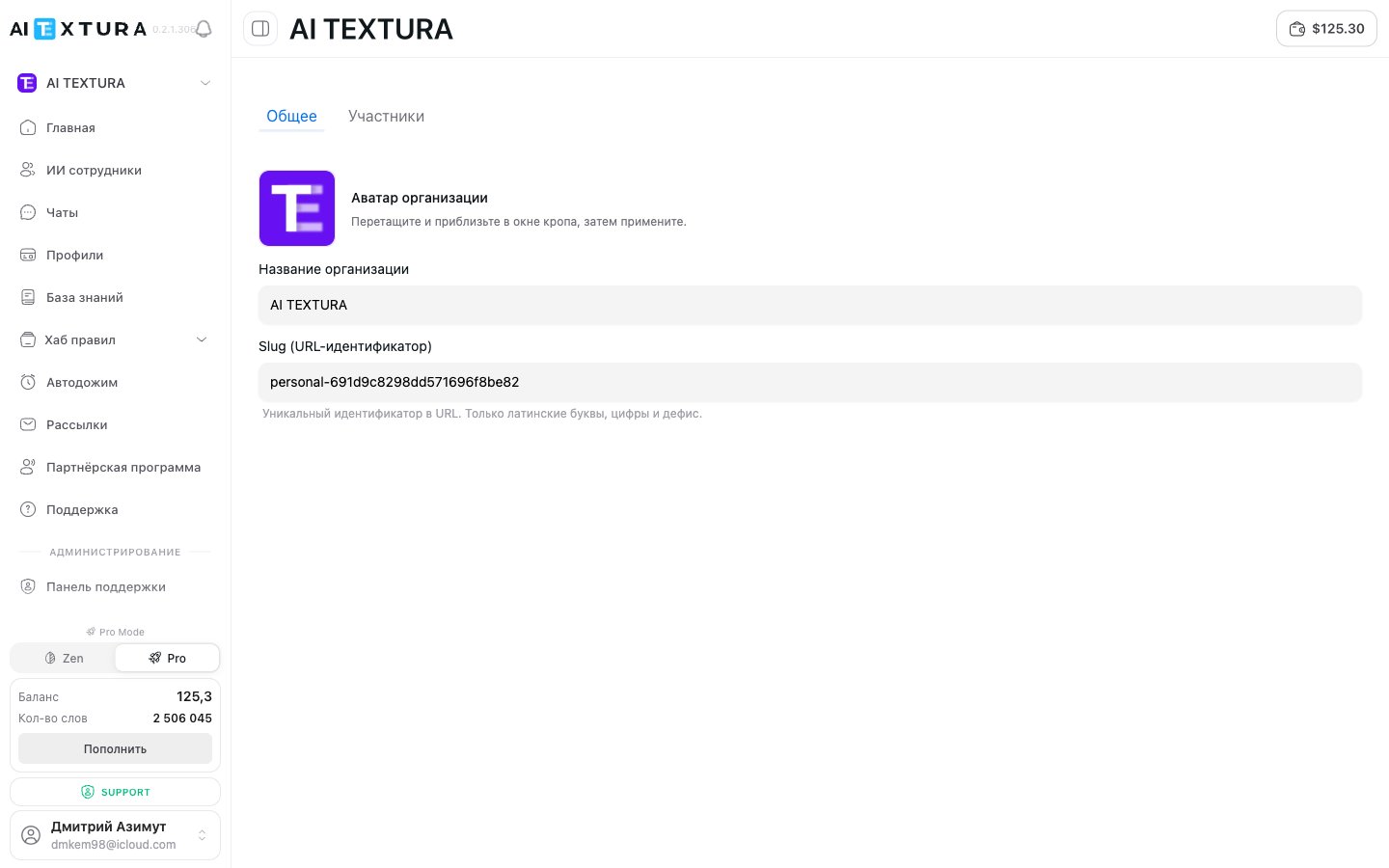
- Upload the organization’s avatar.
- Change the name.
- Change the slug (URL).
Members tab
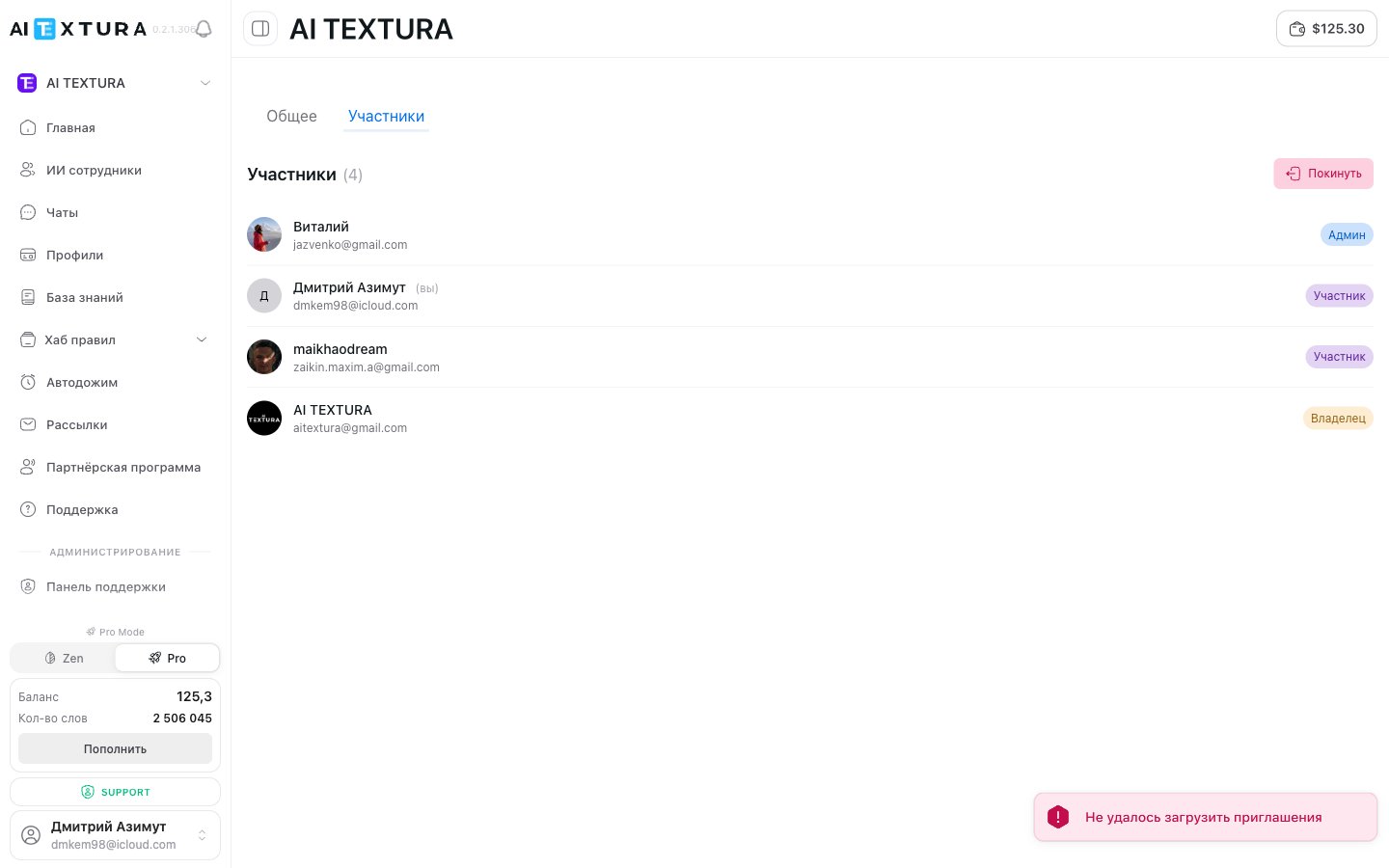
- A list of all organization members with a role badge.
- A button to invite a new member (available to owners and admins).
- Member actions — changing a role or removing a member (available to owners and admins).
Roles
An organization has three roles with different levels of access.Each organization has exactly one owner. To transfer ownership, the current owner must promote another member to owner, after which they become an admin or can leave the organization.
Organization billing and balance
Each organization has a separate balance and a separate plan. Charges for the organization’s agents come from its own balance, not your personal one. What matters:- In the organization context, the
/billingpage shows the organization’s balance, available plans, and that organization’s purchase history. - Charge history (
/billing/words/history) is visible only in your personal account. For organizations, this breakdown is hidden in the current version — track usage with the summary metrics in Billing. - The owner and admins can top up the organization’s balance.
Inviting members
Available to owners and admins. The basic flow:1
Open the Members tab
/organization?tab=members in the context of the organization you need.2
Click the invite button
Enter the invitee’s email and choose a role (Admin or Member).
3
Send the invitation
The user receives a link by email. Once they accept, they appear in the member list.
Removing members and leaving an organization
- Leave organization (Member or Admin role) — a button on the members page or in settings. After you leave, you lose access to the organization’s agents and data; they stay with the organization.
- Remove member (Owner, Admin) — an action in the member list.
- Delete the entire organization — Owner only, in settings. All of the organization’s agents, chats, and profiles are permanently deleted.
FAQ
Can I have several organizations?
Can I have several organizations?
Yes, there’s no limit. All organizations are available in the context switcher, and you can switch in one click.
What happens if I leave an organization?
What happens if I leave an organization?
You lose access to its agents, chats, and settings. The agents and data themselves stay with the organization — they aren’t deleted. If you come back via an invitation, your access is restored.
Can I invite a user to an organization?
Can I invite a user to an organization?
Yes, but only owners and administrators can. Regular members don’t see this option.
Where can I see the organization's spending?
Where can I see the organization's spending?
How is a personal account different from an organization?
How is a personal account different from an organization?
A personal account is designed for a single user — it has its own balance, agents, and history. An organization is for a team: a shared pool of agents, a shared balance, member roles, and joint management.
Can I have personal and organization agents at the same time?
Can I have personal and organization agents at the same time?
Yes. The contexts are independent. Personal agents live in your personal account, organization agents in the organization. Use the switcher to move between them.
How do I transfer ownership of an organization to another user?
How do I transfer ownership of an organization to another user?
The current owner promotes the chosen member to Owner on the Members tab. After that, the former owner becomes an administrator or can leave the organization.
Can I use the same agent in my personal account and in an organization?
Can I use the same agent in my personal account and in an organization?
No — an agent is tied to one context. If you need “the same” agent in an organization, copy the Persona and Knowledge Base into a new agent created inside the organization.