AI Employees
Chats
Billing
Account Settings
Video walkthrough
Context: personal account vs organization
The dashboard shows a different set of data depending on the context you are in — a personal account or one of your organizations. The context is switched in the top menu (or via the organization selector in the sidebar).| Context | What the dashboard shows |
|---|---|
| Personal account | Employees, chats, and expenses tied to you personally |
| Organization | Aggregated data across all organization employees, the organization’s overall balance, team KPIs |

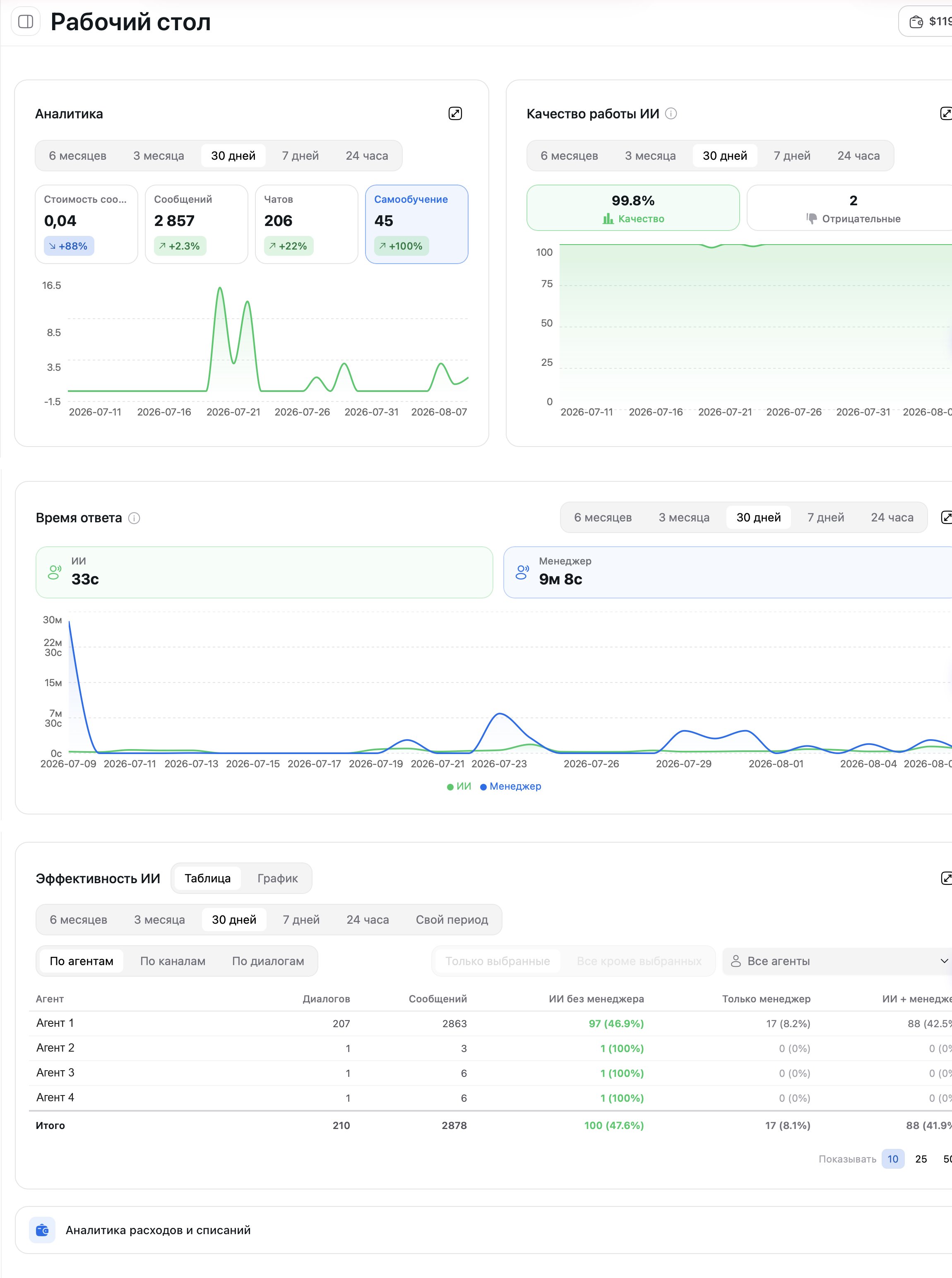
Analytics widget
The page’s main widget. The period switcher is on top, followed by metric cards and a line chart.Period switcher
| Period | What it shows |
|---|---|
| 6 months | Half-year summary (selected by default) |
| 3 months | Quarterly trends |
| 30 days | Monthly overview |
| 7 days | Weekly activity |
| 24 hours | Data for the last day |
Metric cards
Below the period switcher there are four clickable cards:| Metric | What it shows |
|---|---|
| Message cost | Total message cost in dollars for the selected period |
| Messages | Total number of messages processed by all employees |
| Chats | Number of unique dialogs |
| Self-Learning | Number of questions that landed in the FAQ / self-learning section |
Line chart
Below the cards is a line chart visualizing the selected metric over time. The horizontal axis shows dates, the vertical axis shows values. The chart automatically adapts to the selected period and metric.”AI Quality” widget
A separate widget that scores how well employees handle responses:- Quality % — overall quality indicator for the selected period.
- Negative — number of responses clients or managers marked as poor (including via thumbs down).
- Chart — quality dynamics over time.
”Response Time” widget
| Line | What it shows |
|---|---|
| AI | Average response time of the AI employee. Usually seconds (e.g., “9 s”) |
| Manager | Average response time of a human manager when they join the chat. Usually minutes or hours (e.g., “1 h 30 m”) |
”AI Efficiency” widget
An analytical widget with two display modes — Table and Chart — and three breakdowns:| Breakdown | What it shows |
|---|---|
| By employee | Effectiveness of each AI employee separately |
| By channel | Which channels (Telegram, Wazzup, Bitrix24, etc.) generate more load |
| By dialog | Distribution across specific chats |
- Employee
- Dialogs
- Messages
- AI without manager — dialogs where the AI handled it alone
- Manager only — dialogs where only a human replied
- AI + manager — mixed dialogs
”Spending and billing analytics” card
A separate card linking to the Billing History section — there you’ll see the detailed billing history per employee and channel, the organization balance, and top-ups.Balance and words
In the top-right corner of the screen (and in the sidebar), you can always see:- Balance — current account balance in dollars
- Word count — remaining word limit
- Top Up button — for quickly adding funds

How to use the dashboard
Check the context
Select a time period
Review the metric cards
Click a metric of interest
Cross-check with quality and response time
Review efficiency
FAQ
Is the dashboard data updated in real time?
Can I view analytics for a specific employee?
What does the percentage next to a metric mean?
Why is manager response time measured in hours and AI in seconds?
"Response Time" widget is empty — why?
I'm in my personal account, but the analytics is empty. Where did it go?