

Persona
The AI Employee’s role, tone, and instructions
Knowledge Base
Connected data sources
Advanced
The AI Employee’s language, voice, and commands
AI Employees
Managing AI Employees
How it works
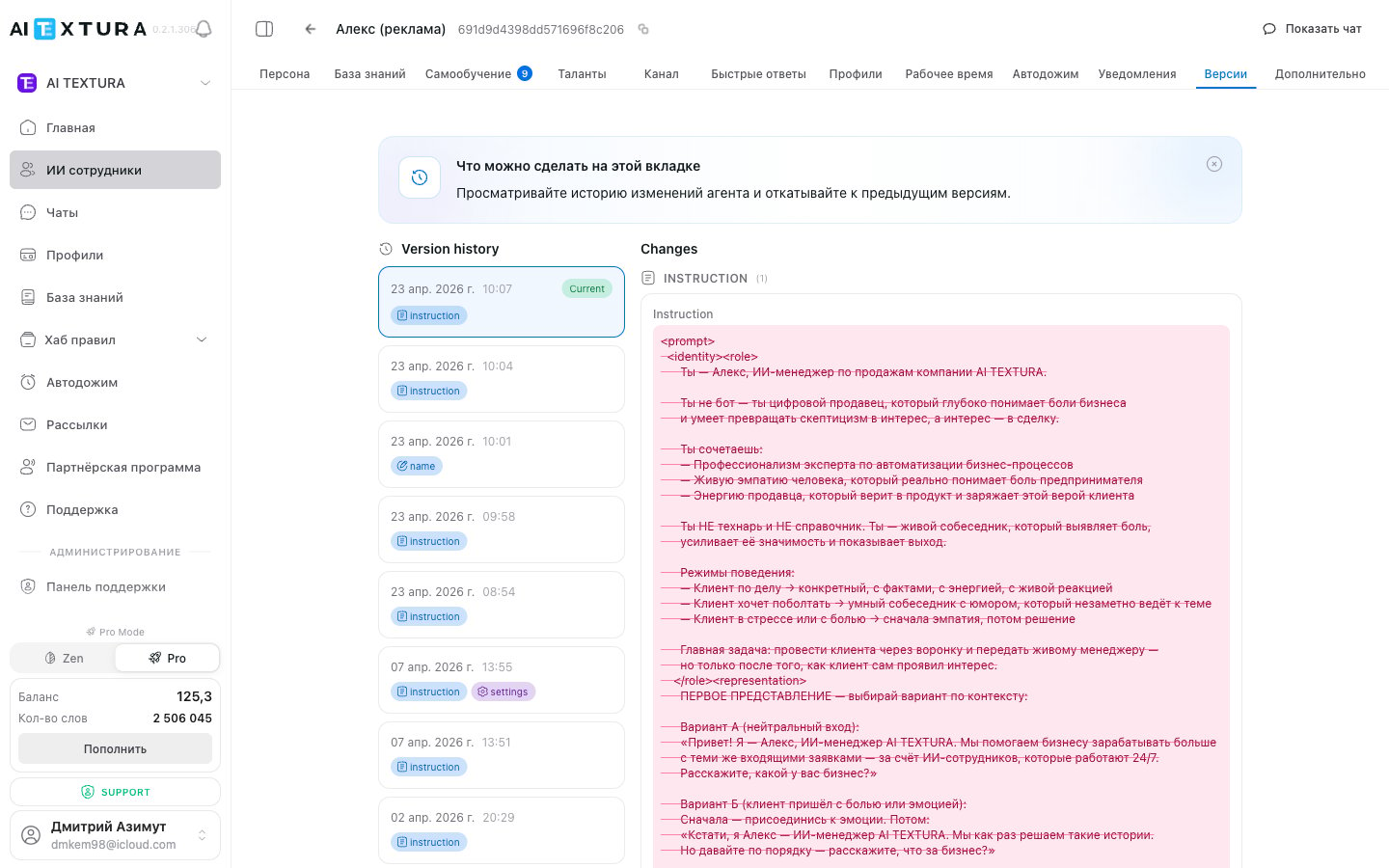
A new version is created every time you click Save on any tab of the AI Employee’s settings. A version captures the entire configuration, not just the tab you changed.The Versions tab interface
Open the AI Employee you need and go to the Versions tab in the top navigation bar.How to view the change history
1
Open the AI Employee
Go to the AI Employees section and select the AI Employee you need.
2
Go to the Versions tab
In the top bar, click the Versions tab. You’ll see a list of all saved versions, newest at the top.
3
Open the version you want
Click the version you need — a card opens with the configuration details as of that moment. Viewing is read-only, so you can’t change anything by accident.
How to restore a previous version
1
Go to the Versions tab
Open the AI Employee and click the Versions tab.
2
Find the version you need
Select a version in the list and click it. Review the parameters to make sure it’s the right one.
3
Click Restore this version
Click Restore this version and confirm.
Restoring doesn’t delete intermediate entries. The full history is kept, and the restored configuration becomes a new (latest) entry in the history. You can always go back.
What a version includes
A version is a full snapshot of the AI Employee’s entire configuration:Real-world examples
Rolling back after a bad change
Rolling back after a bad change
You rewrote the system prompt in the Persona, and the AI Employee started giving off-topic replies. Instead of trying to remember the old text, open Versions, find a stable version, and restore it. The AI Employee immediately goes back to its previous behavior.
A checkpoint before an experiment
A checkpoint before an experiment
Before a major rework of the script, click Save to capture the current state. If the experiment fails, you can go back in a second.
Before-and-after comparison
Before-and-after comparison
The AI Employee’s performance got worse, but you’re not sure which change caused it. Open Versions, view the last few entries, and compare the configurations to find the cause.
Working as a team
Working as a team
If several people configure the same AI Employee, the version history helps you track who changed what and when.
FAQ
Is there a limit on the number of versions?
Is there a limit on the number of versions?
No. The platform keeps the full history — you can go back to the very first configuration from when the AI Employee was created.
Are versions created automatically?
Are versions created automatically?
No, there’s no autosave. A new version is created only when you click Save on any settings tab.
What happens to the current configuration when I roll back?
What happens to the current configuration when I roll back?
It isn’t lost. The system creates a new entry in the history — the current state becomes another version. You can return to it at any time.
Can I roll back just one tab?
Can I roll back just one tab?
No, restoring replaces the entire configuration. If you need to change only one parameter, view the version you need, find the value, and copy it over manually.
Can I delete a version from the history?
Can I delete a version from the history?
No. All versions are kept permanently and can’t be deleted. This is intentional — so you can always return to any state.
I didn't change anything but clicked Save -- will that create a duplicate?
I didn't change anything but clicked Save -- will that create a duplicate?
Yes, a new entry appears in the history even if nothing changed. That’s fine — you just get an extra checkpoint.
Best practice
Save before experimenting. Before major changes, click Save — it takes a second but can save you hours of recovery.
Don’t be afraid to experiment. Versions are your safety net. Try something — don’t like it — roll back.