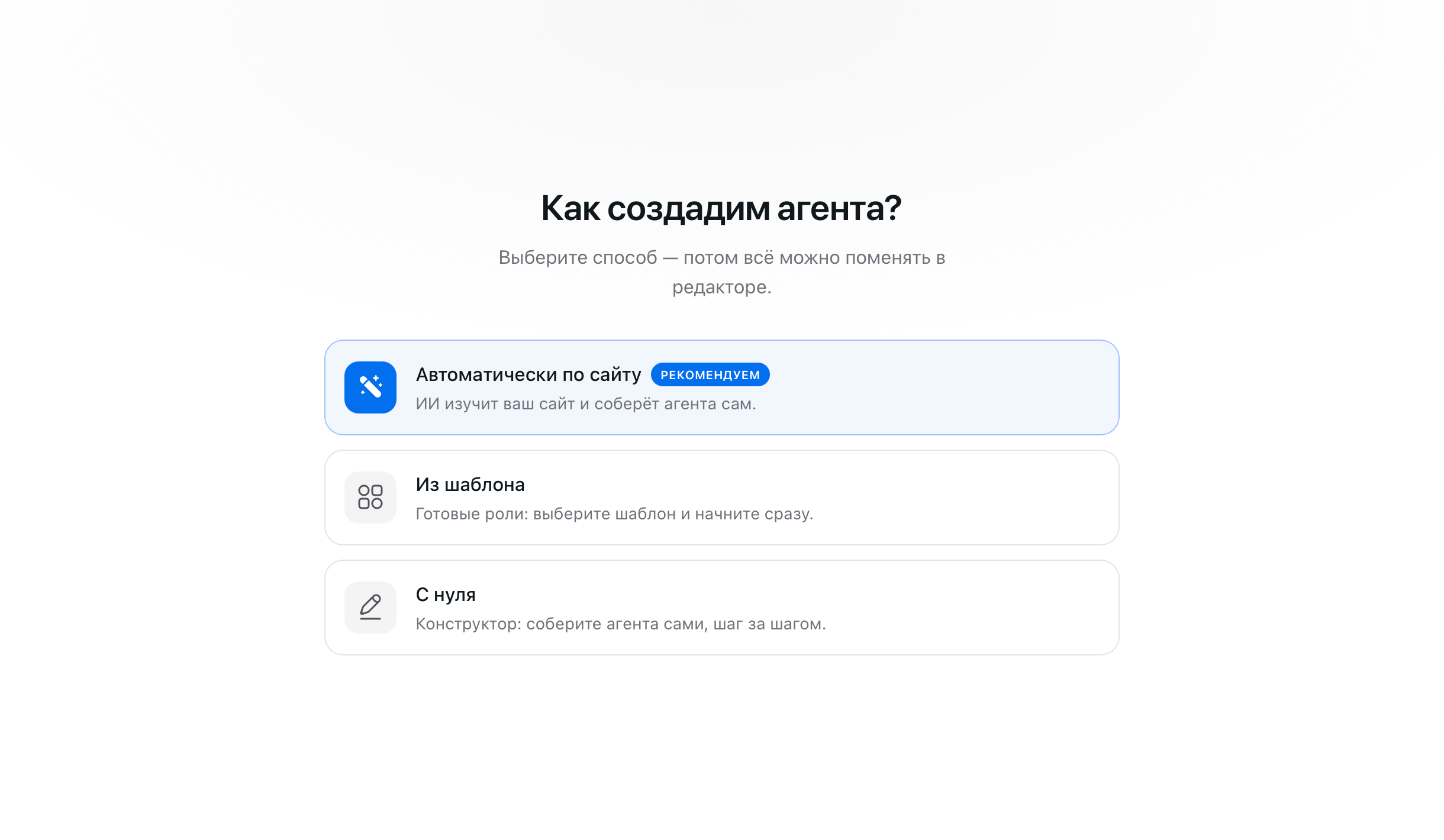
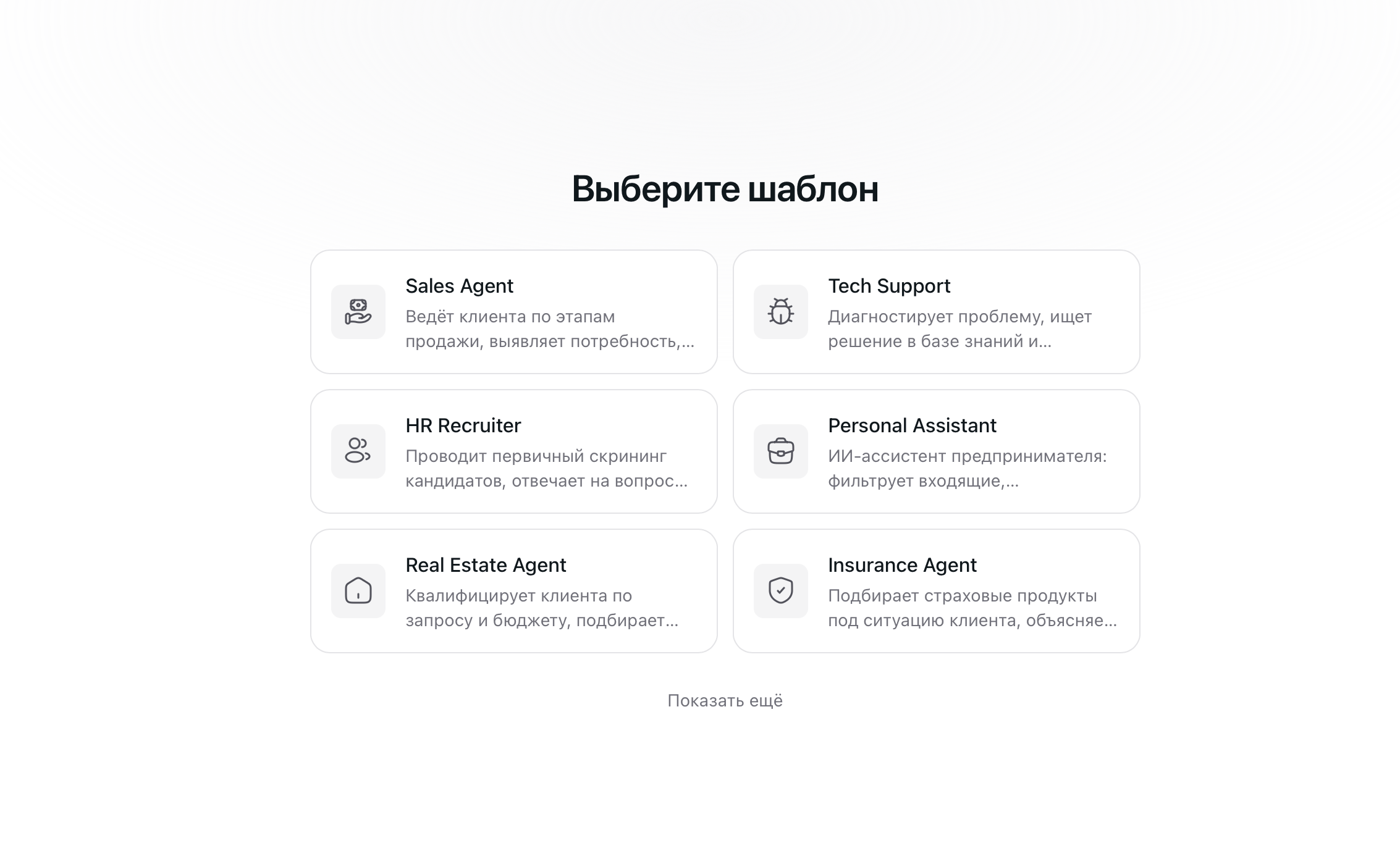
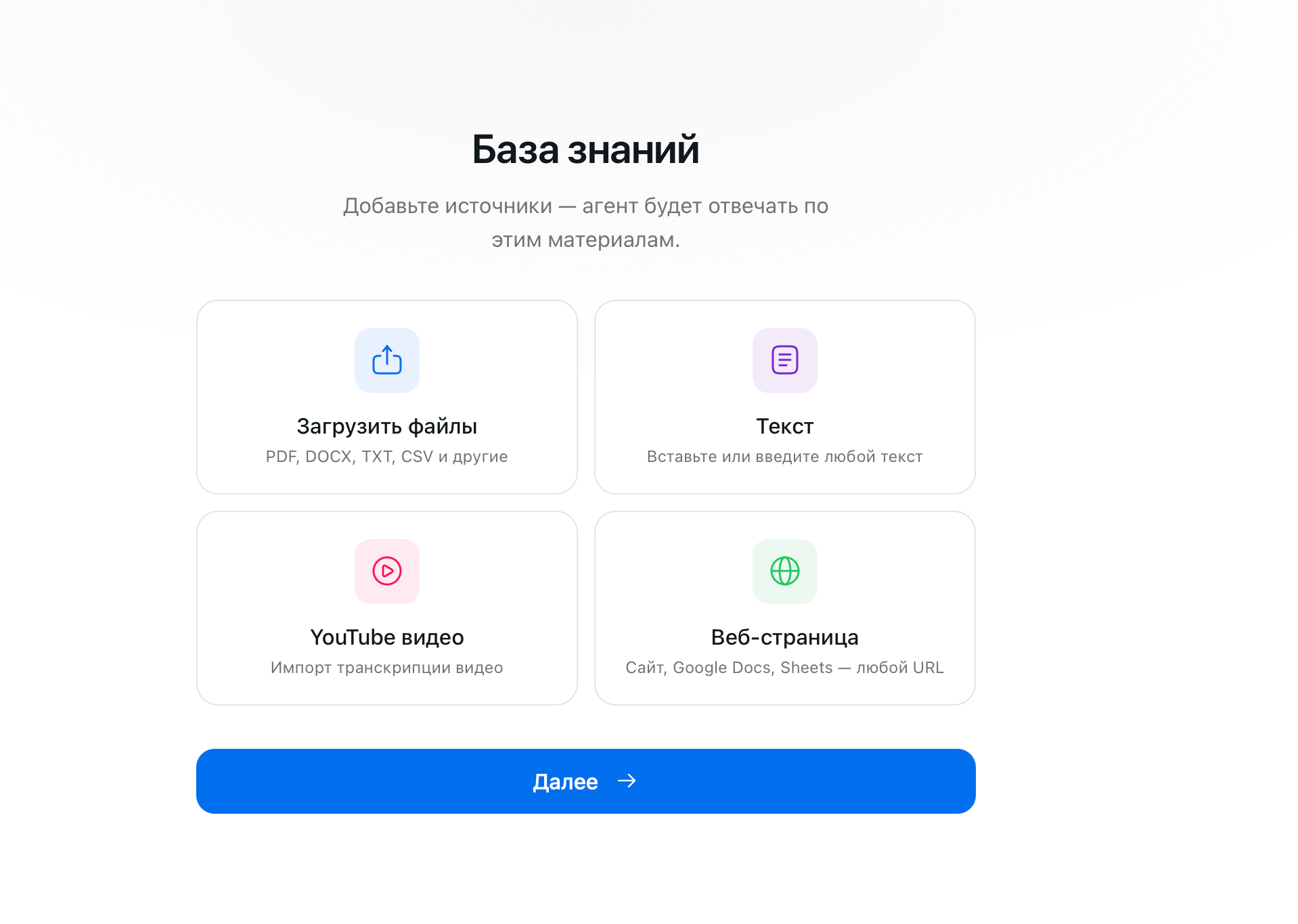
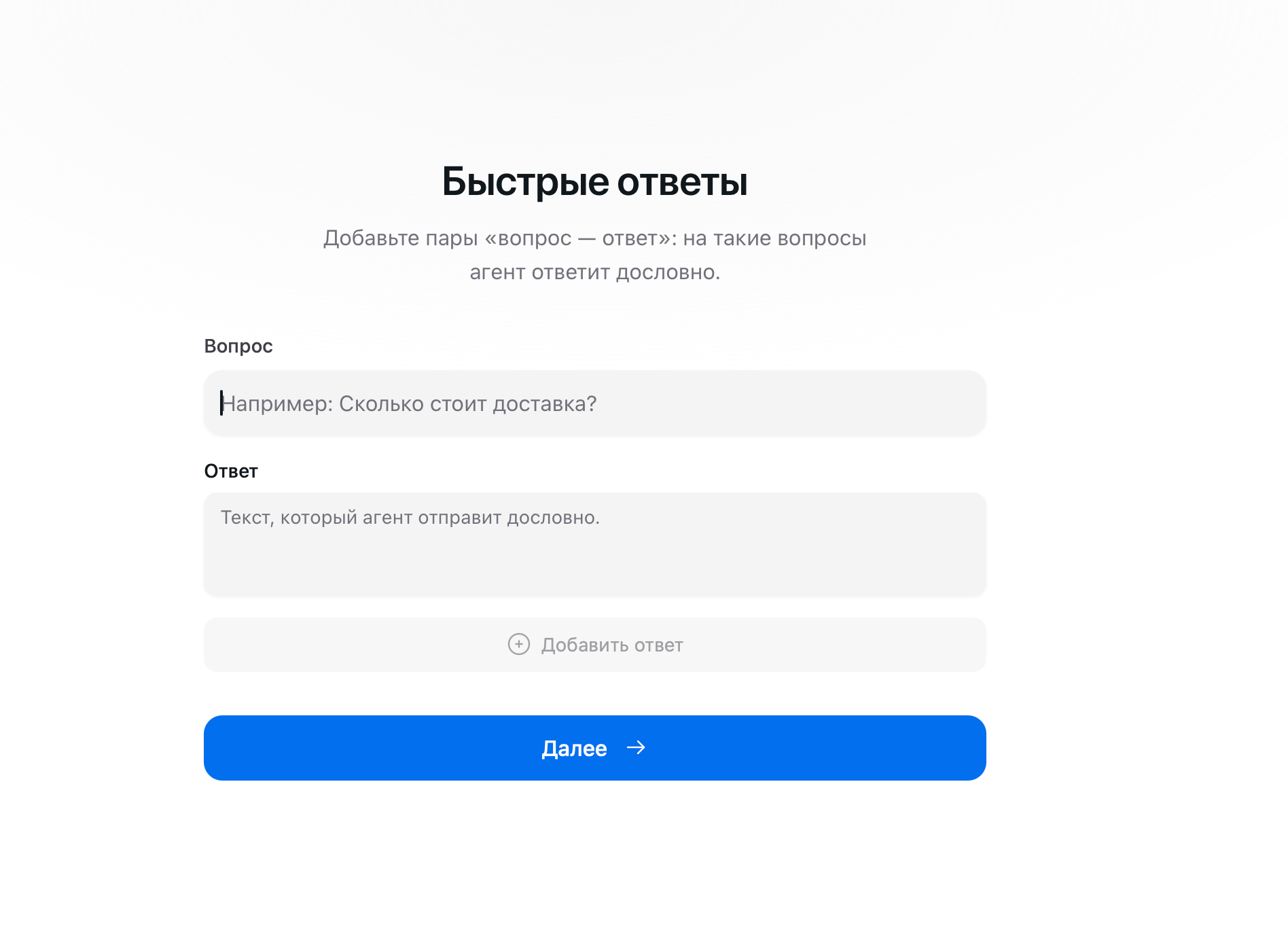
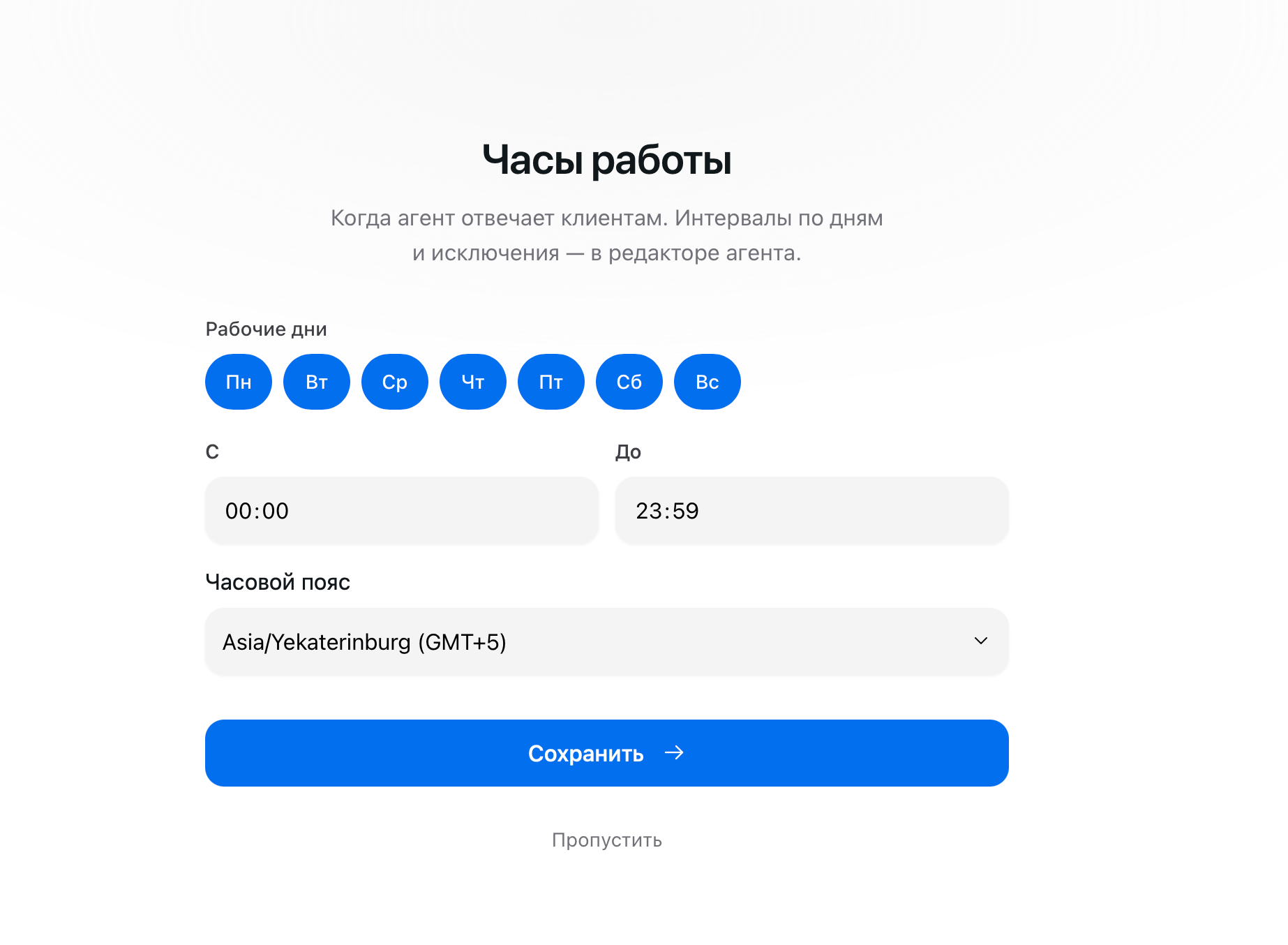
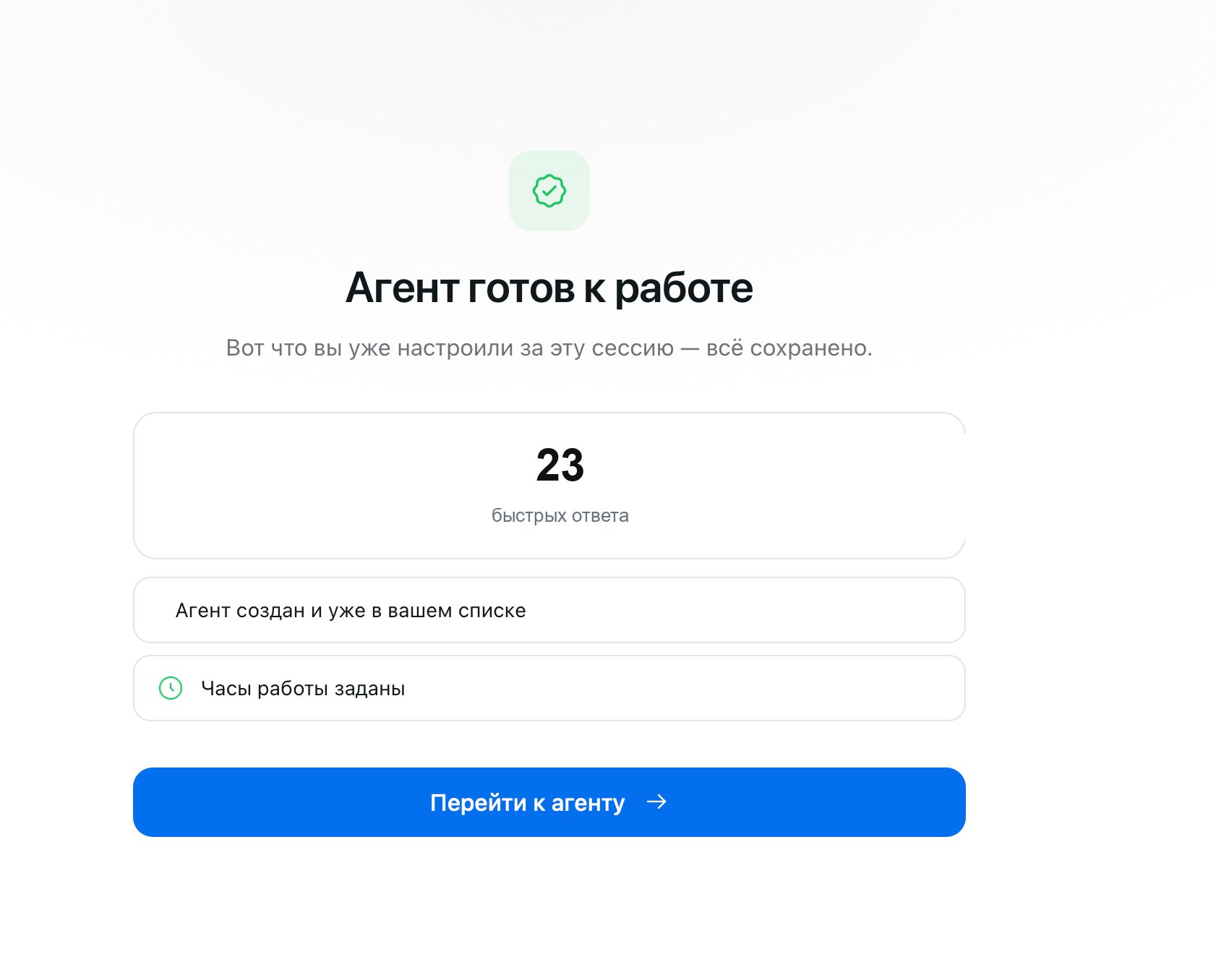
The five steps of the setup wizard: create an AI Employee, connect Telegram, upload knowledge, add Quick Answers, and set working hours.
You don’t need to study anything up front to get your AI Employee answering customers: the platform walks you through five steps and suggests the next action at each one. Below is the same path in words, from creating an agent to the first conversation in Telegram.
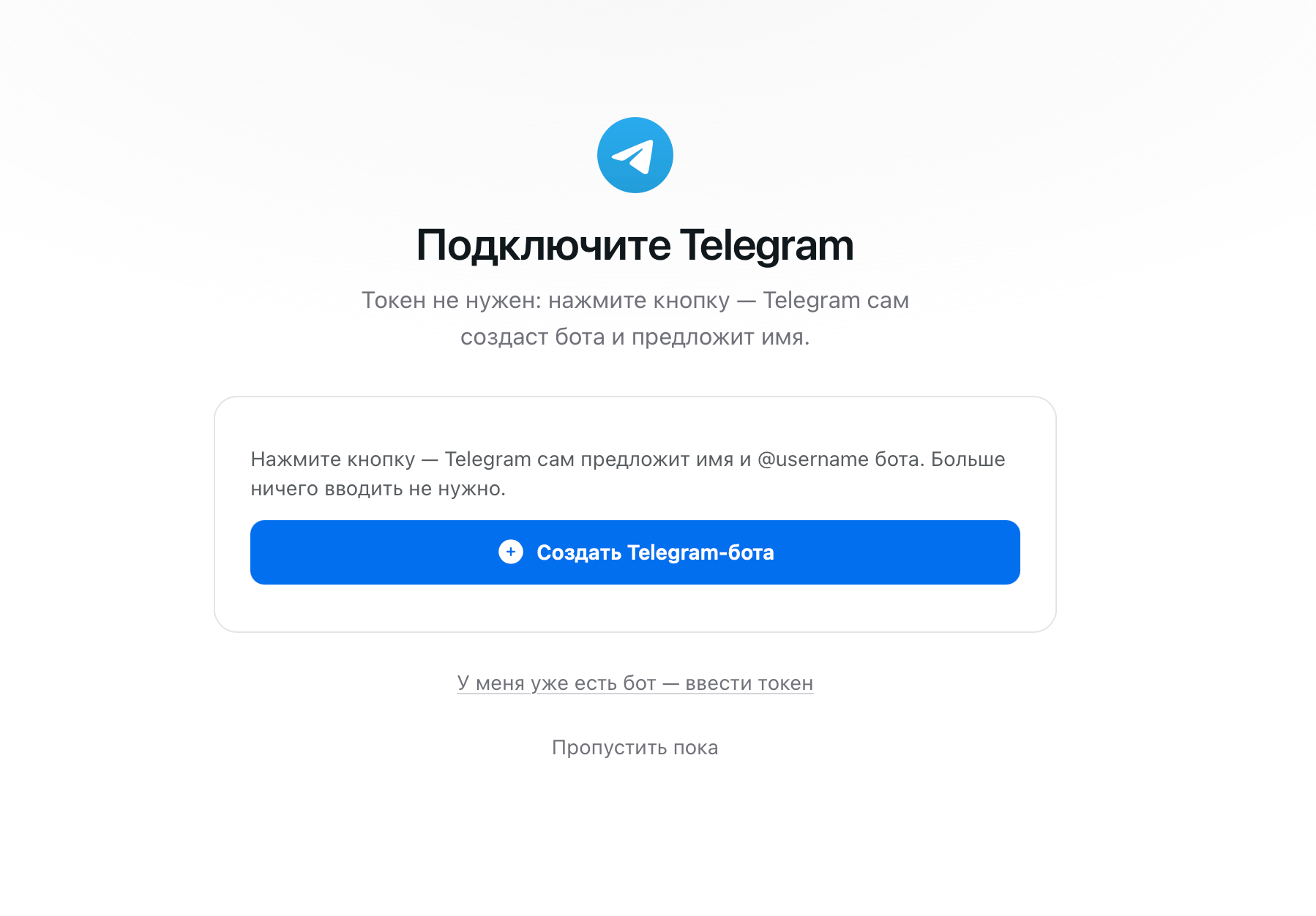
Right after creation, the platform offers your first channel — Telegram. You don’t need to enter a token.
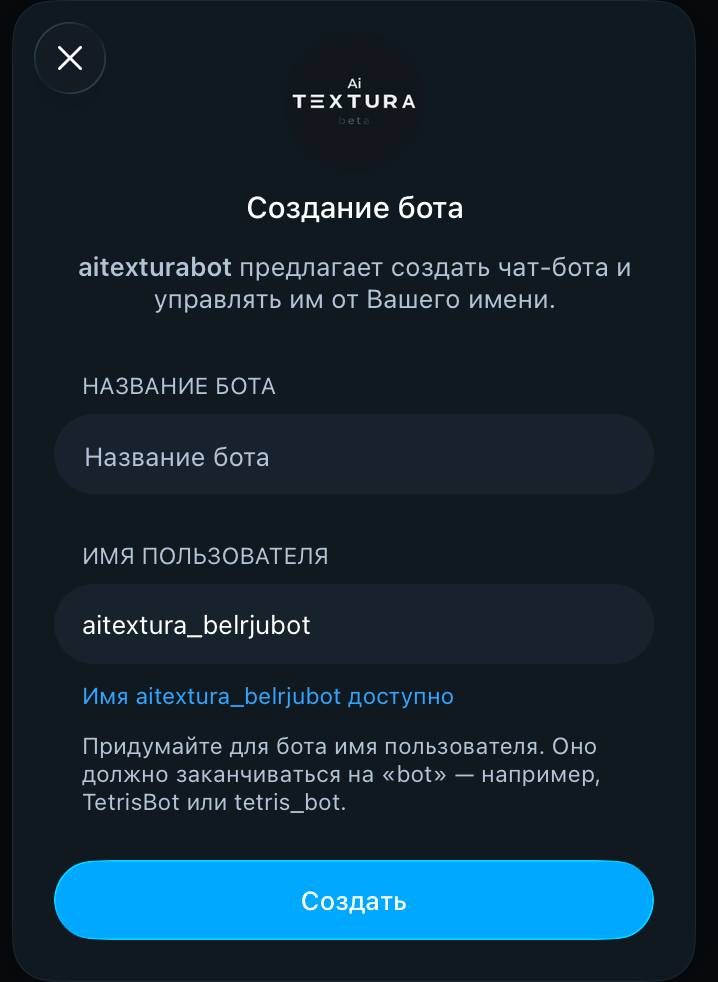
Click Create Telegram bot — Telegram opens with a bot creation window ready to go. Enter a name and a username (it must end in bot) and click Create. You set the bot’s picture and description there too, in Telegram.
This is the bot your customers will use to message your AI Employee. If you already have a bot, choose I already have a bot — enter token.Telegram is just the first channel. You can connect WhatsApp, Avito, VK, website chat, CRMs, and Ticket Systems later in Channels — your AI Employee answers in all of them at once.
Here you set question–answer pairs for the things customers ask most often. When such a question comes in, your AI Employee replies with your text word for word, without rephrasing.
The last step: when your AI Employee answers customers and when it stays silent.
Select the workdays, set the time range, and check the time zone — by default, your AI Employee works around the clock. You can set up breaks, holidays, and an out-of-hours auto-reply later in Working Hours.
The Go to agent button opens the editor — this is where all of your AI Employee’s settings live, along with a test chat where you can talk to it.
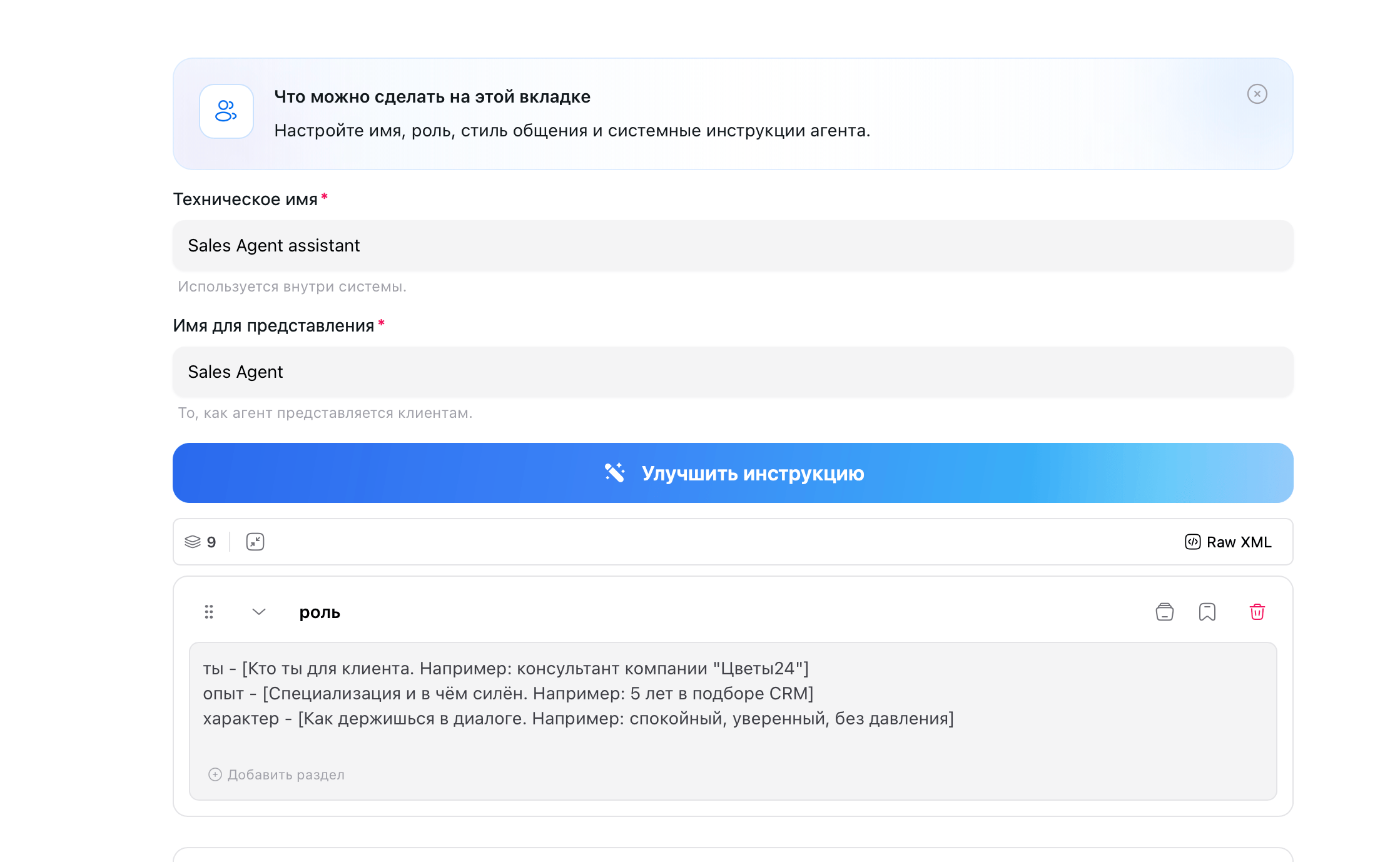
From here, work in a loop: message your AI Employee in the test chat as a customer, and if you don’t like the reply, click Improve instructions and describe in words what to change. The AI Employee rewrites the relevant blocks itself, and you check the result with your next message. Repeat until you’re happy with the replies.
After a few edits, click Clear history in the test chat: old replies and conversation memory throw the AI Employee off, and you can’t tell whether an edit helped.
That’s it — your AI Employee is ready: it answers in Telegram, using your materials, during your hours.