

Persona
Versions
Account Settings
Telegram
Video guide
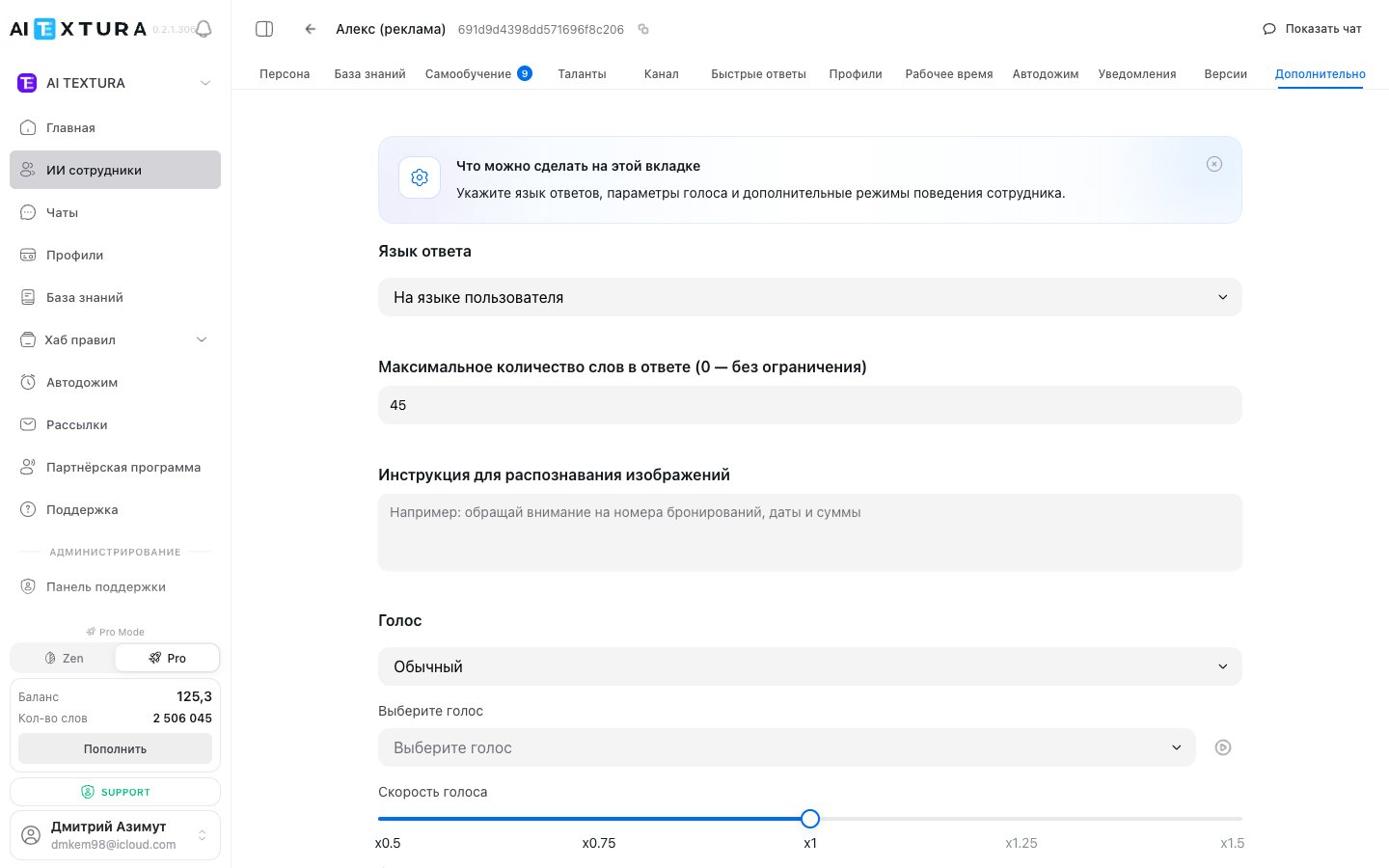
Reply language
A selector that defines which language the AI Employee uses to reply to customers.Reply word limit
A number field that limits the length of the AI Employee’s replies.Image recognition
Example instructions
Voice settings
A block of settings for voice replies. It lets the AI Employee reply with a voice message.Standard mode vs PRO
PRO voices (ElevenLabs)
PRO mode gives you the signature ElevenLabs voices:Connecting an ElevenLabs API key
The API key is set globally for the account, not per agent.Get an API key from ElevenLabs
Open /settings → Integrations
Paste the ElevenLabs key
Turn on PRO in the agent
Voice parameters
Agent commands
Service commands let you control the AI Employee right from the chat — without opening the dashboard. This is handy for managers who work in the same chat as the AI Employee.Full list of commands
How commands work
A manager types a command in the chat — the AI Employee recognizes it and performs the service action. The command isn’t sent to the customer — the system interprets it.Open /settings → General
Set the command text
Save and tell your managers
Behavior toggles
A set of settings that control how the agent automatically interacts with managers and responds to unusual situations.Jailbreak protection
Blocks prompt injection attempts — when a customer tries to make the agent “forget its instructions”, “break character”, or reveal a confidential prompt.Stop after manager reply
When on, the AI Employee pauses automatically as soon as a manager writes in the chat personally. This prevents the AI from “interrupting” a live specialist.Pause on bot messages
When on, the AI Employee ignores messages from other bots in the same chat (for example, a CRM chatbot doesn’t trigger the agent). This protects against “bot writes — bot replies — bot writes” loops.Auto-start after pause
The AI Employee automatically resumes work after a pause (10–20 minutes by default) — if the customer wrote and the manager didn’t respond.Conversation-end detection
The AI Employee analyzes the flow of the conversation and determines on its own when the conversation is over (the customer said goodbye, the issue is resolved). This affects how Auto Follow-up and Notifications work.Summary of all settings
FAQ
If I choose a specific language, will the AI Employee stop understanding other languages?
If I choose a specific language, will the AI Employee stop understanding other languages?
How are ElevenLabs PRO voices different from standard ones?
How are ElevenLabs PRO voices different from standard ones?
Where do I get an ElevenLabs API key?
Where do I get an ElevenLabs API key?
Does voice work only in Telegram?
Does voice work only in Telegram?
How does Jailbreak protection work?
How does Jailbreak protection work?
Where are agent commands stored?
Where are agent commands stored?
What happens if I send the Clear memory command?
What happens if I send the Clear memory command?
A customer typed a command by accident -- what should I do?
A customer typed a command by accident -- what should I do?
What is Auto-start after pause?
What is Auto-start after pause?
Do I have to fill in every field in Advanced?
Do I have to fill in every field in Advanced?
How do I get the AI Employee to send photos, videos, or PDFs
How do I get the AI Employee to send photos, videos, or PDFs
.jpg, .pdf, or .mp4. Then describe the condition in the Persona or create a Quick Answer: “If asked about the banquet menu, send the link …”.The customer gets a link instead of a photo
The customer gets a link instead of a photo
Can the AI Employee make and receive calls
Can the AI Employee make and receive calls