Notification system for AI Textura employees: delivery channels (Telegram, webhooks, Bitrix24), triggers, firing conditions, actions, and integration with other platform sections.
Notifications are an alert system that informs you about important events in your AI employee’s conversations. A customer asked for a human, confirmed a booking, complained about service — you find out immediately, not hours later.In essence, notifications bridge automated AI work and your personal involvement. The employee handles routine, but in critical situations it passes the baton to you.
Quick Answers
Automated reactions with an optional notification
Working Hours
Triggers fire outside working hours too
Persona
Configure escalation behavior
Channels
Notifications work across all connected channels
Without configured notifications, the AI employee works “in silence”: it replies to clients, but you don’t know when to step in. That’s fine for testing, but risky in production.
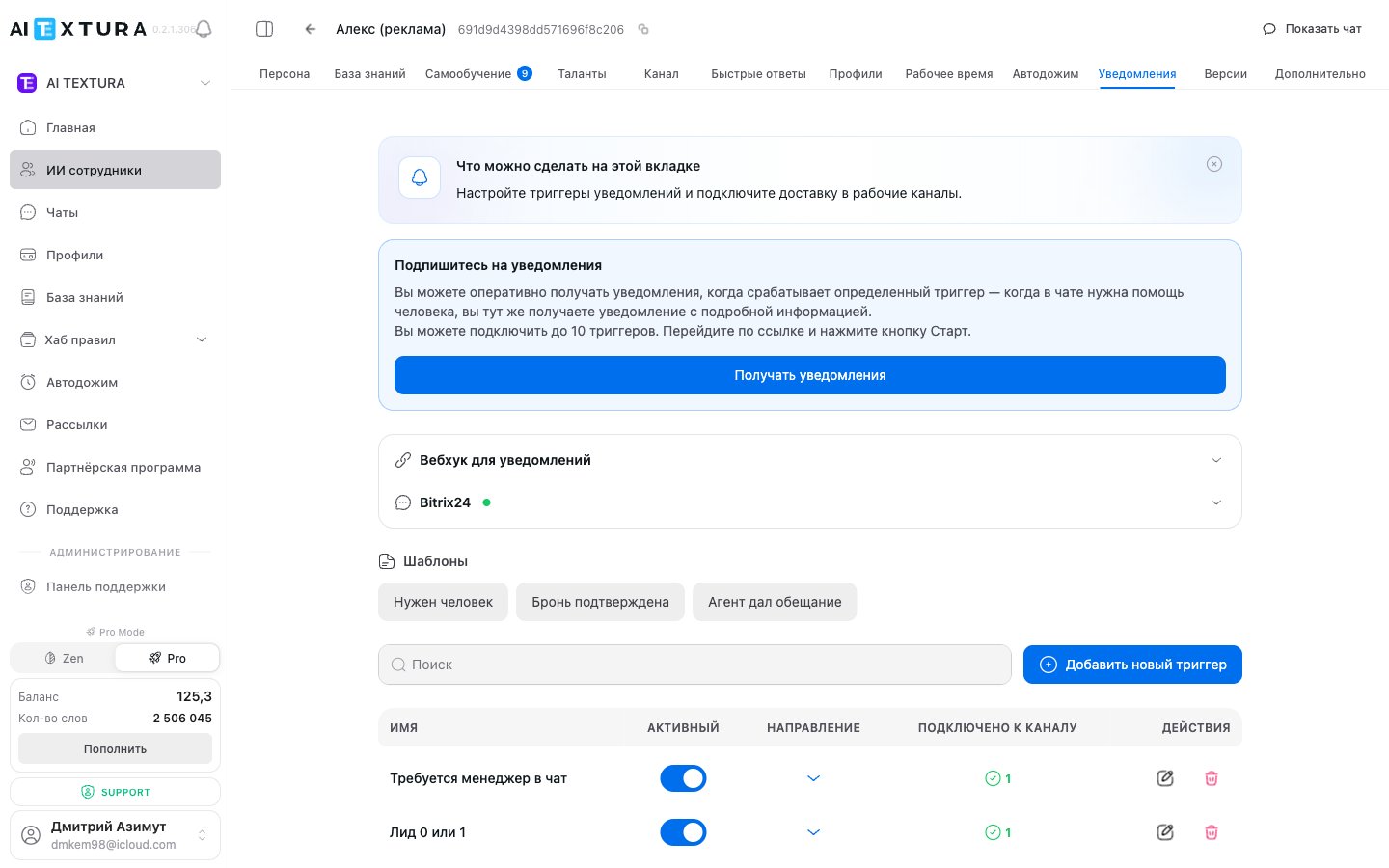
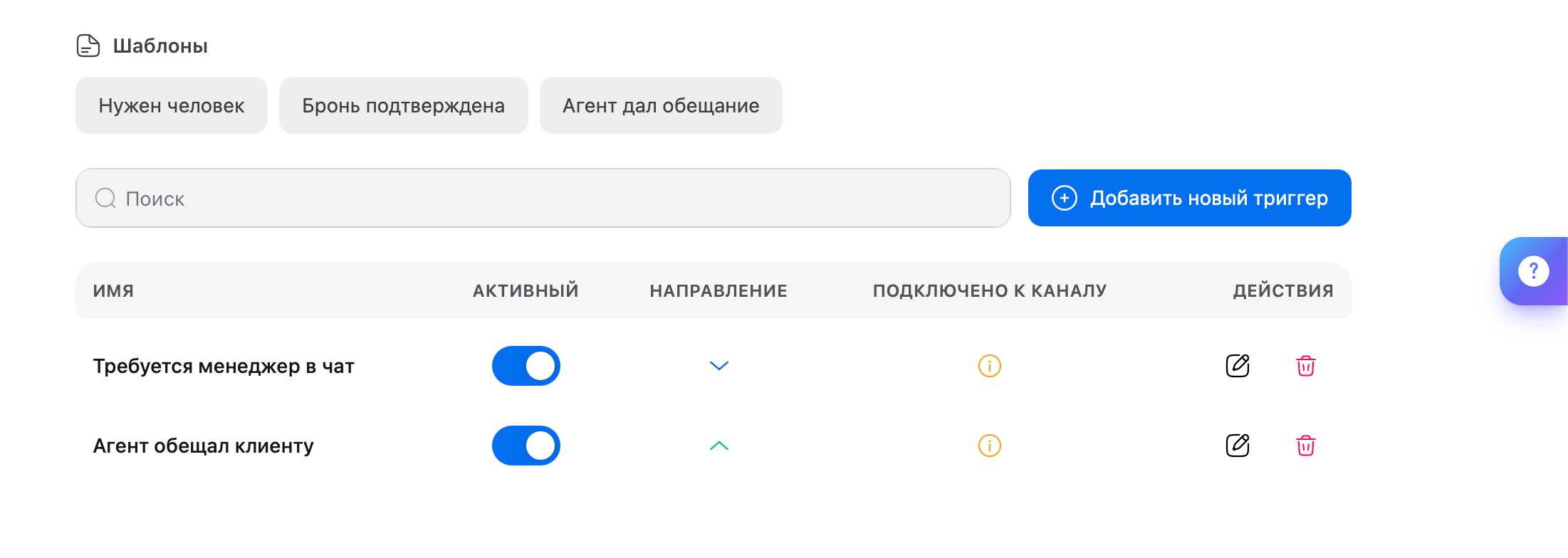
Trigger quick-create templates — “Need a human”, “Booking confirmed”, “Agent made a promise”
Trigger list — up to 10 active triggers per agent (Name, Active, Direction, Connected channel, Actions)
Add new trigger button — opens the full form
Limit — up to 10 triggers per agent. If you need more notifications, revisit the wording: several narrow triggers can often be merged into one with a more general condition.
A webhook is a URL where the system sends data about a triggered event as an HTTP POST request. Suitable for integrating with CRMs, Slack, Notion, Google Sheets, and any service that accepts webhooks.
1
Expand the 'Notification webhook' block
Find the corresponding block on the Notifications tab.
2
Paste the URL
Enter your system’s URL in the webhook field.
3
Save
Each time a trigger fires, the system will send a POST request to the specified address with event data.
Webhooks pair well with automation platforms like Make (Integromat), n8n, or Zapier. For example: trigger fires → webhook goes to Make → a task is created in Trello and an email is sent to the manager.
In addition to Telegram and Webhook, notifications can be delivered straight into Bitrix24 — to a specific user or to a chat inside the portal. Convenient for teams that already work in Bitrix24 and don’t want a separate Telegram channel to watch.See the Routing notifications to Bitrix24 section below for details.
A trigger is a rule: “if a specific event happens in a chat — send a notification.” Without triggers, notifications won’t fire even if you’ve subscribed to the channel.
The platform provides three ready-made templates for one-click trigger creation. Each template creates a trigger with default conditions and parameters — use as-is or refine.
Template
When it fires
Need a human
The client asks to be connected to a live operator, manager, or administrator — the main escalation template
Booking confirmed
The client confirmed a booking, order, or appointment — capture the fact
Agent made a promise
During the conversation, the agent promised something to the client (callback, send data, check with manager) — the manager should follow through
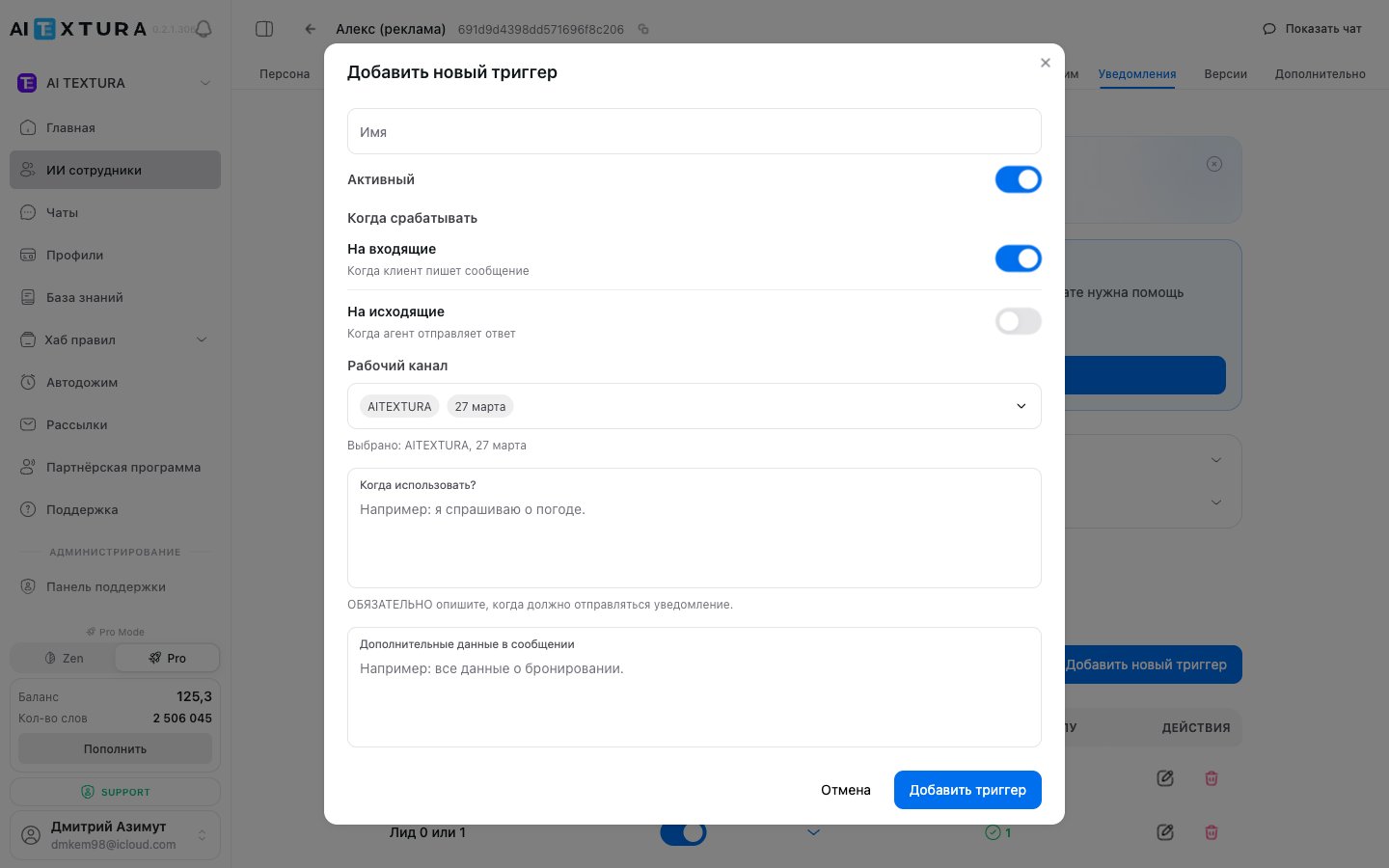
This is the key parameter that determines what the trigger inspects.
Mode
What is checked
Typical scenarios
On incoming
A message from the client
”Client asks for a human”, “Client complains”, “Client asks for a refund”
On outgoing
A message from the agent
”Agent promised a callback”, “Agent quoted a price”, “Agent confirmed a booking”
The “Need a human” and “Booking confirmed” templates work on incoming (the trigger fires on the client’s message). The “Agent made a promise” template works on outgoing (the trigger fires when the agent itself wrote something to the client).
The condition is not keywords or exact phrases. It’s a natural-language description of a situation that the AI evaluates by meaning.
Describe the situation as you would explain it to a new hire: “If the client says they want a refund, asks about the return process, or complains the product didn’t suit them — let me know.” That’s exactly how the AI evaluates the condition.
Good example:
The client expresses strong dissatisfaction, complains about service quality, or threatens to leave a negative review
Bad example:
complaint
The more detail you put into the description, the more accurately the trigger fires. Too broad — false positives. Too narrow — missed events.
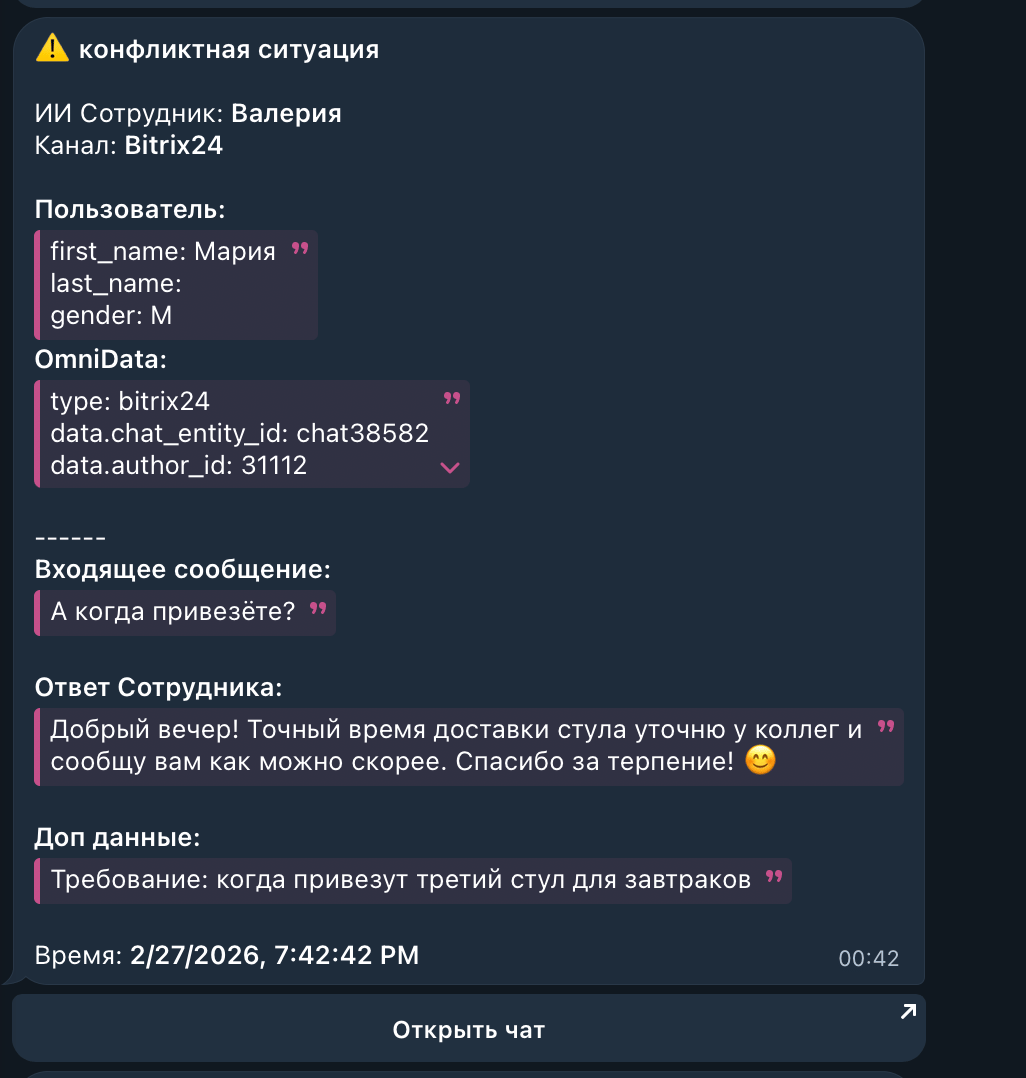
This field defines what information the system attaches to the notification. Without it, you’ll only know the trigger fired — without context.What you can request:
Client name
Summary of the question or complaint
Dates, order numbers, specific details from the conversation
A brief dialogue summary
Example:
Client name, summary of the issue, and booking number if mentioned
In addition to sending a notification, a trigger pauses the chat. Two modes are available:
Pause mode
What happens
When to use
Regular pause
The agent stops for 10–20 minutes, then auto-resumes if the client writes and the manager hasn’t reacted
Informational triggers, soft escalation — the manager sees the alert, but if busy, the AI keeps the conversation going
Forced pause
The agent stops until manually resumed by the manager (via the interface) or the Start AI command is sent in the chat
Complaints, refunds, manager escalation — critical scenarios where the AI must not “interrupt”
For complaints, negativity, and refunds, use Forced pause — it prevents the AI from “hijacking” the conversation back from the manager 10–20 minutes later. For informational triggers (“booking confirmed”, “agent made a promise”), a Regular pause or none at all is enough.
Booking/order confirmation — for hotels, restaurants, services
VIP client — the client mentions a large budget or special requirements
Technical issue — the client reports something not working
Out-of-scope request — anything the agent can’t answer
Start with 2–3 triggers. Watch for a week: if you get too many notifications, narrow the conditions. If important events slip through, add or broaden triggers. Remember the limit — up to 10 active triggers per agent.
In addition to Telegram and Webhook, AI TEXTURA can deliver notifications straight into Bitrix24 — to a specific user or a chat inside the portal. Convenient for teams that already work in Bitrix24 and don’t want to maintain a separate Telegram channel.
The trigger is set to deliver to Bitrix24 (the corresponding delivery channel is selected in the trigger form)
On the agent’s Notifications tab
The Bitrix24 channel and the Bitrix24 talent are separate connections, but for notifications either one is enough (preferably the one configured with im/imbot/imopenlines). See Talents → Bitrix24.
On the Notifications tab, click Add new trigger (or open an existing one).
3
Select Bitrix24 as the delivery channel
In the trigger form, in the delivery block, choose Bitrix24 (in addition to Telegram and Webhook).
4
Specify the recipient
It can be a specific Bitrix24 user (by ID) or an open line / chat that should receive the notification.
5
Save and test
Run a test chat that should match the condition and verify the notification arrives in Bitrix24.
For teams that run all conversations inside Bitrix24 (CRM + Open Lines), routing notifications into the portal creates a single working surface — managers don’t have to switch apps.
Condition: The client says they have an urgent legal question, asks to speak with a lawyer, or describes a situation requiring immediate legal advice.Additional data: Client name, summary of the issue, contact details if provided.Action: Forced pause.
Hotel — booking confirmation
Condition: The client confirmed a booking, agreed to the terms, and is ready to check in.Additional data: Guest name, check-in and check-out dates, number of guests, selected room.Action: No pause.
Online school — refund request
Condition: The student asks for a course refund, complains the course wasn’t suitable, or asks about the refund process.Additional data: Student name, course name, reason for the refund.Action: Chat pause for 30 minutes.
E-commerce store — negative feedback
Condition: The client expresses strong dissatisfaction, threatens a negative review, or describes a serious order issue.Additional data: Client name, order number, summary of the problem.Action: Chat pause for 15 minutes.
Quick Answers handle routine situations automatically (sending the address, the schedule, etc.), while notification triggers bring a human into the loop for non-standard cases.Quick Answers also have a Send notification toggle — enable it for critical Quick Answers (for example, a complaint trigger).Tip: Use Quick Answers for routine situations and notification triggers for the non-standard ones.
Notifications + Working Hours
Triggers fire at any time, including outside Working Hours. A notification will arrive even at 3 AM if the client wrote then. That’s a plus — you won’t miss anything. But a chat pause overnight may be useless if no manager is on call.
Notifications + Persona (escalation)
In the Persona’s “Escalation” block, you can describe how the agent should behave before handing off to a human. For example: “If the client asks for a manager — say you are connecting them with a specialist and ask them to wait.” This works hand in hand with the “Need a human” trigger.
Yes. Use a webhook — enter your system’s URL. Webhooks can deliver to any service: CRM, email, messenger, spreadsheet.
Can I receive notifications via email?
Not directly. But via a webhook plus an automation platform (Make, n8n, Zapier), you can wire up email delivery in minutes.
How many triggers can I create?
The limit is up to 10 active triggers per employee. In practice, 3–5 cover the vast majority of scenarios. If you hit the limit, revisit the wording — several narrow triggers can often be merged into one with a more general condition.
What's the difference between 'On incoming' and 'On outgoing'?
On incoming — the trigger checks client messages (classic escalation: “client asked for a human”, “client complained”). On outgoing — the trigger checks agent messages (“agent promised a callback”, “agent quoted a price”). The “Agent made a promise” template is an “On outgoing” example.
What's the difference between a regular pause and a forced pause?
Regular pause — 10–20 minutes with auto-resume if the client writes and the manager hasn’t reacted. Forced pause — until manually resumed (through the interface) or the Start AI command is sent in the chat. Forced pause is needed for complaints, refunds, and escalation, so the AI doesn’t “hijack” the conversation back from the manager.
Can I send notifications to Bitrix24?
Yes. It’s the third delivery channel alongside Telegram and Webhook. Connect the Bitrix24 channel or talent with permissions to send messages (im, imbot, imopenlines), then select Bitrix24 in the trigger form. See Routing notifications to Bitrix24.
My trigger isn't firing — what should I do?
Check the firing condition. It’s likely too narrow or imprecisely described. Describe the situation in detail, in your own words — these aren’t keywords.
My trigger fires too often
Narrow the condition: add qualifications, exclusions, specifics. Instead of “the client asks a question”, write “the client asks a question that the agent can’t answer and explicitly expresses dissatisfaction”.
Are notifications delayed?
Notifications are sent almost instantly. If there’s a delay, check your internet connection or the webhook status.
Can I set up different notifications for different managers?
Via Telegram — no, all channel subscribers get the same alerts. Via webhook — yes: different triggers can send data to different URLs.
Do notifications consume tokens?
Trigger checks consume a minimal number of tokens — they won’t noticeably affect your budget.