

AI Employees
Advanced
Billing
Support
How to open settings
Open the profile menu
Select Settings
1. General settings
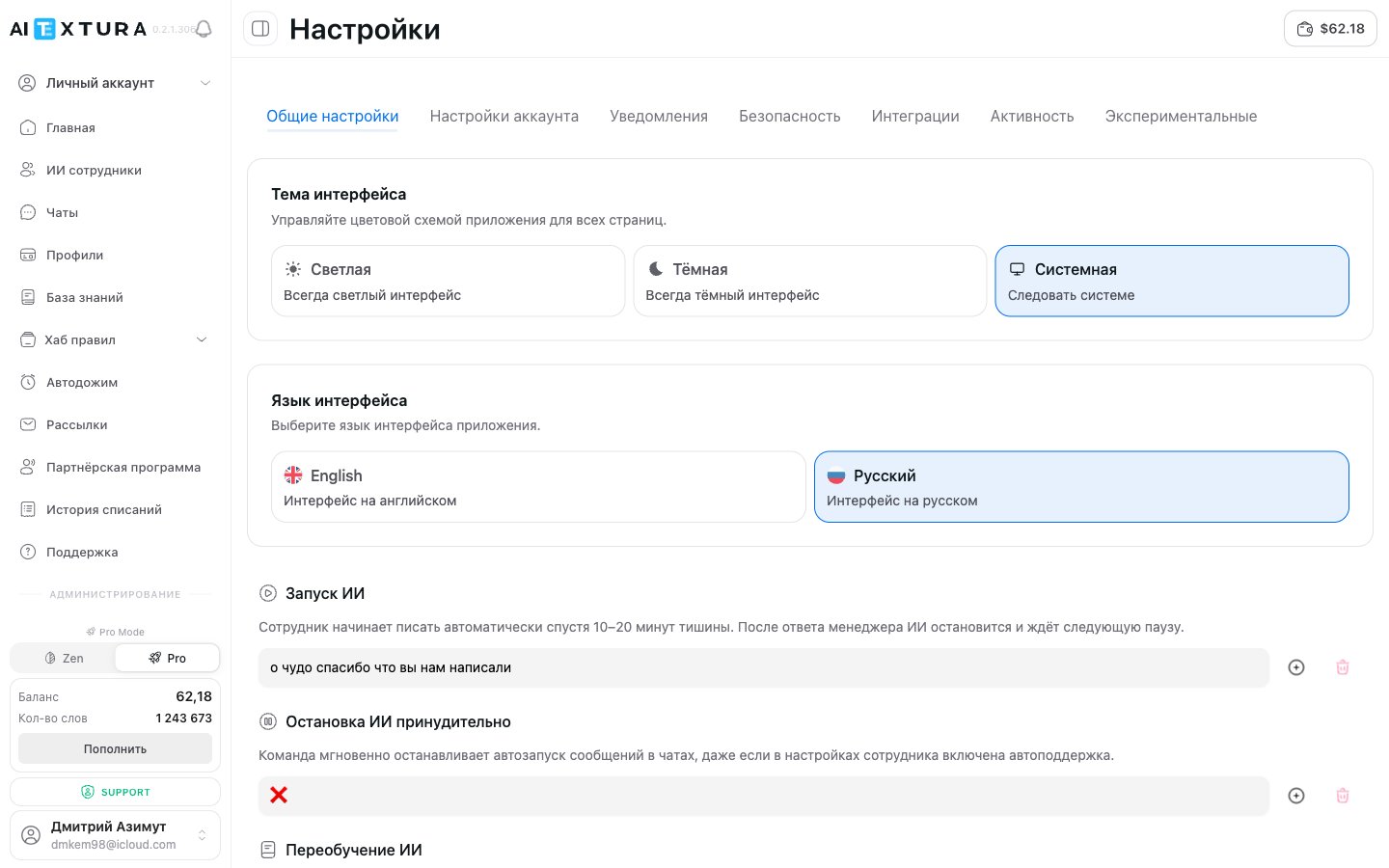
The first tab, which opens by default. It holds the platform’s appearance settings and global commands for controlling AI Employees.Interface theme
Control the app’s color scheme. The setting applies to all pages at once.Interface language
Choose the language the platform interface is displayed in.Agent commands
Global text commands you can send right into a chat with an AI Employee. Each command is a word, phrase, or set of emoji that triggers a specific action. You can change the command text to anything you like.2. Account Settings
This is where your personal details are stored. The information is used to identify you in the system and is shown in the interface — for example, in the sidebar and in support tickets.Profile fields
Changing your password
The same tab has a Change password button. Clicking it opens a form: enter your current password and your new password twice, then confirm.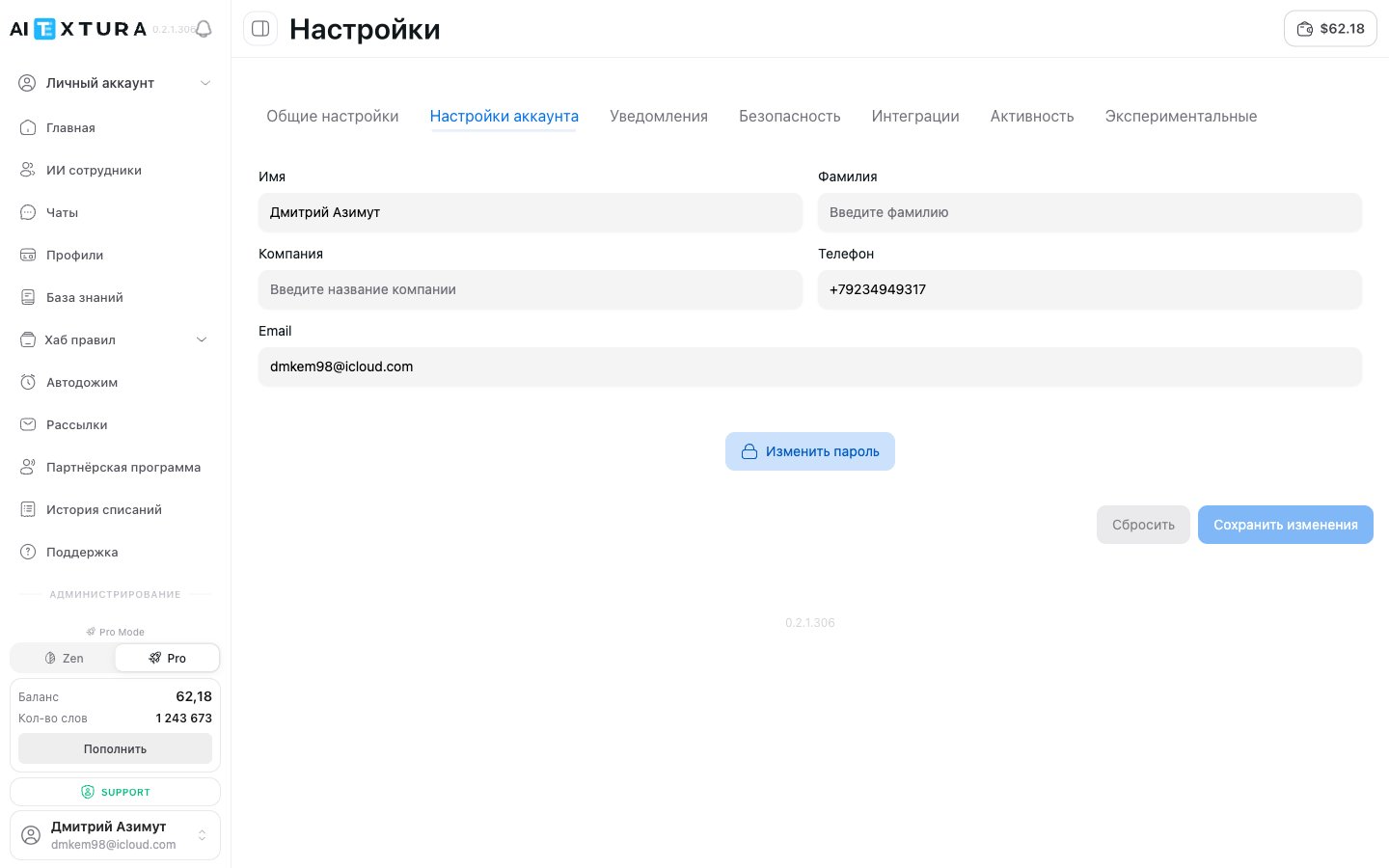
3. Notifications
General platform notification settings — manage delivery channels and alert categories at the account level.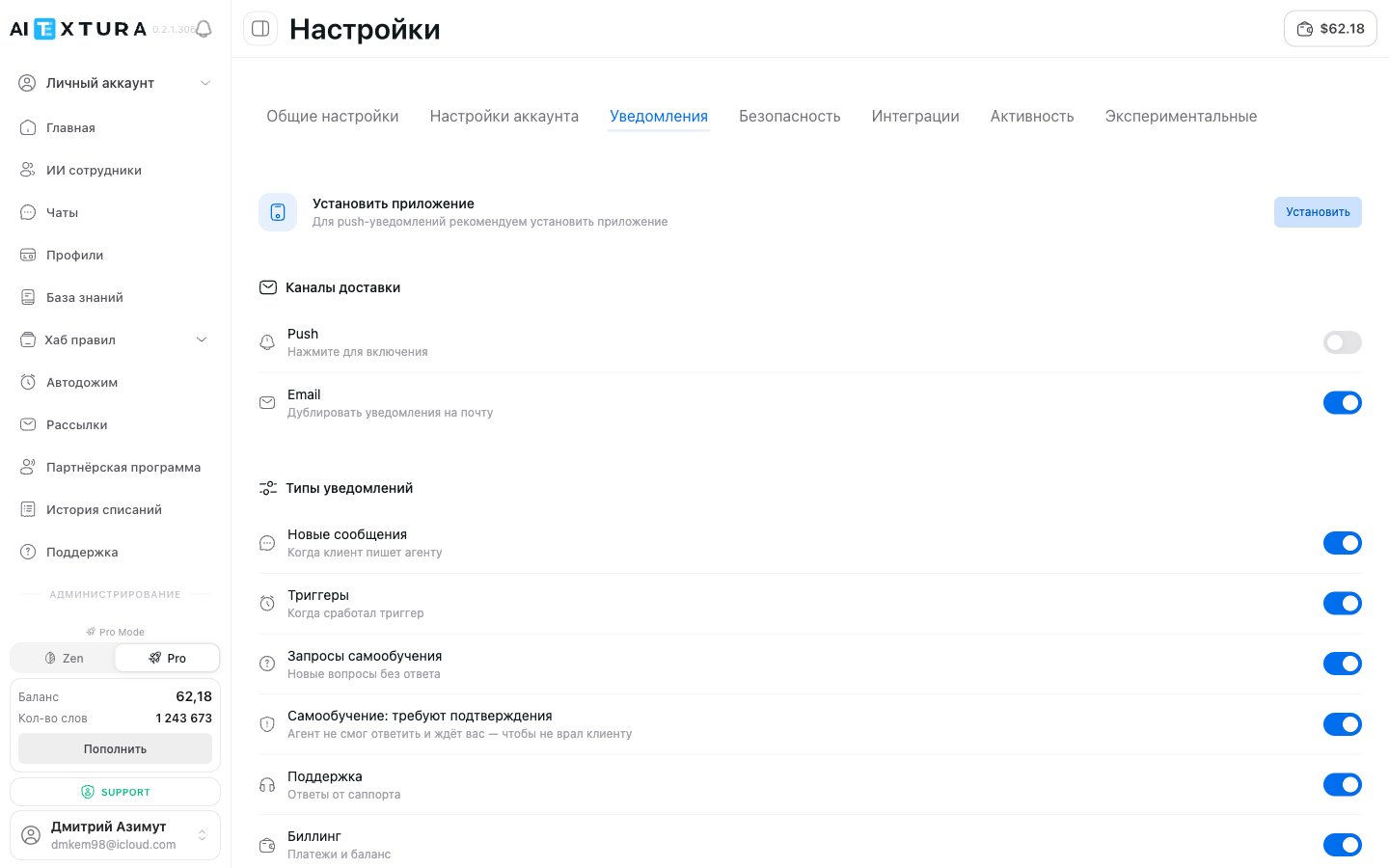
4. Security
The tab for keeping control of your account. It has three blocks: active sessions, two-factor authentication, and linked accounts.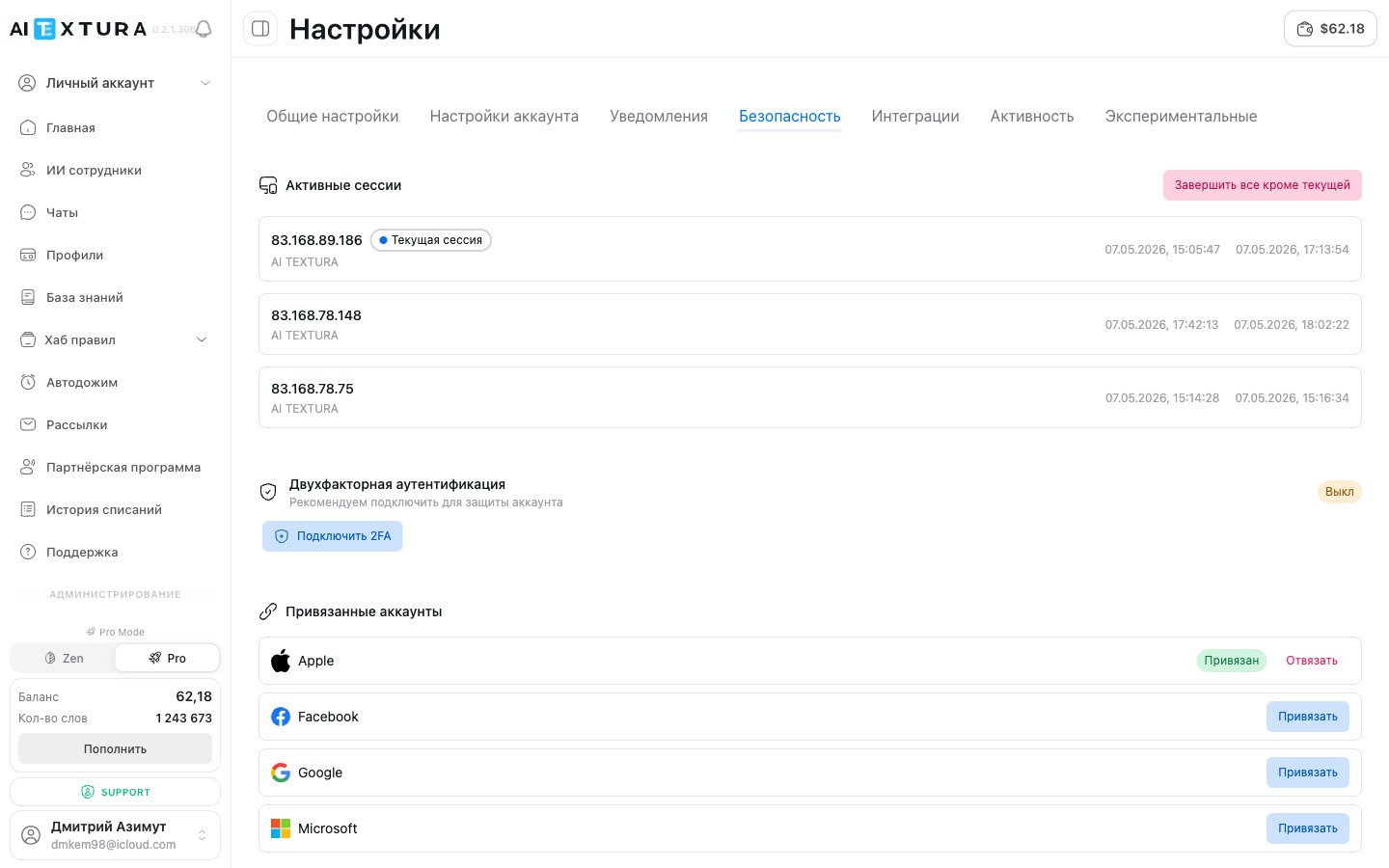
Active sessions
A list of all devices and browsers signed in to your account.Two-factor authentication (2FA)
An extra layer of protection. When you sign in, the system asks for a one-time code from an authenticator app (Google Authenticator, Authy, etc.).Click Enable 2FA
Scan the QR code
Enter the confirmation code
Linked accounts
Link external accounts for quick sign-in without a password. Four services are supported:5. Integrations
This tab is where you set up connections to external services that extend the platform’s capabilities.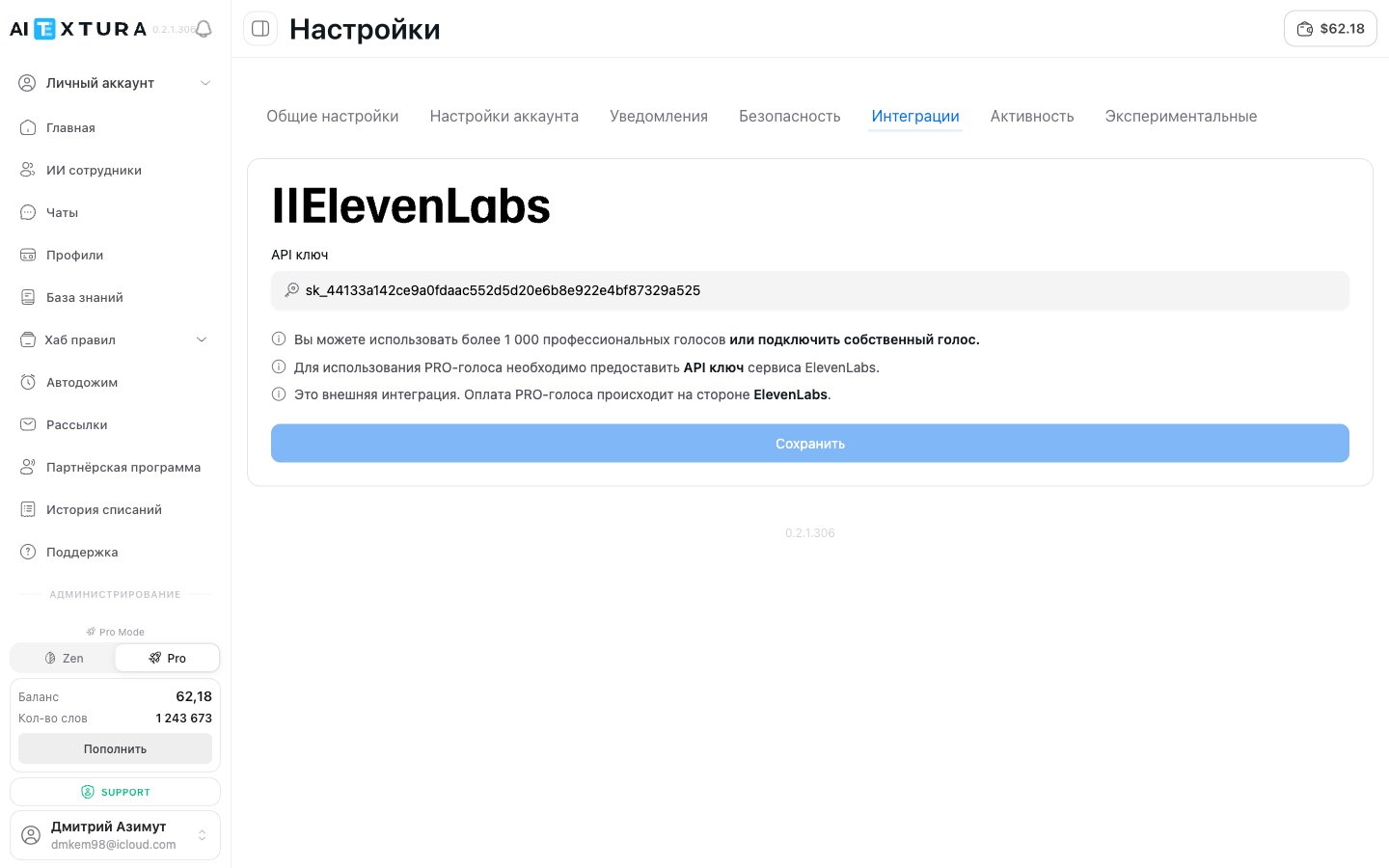
ElevenLabs API key
AI Textura supports PRO voices through an integration with ElevenLabs — over 1,000 professional voices, plus the option to connect your own voice.Get an API key
Open the Integrations tab
Paste the key and save
6. Activity
A log of actions in your account: sign-ins, settings changes, security events, adding and removing AI Employees, and connecting channels and talents.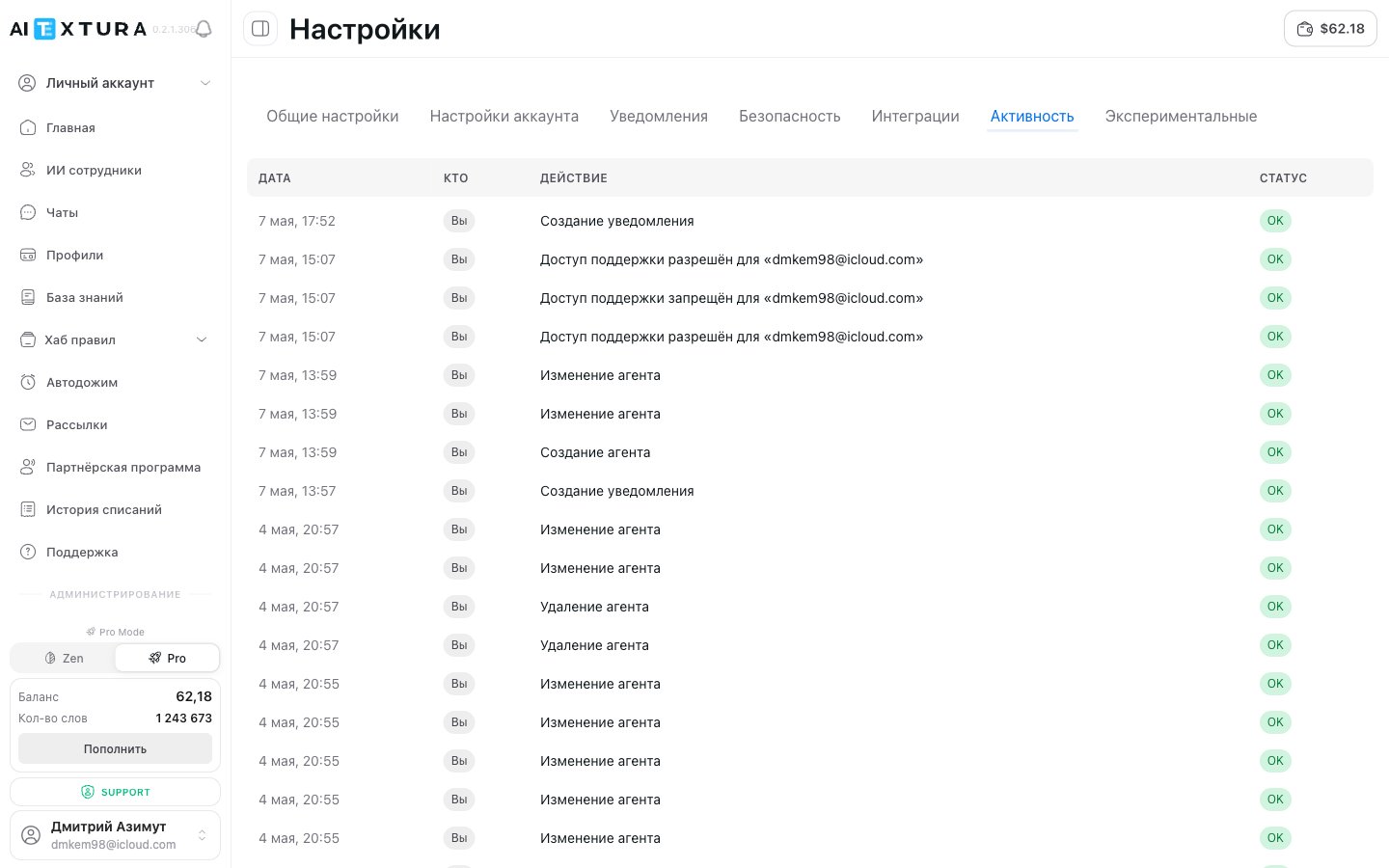
7. Experimental
Features being tested. They may be unstable or change in future updates, but you can try them now.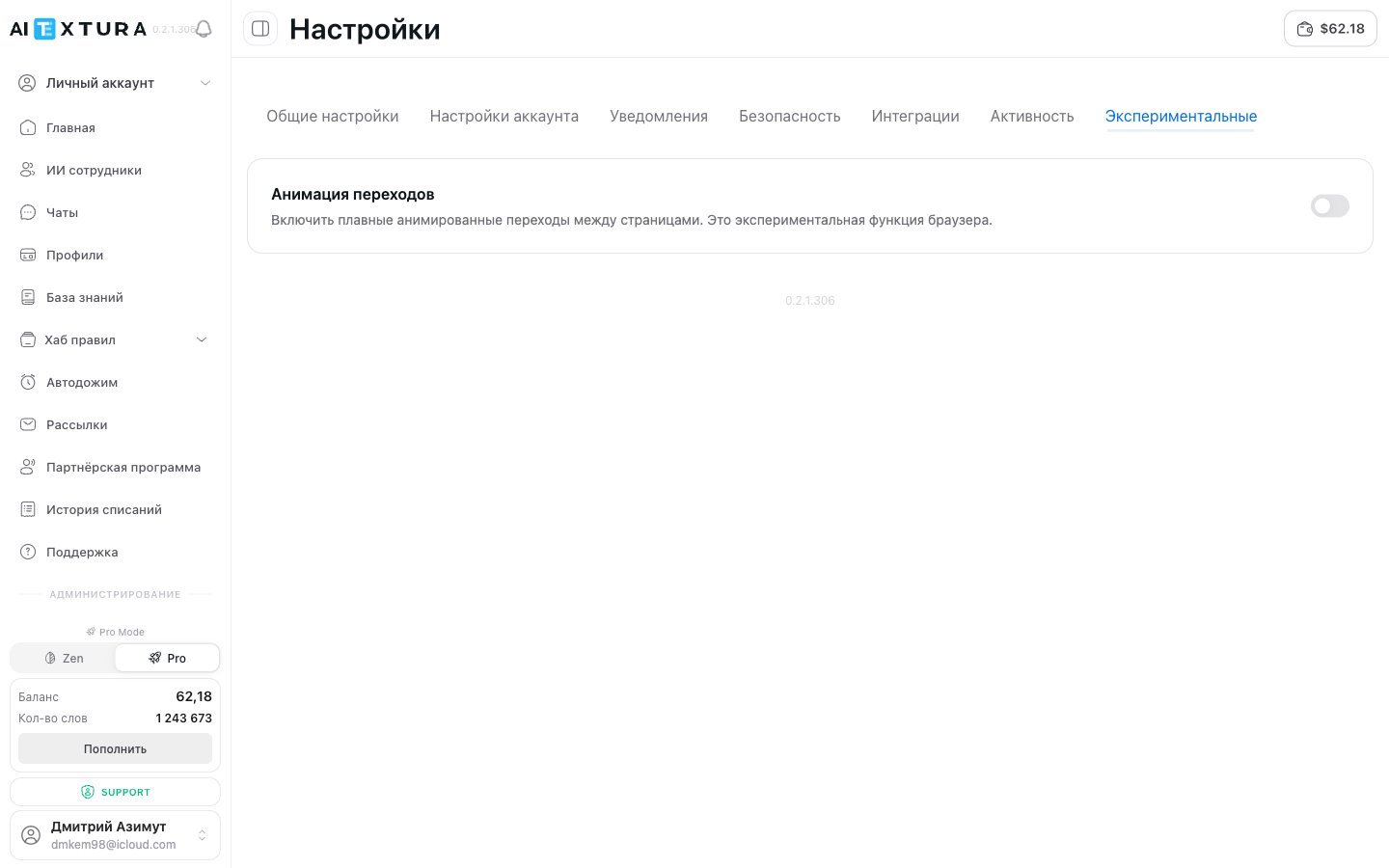
Transition animations
Turns on smooth animated transitions between platform pages. It’s an experimental browser feature — it makes navigation look smoother but may occasionally cause lag on low-end devices.FAQ
How do I open Account Settings?
How do I open Account Settings?
I changed my email but can't sign in with the new address
I changed my email but can't sign in with the new address
Can I use the platform without a password -- only through Apple/Google?
Can I use the platform without a password -- only through Apple/Google?
What should I do if I see an unfamiliar session?
What should I do if I see an unfamiliar session?
Why do I need an ElevenLabs API key?
Why do I need an ElevenLabs API key?
Do AI control commands work in all chats?
Do AI control commands work in all chats?
What happens if I send the retrain command?
What happens if I send the retrain command?
Are experimental features paid?
Are experimental features paid?
The password reset email doesn't arrive
The password reset email doesn't arrive
info@aitextura.com — check your Spam folder and make sure you’re looking in the inbox your account is registered to. You start a reset with the Forgot password? link on the sign-in page.The confirmation code for an email change takes a long time
The confirmation code for an email change takes a long time
The sign-in page doesn't load or gets stuck on the captcha
The sign-in page doesn't load or gets stuck on the captcha
I can't sign in -- I've tried different emails
I can't sign in -- I've tried different emails
What happens to customers' personal data, and what about Federal Law 152-FZ?
What happens to customers' personal data, and what about Federal Law 152-FZ?
I need a separate NDA
I need a separate NDA