

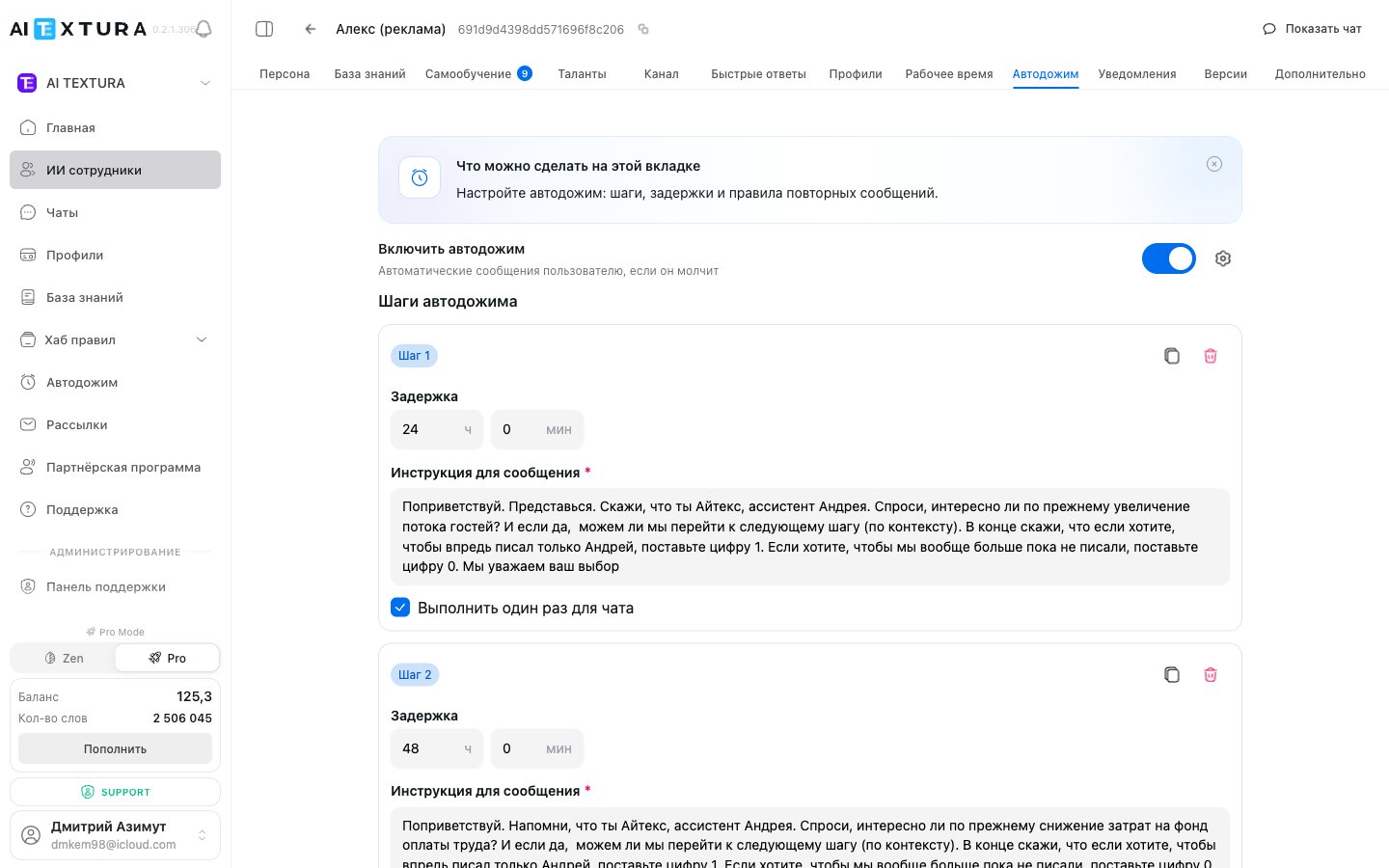
Auto Follow-up is also available globally as a separate
/followup section in the platform sidebar — a summary monitoring panel across all AI Employees at once (see “Monitoring panel” below). You set up chains on a specific AI Employee’s tab.Persona
Working Hours
Channels
Chats
Video guide
A short video: how to turn on Auto Follow-up, set up a chain of steps with delays, and let the AI create reminders on its own when a customer asks (“remind me in half an hour”, “call me back in an hour”).
Monitoring panel (left menu)
The Auto Follow-up section in the left menu is a single read-only panel that shows all chats with scheduled follow-up messages across all your AI Employees. You don’t set up chains here — you watch what’s already running.Search
The search bar at the top of the page reads “Search by name, employee, or customer”. You can search by:- customer name (for example, “Michael”)
- AI Employee name (for example, “Alex”)
- any keyword from the chat name
Filter by employee
Below the search bar is the All employees drop-down. By default, it shows chats for all AI Employees. Select a specific AI Employee to see only their chats.Chats table
The main part of the page is a table with two columns:
Each row is one active chat where the customer went silent and an automatic reminder is scheduled. Click a row to open the full conversation history.
This section shows only chats where Auto Follow-up is active. If an AI Employee has Auto Follow-up turned off, their chats won’t appear here.
Setting up Auto Follow-up (AI Employee tab)
Open the AI Employee you need and go to the Auto Follow-up tab.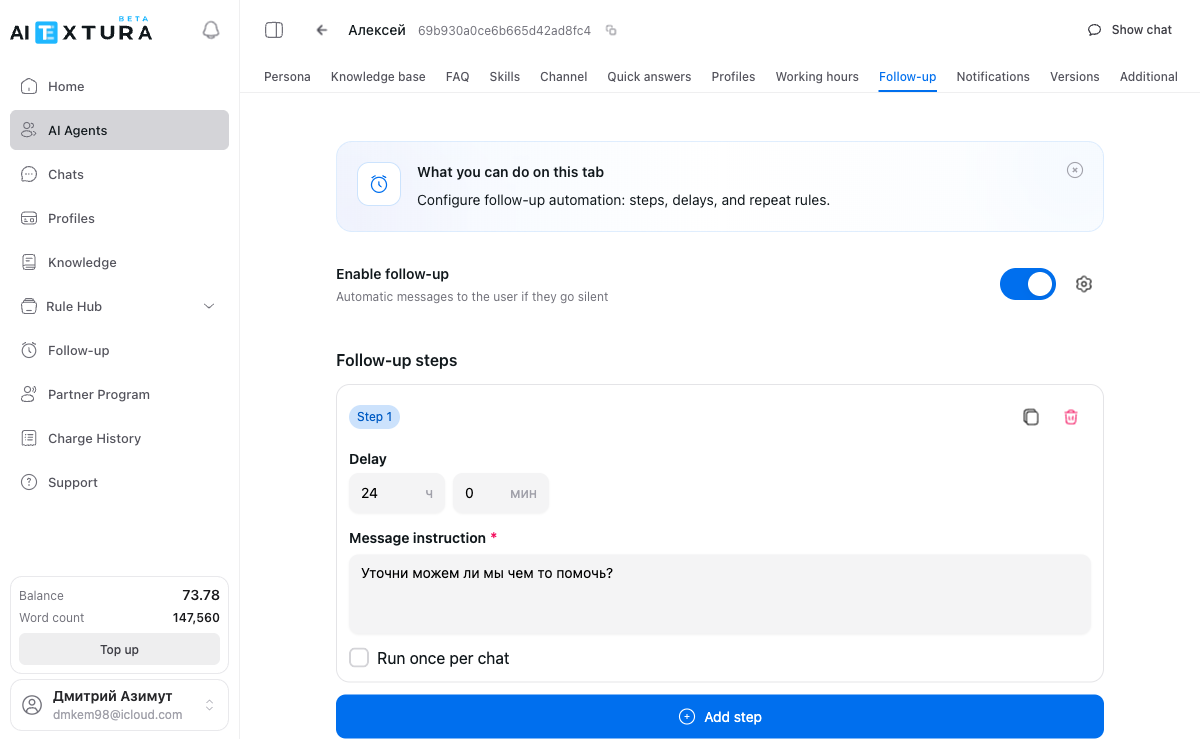
Turning it on and off
At the top of the screen is the Enable Auto Follow-up toggle — it turns the feature on or off entirely for this AI Employee.Chain of steps
Below the toggle are the steps — consecutive reminders the AI Employee sends to the customer one after another if they stay silent.Step parameters
How the chain works
1
The customer goes silent
The first step’s timer starts after the customer’s last message.
2
First reminder
When the first step’s delay runs out, the AI Employee sends a reminder.
3
Next steps
If the customer stays silent, each next step’s delay counts from when the previous reminder was sent.
4
The customer replied -- reset
If the customer sends a message at any point, the timer resets and the chain starts over from the first step.
Step-by-step setup
1
Open the Auto Follow-up tab
Go to the settings of the AI Employee you need and select the Auto Follow-up tab.
2
Turn on the toggle
Switch Enable Auto Follow-up on.
3
Add a step
Click Add step, set the delay (hours/minutes), and write the message instruction.
4
Build the chain
Add several steps with increasing delays for a complete reminder chain.
5
Save your changes
Click the save button. From then on, when a customer goes silent, the chat automatically appears in the Auto Follow-up section in the left menu.
Example: a three-step chain
Recommendations
How to write good step instructions
How to write good step instructions
An instruction isn’t the finished message text — it’s a task for the AI. The AI Employee reads the instruction, looks at the conversation context, and writes the message on its own.Good:
“Gently remind them we’re here. Ask if they have any questions left. Don’t be pushy.”Bad:
“Write: Hello! We’d like to remind you that you can…”More examples of good instructions:
- “Check whether the customer has made a decision. Offer help if they need more information.”
- “Remind them of the special offer we discussed. Don’t pressure them, just refresh their memory.”
- “Ask if everything is okay. If the customer doesn’t reply, say a warm goodbye.”
How it works with other settings
How it works with other settings
Persona. The reminder style depends on the AI Employee’s Persona. If the Persona sets a friendly, informal tone, reminders will follow that style too. Auto Follow-up doesn’t overwrite the Persona — it works on top of it.Working Hours. If the AI Employee has a schedule, reminders are sent only during working hours. Make sure the delays and the schedule don’t conflict.Channels. Auto Follow-up works in all of the AI Employee’s connected channels — Telegram, WhatsApp, the website widget, and others.
FAQ
Why is the Auto Follow-up section empty even though there are active chats?
Why is the Auto Follow-up section empty even though there are active chats?
Most likely, Auto Follow-up isn’t turned on for any AI Employee. Check the Auto Follow-up tab in each AI Employee’s settings — the toggle must be on and at least one step with an instruction must be added.
What happens if the customer replies before a step fires?
What happens if the customer replies before a step fires?
The timer resets. The countdown starts over from the first step.
Does the AI Employee send the exact text from the instruction?
Does the AI Employee send the exact text from the instruction?
No. You write an instruction — a description of the task — and the AI Employee writes the message on its own, taking into account the conversation context and its Persona.
How many steps can I add?
How many steps can I add?
There’s no limit on the number of steps. In practice, 2-3 steps work best. More than three reminders usually feel like spam.
Is the delay counted from the customer's last message?
Is the delay counted from the customer's last message?
Only for the first step. Each next step’s delay counts from when the previous reminder was sent.
Does Auto Follow-up work in all channels?
Does Auto Follow-up work in all channels?
Yes, in all of the AI Employee’s connected channels.
Will Auto Follow-up send a message outside working hours?
Will Auto Follow-up send a message outside working hours?
If the AI Employee has working hours set up, the reminder waits until working hours begin.
Does Auto Follow-up use tokens?
Does Auto Follow-up use tokens?
Yes, each reminder sent uses tokens just like a regular AI Employee reply.
Can I turn off Auto Follow-up for a single chat?
Can I turn off Auto Follow-up for a single chat?
No, Auto Follow-up is configured at the AI Employee level and works for all of its chats. If a customer asks you not to write to them, add a matching instruction to the Persona.