Talents are MCP tools that give your AI employee real skills: PMS bookings, CRM operations, AI/LLM services, databases, documents, e-commerce, and dozens of other integrations. Plus the ability to connect your own custom MCP server.
Talents turn your AI employee from a good conversationalist into a full-fledged assistant that doesn’t just answer questions — it performs real actions: books rooms, creates CRM deals, searches a database, sends emails, generates documents.Without talents, an employee can only talk. With talents, it works.
Persona
Describe talents in the agent’s instructions
AI Employees
Manage your virtual agents
Knowledge Base
Documents and information sources
Channels
Connect messengers and CRM channels
“Talent” = MCP tool. Don’t confuse with a channel (Channels). A channel is a source of incoming messages (Telegram, Wazzup, Bitrix24 channel), while a talent is an action tool (create a deal, check a room in PMS, find a product, send an email). The same service can be both a channel and a talent — these are two independent connections. See Bitrix24 — two connection paths below.
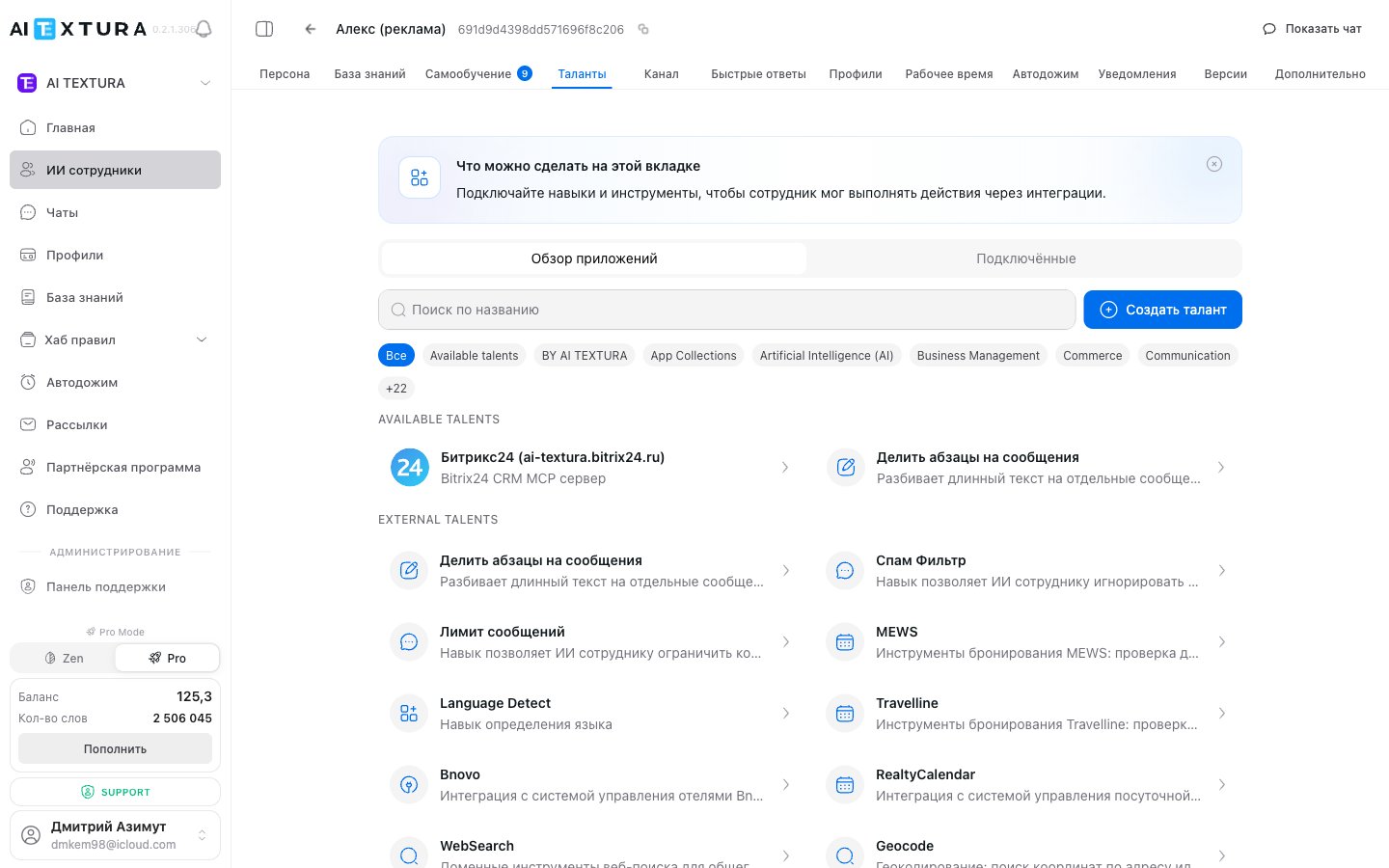
The catalog offers filters: All, BY AI TEXTURA, App Collections, Artificial Intelligence (AI), Business Management, Commerce, Communication, and 22 more categories.
Global PMS. Fields: Configuration ID, Client Name, Hotel ID, Age Category Adult/Children, Hotel Timezone, Connector Client Token / Access Token / Client / Enterprise ID
Click the Bitrix24 card in the talents catalog. The modal has two tabs:
Connected channel
Webhook
“Use the authorization of an already connected Bitrix24 channel. The simplest way.”
Pick the connected channel from the dropdown.
Click Next — the talent inherits the channel’s permissions.
Create a separate inbound webhook in Bitrix24. Useful when no channel is in use, or when you need an isolated permission set.
1
In Bitrix24, open the developer section
Apps → Developers → Other → Inbound webhook
2
Select access permissions
Check all required scopes:
CRM (crm)
Users (user)
Tasks (task)
Chat and notifications (im)
Chatbot creation and management (imbot)
Open Lines (imopenlines)
3
Save and copy the webhook URL
Bitrix24 will show a webhook URL like https://your-portal.bitrix24.com/rest/1/abcdef0123456/.
4
Paste the URL into AI TEXTURA
Return to the Bitrix24 talent modal and paste the URL into the field. Click Connect.
If you’ve already connected the Bitrix24 channel — pick the Connected channel tab, it saves a few steps. The webhook option is for when no channel is used or the channel’s permissions aren’t enough.
Go to the AI employee’s card and open the Talents tab.
2
Find the talent you need
On the Browse apps tab, use the search bar, category filters, or just scroll through the catalog.
3
Open the talent card
Click the card — a connection modal opens with fields specific to that service.
4
Fill in the parameters
Instance name — pick a clear name (for example, “Booking — Seaside Hotel”).
Configuration — fill in the service’s fields (Hotel ID, keys, region, OAuth login, etc.).
5
Connect
Click Connect talent. It will appear on the Connected tab.
If the connection requires OAuth (Google, amoCRM, Kommo, Salesforce, etc.), the system redirects you to the service’s login page. Sign in with an account that has the right permissions.
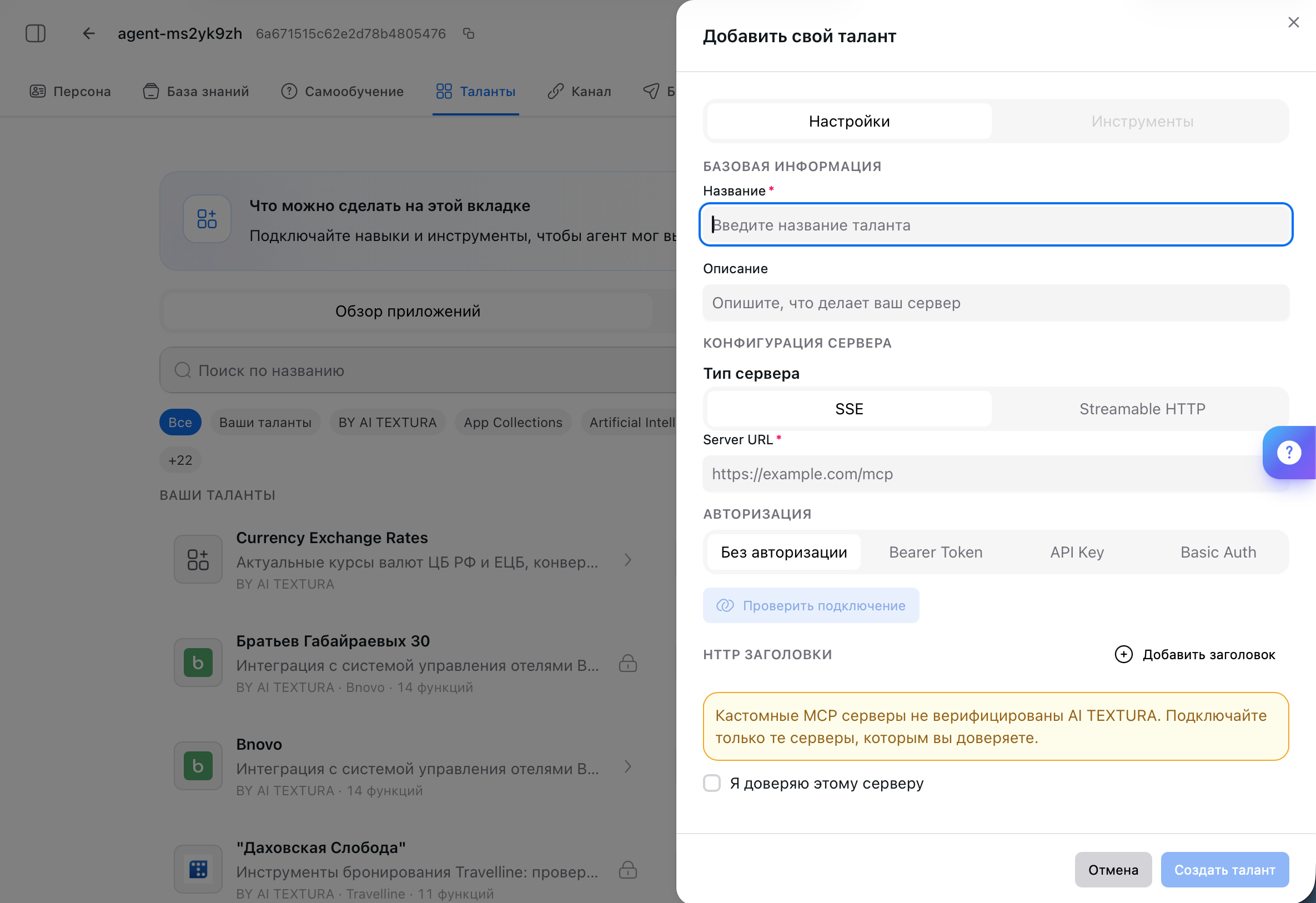
If the catalog doesn’t have the integration you need — connect your own MCP server. AI TEXTURA supports the Model Context Protocol (MCP): any compliant server can be connected as a talent.
The MCP server doesn’t require authorization (for example, local development or internal network)
Bearer Token
Token sent in the Authorization: Bearer <token> header
API Key
Custom header name + key (for example, X-API-Key: <key>)
Basic Auth
Login/password encoded in Authorization: Basic <base64>
The “I trust this server” checkbox is required. The platform warns you: connecting an unverified MCP server gives it the full conversation context with the client and delegates actions on the agent’s behalf. Don’t connect third-party servers you don’t trust.
Make sure your server implements MCP over SSE or Streamable HTTP, is accessible over HTTPS, and validates incoming requests.
2
Click 'Create talent'
The button is at the top of the Talents tab.
3
Choose the server type
SSE or Streamable HTTP — to match your implementation.
4
Specify the URL and authorization
Enter the Server URL, choose an authorization mode, and fill in the relevant fields.
5
Add headers (optional)
If your server needs custom HTTP headers, add them as key-value pairs.
6
Confirm trust and save
Tick “I trust this server” and click Save. The talent appears in the catalog.
Custom MCP fits internal company systems (in-house CRM, ERP, billing) and bespoke logic that ready-made talents don’t cover. For simple HTTP requests, the built-in HTTP / Webhook talent is easier.
Connecting a talent is only half the work. The other half is describing it in the agent’s Persona. Without that, the agent may not know when to use the talent — or “forget” about it entirely.
In the Persona section, write specific instructions for each connected talent:
When a guest asks about room availability for specific dates — use Travelline to check. Show available options with prices.
When a client is ready to place an order — create a deal in Bitrix24 via the talent, fill in “Name”, “Phone”, and “Amount” from the conversation context.
When a client asks for an invoice — create a Stripe payment link and send it to the client.
The more precise the description in the Persona, the more appropriately the agent uses the talent.
The hotel connected the Travelline talent. When a guest asks about room availability, the employee independently checks the PMS and offers booking options.Connected: Travelline (Hotel ID, region).
In the Persona: when asked about rooms — check Travelline, show options with prices, and on confirmation create a booking.
School — bookings via Google Calendar
A school connected Google Calendar to its tutor employee. Student: “I’d like a consultation on Thursday” — the employee checks slots and creates an event.
Bitrix24: channel + talent at the same time
Messages from Bitrix24 Open Lines flow into AI TEXTURA chats via the Bitrix24 channel. At the same time, via the Bitrix24 talent, the employee automatically creates a lead/deal and assigns a manager.Channel: REST webhook URL from Open Lines.
Talent: inbound webhook with crm, user, task, im, imbot, imopenlines permissions.
Store — Stripe for payments and SendGrid for email
A store connected Stripe (payment links) and Twilio SendGrid (sending receipts/notifications by email).
Custom MCP — internal company billing
The company’s internal billing is exposed via MCP at https://internal.example.com/mcp with a Bearer Token. Connected as a custom talent with “I trust this server” enabled. The agent pulls a client’s subscription data and helps with renewals.
What's the difference between a talent and a channel?
A channel is a source of incoming messages (Telegram, Wazzup, Bitrix24 channel). A talent is an action tool the employee invokes from a reply (create a CRM deal, check a PMS room, send an email). Bitrix24 and amoCRM appear in both — those are two separate connections: the channel for the conversation, the talent for CRM operations. Details in Channels and Bitrix24.
What is MCP?
Model Context Protocol — an open standard for describing tools to language models. Most modern AI tools (including the AI TEXTURA catalog) are implemented as MCP servers. This makes it possible to connect your own servers via the same protocol — see Creating a custom talent.
How many talents can be connected to one employee?
There are no technical limits. But the more talents, the more important it is to spell out clearly in the Persona when each one should be used.
Can I connect the same talent multiple times?
Yes. Useful for multiple instances with different settings — for example, two Travelline instances for two hotels.
The talent is connected but the employee isn't using it. What now?
Most likely there’s no instruction in the Persona. Add a rule: “When a client asks about [situation] — use [talent name].” Then test through Show chat.
What happens if the external service is unavailable?
The employee tells the client they can’t perform the action and offers an alternative. The employee itself keeps working — just without that specific talent.
Can I connect a talent that isn't in the catalog?
Yes. Use + Create talent to connect your own MCP server, or the universal HTTP / Webhook talent for arbitrary HTTP requests.
Is connecting a custom MCP safe?
Connect only servers you trust. Through MCP, the server receives the conversation context and can act on the agent’s behalf. The “I trust this server” checkbox is required — it’s an explicit acknowledgment of responsibility.
Why connect Bitrix24 as both a channel and a talent?
The channel is needed so messages from Bitrix24 Open Lines reach AI TEXTURA chats. The talent is needed so the employee can run CRM operations (create leads, deals, tasks) in response. They’re two different layers of integration — and you usually need both.
Where do I get PMS parameters?
In the dashboard of the corresponding PMS. Details for specific systems are in FAQ — PMS integrations. For AI TEXTURA-specific questions, contact Support.
Do talents cost extra?
Some talents are included in your plan. Some integrations require a subscription to a third-party service (Google Workspace, Notion, Stripe, etc.) — those are billed separately by the providers.