

Find a conversation
The left column is a shared list of conversations across all employees and channels. The most recent conversations are at the top.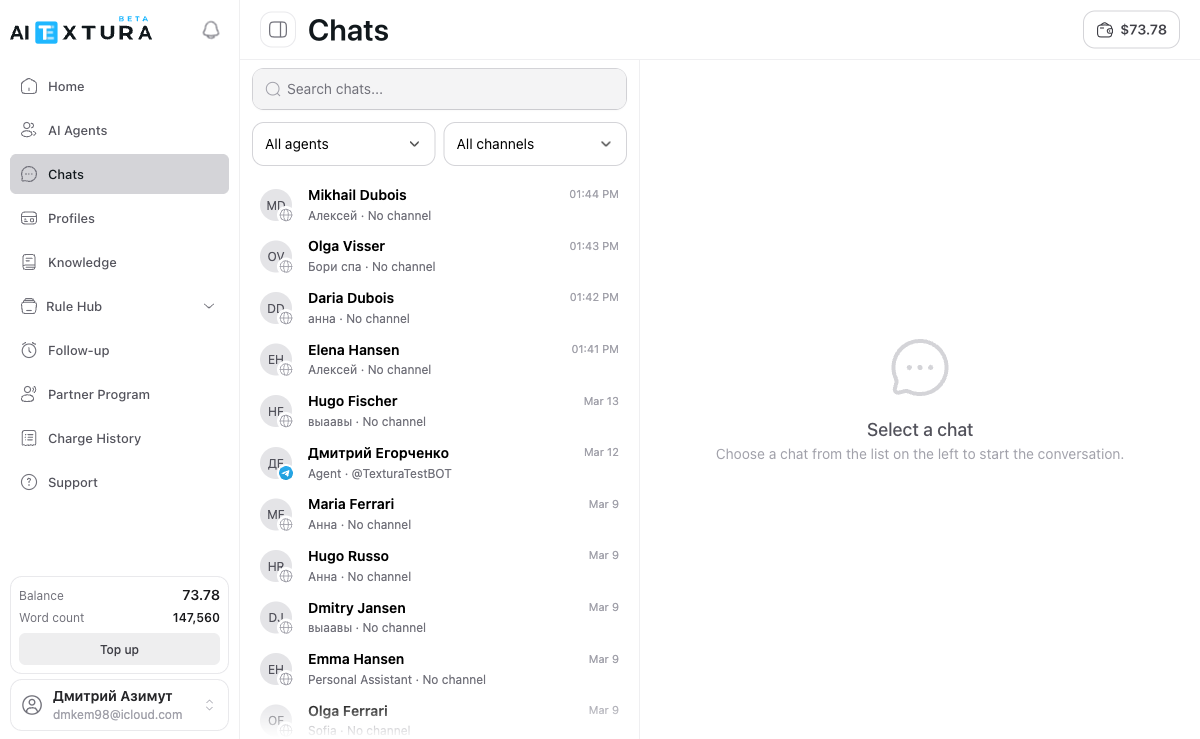
Conversation window
Click a conversation to open it on the right. The header shows the customer’s name, the caption “with [employee name] · [channel],” and the ••• button — the chat control menu.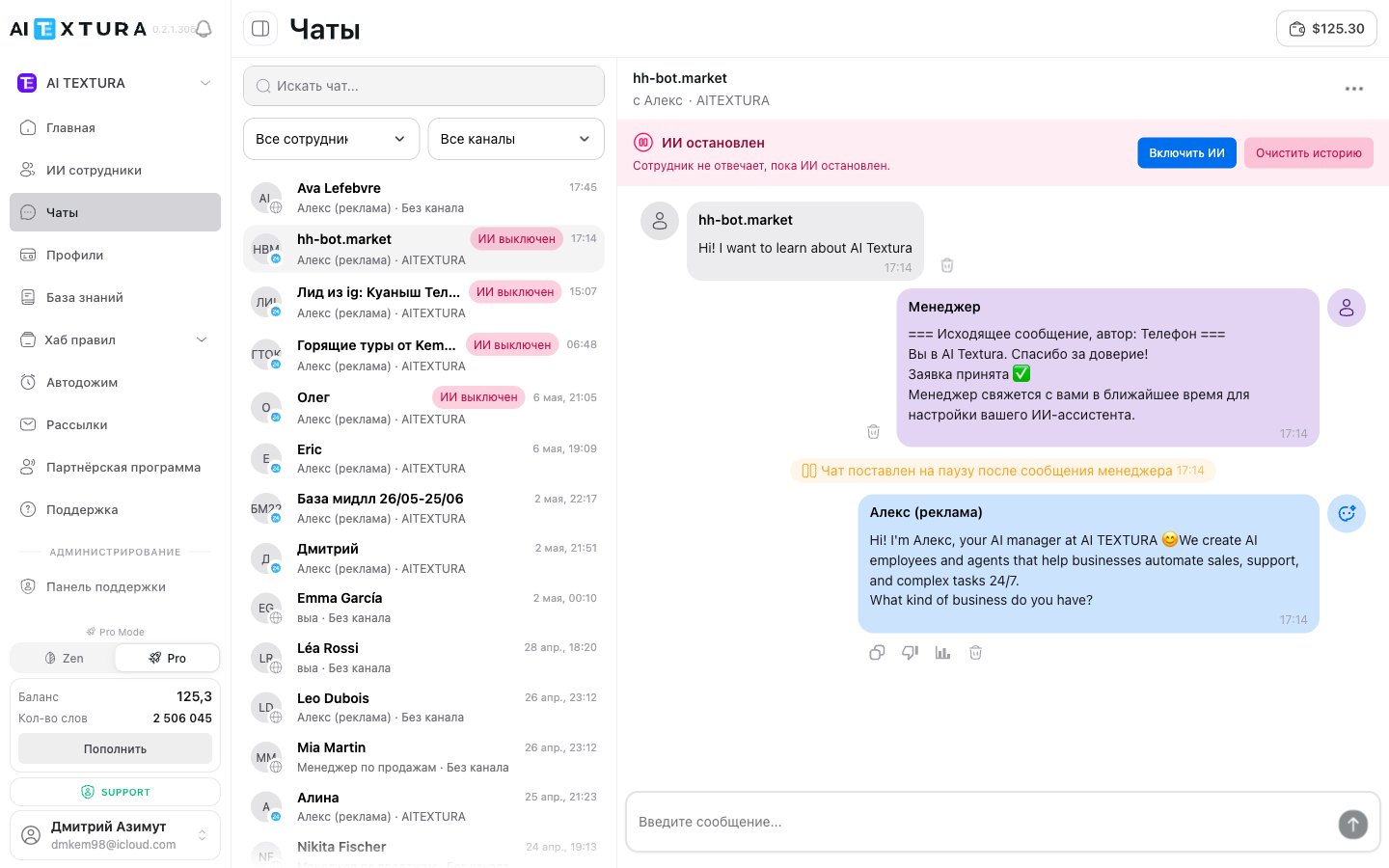
Clear history doesn’t delete the conversation from Chats — it only resets what the employee takes into account for its next reply.
Reply yourself
The Enter a message… field at the bottom is for your manual reply to the customer. The message goes to the same channel the conversation is in: if the customer wrote in Telegram, they get it in Telegram — no need to switch anywhere. As soon as you send a message, the AI Employee pauses in this conversation so it doesn’t interrupt a live person.
You can bring it back sooner with the Turn on AI button above the feed or the Resume AI item in the chat menu. If the employee hasn’t returned even after half an hour, the Stop after manager reply setting is enabled on the Additional Settings tab — that’s also where you configure text commands a manager can use to stop and start the employee right from the messenger.
Response analysis
The chart icon under an AI Employee’s reply opens the Response analysis panel on the right — a full trace of how that reply was put together. This is the first thing to open when the employee answered wrong; otherwise you’re editing the Persona blindly.
At the bottom of the panel is the Get recommendations button: the platform analyzes this specific case and suggests targeted changes to the employee’s settings.
Reporting a bad answer
The thumbs-down under an employee’s reply opens the What went wrong? panel. It’s not a rating — it’s a fork into two scenarios.1
Describe the problem
In your own words: “replied in the wrong language,” “made up delivery terms,” “ignored the question about price.”
2
Choose the closest option
Made up facts, Didn’t understand the question, Didn’t use knowledge, Tone / rudeness, Response length, or Other.
3
Click Fix with AI
The platform analyzes the case in the background — you can keep working — and shows the proposed settings changes before applying them.
Chat menu
The ••• button in the conversation header opens a menu with two blocks: controls for this chat and navigation.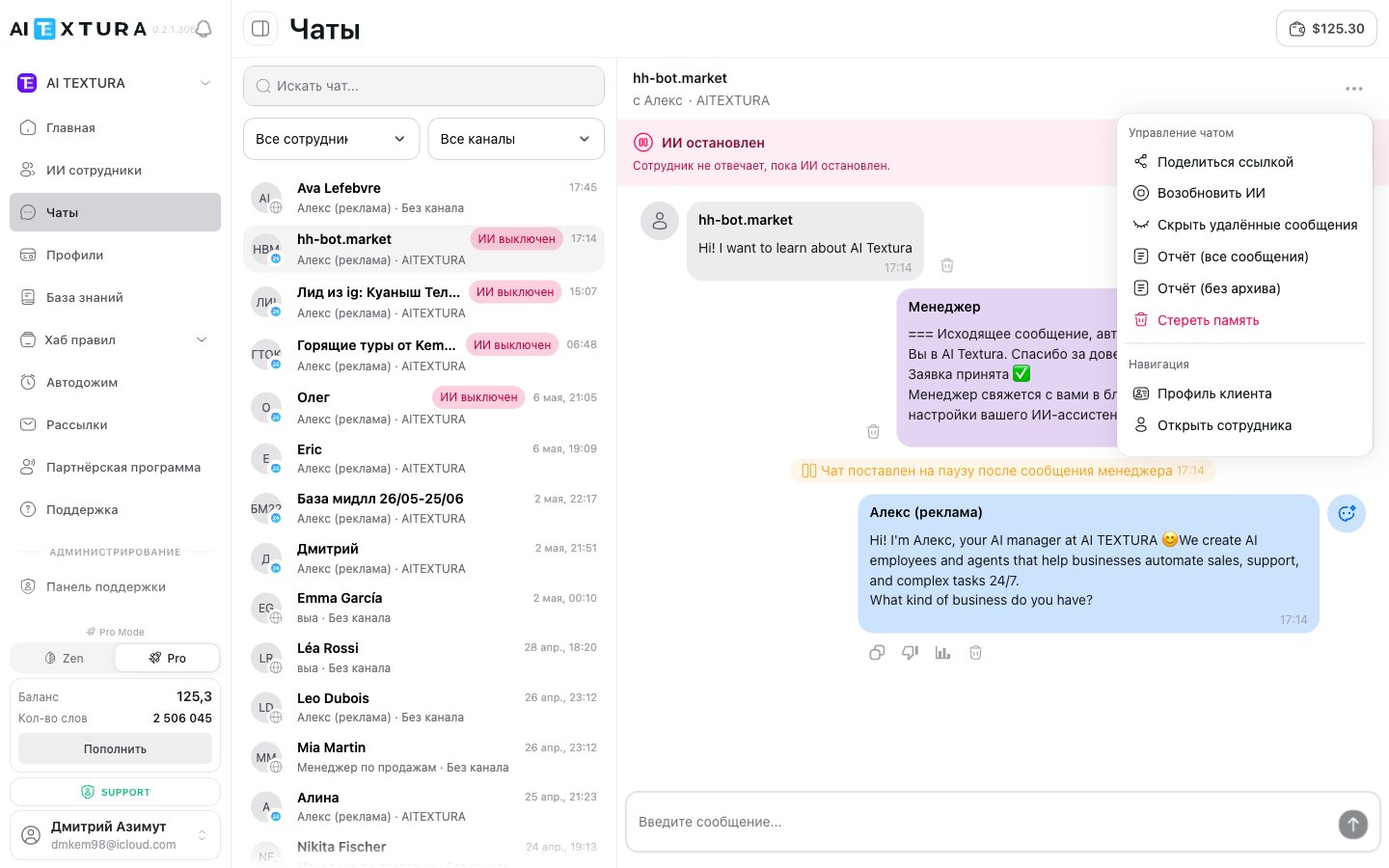
FAQ
Where did the employee get this answer?
Where did the employee get this answer?
Click the chart icon under the message — Response analysis shows what was found in the Knowledge Base and Self-Learning, which talents fired, and why the reply turned out the way it did. Start your review of any mistake here.
I cleared the history, but the employee still remembers the name and details
I cleared the history, but the employee still remembers the name and details
The name, phone number, and preferences are stored separately — in the customer profile, and clearing the conversation doesn’t affect them. To make the employee forget those too, clear the profile.
The employee starts greeting the customer again mid-conversation
The employee starts greeting the customer again mid-conversation
Automatic history clearing kicked in: the channel settings have too short an interval, so the context is reset during the conversation. Increase the interval or turn off automatic clearing in the channel settings.
How do I turn off the employee in one chat without affecting the others?
How do I turn off the employee in one chat without affecting the others?
••• menu → Stop AI. A red banner appears, and you’ll be the one replying in this conversation. To silence the employee across all channels at once, turn the employee itself off in the AI Employees list.
Can the customer tell that a human is replying instead of the AI?
Can the customer tell that a human is replying instead of the AI?
No. Your message comes from the same bot or account the customer was talking to the employee through — the switch is invisible to them.
What happens if two managers reply in the same chat at the same time?
What happens if two managers reply in the same chat at the same time?
The customer gets both messages — the platform doesn’t merge them or block anyone. Agree within your team on who’s handling each conversation.
The employee stopped replying after a certain number of messages
The employee stopped replying after a certain number of messages
The Message limit kicked in — a cap on the number of replies in one chat per day. It’s set on the Additional Settings tab; if the field is empty, there’s no limit.
How do I know the employee handed the conversation over to me?
How do I know the employee handed the conversation over to me?
Through a Telegram notification. The handover itself isn’t configured here, but with triggers in Notifications: until a trigger exists, the conversation won’t pause and you won’t get anything, even if the employee promised the customer to call a manager.
Fine points
You don’t need these for everyday work. Come back here when you need to dig into a tricky case or show a conversation to a colleague.Chat report
Chat report
Report (all messages) lays out the conversation line by line: role (
user or assistant), exact time, message ID, and an expanded log under each employee reply. At the top are Copy all and Expand all. The format is designed to be handed over in full to Support or a developer.Link to a specific message
Link to a specific message
Under an employee’s reply there’s a short code like
01351f — clicking it copies it. This makes it easy to reference a single message when talking to colleagues or in a support request, without retelling the whole conversation.What you can do with an individual message
What you can do with an individual message
The action bar appears only under AI Employee replies — customer messages can only be deleted.
The customer profile fills itself in
The customer profile fills itself in
The Customer profile item opens a card with the customer’s data: name, phone, needs, and other fields from connected templates. You don’t need to enter anything manually — the AI Employee fills them in as the conversation goes. A new customer’s card is empty, and that’s normal. See Profiles for details.
What’s next
Notifications
Triggers that call you into a conversation and pause the chat
Persona
Rules the employee follows to run a conversation and call a human
Profiles
The customer card the employee fills in from the conversation
Additional Settings
Messenger commands, message limit, behavior after a manager replies