

Persona
Use profile data in the employee’s instructions
AI Employees
Manage employees and their settings
Chats
Conversation history with customers
Dashboard
Summary analytics across all employees
“Profiles” refers to two different places in the interface.
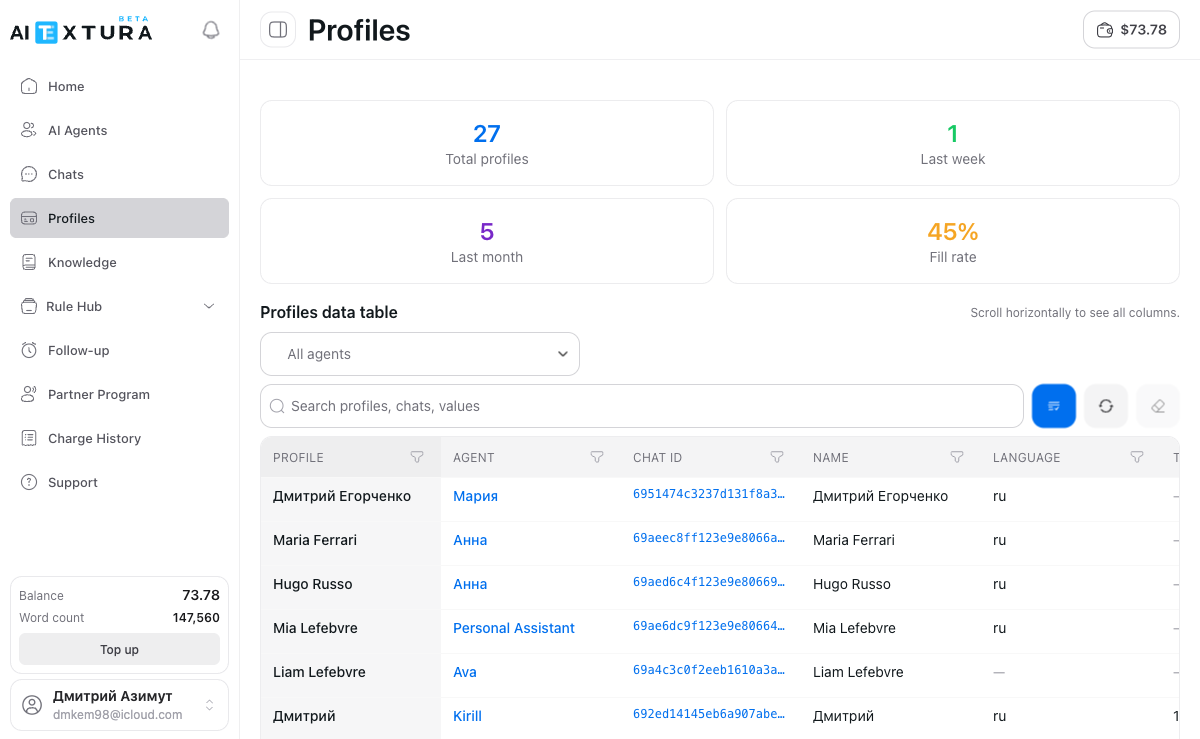
- The Profiles tab in the AI Employee’s settings — this is where you configure which fields to collect and when to fill them in. This is configuration.
- The Profiles section in the platform’s left menu — this is where filled-in customer cards are stored. This is an analytics tool.
Video guide
The Profiles feature
Analytics and profiles
A short video: how to configure profile fields in an agent, what’s stored in the Profiles section, and how to use the collected data for analytics.
Configuring profile fields
Open the AI Employee → Profiles tab. On this tab, you describe which fields of the customer profile the employee should fill in and when to do it. Fields are tied to a specific agent: different employees can collect different sets of data.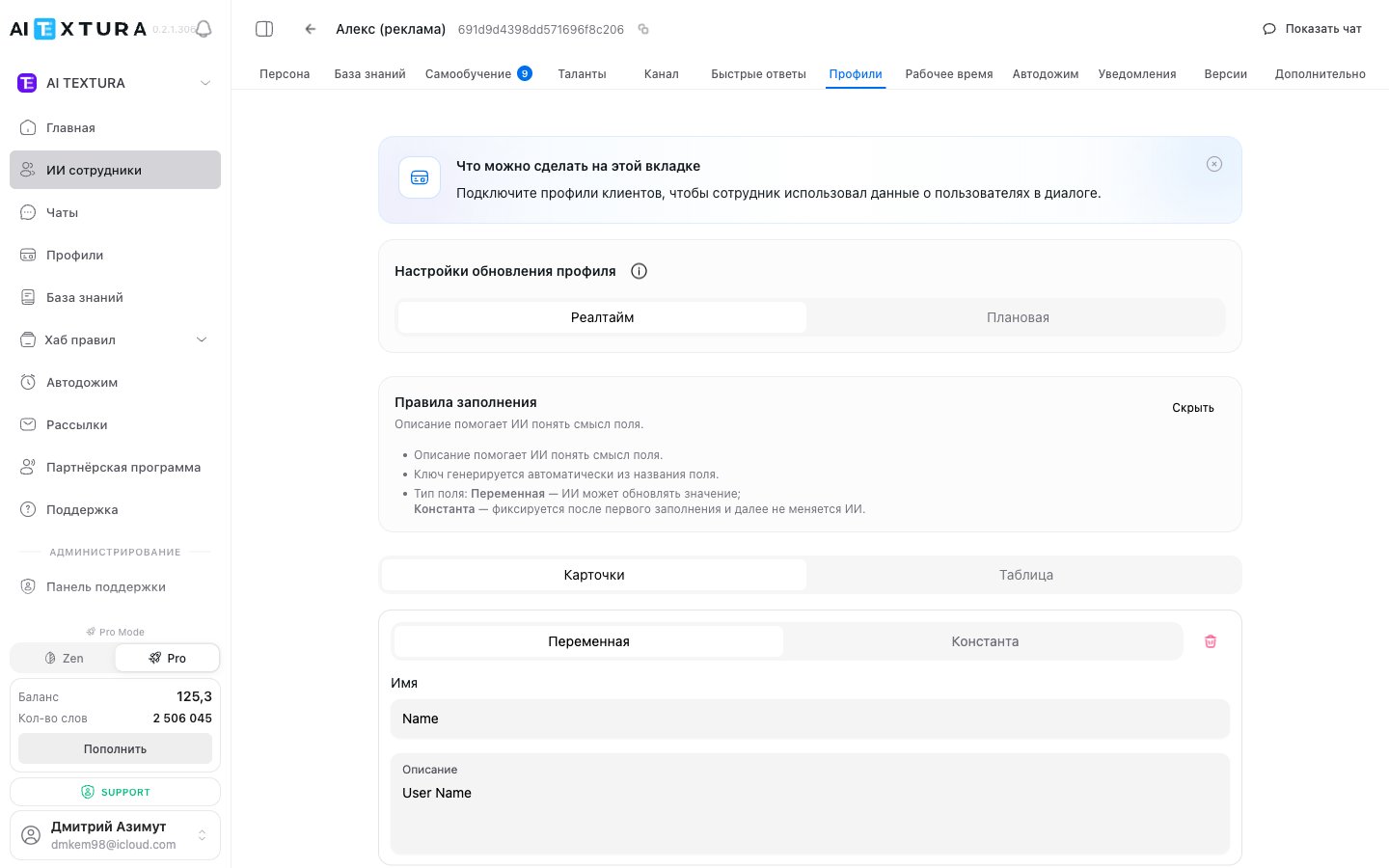
Update mode
The first thing to choose is when the employee updates the profile.
When you choose scheduled mode, additional settings appear: interval, start hour, and time zone. You’ll also see a token usage forecast — how much will be spent per day and per month.
Field types
Each field has a type that determines whether the employee can update its value.Field parameters
Each field has four parameters:How to add a field
1
Open the Profiles tab
Go to the AI Employee’s card and select the Profiles tab.
2
Add a new field
Click the button to add a new field.
3
Enter a name
Give it a clear name — for example, “Name,” “Language,” “Budget.”
4
Fill in the description
Describe in detail, from the customer’s perspective, when and what to fill in. Specify the answer format.
5
Choose a type
Variable — if the value can change. Constant — if it’s set once.
6
Save
Repeat for each field you need. There’s no limit on the number of fields.
Field examples
See example field setups
See example field setups
These are examples — the set of fields depends entirely on your business and what matters to track.
Profile fields and chat metadata
Fields configured on the agent’s Profiles tab automatically go into the metadata of every chat for this employee. This means:- In the Profiles section (left menu), you see these fields as table columns.
- In the Persona, you can reference these fields as variables — the employee will insert the values right into the conversation (see Persona).
- In chats, the metadata is available via the chat actions menu → “Customer profile.”
Field types
Profile analytics
The Profiles section in the platform’s left menu is an analytics tool. It stores the filled-in cards of all customers across all employees.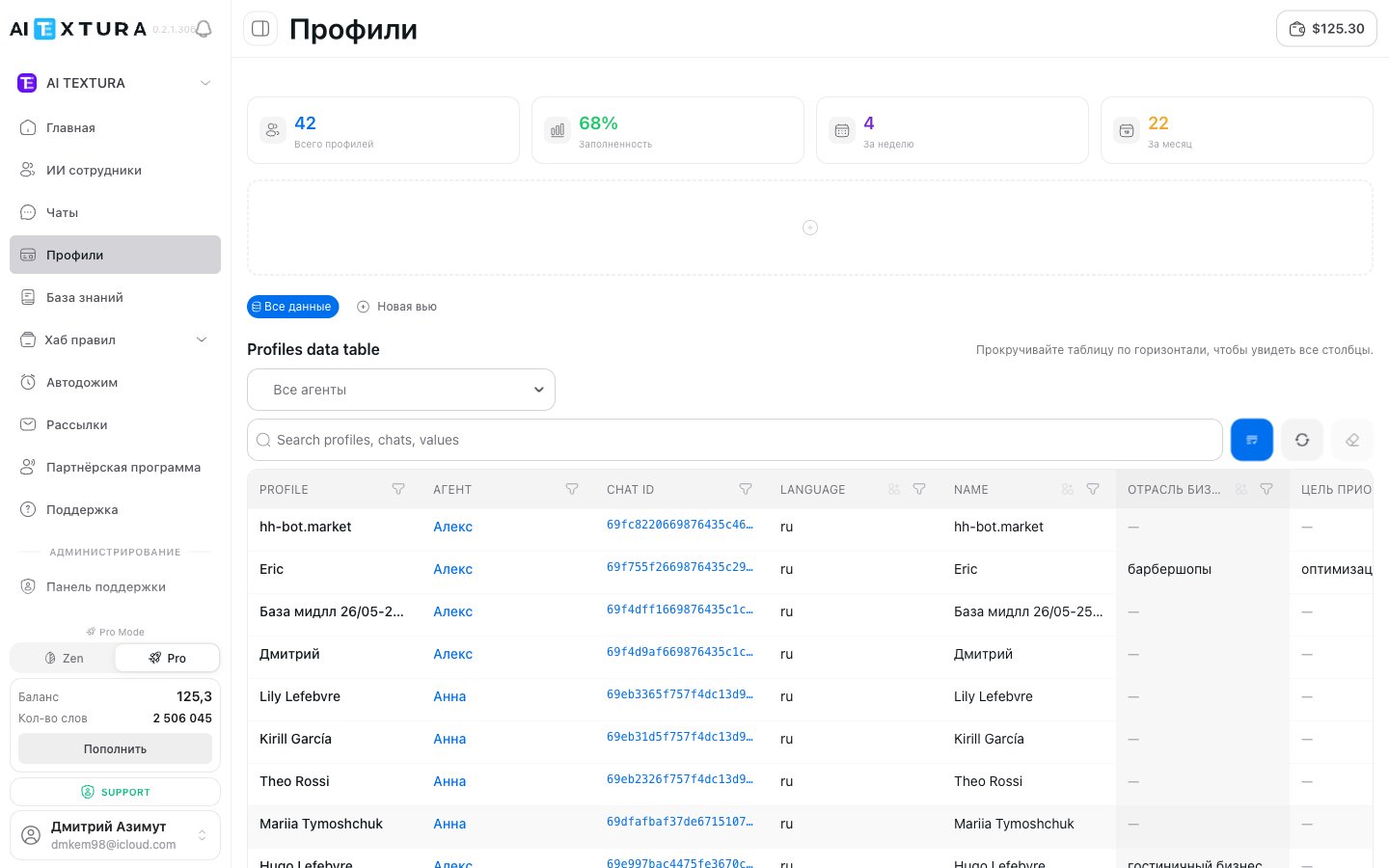
KPI tiles
At the top of the page are four summary cards:View tabs
Above the table are tabs:- All data — the standard view with all fields for all employees.
- Saved views — custom views with preconfigured filters, columns, and sorting. Handy when you have several analysis scenarios: “Hotel leads,” “Complaints this week,” “Requests in progress.”
Profiles table
Each row is one customer. Standard columns: profile, employee, Chat ID, name, language, summary. Plus all the custom fields you configured on the Profiles tab of each agent (for example,business industry, purpose of purchasing the service).
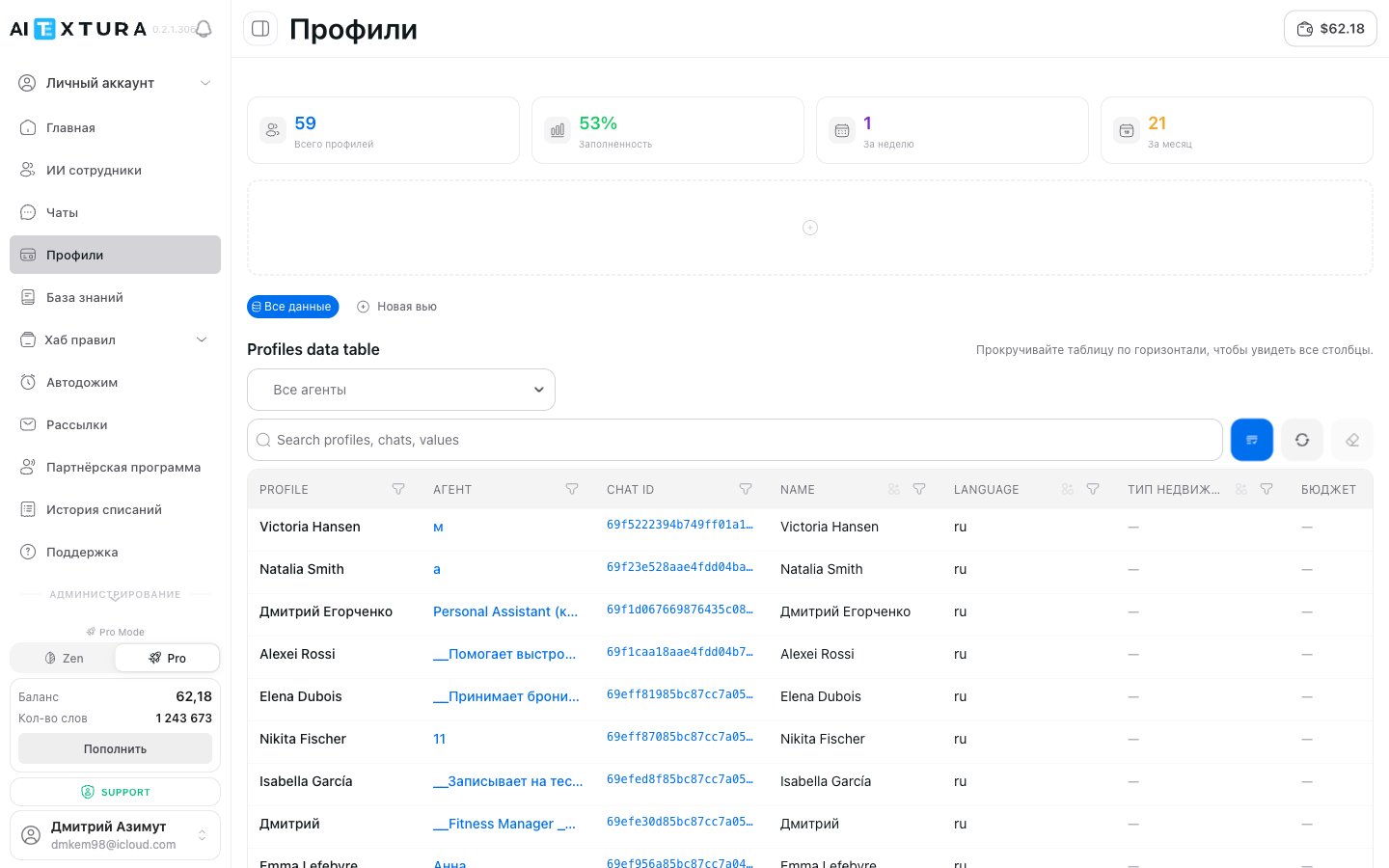
- Filter by employee — view data for a single employee or branch
- Search by name, field contents, or any text
- Go to chat — click the Chat ID to open the full conversation history
- Column management — hide columns you don’t need
- Drag-and-drop column order (new in v2.1.0) — drag column headers with your mouse to arrange them the way that works for you. The new order is saved in the current view
- Display modes — switch between Cards and Table views
Using profiles in the Persona
You can use profile data right in the employee’s instructions — through profile variables in the Persona section. For example, if the customer’s name is known, the employee can address them personally during the conversation. This lets you create truly personalized communication: account for preferences, adapt the style, and offer relevant solutions based on the collected data.FAQ
Is Realtime more expensive than scheduled?
Is Realtime more expensive than scheduled?
Yes, significantly. Realtime updates the profile after every message and uses noticeably more tokens. Scheduled mode processes data in batches, which is more economical.
Can I change a constant's value?
Can I change a constant's value?
No. That’s the whole point of the Constant type — the value is set once and doesn’t change. If you’re not sure, choose Variable.
How many fields can I add?
How many fields can I add?
There’s no limit, but add only the fields you really need — this improves accuracy and reduces token usage.