

Create the instructions
In AI Agents, click Hire Agent and choose a method — any of the three gives you ready-made instructions.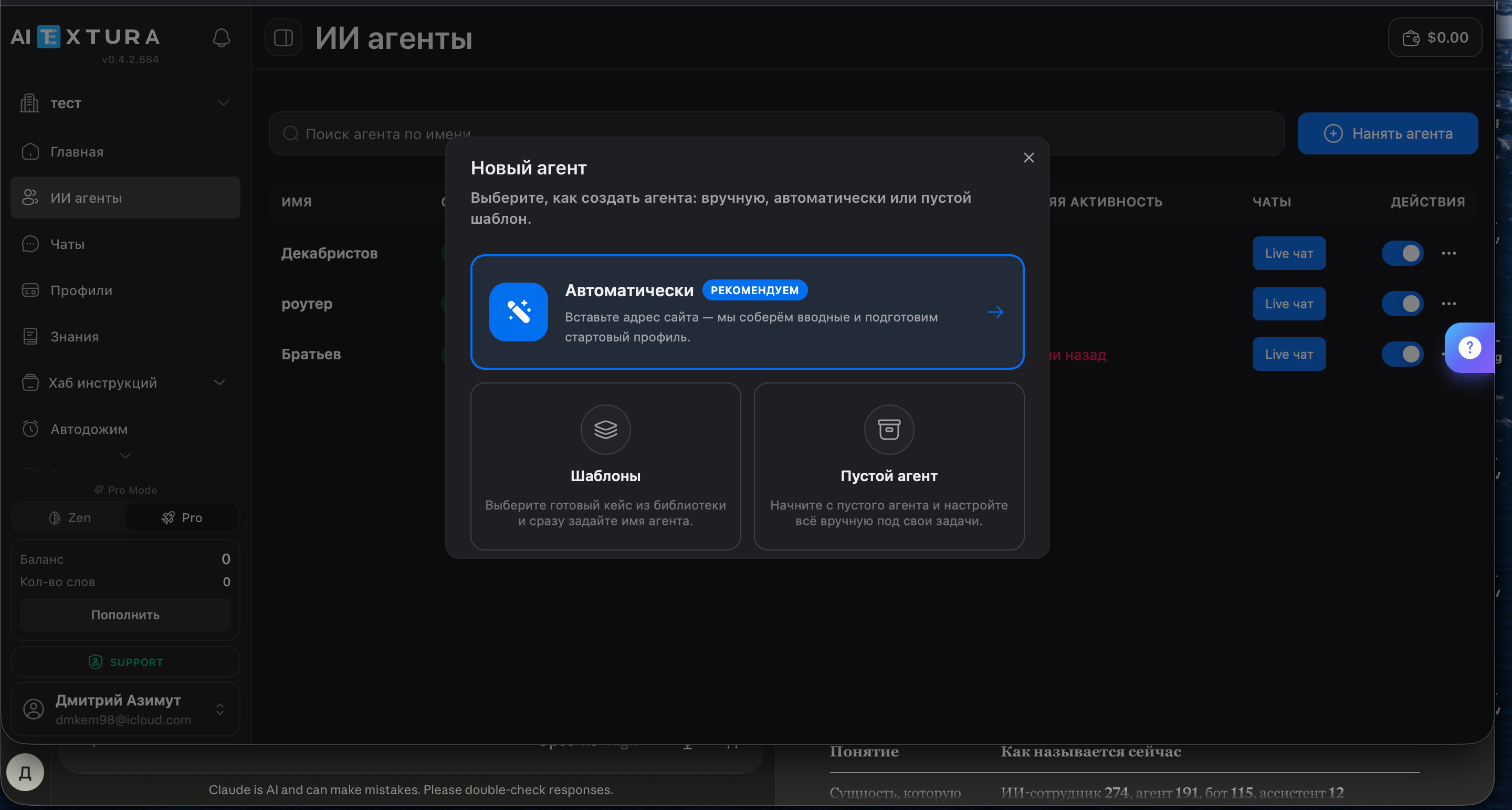
- Automatic
- Templates
- Blank agent
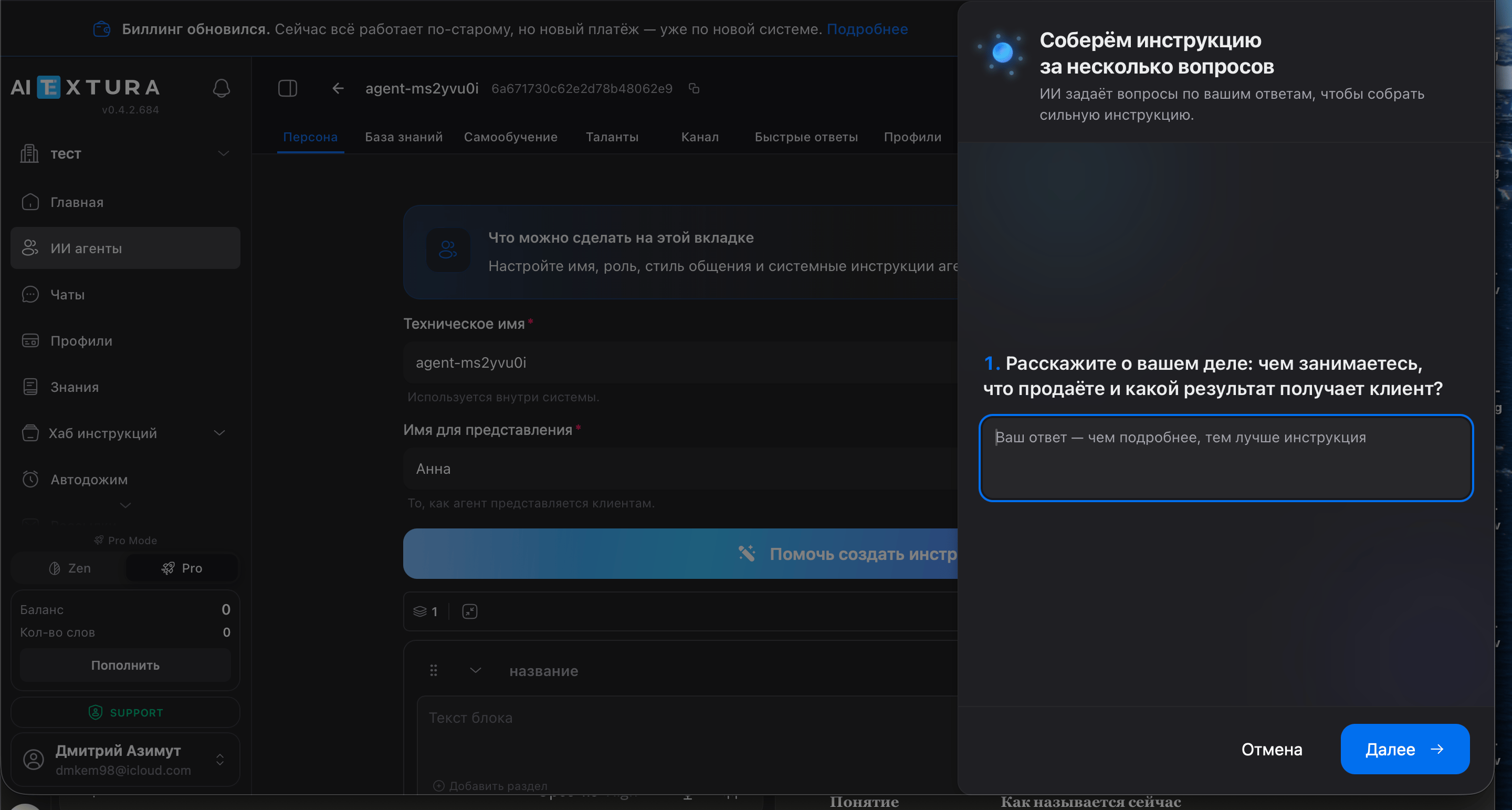
Two names
Instruction blocks
The finished instructions appear in the editor as blocks rather than one long text: the greeting is one block, the booking scenario another, the restrictions a third. You can edit blocks, drag them to reorder, and delete them.How to write instructions
How to write instructions
Testing in the test chat
Click Show chat in the top-right corner and message your AI Employee as a customer. Don’t like the reply? Fix the block and test again.FAQ
Instructions generated from my website are empty or look off
Instructions generated from my website are empty or look off
The AI Employee sounds generic, “like a robot”
The AI Employee sounds generic, “like a robot”
The AI Employee makes up prices and facts
The AI Employee makes up prices and facts
After my edits, the AI Employee still answers the old way
After my edits, the AI Employee still answers the old way
The AI Employee agrees with anything the customer says
The AI Employee agrees with anything the customer says
The AI Employee calls the customer by the wrong name
The AI Employee calls the customer by the wrong name
The AI Employee refers to itself with feminine forms
The AI Employee refers to itself with feminine forms
The AI Employee replies in a different language than the customer
The AI Employee replies in a different language than the customer
Always respond in the language the client writes in. The model mistakes some greetings, like the Russian “доброго дня” (“good day”), for Ukrainian — for such cases, add an explicit rule: “Reply in Russian to „доброго дня“.”The AI Employee shows the customer JSON and system messages
The AI Employee shows the customer JSON and system messages
The AI Employee confirms booking cancellations or refunds
The AI Employee confirms booking cancellations or refunds
Help in the platform
The question-mark button on the right edge of the screen opens the help panel. The Documentation tab shows the article about the section you’re in. On the AI Assistant tab, you can ask in your own words — it answers, gives links, and opens the right section of the platform for you.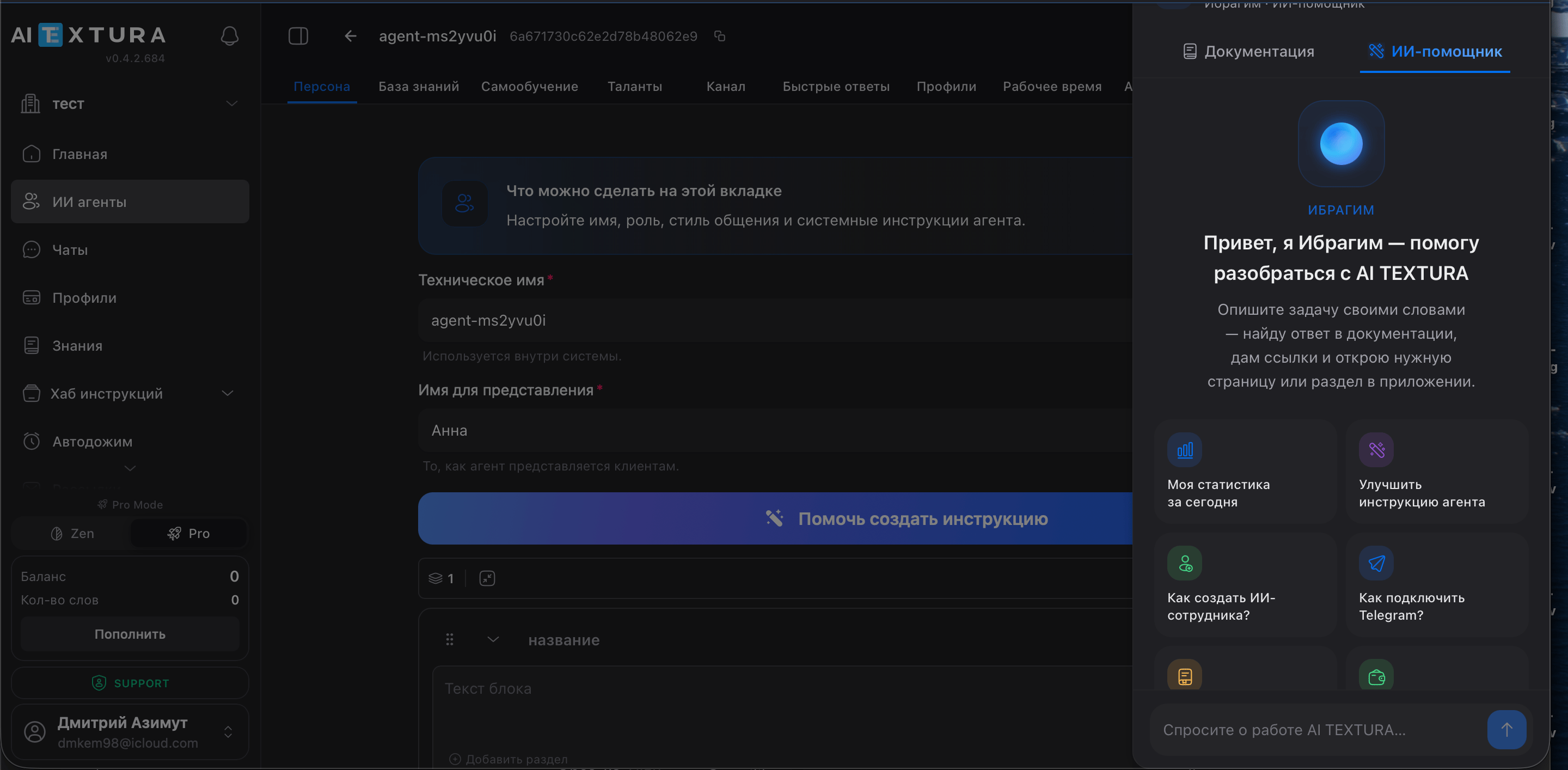
Fine points
You don’t need this to get started. Come back here when you want to get more out of the Persona.How to quickly stop your AI Employee from saying too much
How to quickly stop your AI Employee from saying too much
- Don’t make up information — use only data from the Knowledge Base
- Don’t ask more than two questions in one message
- Don’t mention special rates unless the customer asks
Rules with exceptions: discounts, children, minimum stay
Rules with exceptions: discounts, children, minimum stay
- “15% birthday discount. Doesn’t apply to extra services. When asked, confirm the details and hand over to a manager.”
- “Children under 5 stay free, without a separate bed. Ages 5–12: extra 1000 ₽ per night. Always ask the children’s ages.”
- “Minimum 2 nights on Fridays and Saturdays. Don’t say ‘no availability’ — explain the rule and suggest suitable dates.”
Questions first, then an offer
Questions first, then an offer
What to forbid first
What to forbid first
Instruction length and language
Instruction length and language
Scenarios beyond answers: waitlists and upsells
Scenarios beyond answers: waitlists and upsells
Nested blocks
Nested blocks
Ready-made blocks from the Rules Hub
Ready-made blocks from the Rules Hub
/ and select Import from hub. There you’ll find Public blocks from the AI TEXTURA team (“Hotel Receptionist”, “Realtor”, “Personal Assistant”) and My rules — the ones you’ve saved. When you edit a block in the hub, it updates for every AI Employee that uses it.Instructions in Google Docs
Instructions in Google Docs
/ and select Import Google Doc. Your AI Employee will pull in the latest version of the document on its own — handy if the instructions are long and change often.Raw XML — text mode
Raw XML — text mode