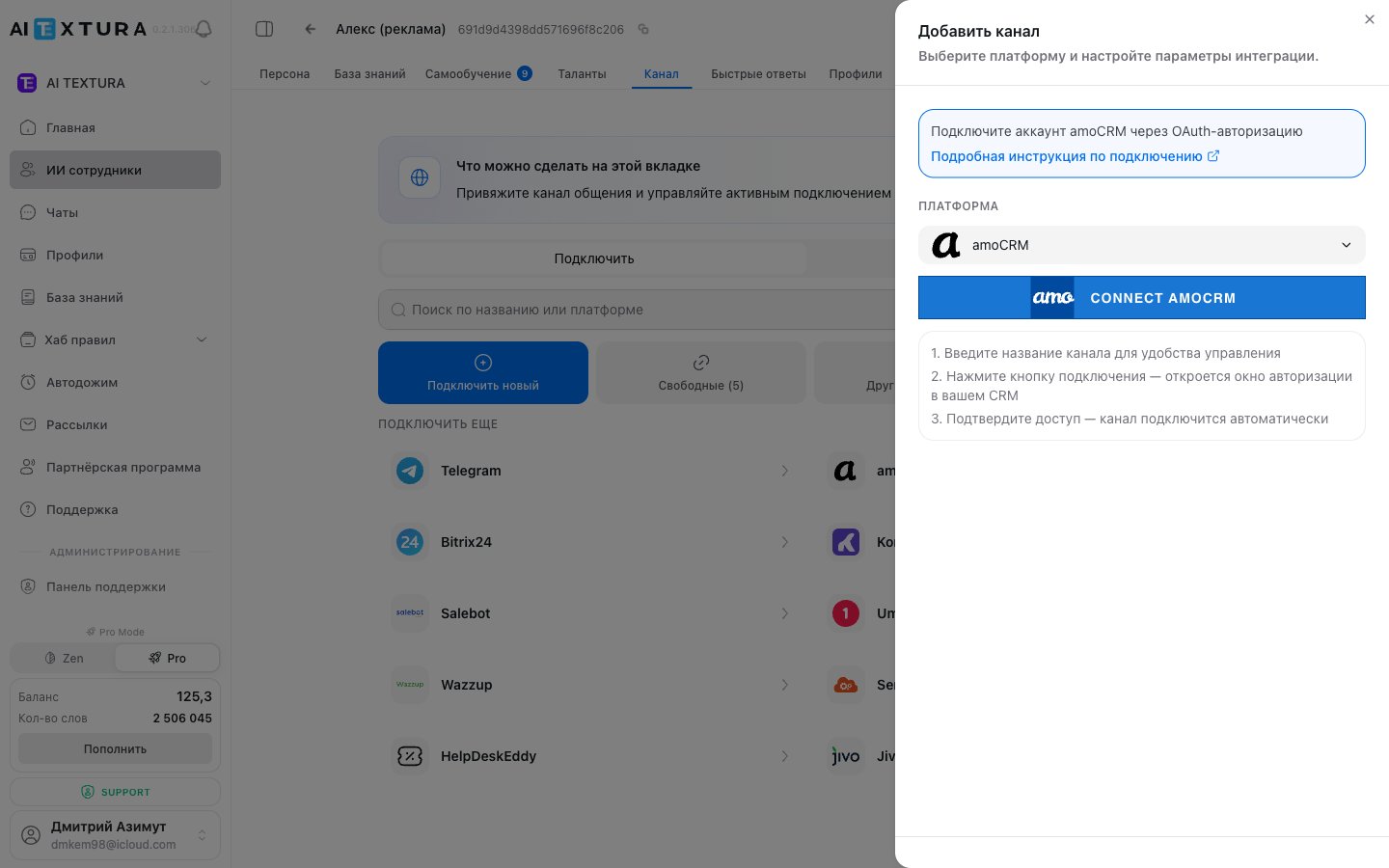
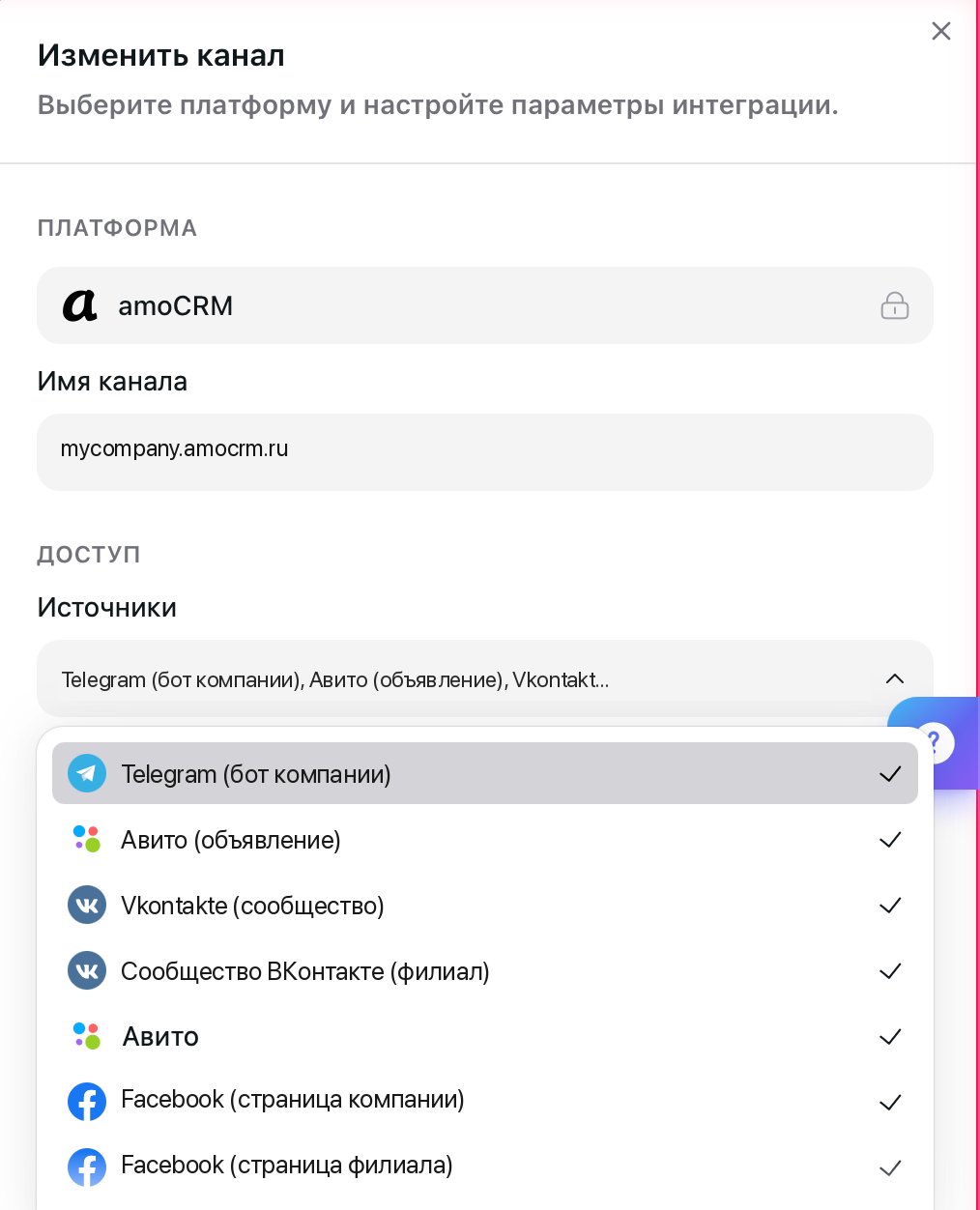
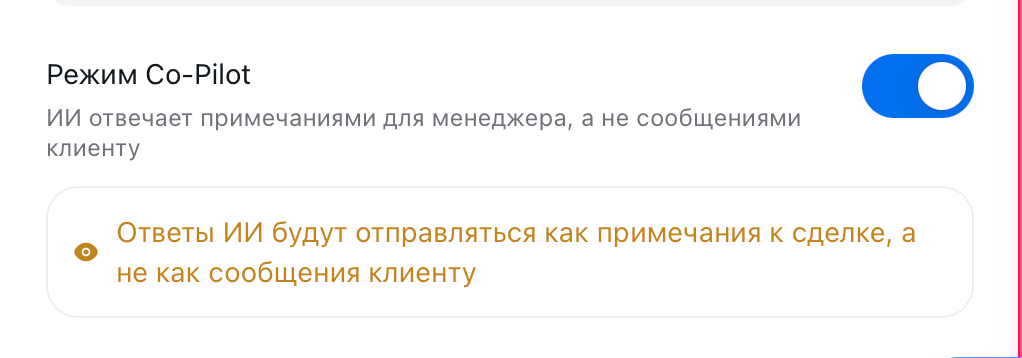
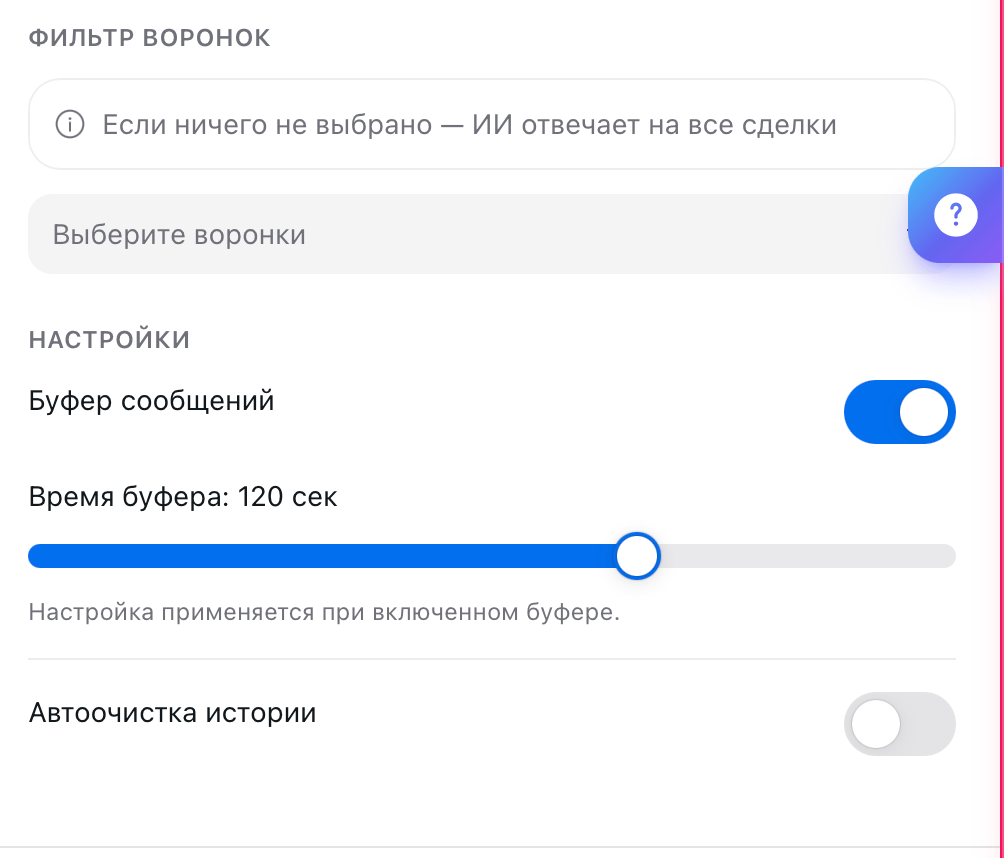
The amoCRM integration lets your AI employee handle incoming inquiries directly in your CRM. amoCRM connects in two ways — as a channel (a source of messages) and as a talent (CRM operations via MCP). Both use OAuth.
amoCRM integrates with AI Textura in two independent ways. Both rely on amoCRM OAuth, but they solve different problems:
Channel
Talent
Where it is configured
The agent’s Channel tab
The agent’s Talents tab
What it does
The AI receives and replies to messages that arrive in amoCRM
The AI performs CRM actions: creates deals and contacts, finds existing ones, schedules tasks, adds notes and tags
Technology
OAuth + message forwarding to AI Textura
MCP server (Model Context Protocol)
Minimum to work
An authorized amoCRM account
An authorized amoCRM account (the same one or another)
Both connections share the same OAuth bridge — after you authorize amoCRM once, the second connection type can pick the same account without signing in again.
AI employees do not create leads or deals automatically just because the channel is connected — that requires the talent. The channel only forwards messages to AI Textura.
On the agent page, go to the Talents tab → Browse apps.
2
Find amoCRM
The amoCRM card lives in the Business Management category.
3
Pick a modal tab
The “Connect amoCRM” modal has two tabs:
New connection — starts the OAuth flow with amoCRM.
Existing account — pick a previously authorized account (if you already have an amoCRM channel connected, or if another agent used the same login).
4
Authorize
On the “New connection” tab, click Connect amoCRM channel, sign in to amoCRM, and confirm access.
5
Save
The talent will appear in the Connected tab on the agent page.
The talent and channel can share a single amoCRM account — the OAuth bridge remembers the authorization, so picking “Existing account” for the second connection skips the sign-in.
The talent acts on behalf of the authorized user. Mind their permissions in amoCRM — if the user has no access to a pipeline or task, the talent cannot work with it either.
Kommo (the international version of amoCRM) is connected the same way — both as a channel and as a talent. It uses the same OAuth bridge, but with a Kommo endpoint.
1
Open settings
On the Channel or Talents tab, select the Kommo platform.
2
Click Connect
In the modal, click Connect KommoCRM.
3
Authorize access
Log in to your Kommo account and confirm access.
4
Add the integration
Click Add — the connection is ready.
Kommo includes built-in channels: WhatsApp, Telegram, Instagram, VK. Every messenger connected in Kommo automatically becomes available to the AI employee through the Kommo channel.
Do I need to connect both the channel and the amoCRM talent?
It depends on what you need. If you only want conversations in the deal card, the channel is enough. If the AI should create deals on its own, schedule tasks, or look up customers in the database, you need the talent. Most setups use both.
Can I use a single OAuth for both connection types?
Yes. After the first amoCRM authorization, the second connection (channel or talent) can select “Existing account” — no login or password is required again.
The amoCRM OAuth window doesn't open / closes with an error.
Make sure your browser is not blocking pop-ups for the AI Textura domain. If the integration has been removed in amoCRM or the permissions revoked, recreate the integration and use the long-term token from the “Keys and access” section.
Can I connect Kommo and amoCRM at the same time?
Yes. They are two separate platforms and work independently. Connect them one at a time — each requires its own OAuth.
What if the AI is not responding in the deal card?
Check: (1) the amoCRM channel is active and not disabled in AI Textura; (2) the chosen agent is “Active”; (3) the agent’s working hours allow it to operate right now; (4) inside amoCRM the messenger is routed to the correct agent.