> ## Documentation Index
> Fetch the complete documentation index at: https://aitextura.mintlify.site/llms.txt
> Use this file to discover all available pages before exploring further.
# Working Hours
> Configure your AI employee's schedule: work week, breaks, timezone, special days, and quick presets on the AI Textura platform.
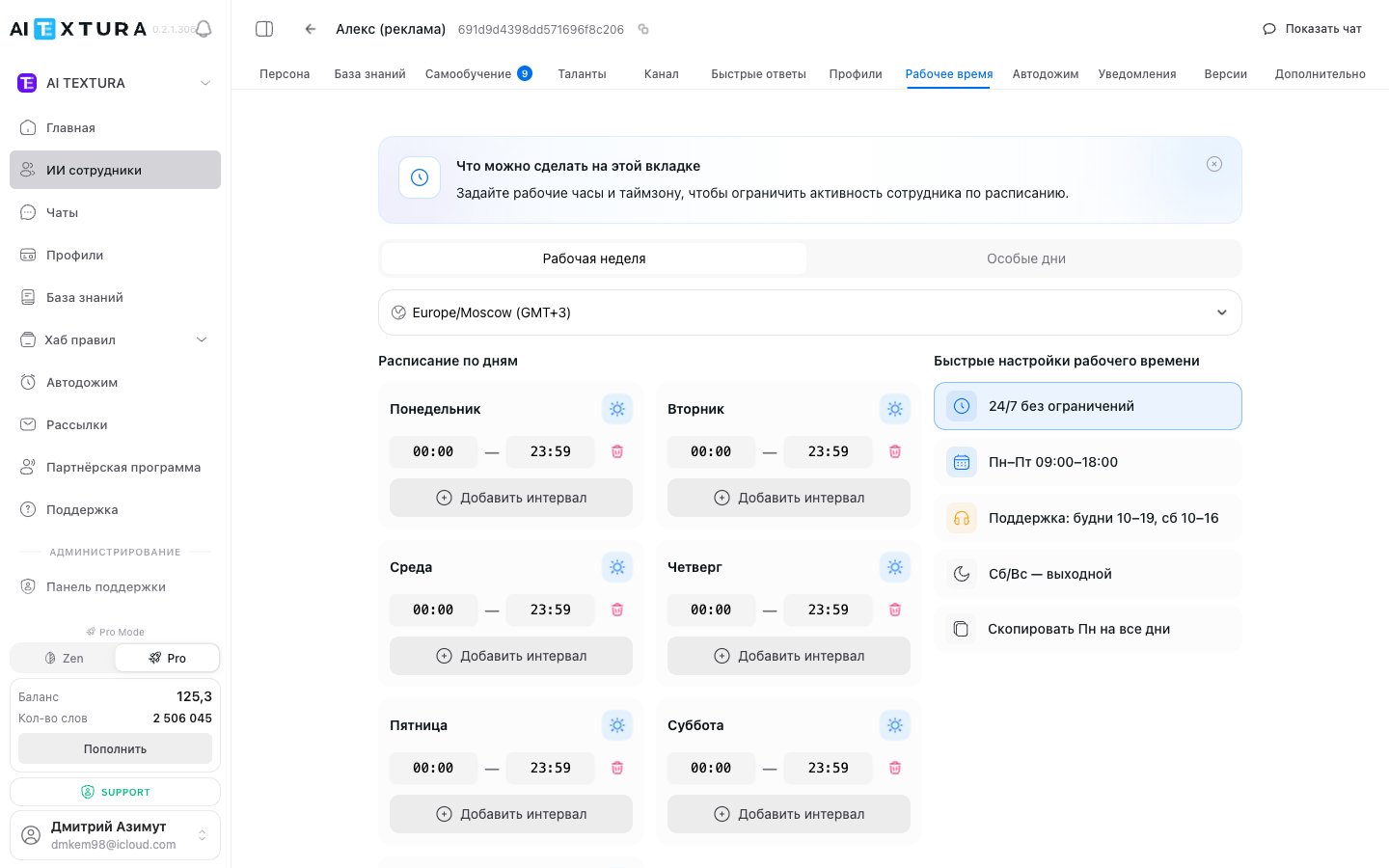
The **Working Hours** section defines when your AI employee accepts and processes customer messages. During working hours the employee is active and responds; outside working hours it either stays silent or sends a pre-configured auto-reply.
Configure out-of-hours auto-reply in channel settings
Reminders respect the employee's schedule
Add time-based behavioral instructions
Alerts may arrive outside working hours
***
## Video walkthrough
A short video: how to configure an AI employee's schedule and how to use a cloned employee to run different modes for day and night work.
***
## Section Structure
The section consists of two sub-tabs:
| Sub-tab | Purpose |
| ---------------- | ------------------------------------------------------------------------------ |
| **Work Week** | Main schedule: timezone, working hours for each day of the week, quick presets |
| **Special Days** | Exceptions to the main schedule: holidays, days off, days with modified hours |
The schedule applies to all channels connected to the employee. If you need different schedules for different channels, create separate AI employees.
***
## Work Week
### Timezone
At the top of the section is the **Working Timezone** selector. The entire employee schedule is tied to the selected timezone. The default is **Europe/Moscow (GMT+3)**.
The timezone affects the entire schedule — both the work week and special days. Make sure the correct timezone is selected before configuring anything else. A mistake here will cause the employee to work at unexpected hours.
### Daily Schedule
Below the timezone selector is the schedule for each day of the week: Monday through Sunday. The following controls are available for each day:
| Element | Description |
| ------------------- | -------------------------------------------------------------------- |
| **Start time** | The time the employee begins responding (HH:MM format) |
| **End time** | The time the employee stops responding (HH:MM format) |
| **Add interval** | Creates an additional working time slot within the same day |
| **Remove interval** | Removes the current time interval (trash icon) |
| **Disable day** | Makes the day completely non-working (sun icon next to the day name) |
Each day can contain **multiple intervals**. This is useful for scheduling breaks — for example, two intervals of 09:00–13:00 and 14:00–18:00 create a lunch break from 13:00 to 14:00.
If working hours are the same for all days, configure Monday first, then use the "Copy Mon to all days" preset.
### Quick Presets
Below the schedule is the **Quick working hours presets** block — a set of ready-made templates:
| Preset | What it configures |
| -------------------------------------- | --------------------------------------------------------- |
| **24/7 unlimited** | All days active, around the clock, no days off |
| **Mon–Fri 09:00–18:00** | Standard work week, Saturday and Sunday are days off |
| **Support: weekdays 10–19, Sat 10–16** | Support team schedule with a shorter Saturday |
| **Sat/Sun — day off** | Disables Saturday and Sunday, leaves other days unchanged |
| **Copy Mon to all days** | Applies Monday's schedule to all other days |
Presets are a starting point. After applying one, you can adjust any day manually.
***
## Special Days
The **Special Days** sub-tab lets you configure exceptions to the main schedule: public holidays, corporate days off, and days with modified hours.
**Special days always take priority** over the regular work week schedule.
For each special day, specify:
* **Date** — a specific calendar day
* **Parameters** — fully non-working day or a modified schedule with different working hours
Special days must be updated annually. Holidays added for the previous year do not carry over automatically to the next year.
Add all public holidays in advance for the entire year. This ensures the employee behaves correctly on holidays.
***
## Out-of-Hours Behavior
When a customer writes to the employee outside of working hours, there are two possible outcomes:
1. **The employee does not respond** — the message remains unanswered until the next working interval begins.
2. **The employee sends an auto-reply** — a pre-configured message informing the customer about working hours.
The auto-reply text is configured not here but in the **[Channels](/en/channels/index)** settings. The **Working Hours** tab is responsible only for the schedule — "when", not "what to do".
If no working hours are configured, the default is **24/7** mode — all days are active from 00:00 to 23:59.
***
## Step-by-Step Instructions
### Setting Up a Standard Work Week
Navigate to the desired employee and open the **Working Hours** tab.
Make sure the correct timezone is selected in the **Working Timezone** selector.
For each working day, specify the **Start time** and **End time**.
For non-working days, click the sun icon next to the day name to disable them.
Click **Save**. Changes take effect immediately.
Or simply click the **Mon–Fri 09:00–18:00** preset in the quick settings block — the schedule will be filled in automatically.
### Adding a Lunch Break
In the work week schedule, find the day where you want to add a break.
Specify working hours before the break — for example, **09:00–13:00**.
Click **Add interval** and specify working hours after the break — for example, **14:00–18:00**.
Click **Save**. The employee will now not respond to messages from 13:00 to 14:00.
### Adding a Special Day (Holiday)
Open the **Special Days** sub-tab.
Click the button to add a new special day.
Specify the **date** and choose the type: fully non-working day or a modified schedule with different hours.
Click **Save**.
### Enabling 24/7 Mode
Navigate to the **Working Hours** tab.
In the quick settings block, click **24/7 unlimited**.
Click **Save**. All days of the week will become active from 00:00 to 23:59.
***
## All Parameters
| Parameter | Description |
| ----------------- | -------------------------------------------------------------- |
| **Timezone** | The timezone to which the entire employee schedule is tied |
| **Start time** | The hour from which the employee begins responding to messages |
| **End time** | The hour after which the employee stops responding |
| **Add interval** | Creates an additional working time slot within a single day |
| **Disable day** | Makes the day completely non-working (sun icon) |
| **Quick presets** | Ready-made schedule templates — applied with one click |
| **Special days** | Exceptions to the main schedule (holidays, days off) |
***
## Related Sections
| Section | How it relates to Working Hours |
| ---------------------------------------------- | ------------------------------------------------------------------------------------------------ |
| **[Channels](/en/channels/index)** | This is where the out-of-hours auto-reply is configured — the message text the customer receives |
| **[Persona](/en/guides/persona)** | You can add instructions for behavior at certain hours (e.g., night mode) |
| **[Auto Follow-up](/en/guides/auto-followup)** | Consider the schedule when configuring — reminders may be sent outside working hours |
| **[Notifications](/en/guides/notifications)** | Manager notifications may arrive outside working hours |
***
## FAQ
The employee either does not respond or sends a pre-configured auto-reply. The specific behavior depends on the settings in the **[Channels](/en/channels/index)** section.
No. The schedule is set at the employee level and applies to all connected channels. If you need different schedules, create separate AI employees.
Special days always take priority over the regular work week schedule.
Immediately after saving. No waiting or reloading is required.
Yes. Use the **Add interval** button to split a working day into multiple time slots. For example: 09:00–13:00 and 14:00–18:00.
Yes. Holidays added for the current year do not automatically carry over to the next year. Check and update the list at the beginning of each year.
Yes. By default, all days are active from 00:00 to 23:59, which corresponds to 24/7 mode with no days off.
The auto-reply text is configured not here but in the **[Channels](/en/channels/index)** section. The **Working Hours** tab is responsible only for the schedule.