> ## Documentation Index
> Fetch the complete documentation index at: https://aitextura.mintlify.site/llms.txt
> Use this file to discover all available pages before exploring further.
# Support
> AI Textura built-in ticket system: ticket creation, support access to your account, the thumbs-down button with a 4-step bad-response review, statuses, and response times.
Support is the built-in ticket system for contacting the AI Textura team. Here you can ask a question, report a problem, request help with configuration — and receive a response directly inside the platform, without switching to email or messengers.
In addition to classic tickets, you have two "fast lanes" to support:
* **The thumbs-down button** on any AI response — triggers a [4-step review](#how-to-report-an-ai-response-thumbs-down) with automatic ticket creation.
* **The "Support access to account" toggle** — lets the team look at your chats, agents, and settings to resolve the issue faster.
Your account parameters
Balance and billing history
Manage your employees
Connect communication channels
The section is located in the left menu — the **Support** item.
***
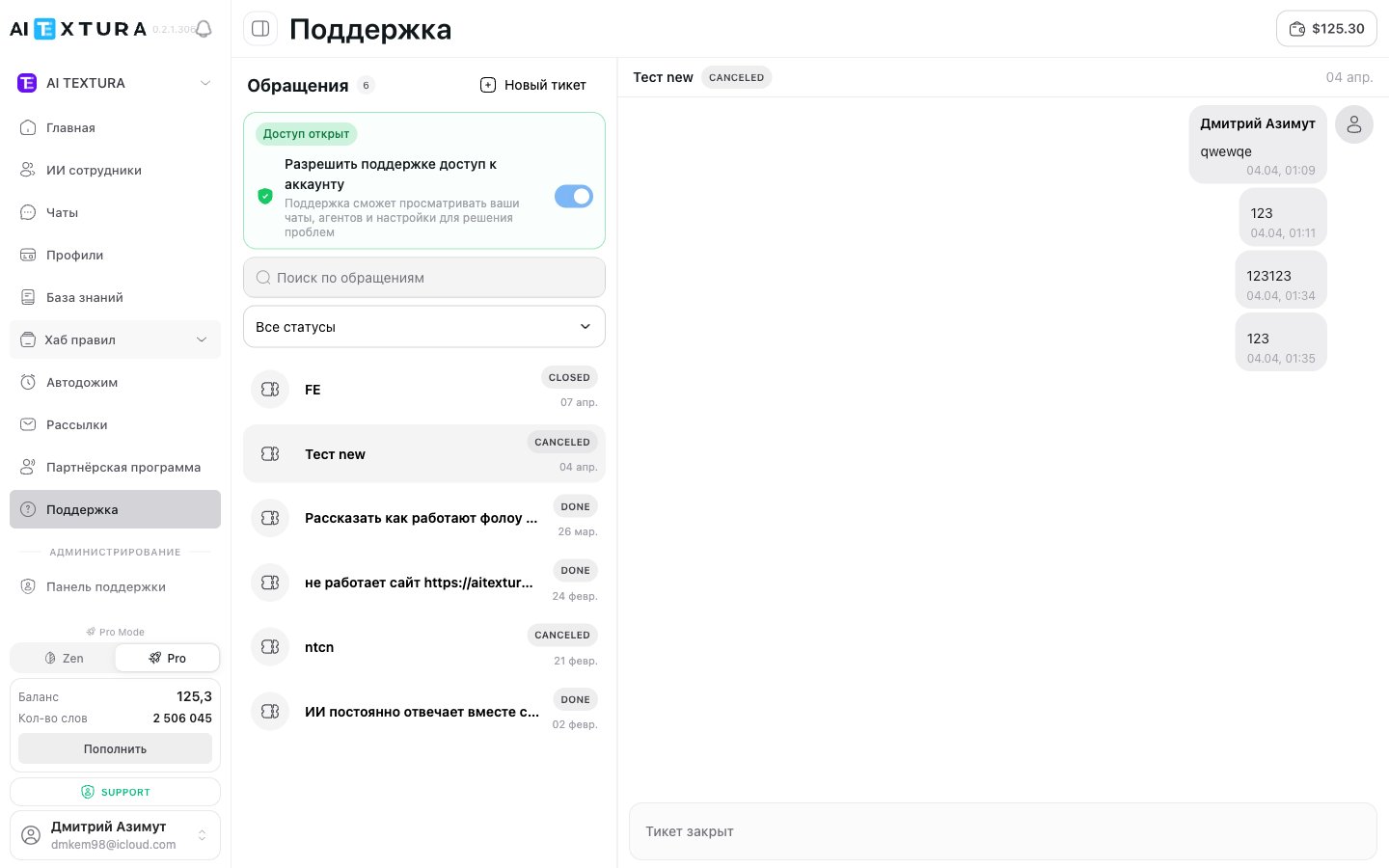
## Support access to your account
At the top of the **Support** page there is a **"Allow support access to account"** toggle (new in v2.5.0). When the toggle is on, the **"Access open"** status is displayed next to it.
| State | What it means |
| ----------------- | --------------------------------------------------------------------------------------------------------------------------------------------------------------------------------------------------------------------------------------------------------------------------- |
| **Access open** | The AI Textura support team can sign in to your account on your behalf to look at [chats](/en/guides/chats), [agent](/en/guides/ai-employees) settings, [talents](/en/guides/talents), the [knowledge base](/en/guides/knowledge), and other sections — for issue diagnosis |
| **Access closed** | Support sees only the text of your ticket and attached files — without the ability to sign in to the account |
If your ticket relates to agent configuration, AI behavior in a specific chat, or channel setup — **enable access before sending the ticket**. This significantly speeds up resolution: the team doesn't need to ask you for screenshots or videos — they look themselves.
"Access open" stays on until you toggle it off yourself. After the issue is resolved, we recommend turning access off again. On critical accounts with financial operations, enable access only for the duration of a specific ticket.
***
## How to report an AI response (thumbs down)
If an AI employee replied to a client incorrectly, you don't have to create a ticket manually — every message has a **"Mark response as unhelpful"** (thumbs-down) button. It launches a 4-step review: the platform first tries to **explain on its own** why the response was bad, and if you still have questions — it forms a request to the **AI training team** with an automatically attached "Context report".
### Video walkthrough
### Where to find the button
In the [Chats](/en/guides/chats) section, open any dialog. Every AI employee message has a thumbs-down icon button (aria-label: `Mark response as unhelpful`). Click it — a modal with the review opens.
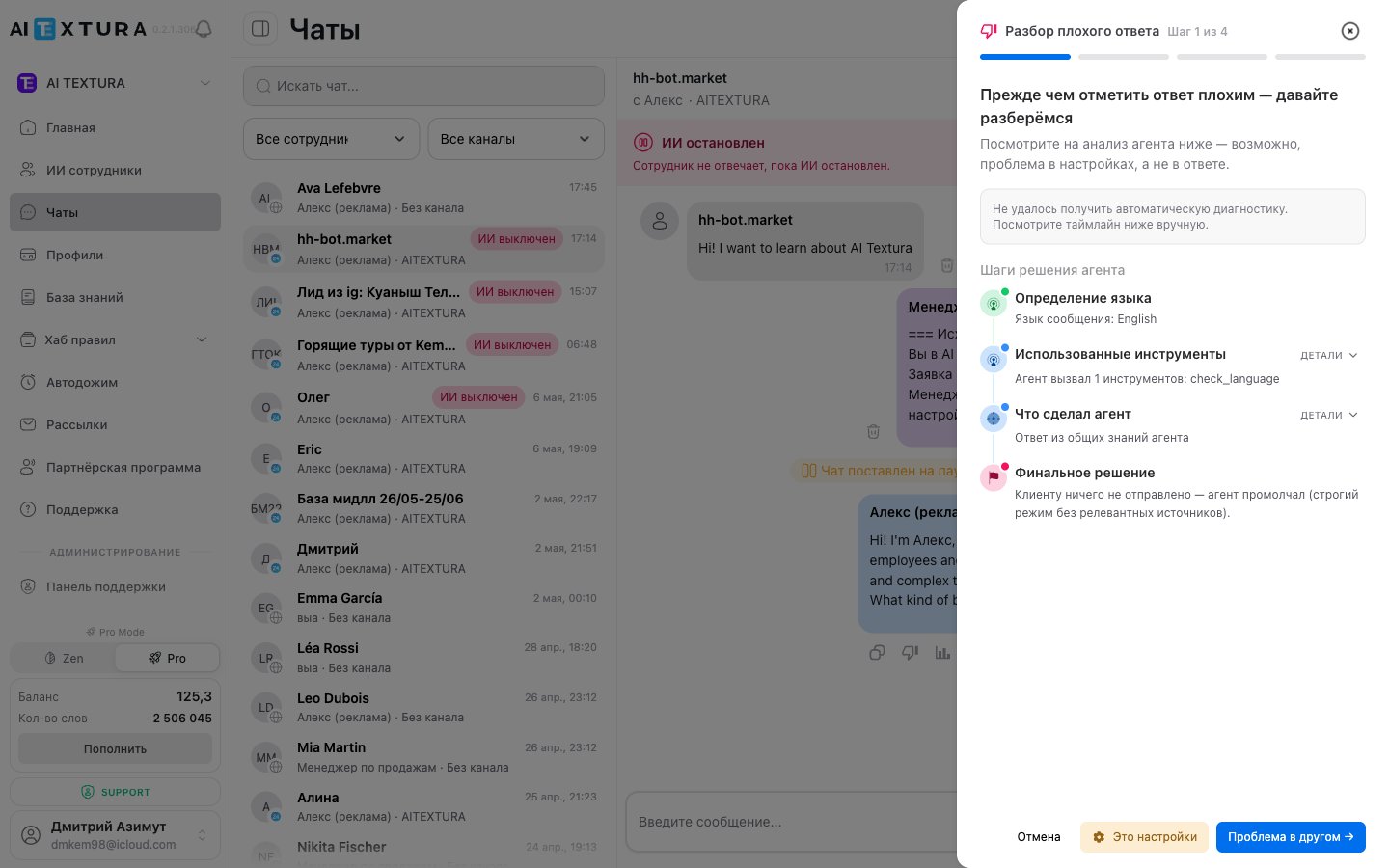
### Step 1 of 4 — Bad response review
The platform shows an **automatic diagnosis** of how the agent arrived at the response:
| Agent decision step | What it shows |
| ---------------------- | ------------------------------------------------------------------------------------------------------------------------------------- |
| **Language detection** | Which language was detected in the client's message (for example, "Message language: English") |
| **Tools used** | Expandable list of [talents](/en/guides/talents) the agent called (`check_language`, `crm_create_lead`, etc.) |
| **What the agent did** | Source of the response: general knowledge, [knowledge base](/en/guides/knowledge), [talent](/en/guides/talents), or a combination |
| **Final decision** | The resulting action — for example, "Nothing was sent to the client — the agent stayed silent (strict mode without relevant sources)" |
At the bottom there are three buttons:
| Button | When to choose |
| ----------------------------------- | ------------------------------------------------------------------------------------------------------- |
| **Cancel** | Close the review without sending |
| **It's the settings** | If the diagnosis already shows that the cause is in instructions or the prompt — go to step 2 to verify |
| **The problem is something else →** | If the diagnosis doesn't explain the issue — skip the check and describe it in your own words (step 3) |
If auto-diagnostics is unavailable, the platform displays: "Couldn't fetch automatic diagnostics. Review the timeline below manually." This is rare — proceed with the standard flow, describing the problem at step 3.
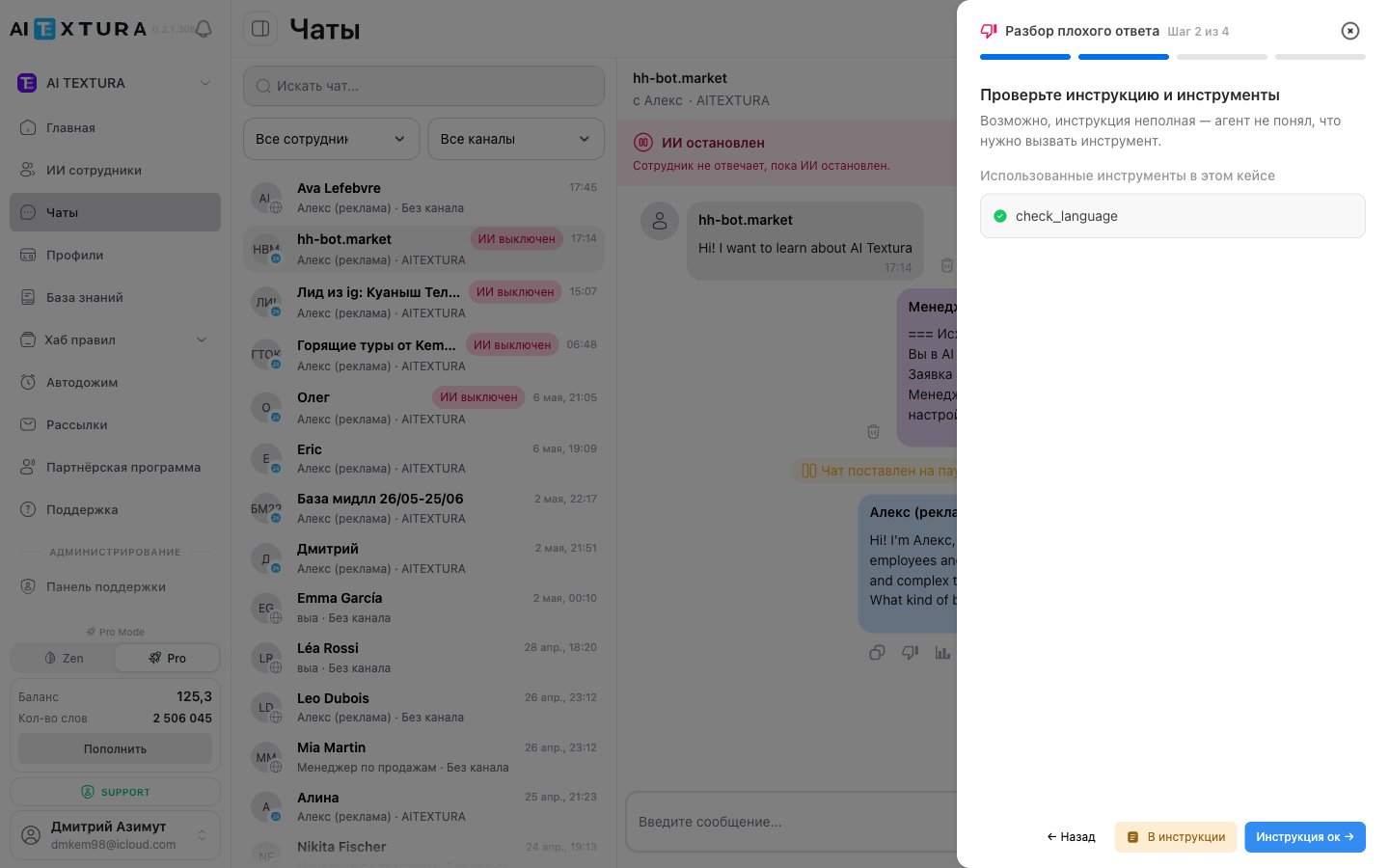
### Step 2 of 4 — Check the instructions and tools
"The instructions might be incomplete — the agent didn't realize it had to call a tool." At this step the platform shows the **list of tools the agent used in this case** (`check_language`, knowledge-base search, CRM operations, etc.).
You decide whether the [Persona](/en/guides/persona) or the operating rules are at fault:
| Button | What it means |
| ---------------------------- | ------------------------------------------------------------------------------------------------------- |
| **← Back** | Return to auto-diagnostics |
| **It's the instructions** | Acknowledge that the cause is in the agent's instructions — go to step 3 to report to the training team |
| **Instructions look fine →** | The instructions look fine — describe the problem separately (step 3) |
Before clicking **"It's the instructions"**, open the employee's [Persona](/en/guides/persona) in a separate tab and check whether it actually describes how to call the needed tool. Sometimes fixing the prompt is faster than waiting for support.
### Step 3 of 4 — Describe the problem
Here you fill in three fields — this is the body of the future ticket:
| Field | What to enter |
| -------------------------------------------------------------- | ------------------------------------------------------------------- |
| **What should the response have been?** *(textarea, required)* | Describe the correct response or what was missing in the actual one |
| **What do you think caused the error?** *(select)* | Pick one of the categories — see the table below |
| **Additional comments** *(textarea)* | Any useful information for the training team |
#### Cause options
| Cause | When to choose |
| ------------------------------- | ------------------------------------------------------------------------------------------------------------ |
| **Inaccuracy (made-up facts)** | The AI reported information that does not exist in reality or in the knowledge base |
| **Misunderstood the question** | The AI replied to the "wrong" question — misinterpreted the client |
| **Didn't use knowledge / tool** | The agent has a [knowledge base](/en/guides/knowledge) or a [talent](/en/guides/talents) but didn't use them |
| **Rude / inappropriate tone** | A stylistic problem — broken [tone](/en/guides/persona) or ethics |
| **Too long / too short** | Inappropriate response format |
| **Other** | Any other situation — explain in the text fields |
The **Next →** button activates only after the first textarea is filled.
### Step 4 of 4 — Thank you, your feedback matters
The final screen consolidates everything into one ticket:
* Summary: `Expected response: {your text from step 3}`, `Cause: {selected cause}`.
* Message: **"This information will go to the AI training team. We use it to make agents better. A response usually arrives within 3 business days."**
* **Key item**: **"A context report for the case will be automatically attached to the support request."**
* Link **📎 Open context report →** — lets you preview the detailed report on the agent's decision steps before sending.
* Buttons: `← Back`, `Send`.
After clicking **Send**, a new ticket appears in [Support](/en/guides/support) with the **On Customer** status — the AI training team will get back to you, usually within 3 business days.
Thumbs down is **not just an analytics rating**. It is a **ticket format** for a specialized team: it automatically gathers all the technical information (message language, [talents](/en/guides/talents) used, [knowledge base](/en/guides/knowledge) search result, the agent's final decision) and attaches it to the request. The team doesn't need to ask you for context — it's already there.
Use thumbs down on any AI response inaccuracy — even if you're not sure the issue is serious. The more such signals the training team gets, the faster agents become more accurate.
***
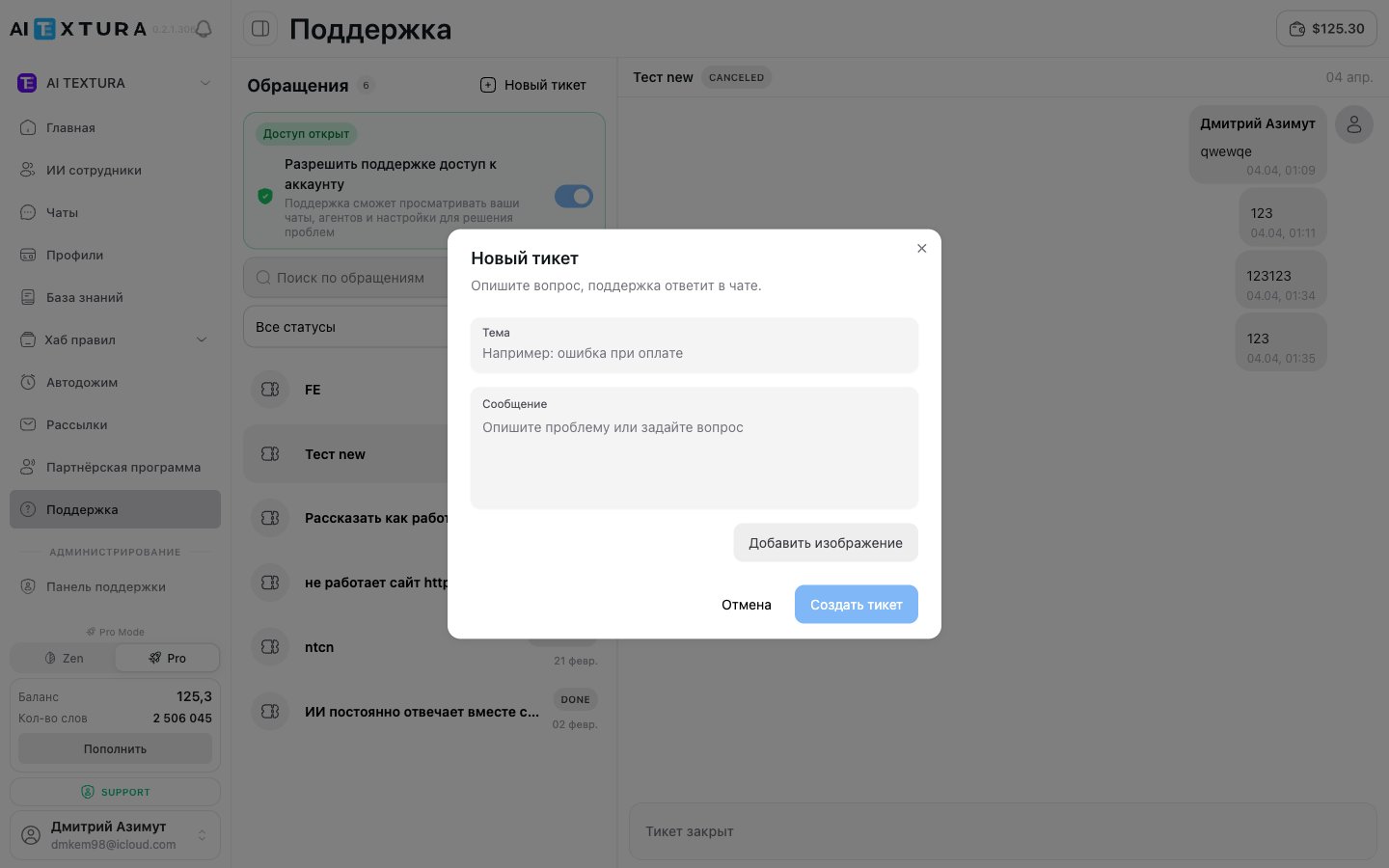
## How to create a new ticket
Click **Support** in the left menu of the platform.
The button is located at the top of the page.
Briefly describe the essence of your question or problem.
Explain in detail what happened or what you need. Specify which employee or feature it concerns, what you were doing, and what went wrong.
After creation, the ticket will appear in the list with the **On Customer** status.
The more precisely you describe the problem in your first message, the faster you'll get a reply. If the problem is tied to a specific AI response — try the [thumbs-down](#how-to-report-an-ai-response-thumbs-down) button first: it automatically attaches a context report.
***
## Communication within a ticket
After creating a ticket, communication takes place in a chat format — directly in the right panel of the Support section. Your messages appear on the right, team responses on the left.
To send a message:
1. Open the desired ticket by clicking on it in the list.
2. Enter text in the input field at the bottom.
3. Send the message.
When the team replies, a red indicator with the number of unread messages will appear next to the ticket in the list.
If you want to add information to your request, simply write a new message in the same ticket. There is no need to create a separate one.
***
## Ticket statuses
Each ticket has one of two statuses:
| Status | What it means | What to do |
| --------------- | -------------------------------------- | ------------------------------------------------ |
| **On Customer** | Awaiting your response or just created | Check if the team asked a question — reply to it |
| **Done** | Request closed, issue resolved | Nothing — the ticket is archived |
The status updates automatically: when the team responds and awaits your reaction, the ticket moves to **On Customer**. When the issue is resolved, the team sets the ticket to **Done**.
A closed ticket cannot be reopened. If the problem recurs or a new question arises, create a separate ticket. You can reference the previous request in the message text.
***
## Search and filtering
If you have many tickets, two tools will help you quickly find the right one:
| Tool | Purpose |
| ----------------- | ------------------------------------------------ |
| **Ticket search** | Text search by ticket titles |
| **Status filter** | Show all, only **On Customer**, or only **Done** |
***
## Response times
The AI Textura team strives to respond to requests as quickly as possible. Estimated timeframes:
| Type of request | Estimated response time |
| -------------------------------------------------- | ------------------------ |
| Critical issue (platform down, unexpected charges) | Within a few hours |
| Configuration or feature question | Within one business day |
| Feature request or suggestion | Within 1–2 business days |
If your issue is urgent, indicate this in the ticket title. For example: "URGENT: agent stopped responding in Telegram." This helps the team prioritize your request.
***
## Tips for effective tickets
* **One question per ticket.** This makes it easier for the team to track and resolve each issue.
* **Reply to the team's questions** — this speeds up resolution.
**For the fastest response to your request**, include the following:
1. **Error screenshot** — attach an image directly to the message so the team can immediately see what's happening.
2. **Link to the conversation** — open the [Chats](/en/guides/chats) section, find the relevant conversation, and copy the URL from your browser's address bar. This way support can see the dialog and understand the situation.
3. **Steps to reproduce** (for complex errors) — describe step by step what needs to be done to reproduce the error. This allows the team to repeat the scenario and see in the conversation how it works.
**Example of a good request:**
> Title: "Booking link not working"
> Message: "The 'Concierge' employee in Telegram sends clients a booking link, but clicking it opens a blank page. Link: \[URL]. The problem started yesterday. Chat link: [https://app.aitextura.com/chats/](https://app.aitextura.com/chats/)... To reproduce: write to the bot 'book a room for March 20' — the response will contain a broken link."
***
## FAQ
Yes! You can attach images and files directly to ticket messages. We recommend always including an error screenshot — it significantly speeds up resolution.
A red indicator with the number of unread messages will appear next to the ticket in the list.
No. If the issue returns, create a new ticket. You can reference the previous request in the message text.
There is no limit. Create as many requests as you need.
The AI Textura support team — real people who know the platform inside and out. It is not a bot.
The team operates during business hours (Moscow time), but critical requests may be handled outside of the standard schedule.
Thumbs down is a **specialized channel** for requests about AI response quality. The platform automatically gathers all the technical information (message language, [talents](/en/guides/talents), [knowledge base](/en/guides/knowledge), final decision) and attaches it to the ticket. The request goes to the **AI training team**. A regular ticket is a free-form request to general support: questions about billing, channel connections, access, etc.
Yes. Access is granted only to AI Textura support staff and is used to diagnose your issues. All actions are logged on the platform side. After a ticket is resolved, we recommend turning the toggle off — you can do this at any moment on the **Support** page.
The report includes: the client message language, the list of called [talents](/en/guides/talents) and their results, what was found in the [knowledge base](/en/guides/knowledge), and the agent's final decision. You can preview the report before sending via the "📎 Open context report" link at step 4.
 The platform shows an **automatic diagnosis** of how the agent arrived at the response:
| Agent decision step | What it shows |
| ---------------------- | ------------------------------------------------------------------------------------------------------------------------------------- |
| **Language detection** | Which language was detected in the client's message (for example, "Message language: English") |
| **Tools used** | Expandable list of [talents](/en/guides/talents) the agent called (`check_language`, `crm_create_lead`, etc.) |
| **What the agent did** | Source of the response: general knowledge, [knowledge base](/en/guides/knowledge), [talent](/en/guides/talents), or a combination |
| **Final decision** | The resulting action — for example, "Nothing was sent to the client — the agent stayed silent (strict mode without relevant sources)" |
At the bottom there are three buttons:
| Button | When to choose |
| ----------------------------------- | ------------------------------------------------------------------------------------------------------- |
| **Cancel** | Close the review without sending |
| **It's the settings** | If the diagnosis already shows that the cause is in instructions or the prompt — go to step 2 to verify |
| **The problem is something else →** | If the diagnosis doesn't explain the issue — skip the check and describe it in your own words (step 3) |
The platform shows an **automatic diagnosis** of how the agent arrived at the response:
| Agent decision step | What it shows |
| ---------------------- | ------------------------------------------------------------------------------------------------------------------------------------- |
| **Language detection** | Which language was detected in the client's message (for example, "Message language: English") |
| **Tools used** | Expandable list of [talents](/en/guides/talents) the agent called (`check_language`, `crm_create_lead`, etc.) |
| **What the agent did** | Source of the response: general knowledge, [knowledge base](/en/guides/knowledge), [talent](/en/guides/talents), or a combination |
| **Final decision** | The resulting action — for example, "Nothing was sent to the client — the agent stayed silent (strict mode without relevant sources)" |
At the bottom there are three buttons:
| Button | When to choose |
| ----------------------------------- | ------------------------------------------------------------------------------------------------------- |
| **Cancel** | Close the review without sending |
| **It's the settings** | If the diagnosis already shows that the cause is in instructions or the prompt — go to step 2 to verify |
| **The problem is something else →** | If the diagnosis doesn't explain the issue — skip the check and describe it in your own words (step 3) |
 "The instructions might be incomplete — the agent didn't realize it had to call a tool." At this step the platform shows the **list of tools the agent used in this case** (`check_language`, knowledge-base search, CRM operations, etc.).
You decide whether the [Persona](/en/guides/persona) or the operating rules are at fault:
| Button | What it means |
| ---------------------------- | ------------------------------------------------------------------------------------------------------- |
| **← Back** | Return to auto-diagnostics |
| **It's the instructions** | Acknowledge that the cause is in the agent's instructions — go to step 3 to report to the training team |
| **Instructions look fine →** | The instructions look fine — describe the problem separately (step 3) |
"The instructions might be incomplete — the agent didn't realize it had to call a tool." At this step the platform shows the **list of tools the agent used in this case** (`check_language`, knowledge-base search, CRM operations, etc.).
You decide whether the [Persona](/en/guides/persona) or the operating rules are at fault:
| Button | What it means |
| ---------------------------- | ------------------------------------------------------------------------------------------------------- |
| **← Back** | Return to auto-diagnostics |
| **It's the instructions** | Acknowledge that the cause is in the agent's instructions — go to step 3 to report to the training team |
| **Instructions look fine →** | The instructions look fine — describe the problem separately (step 3) |
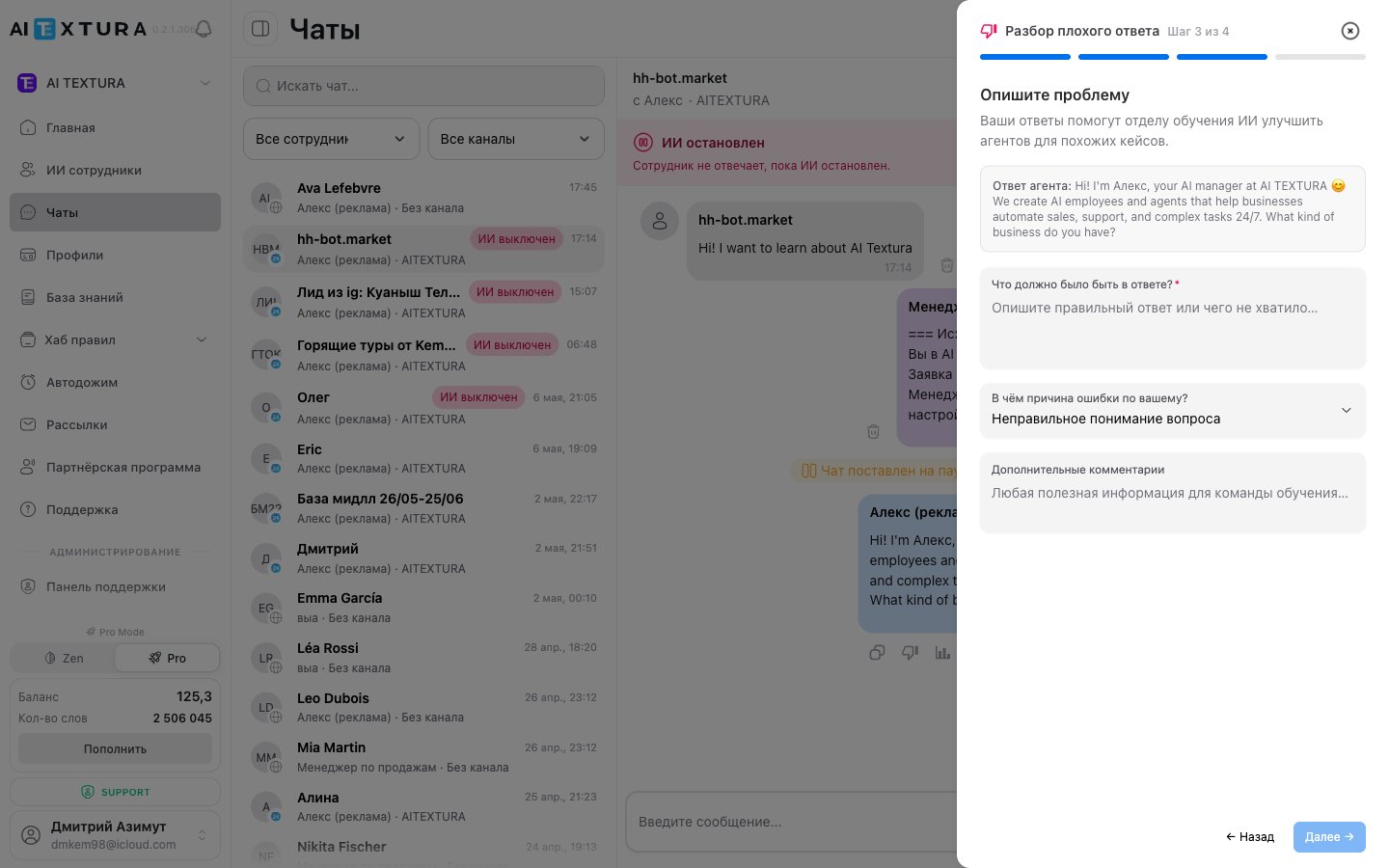 Here you fill in three fields — this is the body of the future ticket:
| Field | What to enter |
| -------------------------------------------------------------- | ------------------------------------------------------------------- |
| **What should the response have been?** *(textarea, required)* | Describe the correct response or what was missing in the actual one |
| **What do you think caused the error?** *(select)* | Pick one of the categories — see the table below |
| **Additional comments** *(textarea)* | Any useful information for the training team |
#### Cause options
| Cause | When to choose |
| ------------------------------- | ------------------------------------------------------------------------------------------------------------ |
| **Inaccuracy (made-up facts)** | The AI reported information that does not exist in reality or in the knowledge base |
| **Misunderstood the question** | The AI replied to the "wrong" question — misinterpreted the client |
| **Didn't use knowledge / tool** | The agent has a [knowledge base](/en/guides/knowledge) or a [talent](/en/guides/talents) but didn't use them |
| **Rude / inappropriate tone** | A stylistic problem — broken [tone](/en/guides/persona) or ethics |
| **Too long / too short** | Inappropriate response format |
| **Other** | Any other situation — explain in the text fields |
The **Next →** button activates only after the first textarea is filled.
### Step 4 of 4 — Thank you, your feedback matters
Here you fill in three fields — this is the body of the future ticket:
| Field | What to enter |
| -------------------------------------------------------------- | ------------------------------------------------------------------- |
| **What should the response have been?** *(textarea, required)* | Describe the correct response or what was missing in the actual one |
| **What do you think caused the error?** *(select)* | Pick one of the categories — see the table below |
| **Additional comments** *(textarea)* | Any useful information for the training team |
#### Cause options
| Cause | When to choose |
| ------------------------------- | ------------------------------------------------------------------------------------------------------------ |
| **Inaccuracy (made-up facts)** | The AI reported information that does not exist in reality or in the knowledge base |
| **Misunderstood the question** | The AI replied to the "wrong" question — misinterpreted the client |
| **Didn't use knowledge / tool** | The agent has a [knowledge base](/en/guides/knowledge) or a [talent](/en/guides/talents) but didn't use them |
| **Rude / inappropriate tone** | A stylistic problem — broken [tone](/en/guides/persona) or ethics |
| **Too long / too short** | Inappropriate response format |
| **Other** | Any other situation — explain in the text fields |
The **Next →** button activates only after the first textarea is filled.
### Step 4 of 4 — Thank you, your feedback matters
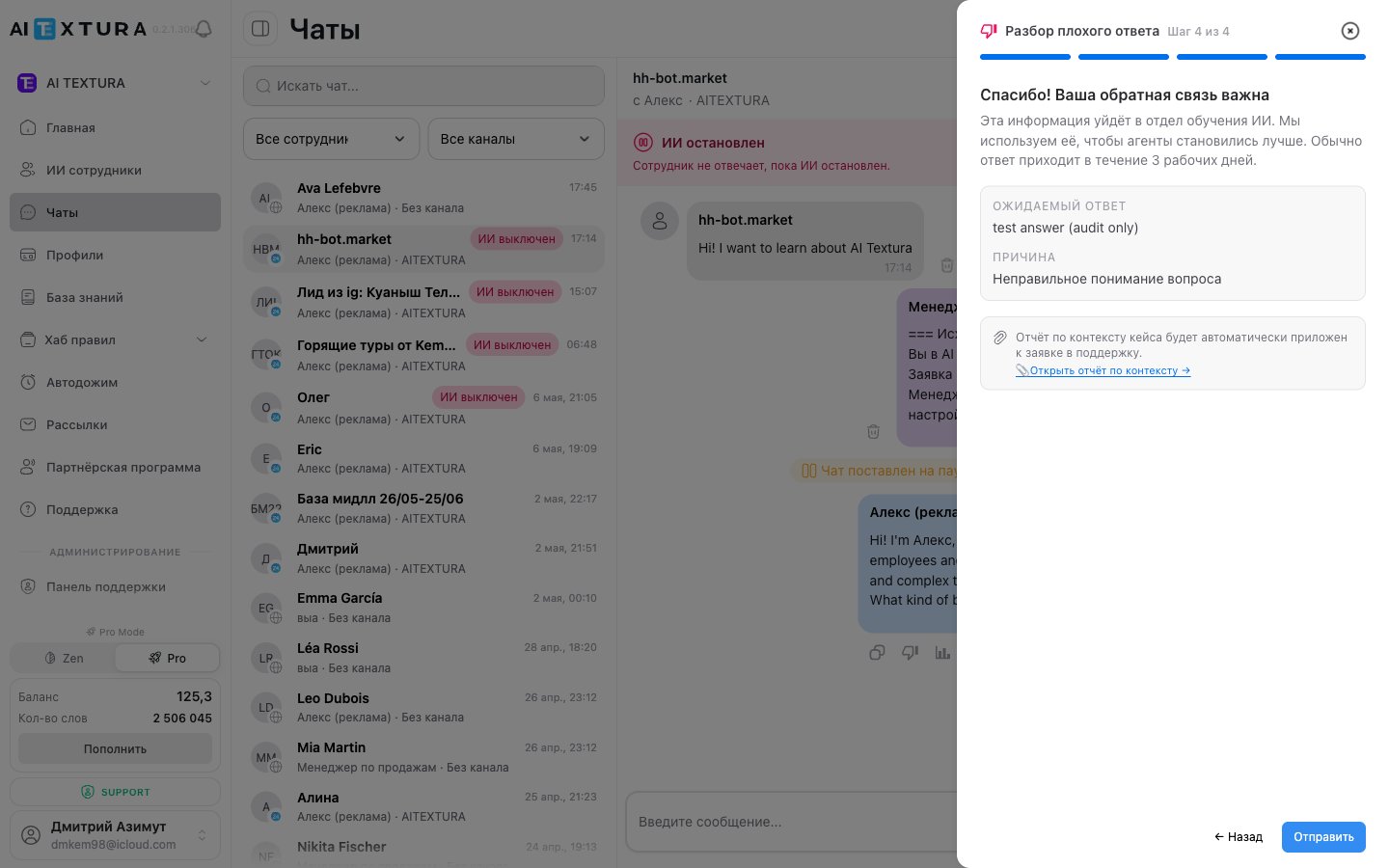 The final screen consolidates everything into one ticket:
* Summary: `Expected response: {your text from step 3}`, `Cause: {selected cause}`.
* Message: **"This information will go to the AI training team. We use it to make agents better. A response usually arrives within 3 business days."**
* **Key item**: **"A context report for the case will be automatically attached to the support request."**
* Link **📎 Open context report →** — lets you preview the detailed report on the agent's decision steps before sending.
* Buttons: `← Back`, `Send`.
After clicking **Send**, a new ticket appears in [Support](/en/guides/support) with the **On Customer** status — the AI training team will get back to you, usually within 3 business days.
The final screen consolidates everything into one ticket:
* Summary: `Expected response: {your text from step 3}`, `Cause: {selected cause}`.
* Message: **"This information will go to the AI training team. We use it to make agents better. A response usually arrives within 3 business days."**
* **Key item**: **"A context report for the case will be automatically attached to the support request."**
* Link **📎 Open context report →** — lets you preview the detailed report on the agent's decision steps before sending.
* Buttons: `← Back`, `Send`.
After clicking **Send**, a new ticket appears in [Support](/en/guides/support) with the **On Customer** status — the AI training team will get back to you, usually within 3 business days.