> ## Documentation Index
> Fetch the complete documentation index at: https://aitextura.mintlify.site/llms.txt
> Use this file to discover all available pages before exploring further.
# Rules Hub
> A centralized library of ready-made and custom instruction blocks for configuring AI employee Personas on the AI Textura platform.
**Rules Hub** is the centralized storage of instruction blocks that you can use when configuring the [Persona](/en/guides/persona) of any AI employee. Instead of writing instructions from scratch every time, you pick a ready-made block from the hub, insert it into the [Persona](/en/guides/persona), and adapt it to your needs.
The Rules Hub is a **global library of reusable Role / Tone / Instruction blocks**, available across all your organizations and for all AI employees. One block — many employees: configure a universal tone or scenario once and apply it to any agent.
 Role, tone, and instructions
Manage your virtual agents
Connected data sources
Configuration change history
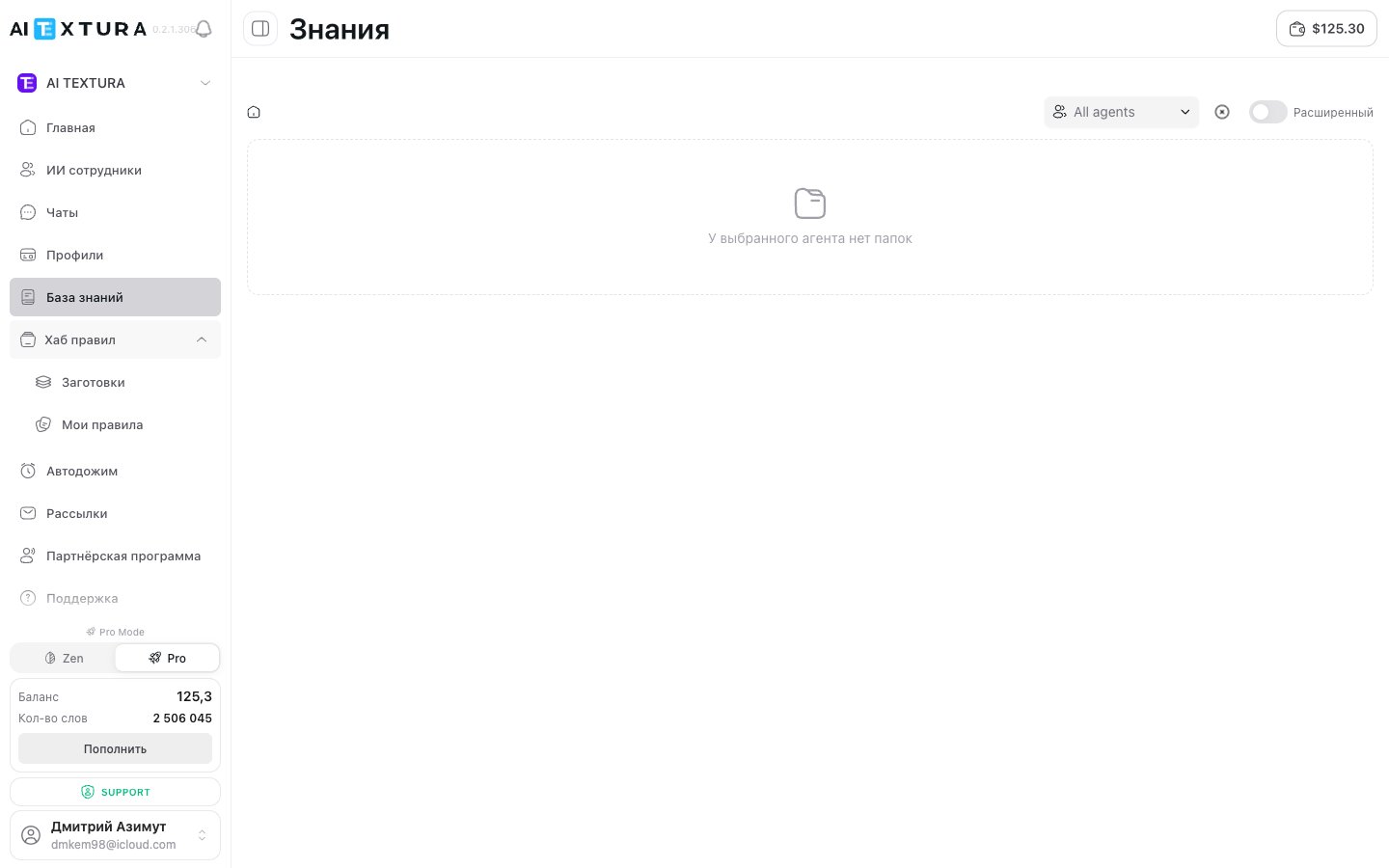
The Rules Hub is in the left menu of the platform. Clicking it reveals a submenu with two sections: **Templates** and **My Rules**.
***
## Rules Hub Structure
The hub consists of two sections, each accessible both from the left menu and via the **Apply Template** button inside the Persona editor.
| Section | Contents | Created by |
| ------------- | ------------------------------------------------ | --------------- |
| **Templates** | Pre-built blocks for popular roles and scenarios | AI Textura team |
| **My Rules** | Blocks you saved from an employee's Persona | You |
Both sections work the same way: find the block you need, click on it, and it gets added to the selected employee's Persona. You can then edit the block to fit your specific task.
***
## Templates — Pre-built Blocks from AI Textura
**Templates** is a library of professionally written blocks covering typical roles and scenarios. The AI Textura team created them based on real use cases so you can launch an employee quickly without lengthy setup.
Role, tone, and instructions
Manage your virtual agents
Connected data sources
Configuration change history
The Rules Hub is in the left menu of the platform. Clicking it reveals a submenu with two sections: **Templates** and **My Rules**.
***
## Rules Hub Structure
The hub consists of two sections, each accessible both from the left menu and via the **Apply Template** button inside the Persona editor.
| Section | Contents | Created by |
| ------------- | ------------------------------------------------ | --------------- |
| **Templates** | Pre-built blocks for popular roles and scenarios | AI Textura team |
| **My Rules** | Blocks you saved from an employee's Persona | You |
Both sections work the same way: find the block you need, click on it, and it gets added to the selected employee's Persona. You can then edit the block to fit your specific task.
***
## Templates — Pre-built Blocks from AI Textura
**Templates** is a library of professionally written blocks covering typical roles and scenarios. The AI Textura team created them based on real use cases so you can launch an employee quickly without lengthy setup.
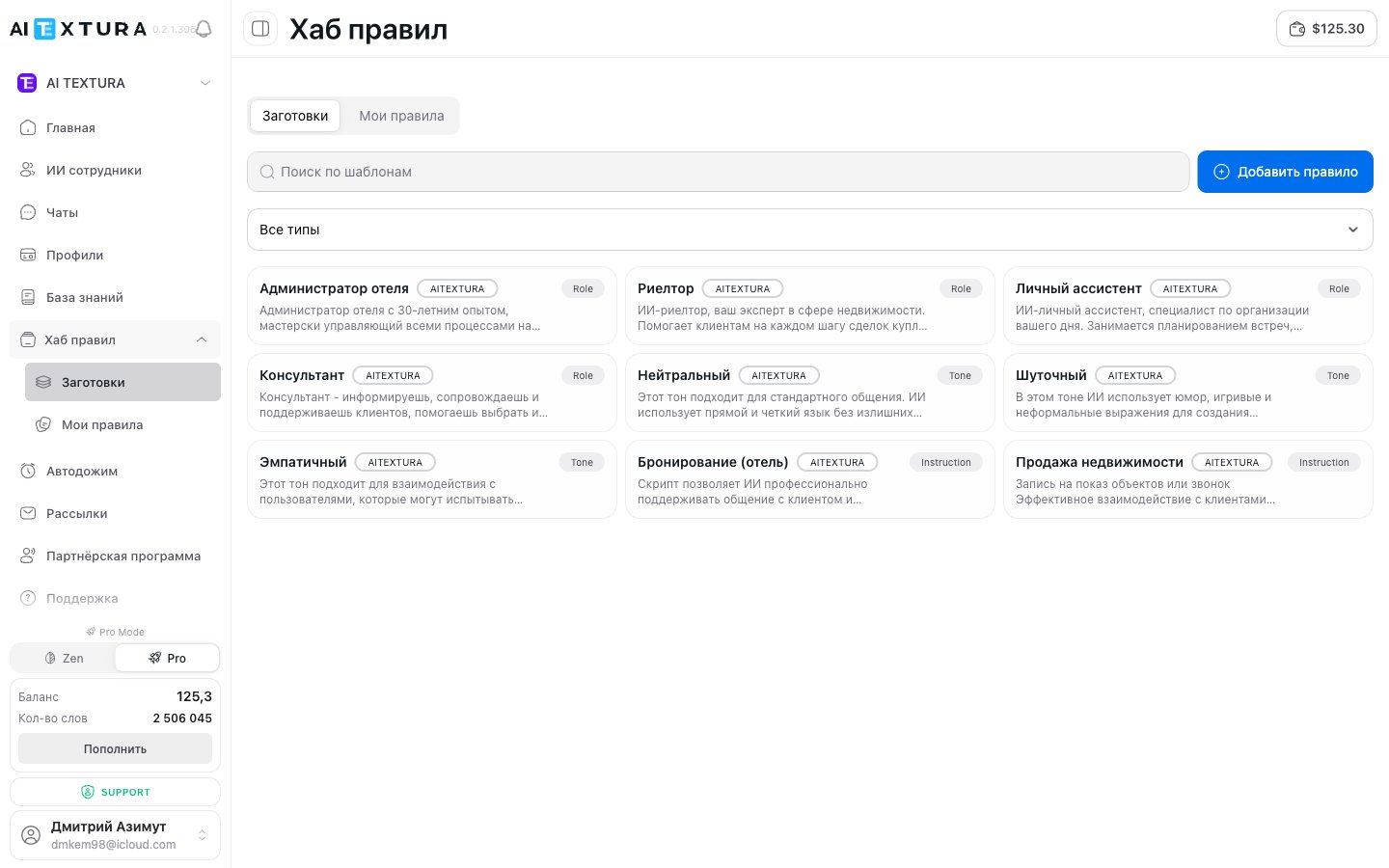 ### Full catalog of AI TEXTURA presets
Each template belongs to one of three Persona block types. Here's the current full catalog:
#### Role — who your employee is
| Template | Best for |
| ----------------------- | --------------------------------------------------------------------------- |
| **Hotel Administrator** | Hotel chains, apartments, guesthouses — taking bookings and handling guests |
| **Realtor** | Real estate agencies — lead qualification, property tours, deal handoff |
| **Personal Assistant** | Universal helper — schedule, tasks, simple errands |
| **Consultant** | Sales and customer service — expert advice on a product or service |
#### Tone — how the employee speaks
| Template | When to use |
| -------------- | ---------------------------------------------------------------------------------------------------- |
| **Neutral** | Default professional tone — fits most businesses |
| **Playful** | Lifestyle projects, B2C products with a young audience — the employee jokes and keeps a lively style |
| **Empathetic** | Healthcare, education, psychological support — careful attention to the client's feelings |
#### Instruction — step-by-step scenarios
| Template | What it describes |
| --------------------- | ------------------------------------------------------------------------ |
| **Booking (hotel)** | Booking intake scenario: dates, guests, payment, confirmation |
| **Real Estate Sales** | Client qualification: budget, location, purchase intent, manager handoff |
If your role isn't in the catalog — pick the closest match and adapt the text. For example, "Consultant" easily becomes "Auto-Loan Consultant" by adding 5–10 lines of specifics. That's faster than writing everything from scratch.
### Finding Templates
Two tools are available in the **Templates** section:
* **Search by name** — enter a keyword, e.g. "hotel" or "booking"
* **"All types" filter** — select a specific block type (Role, Tone, Script, etc.) to narrow down the list
### How to Apply a Template
1. Open **Rules Hub** → **Templates** in the left menu
2. Find the desired template using search or the filter
3. Click on the template
4. Select the employee you want to apply it to
5. The block will be added to the employee's Persona
1. Open the desired employee → **Persona** tab
2. Click the **Apply Template** button
3. In the dialog, select the **Templates** tab
4. Find the template and click on it — the blocks will be added to the Persona
5. Edit the text to match your specifics
6. Save your changes
Templates are a starting point, not a finished solution. Always adapt the text to your business: replace names, add specific details, remove what is unnecessary. The more precisely an instruction describes your situation, the more predictably the employee will perform.
***
## My Rules — Your Personal Library
**My Rules** is the section that stores blocks you saved from any employee's Persona. It is your personal library of reusable instructions.
Typical use cases:
* Identical rules for multiple employees (e.g., "do not make up information" or "do not ask more than two questions in a single message")
* A universal communication tone applied to all company employees
* Proven scenarios that you refined with one employee and want to replicate
### How to Save a Block to "My Rules"
Navigate to the desired employee and open the **Persona** tab.
Find the block you want to save, click the **"..."** icon (block menu) → **Save**.
The block will appear in the **My Rules** section — both in the left menu and in the **Apply Template** dialog inside the Persona editor.
### How to Apply a Saved Block to Another Employee
Navigate to the desired employee → **Persona** tab.
Click **Apply Template** → switch to the **My Rules** tab.
Click on the desired block — it will be added to the Persona. Edit the text if needed and save your changes.
Rules in the "My Rules" section are grouped by type: Role, Tone, Script, custom. Use the "All types" filter and search by name to quickly find blocks, especially when you have many saved.
### Creating a Rule Directly in the Hub
In addition to saving blocks from a Persona, you can create a new rule directly in the Hub — without tying it to a specific employee:
1. Open **Rules Hub** → **My Rules** in the left menu
2. Click the **Add Rule** button
3. Set a name and block type
4. Write the instruction text
5. Save
The created rule will immediately appear in your library and be available for use with any employee.
***
## "/" Command — Quick Import from the Editor
In the Persona editor, blocks from the Hub can be inserted via the **/** command at the end of the editor:
| Command | What it does |
| ------------------------------------------ | ------------------------------------------- |
| **/** → **Import from hub** → **My Rules** | Inserts your saved block |
| **/** → **Import from hub** → **Public** | Inserts a template from the AI Textura team |
***
## Entry Points to the Rules Hub
| From | Where you land | What you see |
| -------------------------------------------- | ----------------------------------- | ---------------------------------------------- |
| Left menu → **Rules Hub** → **Templates** | Hub page, "Templates" tab | All public templates from the AI Textura team |
| Left menu → **Rules Hub** → **My Rules** | Hub page, "My Rules" tab | Your saved blocks |
| Persona editor → **Apply Template** | Pop-up dialog with two tabs | Same data: Templates and My Rules |
| Persona editor → **/** → **Import from hub** | Source selection: My Rules / Public | Quick block insertion into the current Persona |
Blocks from the Rules Hub are inserted into a Persona **as a copy**. If you later modify the block in the Hub, it will not affect copies already inserted into employee Personas. Each copy must be updated separately.
***
## Block Actions
| Action | Where | How |
| -------------------------- | --------------------- | ------------------------------------- |
| Apply template to employee | Templates or My Rules | Click the block → select the employee |
| Save block from Persona | Persona editor | Block menu "..." → **Save** |
| Create a new rule | My Rules | **Add Rule** button |
| Find block by name | Templates or My Rules | Search field |
| Filter by type | Templates or My Rules | **All types** filter → select type |
***
## FAQ
Templates are pre-built blocks from the AI Textura team, available to all users. My Rules are your own blocks that you saved or created. Templates cannot be edited in the Hub — only after being applied to an employee. My Rules are fully under your control.
No. When you apply a block from the Hub to an employee, a copy is inserted into the Persona. Changes to the original do not affect already inserted copies, and vice versa. If you need to update a block across multiple employees, you must do it manually for each one.
Yes. Apply the template to one employee, then to another — each receives their own copy that can be edited independently.
No. You can save as many blocks as you need. We recommend giving blocks clear names and using filters to stay organized.
Yes. Deleting a block from the Hub will not affect employees that already have it applied — they retain their own copy.
Yes. Blocks positioned higher in the Persona have greater priority. After applying a template, you can drag blocks into the desired order directly in the editor.
### Full catalog of AI TEXTURA presets
Each template belongs to one of three Persona block types. Here's the current full catalog:
#### Role — who your employee is
| Template | Best for |
| ----------------------- | --------------------------------------------------------------------------- |
| **Hotel Administrator** | Hotel chains, apartments, guesthouses — taking bookings and handling guests |
| **Realtor** | Real estate agencies — lead qualification, property tours, deal handoff |
| **Personal Assistant** | Universal helper — schedule, tasks, simple errands |
| **Consultant** | Sales and customer service — expert advice on a product or service |
#### Tone — how the employee speaks
| Template | When to use |
| -------------- | ---------------------------------------------------------------------------------------------------- |
| **Neutral** | Default professional tone — fits most businesses |
| **Playful** | Lifestyle projects, B2C products with a young audience — the employee jokes and keeps a lively style |
| **Empathetic** | Healthcare, education, psychological support — careful attention to the client's feelings |
#### Instruction — step-by-step scenarios
| Template | What it describes |
| --------------------- | ------------------------------------------------------------------------ |
| **Booking (hotel)** | Booking intake scenario: dates, guests, payment, confirmation |
| **Real Estate Sales** | Client qualification: budget, location, purchase intent, manager handoff |
If your role isn't in the catalog — pick the closest match and adapt the text. For example, "Consultant" easily becomes "Auto-Loan Consultant" by adding 5–10 lines of specifics. That's faster than writing everything from scratch.
### Finding Templates
Two tools are available in the **Templates** section:
* **Search by name** — enter a keyword, e.g. "hotel" or "booking"
* **"All types" filter** — select a specific block type (Role, Tone, Script, etc.) to narrow down the list
### How to Apply a Template
1. Open **Rules Hub** → **Templates** in the left menu
2. Find the desired template using search or the filter
3. Click on the template
4. Select the employee you want to apply it to
5. The block will be added to the employee's Persona
1. Open the desired employee → **Persona** tab
2. Click the **Apply Template** button
3. In the dialog, select the **Templates** tab
4. Find the template and click on it — the blocks will be added to the Persona
5. Edit the text to match your specifics
6. Save your changes
Templates are a starting point, not a finished solution. Always adapt the text to your business: replace names, add specific details, remove what is unnecessary. The more precisely an instruction describes your situation, the more predictably the employee will perform.
***
## My Rules — Your Personal Library
**My Rules** is the section that stores blocks you saved from any employee's Persona. It is your personal library of reusable instructions.
Typical use cases:
* Identical rules for multiple employees (e.g., "do not make up information" or "do not ask more than two questions in a single message")
* A universal communication tone applied to all company employees
* Proven scenarios that you refined with one employee and want to replicate
### How to Save a Block to "My Rules"
Navigate to the desired employee and open the **Persona** tab.
Find the block you want to save, click the **"..."** icon (block menu) → **Save**.
The block will appear in the **My Rules** section — both in the left menu and in the **Apply Template** dialog inside the Persona editor.
### How to Apply a Saved Block to Another Employee
Navigate to the desired employee → **Persona** tab.
Click **Apply Template** → switch to the **My Rules** tab.
Click on the desired block — it will be added to the Persona. Edit the text if needed and save your changes.
Rules in the "My Rules" section are grouped by type: Role, Tone, Script, custom. Use the "All types" filter and search by name to quickly find blocks, especially when you have many saved.
### Creating a Rule Directly in the Hub
In addition to saving blocks from a Persona, you can create a new rule directly in the Hub — without tying it to a specific employee:
1. Open **Rules Hub** → **My Rules** in the left menu
2. Click the **Add Rule** button
3. Set a name and block type
4. Write the instruction text
5. Save
The created rule will immediately appear in your library and be available for use with any employee.
***
## "/" Command — Quick Import from the Editor
In the Persona editor, blocks from the Hub can be inserted via the **/** command at the end of the editor:
| Command | What it does |
| ------------------------------------------ | ------------------------------------------- |
| **/** → **Import from hub** → **My Rules** | Inserts your saved block |
| **/** → **Import from hub** → **Public** | Inserts a template from the AI Textura team |
***
## Entry Points to the Rules Hub
| From | Where you land | What you see |
| -------------------------------------------- | ----------------------------------- | ---------------------------------------------- |
| Left menu → **Rules Hub** → **Templates** | Hub page, "Templates" tab | All public templates from the AI Textura team |
| Left menu → **Rules Hub** → **My Rules** | Hub page, "My Rules" tab | Your saved blocks |
| Persona editor → **Apply Template** | Pop-up dialog with two tabs | Same data: Templates and My Rules |
| Persona editor → **/** → **Import from hub** | Source selection: My Rules / Public | Quick block insertion into the current Persona |
Blocks from the Rules Hub are inserted into a Persona **as a copy**. If you later modify the block in the Hub, it will not affect copies already inserted into employee Personas. Each copy must be updated separately.
***
## Block Actions
| Action | Where | How |
| -------------------------- | --------------------- | ------------------------------------- |
| Apply template to employee | Templates or My Rules | Click the block → select the employee |
| Save block from Persona | Persona editor | Block menu "..." → **Save** |
| Create a new rule | My Rules | **Add Rule** button |
| Find block by name | Templates or My Rules | Search field |
| Filter by type | Templates or My Rules | **All types** filter → select type |
***
## FAQ
Templates are pre-built blocks from the AI Textura team, available to all users. My Rules are your own blocks that you saved or created. Templates cannot be edited in the Hub — only after being applied to an employee. My Rules are fully under your control.
No. When you apply a block from the Hub to an employee, a copy is inserted into the Persona. Changes to the original do not affect already inserted copies, and vice versa. If you need to update a block across multiple employees, you must do it manually for each one.
Yes. Apply the template to one employee, then to another — each receives their own copy that can be edited independently.
No. You can save as many blocks as you need. We recommend giving blocks clear names and using filters to stay organized.
Yes. Deleting a block from the Hub will not affect employees that already have it applied — they retain their own copy.
Yes. Blocks positioned higher in the Persona have greater priority. After applying a template, you can drag blocks into the desired order directly in the editor.