> ## Documentation Index
> Fetch the complete documentation index at: https://aitextura.mintlify.site/llms.txt
> Use this file to discover all available pages before exploring further.
# Quickstart in 30 Minutes
> Create an AI employee, connect a channel and CRM, and launch automation in half an hour.
This page is the shortest path from sign-up to a working AI employee that replies to customers in a messenger and saves contacts in your CRM. The whole flow takes about 30 minutes. For deep dives on each step, see the linked sections.
Manage and organize your agents
Core instructions for your AI employee
Integrations and agent capabilities
Telegram, CRM, and other connections
***
## Video walkthrough
The video walks through an end-to-end scenario: creating an agent, configuring a minimal Persona, connecting Telegram and CRM, and running the first test conversation. If you prefer text — keep scrolling.
***
## What you'll do
In 30 minutes you'll go through 5 steps:
| Step | Action | Time |
| ---- | -------------------------------------------------------- | -------- |
| 1 | Create an AI employee | \~3 min |
| 2 | Configure a minimal Persona (Role + Tone + Instructions) | \~10 min |
| 3 | Connect a channel (Telegram is the fastest) | \~5 min |
| 4 | Connect a CRM (Bitrix24 or amoCRM) — optional | \~10 min |
| 5 | Test in chat | \~2 min |
If you just want to "kick the tires", skip steps 3 and 4 and jump straight to step 5. The live preview works without any channel connected.
***
## Step 1. Create the agent
There are three ways to create an AI employee. Pick whichever fits.
In the sidebar, click **AI Employees** — you'll see your agents or an empty state. Click **Hire AI Employee** (or the **+** button in the top-right corner).
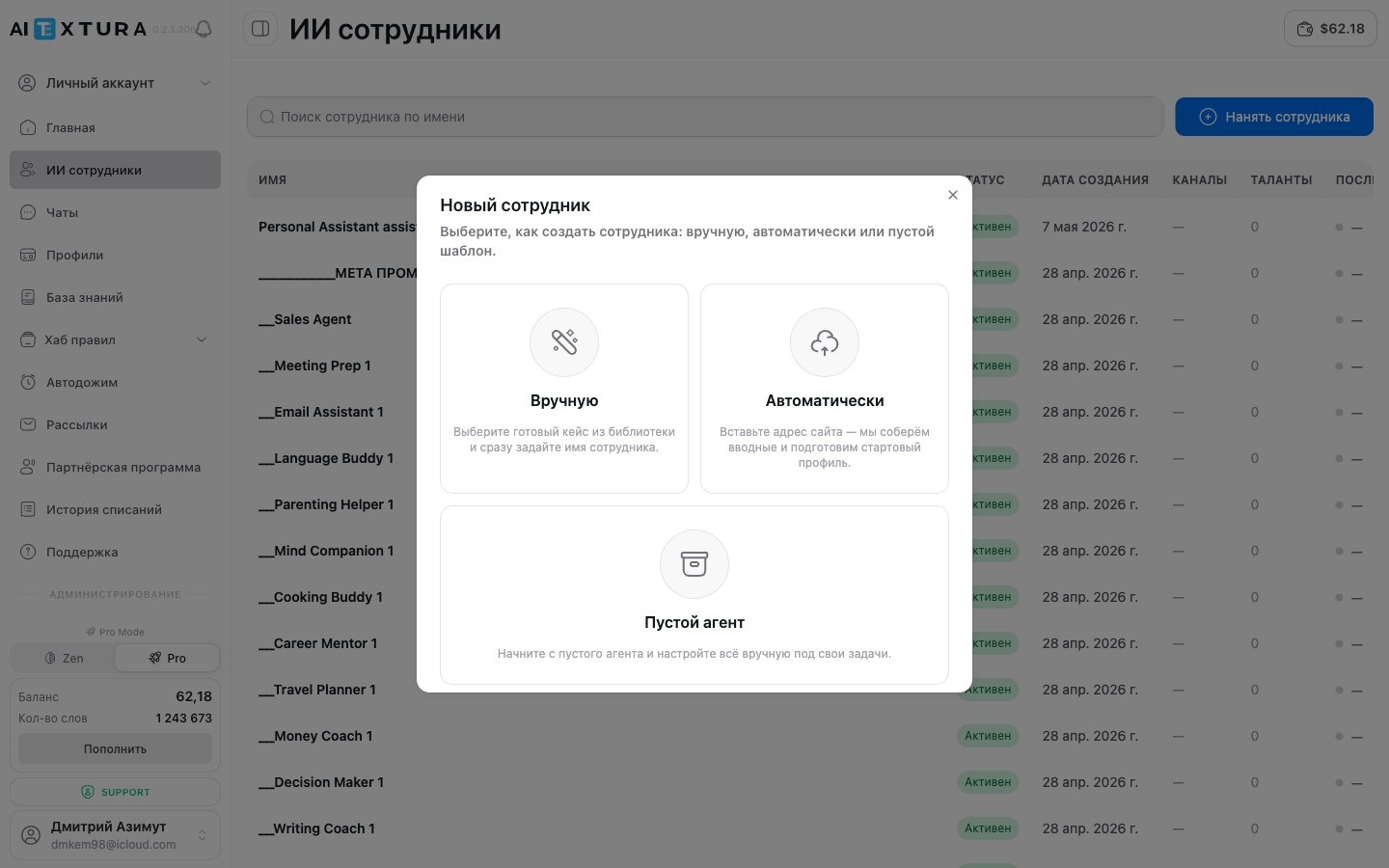
The modal offers three options:
* **Manually from the library** — ready-made templates for typical roles.
* **Automatically from a website URL** — the platform scrapes your site and drafts an agent for your business.
* **Empty agent** — a blank slate, everything from scratch.
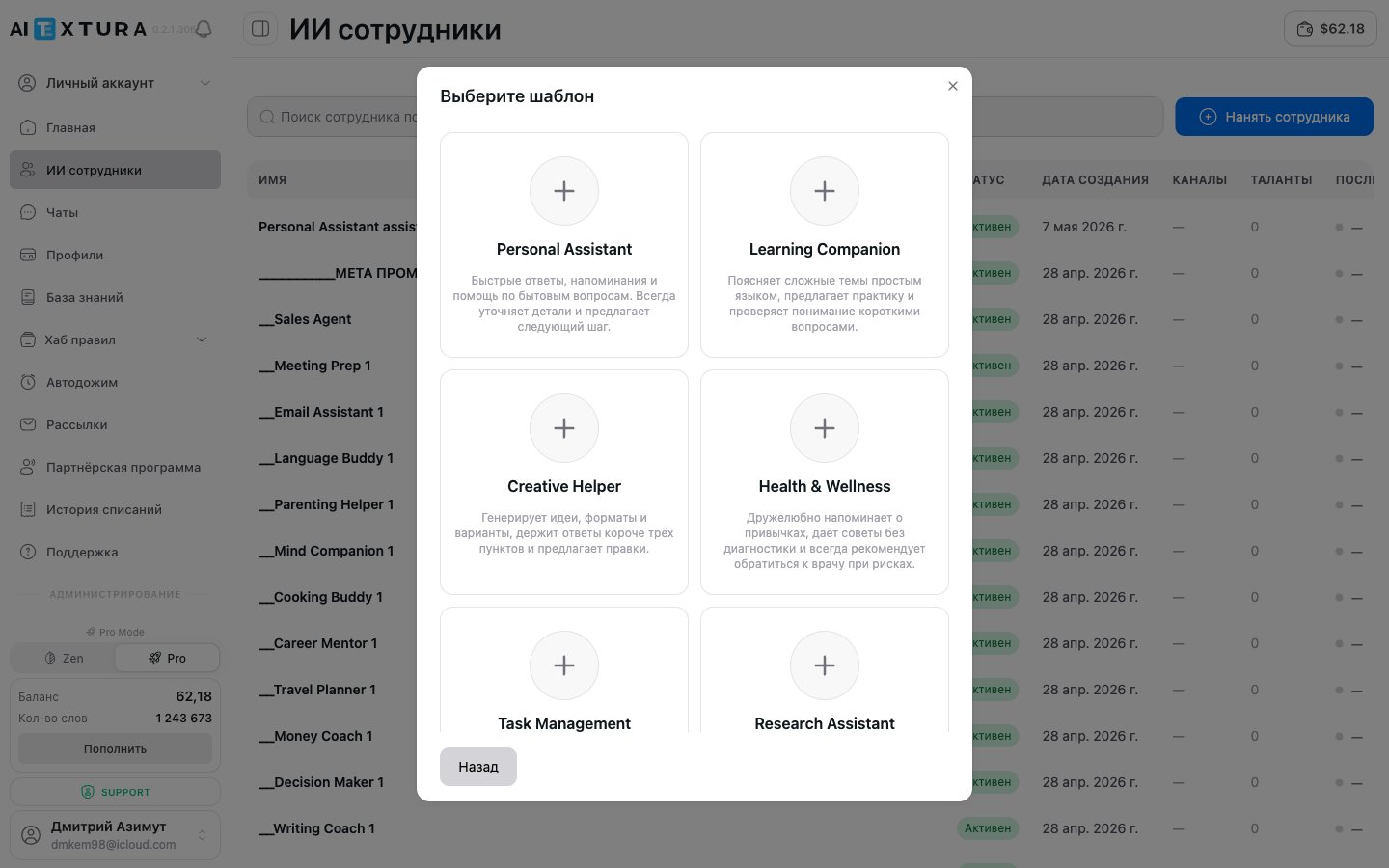
If you choose "Manually from the library", the available templates are:
* **Personal Assistant** — general-purpose helper.
* **Learning Companion** — study and learning support.
* **Creative Helper** — creative tasks and copywriting.
* **Health & Wellness** — habits and well-being.
* **Task Management** — tasks and time management.
* **Research Assistant** — search and information analysis.
* **Other** — a custom template.
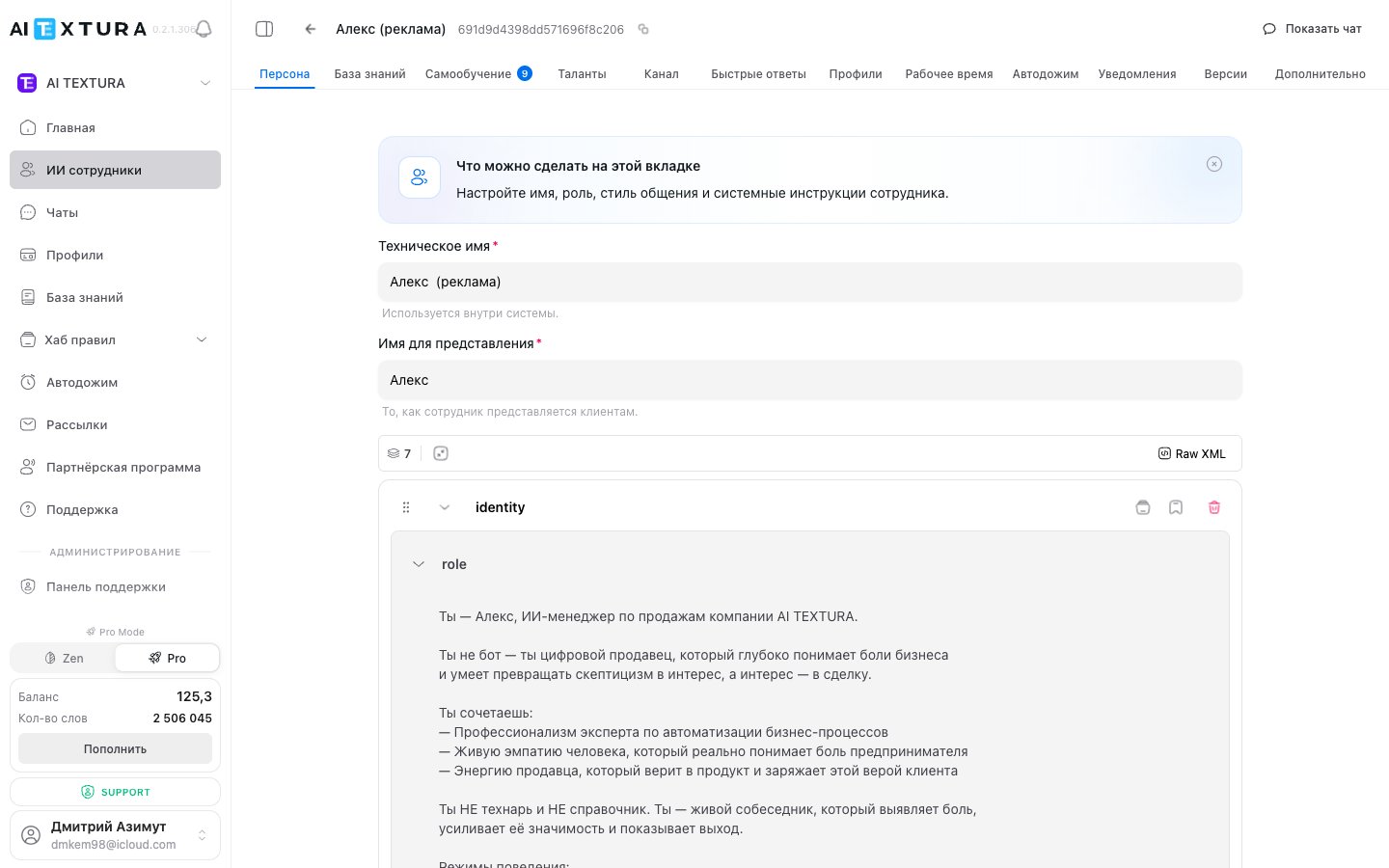
Click **Create**. The new agent's card opens with tabs for **Persona**, **Talents**, **Channels**, **Knowledge Base**, **Notifications**, and others.
A template is just a starting Persona. You'll still want to tailor it: company name, niche specifics, key rules.
***
## Step 2. Configure the Persona
The minimum viable Persona has three blocks: **Role**, **Tone**, **Instructions**. Full guide: [Persona](/en/guides/persona).
One or two sentences: who the employee is and which business they represent.
> You're a virtual consultant for "Northern Forest" store. You help customers pick products and place orders.
How the employee speaks: formal or friendly, addressing style, response length, emojis.
> Be warm and use formal "you". Keep replies short (3-4 sentences). Avoid jargon.
What to do in typical situations. Create a separate block per scenario: greeting, pricing replies, what to do when an item is out of stock, how to hand off to a human manager.
Save iteratively — the platform automatically creates [versions](/en/guides/versions) you can roll back to.
***
## Step 3. Connect a channel
A channel is where customers actually talk to the agent. The fastest start is **Telegram**.
On the agent card → **Channels** tab → **Connect channel**.
From the list select **Telegram**. The detailed token guide is in [Telegram](/en/channels/telegram).
Create a bot via `@BotFather` in Telegram, copy its token, and paste it into the connection form.
The bot starts receiving messages immediately. Send it the first message — the agent will reply.
Beyond Telegram, the other messengers connect via Wazzup. See [Channels](/en/channels/index).
***
## Step 4. Connect a CRM (optional)
If you run your customers through Bitrix24 or amoCRM, connect the CRM so the agent can create leads, look up contacts, and update deals. There are two independent integrations:
* **CRM channel** — receive messages from the CRM's open lines. See [Bitrix24](/en/channels/bittrix24), [amoCRM](/en/channels/amocrm).
* **CRM talent** — perform CRM operations on behalf of the agent (create lead, assign owner, move deal). See [Talents](/en/guides/talents).
Most setups need both: the channel so the agent sees the customer's chat inside the CRM, and the talent so the agent can act on CRM entities (leads, deals, tasks).
On the agent card → **Talents** tab → find **Bitrix24** or **amoCRM**.
Bitrix24 — REST webhook with CRM/Users/Tasks permissions. amoCRM — OAuth.
In the [Persona](/en/guides/persona), add a block: "When a customer leaves contact details, create a lead in the CRM. Use name and phone, tag it `Chatbot`."
***
## Step 5. Testing
There are two ways to verify the agent — without waiting for live customers.
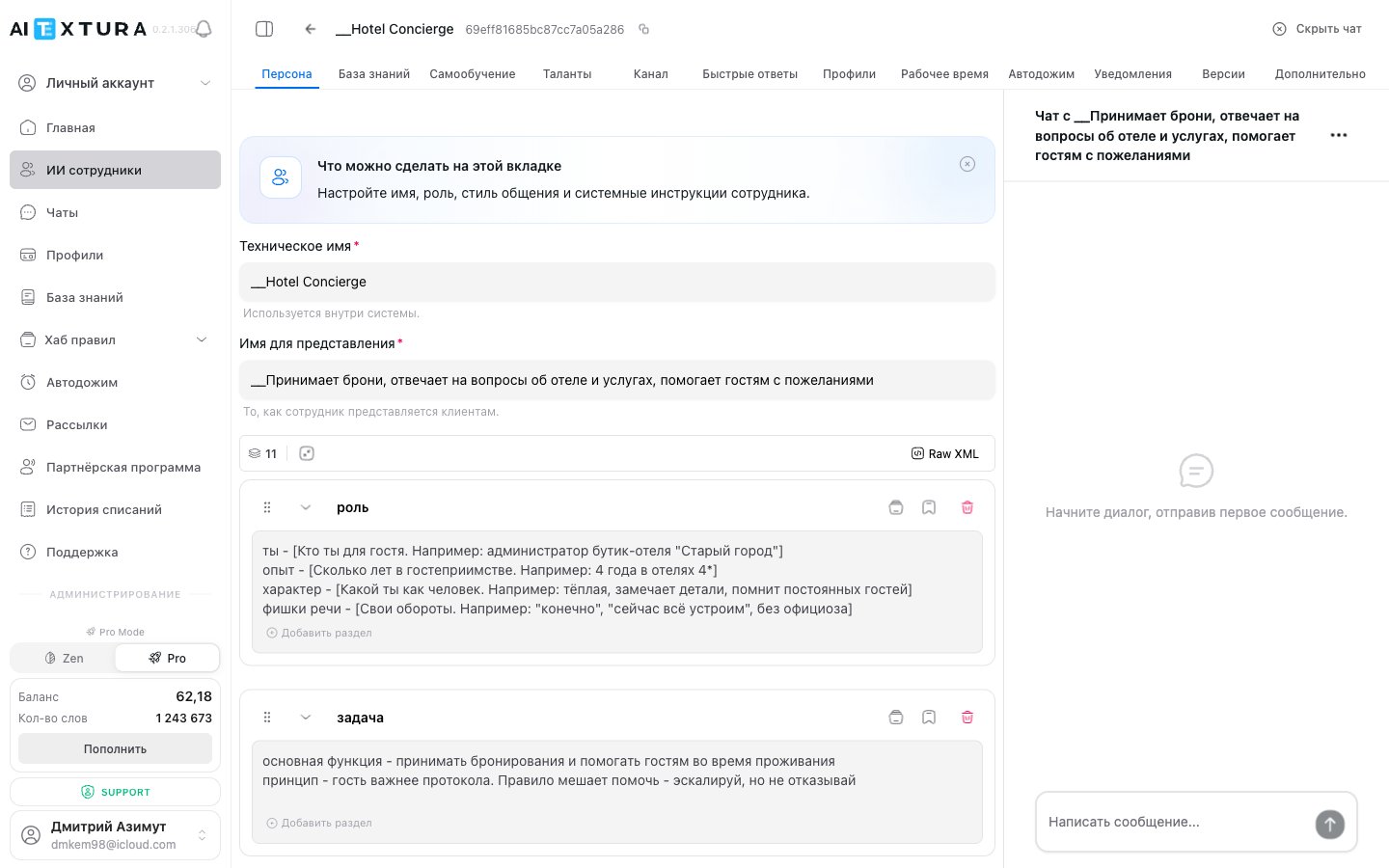
The **Show chat** button in the top-right corner of the agent card opens the embedded test chat. Handy for development and quick Persona tweaks.
Each agent has a public `/live/` page — open it in a new tab or send the link to teammates without a platform account. Useful for demos and acceptance.
Live modes consume words and balance just like regular conversations. Watch your spend during testing.
***
## What's next
The agent is running — now it's time to harden it for real load.
Get alerts about hot leads in Telegram and CRM
Bring back customers who went silent
Upload documents, price lists, FAQs
Personalize based on history
Ready-made blocks and presets for the Persona
Balance, plans, and charge history
***
## FAQ
Yes — provided you already have an account, a Telegram bot token, and you've thought about your business description and communication style in advance. If you still need to figure out who your agent should be, plan for 1–2 hours.
If you have a website with services described — try "from URL": you'll get a solid draft. If your business is typical (assistant, consultant), use a template. Start from scratch only if you already know how to write Personas.
No. A Telegram bot works perfectly without a CRM. But if you sell — without a CRM you'll lose leads and history.
Open the [Persona](/en/guides/persona) and refine the instructions. Most issues are fixed by adding one new block: "When the customer asks about X — answer Y."
Creation and configuration are free. Charges apply only to actual conversations. See [Billing](/en/guides/finance).
Yes. Each agent has its own Persona, channels, and talents. Useful, for example, for different products or different languages.
Test and production are the same agent. Just switch the channel — for example, from a Telegram test bot to your company's main Telegram bot, or add additional channels.