> ## Documentation Index
> Fetch the complete documentation index at: https://aitextura.mintlify.site/llms.txt
> Use this file to discover all available pages before exploring further.
# Quick Answers
> Pre-configured reactions to common customer questions — instant, precise, and prioritized over FAQ.
Self-learning system that automatically extracts Q\&A pairs from conversations
Central repository of information the AI employee uses for responses
Alert system for important events in AI employee conversations
Create and manage your AI employees
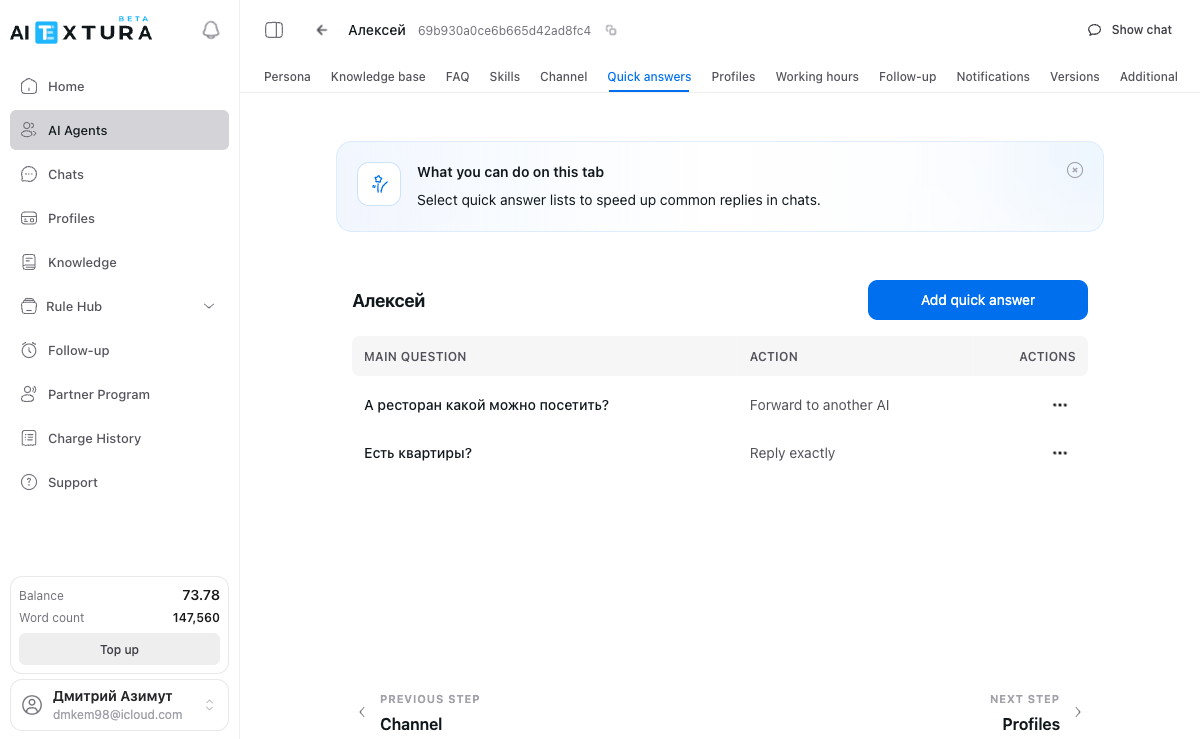
Quick Answers are pre-configured reactions to specific questions or situations. Instead of "thinking" and formulating a response from scratch each time, the AI employee instantly performs the action you defined: sends exact text, consults another agent behind the scenes, or transfers the client to a different AI employee.
***
## When to use
* Certain questions require a **strictly fixed answer** (address, payment details, business hours)
* You need to **automatically transfer** the client to another AI employee for a specific topic
* You want to **speed up processing** of common requests without spending tokens on "reasoning"
***
## How Quick Answers differ from FAQ
Quick Answers **always** take priority over [FAQ](/en/guides/faq). If a customer's question matches both a Quick Answer and an [FAQ](/en/guides/faq) entry, the Quick Answer will fire.
| | Quick Answers | [FAQ](/en/guides/faq) |
| ---------------- | --------------------------------------------------------------------------------------- | ------------------------------------------------ |
| **Created by** | You configure manually | Agent populates automatically from conversations |
| **Control** | Full — you set both the question and the action | Partial — the agent decides what to add |
| **Priority** | Higher — checked first | Lower — used only if no Quick Answer matched |
| **Action types** | 5 types: exact text, adaptive answer, transfer, behind-the-scenes query, expert council | Text answer only |
| **Adaptation** | "Answer exactly" sends verbatim text; other actions adapt to context | Answers may adapt to context |
For manually adding ready-made answers, use Quick Answers rather than [FAQ](/en/guides/faq). [FAQ](/en/guides/faq) is primarily designed for automatic population from conversations.
***
## 5 action types
### 1. Answer exactly
The agent sends the client **exactly the text** you specified — no changes, no adaptation.
**Best for:** addresses, payment details, contact information, legal wording that must not be altered.
Exact answers do not adapt to the conversation context. The client will receive the same text regardless of how they phrased the question. Make sure your answer text is universal.
### 2. Based on answer
The agent uses your text as a **foundation** but **adapts** it to the conversation context. You give the agent a "hint," and it forms a response considering what was discussed.
**Best for:** answers that should account for context (information about a specific product or service), situations requiring flexibility with a guiding framework.
### 3. Transfer to another AI
The client is **fully handed off** to another AI employee. The current agent stops working with this conversation, and a different one takes over.
**Best for:** the client's topic belongs to another department, one agent handles initial contact while specialized agents handle detailed work.
**Additional settings:**
* **Agent selection** — choose which AI employee receives the client from the dropdown
* **Instruction** — text describing the transfer context
#### Video
In the video — a hotel chain example: a "reception" agent handles the initial contact and routes the client to specialized agents for specific properties.
### 4. Get answer from another AI
The current agent **does not transfer** the client but queries another AI employee **behind the scenes**. The client does not see this — they continue chatting with the same agent.
**Best for:** expertise from another domain is needed but transferring the client is inappropriate; one agent is the company's "face" while others are internal experts.
**Additional settings:**
* **Agent selection** — who will answer behind the scenes
* **Instruction** — what to find out from the other agent
**What's the difference from "Transfer to another AI"?** With a transfer, the client is fully handed off to another agent. With "Get answer," the current agent only requests information and delivers it to the client themselves. The client never knows someone else was involved.
### 5. Expert council
The most powerful option: **2 to 10** AI agents simultaneously generate their answer variants, and the system **combines** them into a single final message.
**Best for:** complex or ambiguous questions, complaints and conflict situations, questions requiring a comprehensive approach.
**Additional settings:**
* **Agent selection** — which AI employees participate in forming the answer
* **Instruction** — the shared task for all experts
* **Show expert answers** — if enabled, the client sees each expert's individual response (by default, only the combined final answer is shown)
***
## Main trigger question
The main question is the trigger that tells the system to fire a Quick Answer. The AI analyzes **meaning**, not exact word matches, so you don't need to write the question exactly as the client would say it.
**Good examples:**
* "What is your address?"
* "How do I request a refund?"
* "I have a technical problem"
**Bad examples:**
* "Question about address" — too vague
* "The client is asking where we are located, what the office address is, and how to get there by public transport or by car" — too long
Phrase the question as a real client would ask it. Write from the client's perspective, not the operator's. Limit: 50 words.
### Simplify button
Next to the **Main question** field there is a **Simplify** button. It launches AI to rephrase your question into a shorter, more universal form.
Type the question in the **Main question** field.
The AI will suggest a more concise wording.
If the result works — keep it. If not — edit manually.
**Example:**
* Before: "Could you please tell me at what address your main office is located?"
* After: "What is the office address?"
***
## Additional parameters
### Chat management
A dropdown that determines what happens to the chat after a Quick Answer fires. For example, you can pause the chat so a human manager can step in.
### Send notification
A toggle. When enabled, the manager receives a notification whenever the Quick Answer fires.
Enable **Send notification** for Quick Answers related to complaints, refunds, and other situations where human involvement may be needed.
***
## Step-by-step instructions
### How to add a Quick Answer with exact text
Go to the **Quick Answers** tab for the desired agent.
Click **+ Add Quick Answer**.
In the **Main question** field, enter the trigger question, e.g., "What is your address?". Optionally click **Simplify**.
Select **Answer exactly**.
In the **Answer** field, type the exact text the client will receive.
If needed, configure **Chat management** and **Send notification**. Click **Save**.
### How to set up a transfer to another AI
Click **+ Add Quick Answer**.
In the **Main question** field, enter the trigger, e.g., "I have a technical problem."
Select **Transfer to another AI**.
From the dropdown, choose the agent who will receive the client.
In the **Instruction** field, describe the transfer context. Click **Save**.
### How to use Expert council
Click **+ Add Quick Answer**.
In the **Main question** field, enter the trigger, e.g., "I want to file a complaint."
Select **Expert council**.
Add expert agents (from 2 to 10).
Write the shared instruction for the experts. Decide whether to enable **Show expert answers**. Click **Save**.
***
## Quick Answers priority
When a client sends a message, the agent checks information sources in a specific order. Quick Answers have **higher priority** than [FAQ](/en/guides/faq) and the [Knowledge Base](/en/guides/knowledge).
If the agent answers a question differently than you'd like (via [FAQ](/en/guides/faq) or the [Knowledge Base](/en/guides/knowledge)), create a Quick Answer with the desired wording — it will take priority.
In the test chat, click the checkmark next to the agent's response — you'll see its reasoning: which Quick Answers it checked, what it used from the knowledge base, and why it answered the way it did.
***
## Recommendations on quantity
There are no limits on the number of Quick Answers. Practical recommendations:
* **Don't duplicate similar phrasings.** If you have a trigger "What is your address?" — you don't need a separate "Where are you located?". Use the **Simplify** button.
* **Don't overload.** Quick Answers are for truly common situations. Rare questions should be handled by the agent via the knowledge base.
* **Review regularly.** Remove outdated Quick Answers — old addresses, prices, expired promotions.
***
## Integration with other tools
* **[FAQ](/en/guides/faq)** — they complement each other. Quick Answers for critical questions, FAQ for everything else.
* **[Knowledge Base](/en/guides/knowledge)** — the "Based on answer" action uses knowledge base data to form personalized responses.
* **[Notifications](/en/guides/notifications)** — you can combine Quick Answers with notification triggers.
* **Other [AI Employees](/en/guides/ai-employees)** — "Transfer to another AI," "Get answer from another AI," and "Expert council" actions allow you to build multi-agent scenarios.
***
## Frequently asked questions
There are no limits. We recommend not duplicating similar phrasings — use the **Simplify** button for generalization.
The system will choose the best match by meaning. Try to formulate triggers so they don't overlap.
With a transfer, the client is fully handed off to another agent who continues the conversation. With "Get answer," the current agent queries another agent behind the scenes, and the client doesn't see this.
No. But it's recommended if your trigger question is long or contains specific phrasing. Simplification helps the agent better recognize different variations of the same question.
Yes. Quick Answers and [FAQ](/en/guides/faq) complement each other. Quick Answers always have higher priority.
Check the trigger wording — it may be too narrow or too broad. Try clicking **Simplify** and resaving. Test in the test chat and check the agent's reasoning (checkmark next to the response).
Yes. The "Answer exactly" action doesn't depend on the [Knowledge Base](/en/guides/knowledge). But for "Based on answer," the [Knowledge Base](/en/guides/knowledge) significantly improves response quality.
 ***
## When to use
* Certain questions require a **strictly fixed answer** (address, payment details, business hours)
* You need to **automatically transfer** the client to another AI employee for a specific topic
* You want to **speed up processing** of common requests without spending tokens on "reasoning"
***
## How Quick Answers differ from FAQ
***
## When to use
* Certain questions require a **strictly fixed answer** (address, payment details, business hours)
* You need to **automatically transfer** the client to another AI employee for a specific topic
* You want to **speed up processing** of common requests without spending tokens on "reasoning"
***
## How Quick Answers differ from FAQ