> ## Documentation Index
> Fetch the complete documentation index at: https://aitextura.mintlify.site/llms.txt
> Use this file to discover all available pages before exploring further.
# Profiles
> Automatic structured client data collection during conversations: field configuration, update modes, analytics, and usage in Persona.
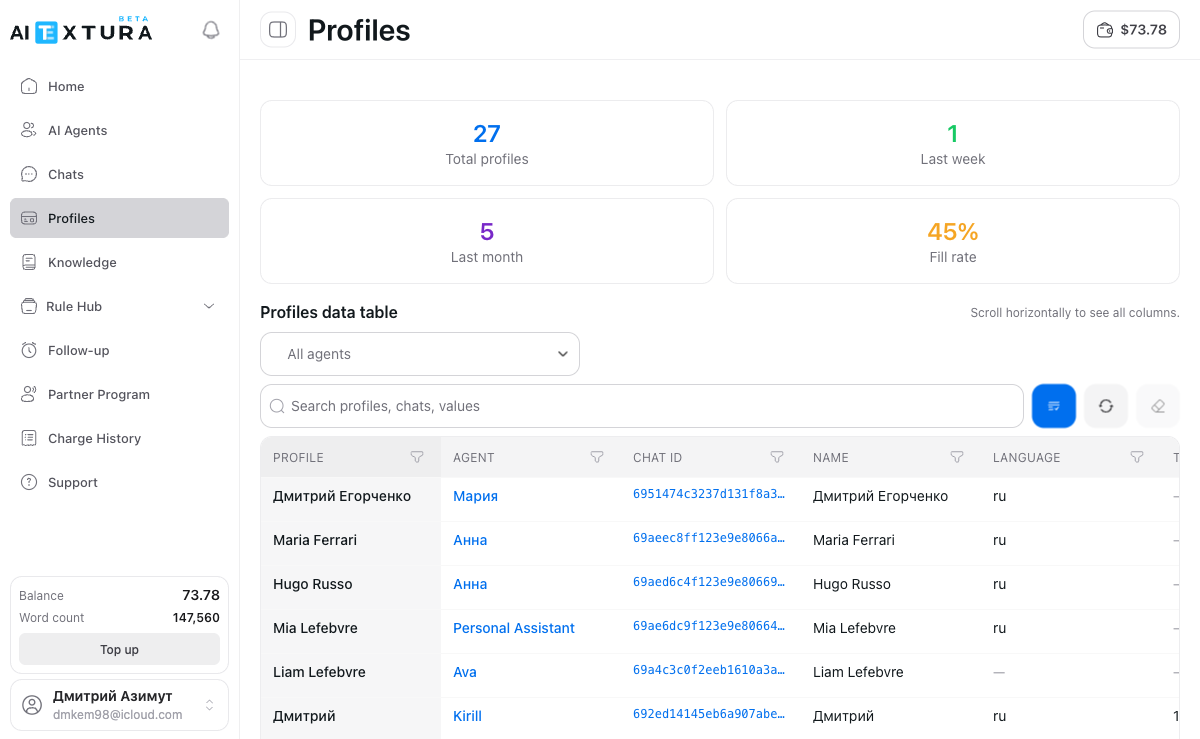
Profiles are client cards that the AI employee fills in **automatically** during conversations. No manual work is needed: while the employee communicates with the client, it simultaneously extracts relevant data and records it into a structured table.
You decide what to collect. Name and language are included by default. Everything else is up to you — configure fields to match your business needs.
Use profile data inside the employee's instructions
Manage employees and their settings
Conversation history with clients
Aggregated analytics across all employees
**"Profiles" refers to two different places in the interface.**
* **Profiles tab** in the AI employee settings — this is where you configure which fields to collect and when to fill them. This is the configuration.
* **Profiles section** in the platform's left menu — this is where filled client cards are stored. This is the analytics tool.
This page covers both.
***
## Video walkthrough
### Profiles function
### Analytics and profiles
A short video: how to configure profile fields on an agent, what is stored in the **Profiles** section, and how to use the collected data for analytics.
***
## Setting up profile fields
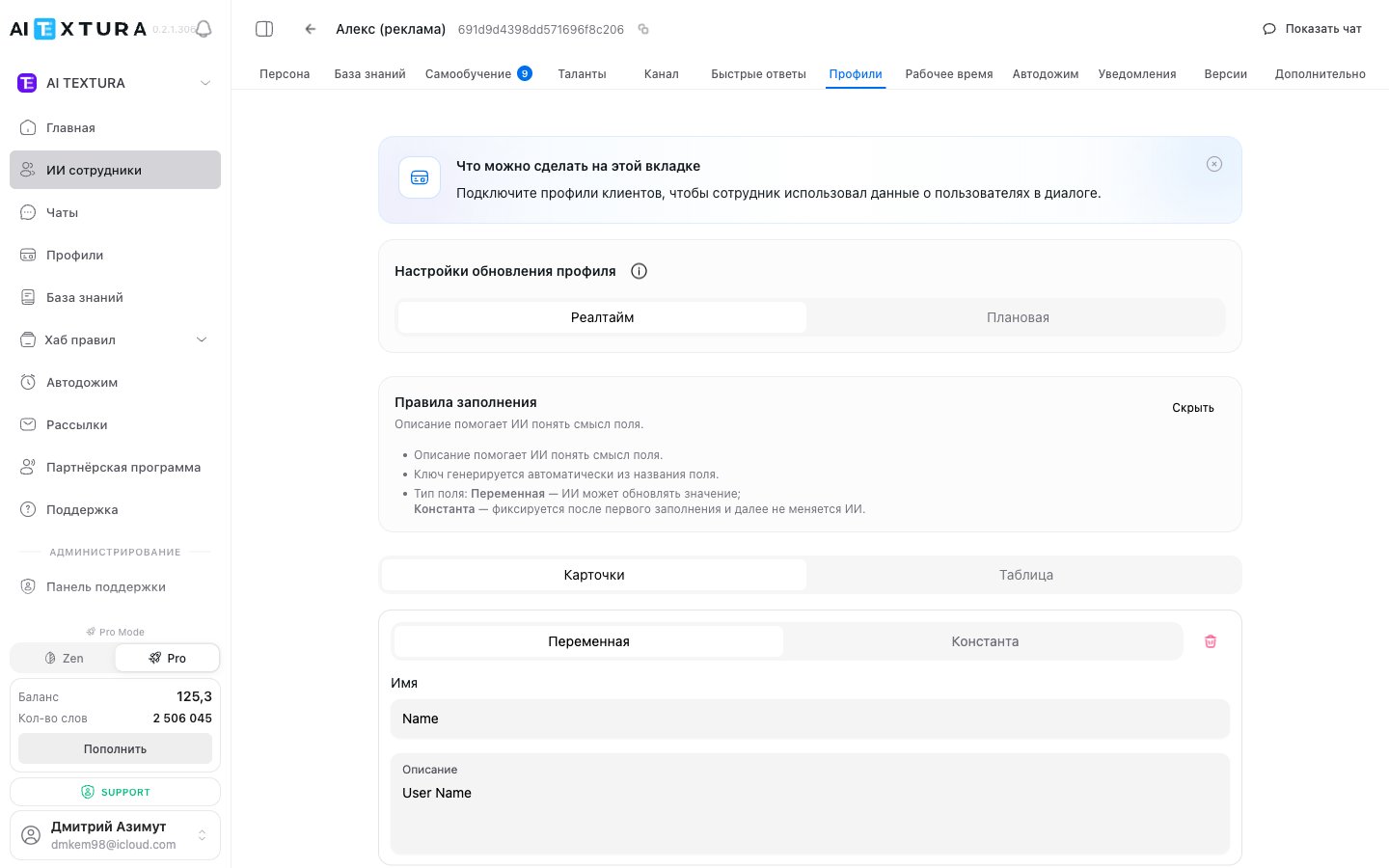
Open the desired AI employee → **Profiles** tab. On this tab you describe **which fields** of the client profile the employee should fill in and **when** to do so. Fields are tied to a specific agent: different employees can collect different sets of data.
Every field defined here will appear as a separate column in the platform-wide **Profiles** section and will automatically attach to the metadata of every chat handled by this employee.
### Update mode
The first thing to choose is when the employee updates the profile.
| Mode | When it updates | When to use |
| ------------- | ----------------------------------------- | -------------------------------------------------------------------------------------------------------------------------------------------- |
| **Realtime** | After every client message | When the employee needs the data right away — e.g., to address the client by name or consider their preferences within the same conversation |
| **Scheduled** | On a schedule (e.g., once every 24 hours) | When data is only needed for analytics and reporting |
When you select Scheduled, additional settings appear: interval, start hour, and time zone. A token usage forecast is also displayed — showing estimated daily and monthly costs.
If you are unsure which to choose — use **scheduled updates once every 24 hours**. This is sufficient for most scenarios and significantly reduces costs compared to Realtime.
***
### Field types
Each field has a type that determines whether the employee can update its value.
| Type | Behavior | Example |
| ------------ | ----------------------------- | ----------------------------------------------- |
| **Variable** | Updated with each new mention | Language, preferences, status, current interest |
| **Constant** | Set once and never changes | Contract number, date of birth, client type |
A Constant cannot be changed after it is first set. If you are unsure — choose **Variable**.
***
### Field properties
Each field consists of four properties:
| Property | What to enter |
| --------------- | ------------------------------------------------------------------------------------------- |
| **Name** | A clear field label: "Name", "Language", "Request status" |
| **Description** | Instructions for the AI — when and what to fill in. This is the **most important property** |
| **Key** | Auto-generated, no changes needed |
| **Type** | Variable or Constant |
**The field description is crucial.** Write it **from the client's perspective**: not "when the client mentions a language", but "the language I communicate in". The more precise the description, the more accurately the employee knows when to fill in the field.
Also specify the answer format. For example: "yes/no" or "choose one option: Russian, English, other". Without this, the employee may record freeform text that is difficult to analyze.
***
### How to add a field
Go to the desired AI employee's settings and select the **Profiles** tab.
Click the button to add a new field.
Provide a clear label — for example, "Name", "Language", "Budget".
Describe in detail, **from the client's perspective**, when and what to fill in. Specify the answer format.
**Variable** — if the value can change. **Constant** — if it is set once.
Repeat for each field you need. The number of fields is unlimited.
Add only the fields you truly need — this improves fill accuracy and saves tokens.
***
### Field examples
| Field | Type | Description for AI |
| --------------- | -------- | ------------------------------------------------------------------------------------------ |
| Name | Variable | My name |
| Language | Variable | The language I communicate in. Choose one option: Russian, English, other |
| Preferences | Variable | Preferences or wishes I have mentioned. Update with each mention |
| Complaint | Variable | When I mention any problem. Describe briefly, no more than four words. Always update |
| Status | Variable | Current request status. Choose one option: new, in progress, resolved |
| Budget | Variable | When I mention a budget or amount. Record the number |
| Contract number | Constant | The contract or booking number I provided |
| Summary | Variable | Two sentences about what the conversation is about. Review the full history. Always update |
These are examples — the set of fields depends entirely on your business and what you need to track.
***
## Profile fields and chat metadata
The fields configured on the agent's **Profiles** tab automatically land in the **metadata of every chat** of this employee. That means:
* In the **Profiles** section (left menu), you see these fields as columns of the table.
* In the Persona, you can reference these fields as variables — the employee will substitute values right in the dialog (see [Persona](/en/guides/persona)).
* In chats, the metadata is accessible via the chat action menu → "Client profile".
### Field types in metadata
| Field type in setup | Stored in metadata as | Example |
| ---------------------------------- | ------------------------------------------- | ----------------------------------------------------------------------------- |
| Text (Variable) | Free text | `Name`, `City`, `Summary` |
| Text with answer format (Variable) | One of the defined options | `Language: Russian / English / other`, `Status: new / in progress / resolved` |
| Text (Constant) | Fixed value, never changes after first fill | `Contract number`, `Date of birth` |
| Number (Variable) | Numeric value | `Budget`, `Number of guests` |
| Short description (Variable) | A few words or one sentence | `Complaint` (≤ 4 words), `Summary` (2 sentences) |
The field type is set not by an explicit selector, but through the **wording of the description** for the AI. Indicate the desired answer format in the description — "choose one option: …", "record the number", "no more than four words" — and the employee will follow that format when writing into metadata.
***
## Profile analytics
The **"Profiles"** section in the platform's left menu is an analytics tool. It stores filled client cards across all employees.
### KPI cards
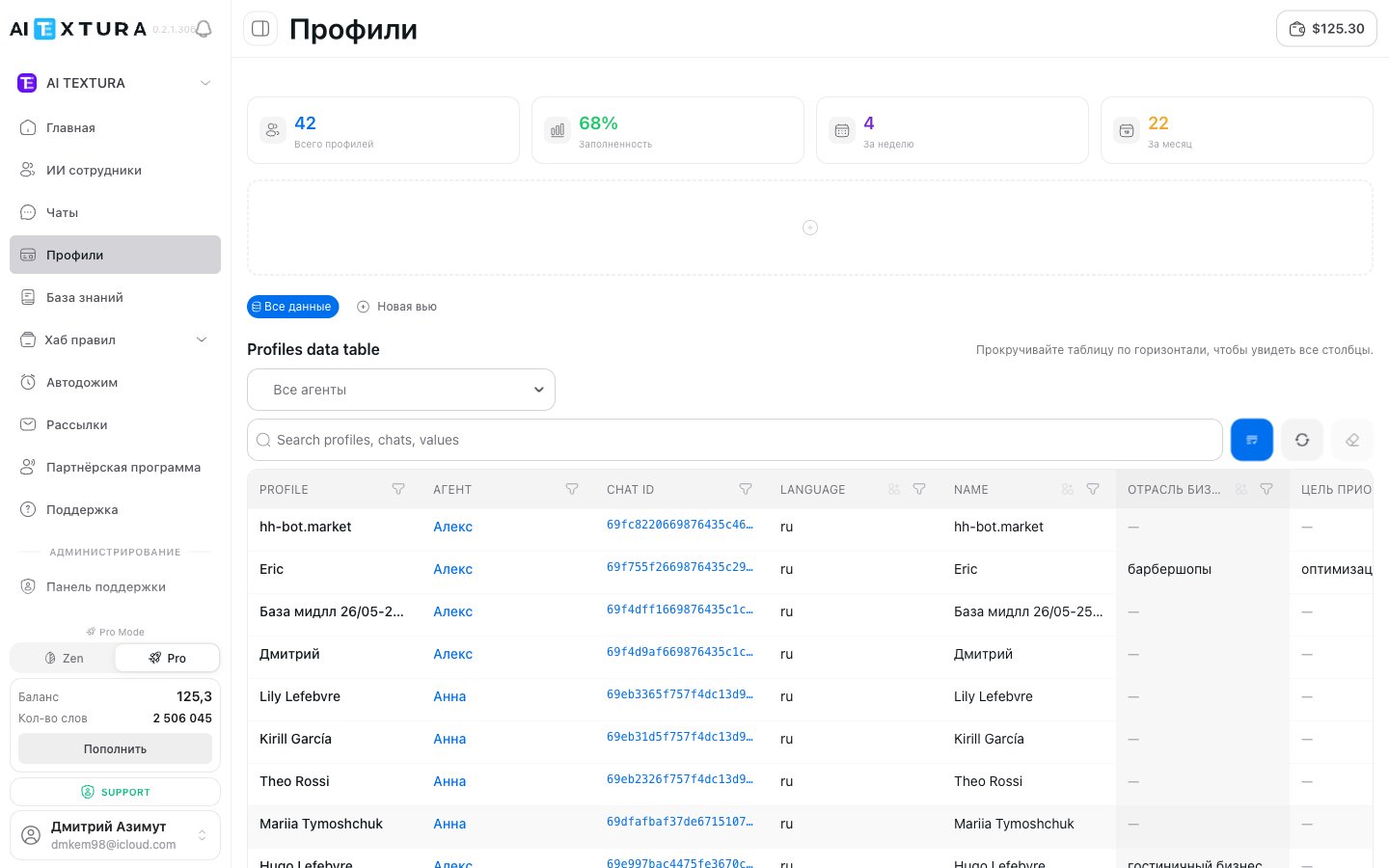
Four summary cards are displayed at the top of the page:
| Metric | What it shows |
| ------------------ | ------------------------------------------------------------------------------- |
| **Total profiles** | Total number of clients across all time |
| **Fill rate** | Average percentage of fields filled — how thoroughly the employee extracts data |
| **This week** | New profiles created this week |
| **This month** | New profiles created this month |
### View tabs
Above the table there are tabs:
* **All data** — the standard view with all fields from all employees.
* **Saved views** — custom views with pre-configured filters, columns, and sorting. Convenient when you have multiple analysis scenarios: "Hotel leads", "Complaints this week", "Active requests".
Create your own view: configure filters and column order for a specific task, then save — and next time you'll open it with one click.
### Profile table
Each row represents one client. Standard columns: profile, employee, Chat ID, name, language, summary. Plus all custom fields you have configured on the **Profiles** tab in each agent (e.g., `industry`, `purchase goal`).
Table capabilities:
* **Filter by employee** — view data for a specific employee or branch
* **Search** by name, field content, or any text
* **Go to chat** — click on Chat ID to open the full conversation history
* **Column management** — hide columns you don't need
* **Drag-and-drop column order** (new in v2.1.0) — drag column headers with the mouse to arrange them however you prefer. The new order is saved to the current view
* **Display modes** — switch between **Cards** and **Table** views
If a field is not being filled — check its description in the employee settings. Most likely the AI does not understand when to record the data.
***
## Usage in Persona
Profile data can be used directly in the employee's instructions — via **profile variables** in the [Persona](/en/guides/persona) section. For example, if the client's name is known, the employee can address them personally during the conversation.
This enables truly personalized communication: taking preferences into account, adapting the conversation style, and offering relevant solutions based on collected data.
***
## FAQ
Yes, significantly. Realtime updates the profile after every message and consumes considerably more tokens. Scheduled mode processes data in batches — this is more cost-effective.
No. That is the purpose of the Constant type — the value is set once and does not change. If you are unsure, choose Variable.
No, each employee maintains its own client profiles.
There is no limit, but it is recommended to add only the fields you truly need — this improves accuracy and reduces token usage.
 Every field defined here will appear as a separate column in the platform-wide **Profiles** section and will automatically attach to the metadata of every chat handled by this employee.
### Update mode
The first thing to choose is when the employee updates the profile.
| Mode | When it updates | When to use |
| ------------- | ----------------------------------------- | -------------------------------------------------------------------------------------------------------------------------------------------- |
| **Realtime** | After every client message | When the employee needs the data right away — e.g., to address the client by name or consider their preferences within the same conversation |
| **Scheduled** | On a schedule (e.g., once every 24 hours) | When data is only needed for analytics and reporting |
When you select Scheduled, additional settings appear: interval, start hour, and time zone. A token usage forecast is also displayed — showing estimated daily and monthly costs.
Every field defined here will appear as a separate column in the platform-wide **Profiles** section and will automatically attach to the metadata of every chat handled by this employee.
### Update mode
The first thing to choose is when the employee updates the profile.
| Mode | When it updates | When to use |
| ------------- | ----------------------------------------- | -------------------------------------------------------------------------------------------------------------------------------------------- |
| **Realtime** | After every client message | When the employee needs the data right away — e.g., to address the client by name or consider their preferences within the same conversation |
| **Scheduled** | On a schedule (e.g., once every 24 hours) | When data is only needed for analytics and reporting |
When you select Scheduled, additional settings appear: interval, start hour, and time zone. A token usage forecast is also displayed — showing estimated daily and monthly costs.
 ### KPI cards
Four summary cards are displayed at the top of the page:
| Metric | What it shows |
| ------------------ | ------------------------------------------------------------------------------- |
| **Total profiles** | Total number of clients across all time |
| **Fill rate** | Average percentage of fields filled — how thoroughly the employee extracts data |
| **This week** | New profiles created this week |
| **This month** | New profiles created this month |
### View tabs
Above the table there are tabs:
* **All data** — the standard view with all fields from all employees.
* **Saved views** — custom views with pre-configured filters, columns, and sorting. Convenient when you have multiple analysis scenarios: "Hotel leads", "Complaints this week", "Active requests".
### KPI cards
Four summary cards are displayed at the top of the page:
| Metric | What it shows |
| ------------------ | ------------------------------------------------------------------------------- |
| **Total profiles** | Total number of clients across all time |
| **Fill rate** | Average percentage of fields filled — how thoroughly the employee extracts data |
| **This week** | New profiles created this week |
| **This month** | New profiles created this month |
### View tabs
Above the table there are tabs:
* **All data** — the standard view with all fields from all employees.
* **Saved views** — custom views with pre-configured filters, columns, and sorting. Convenient when you have multiple analysis scenarios: "Hotel leads", "Complaints this week", "Active requests".
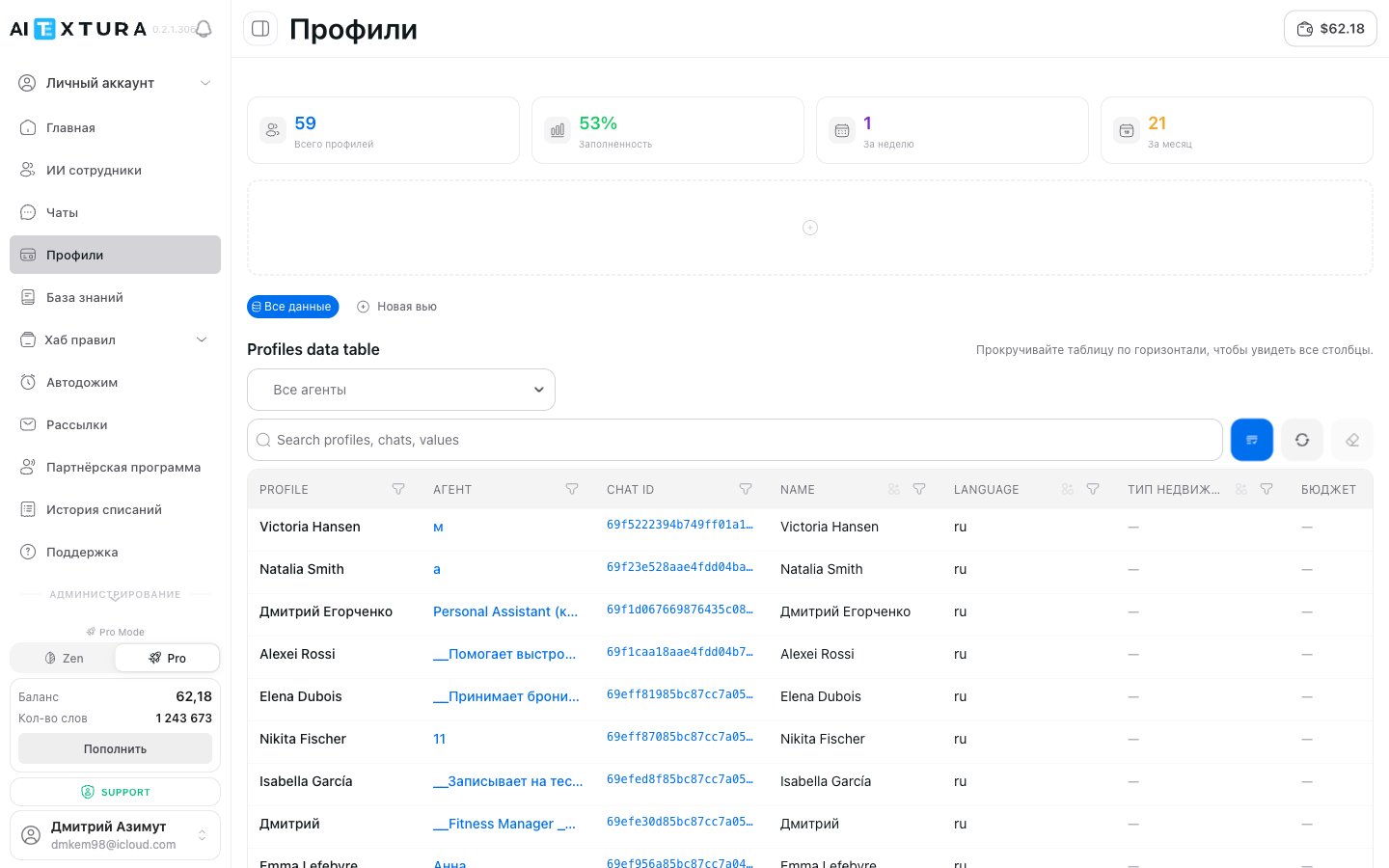 Table capabilities:
* **Filter by employee** — view data for a specific employee or branch
* **Search** by name, field content, or any text
* **Go to chat** — click on Chat ID to open the full conversation history
* **Column management** — hide columns you don't need
* **Drag-and-drop column order** (new in v2.1.0) — drag column headers with the mouse to arrange them however you prefer. The new order is saved to the current view
* **Display modes** — switch between **Cards** and **Table** views
Table capabilities:
* **Filter by employee** — view data for a specific employee or branch
* **Search** by name, field content, or any text
* **Go to chat** — click on Chat ID to open the full conversation history
* **Column management** — hide columns you don't need
* **Drag-and-drop column order** (new in v2.1.0) — drag column headers with the mouse to arrange them however you prefer. The new order is saved to the current view
* **Display modes** — switch between **Cards** and **Table** views