> ## Documentation Index
> Fetch the complete documentation index at: https://aitextura.mintlify.site/llms.txt
> Use this file to discover all available pages before exploring further.
# Organizations and Team
> Create organizations (companies) so your team can collaborate on AI employees together.
An organization is a shared workspace for your team: a common pool of AI employees, a shared balance, and dedicated member roles. If you work on the platform alone, your personal account is enough. If you bring in colleagues, hand off projects to clients, or run several business lines — create an organization.
 Personal profile and preferences
Organization balance and plans
Help and tickets
Collaborate on agents as a team
***
## Terminology
The platform UI uses the term **"Organization"** (`/organization`, the "Create organization" button in the context switcher). In casual conversation and marketing materials you'll often see the synonym **"Company"** — they refer to the same thing.
In this documentation we use "Organization" as the primary term and mention "Company" once for those who are used to it.
***
## Personal account vs organization
The platform has two contexts that you can switch between with one click:
| Context | What's inside |
| -------------------- | ------------------------------------------------------------------------------------------------------------------------------------------------------ |
| **Personal account** | Personal balance, charge history (`/billing/words/history`), personal AI employees, personal connections |
| **Organization** | Shared balance, shared agents, shared connections, member roles. Charge history is hidden in the org context — billing follows the organization's plan |
Things to know:
* **Agents don't move automatically.** Personal agents stay in your personal context; organization agents live inside the organization. Create the agent in the right context from the start.
* **Billing is separate.** Charges from a personal conversation come out of your personal balance. Charges in an organization come out of its own balance.
* **Only owners and admins can invite people.** Regular members see the list of others but can't add new ones.
***
## Context switcher
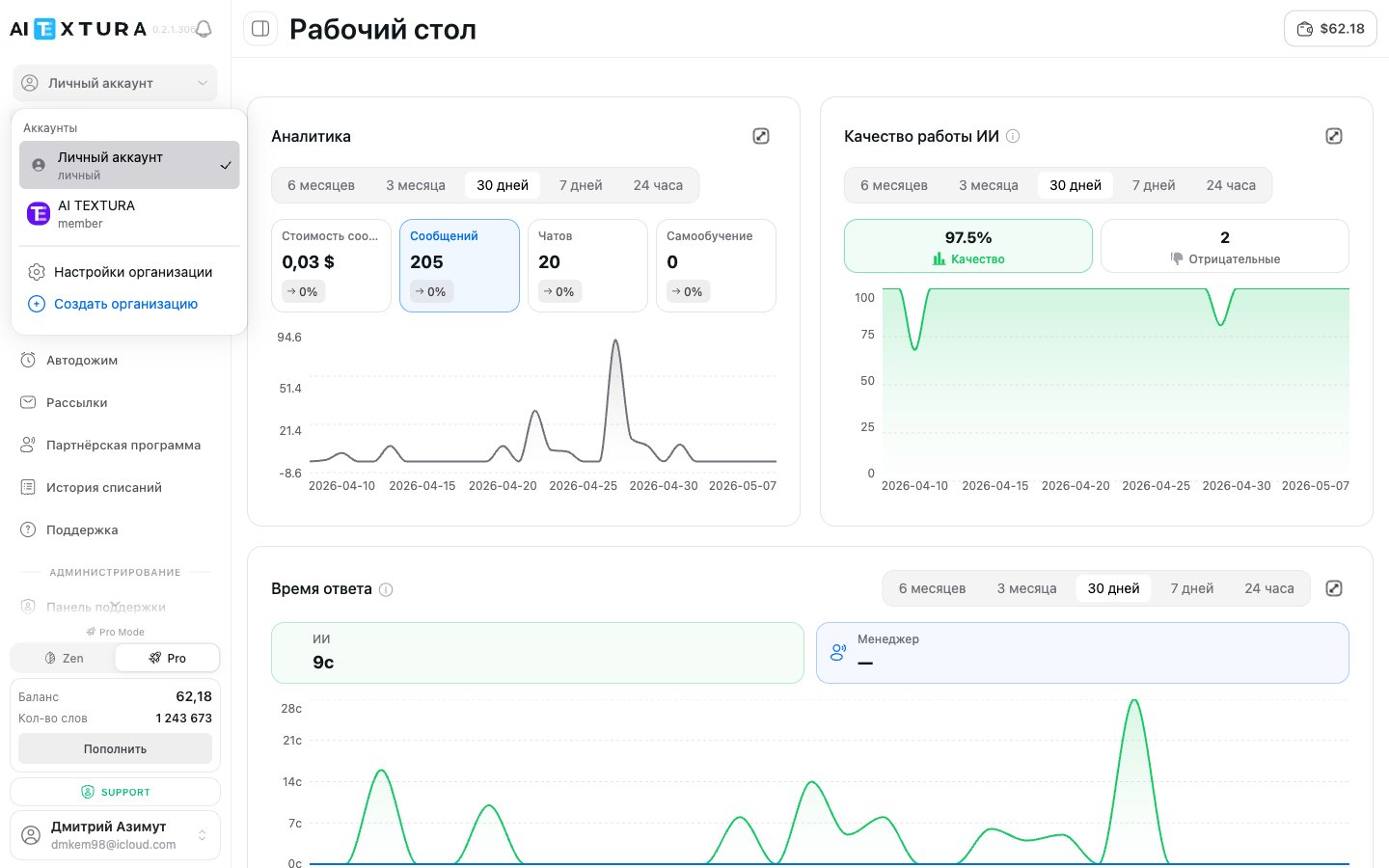
The context switcher button is at the top of the sidebar — above the main menu. Clicking it opens the "Select organization" dropdown.
The menu contains:
* **Current context** — the highlighted item at the top (personal account or one of your organizations).
* **List of your organizations** — each with your role (Owner, Admin, Member).
* **Organization settings** — navigates to `/organization?tab=general` for the current organization.
* **Create organization** — opens the new organization form.
Switch context before opening a section — the balance, chats, agents, and billing pages all reflect whichever context you're currently in.
***
## Creating an organization
Personal profile and preferences
Organization balance and plans
Help and tickets
Collaborate on agents as a team
***
## Terminology
The platform UI uses the term **"Organization"** (`/organization`, the "Create organization" button in the context switcher). In casual conversation and marketing materials you'll often see the synonym **"Company"** — they refer to the same thing.
In this documentation we use "Organization" as the primary term and mention "Company" once for those who are used to it.
***
## Personal account vs organization
The platform has two contexts that you can switch between with one click:
| Context | What's inside |
| -------------------- | ------------------------------------------------------------------------------------------------------------------------------------------------------ |
| **Personal account** | Personal balance, charge history (`/billing/words/history`), personal AI employees, personal connections |
| **Organization** | Shared balance, shared agents, shared connections, member roles. Charge history is hidden in the org context — billing follows the organization's plan |
Things to know:
* **Agents don't move automatically.** Personal agents stay in your personal context; organization agents live inside the organization. Create the agent in the right context from the start.
* **Billing is separate.** Charges from a personal conversation come out of your personal balance. Charges in an organization come out of its own balance.
* **Only owners and admins can invite people.** Regular members see the list of others but can't add new ones.
***
## Context switcher
The context switcher button is at the top of the sidebar — above the main menu. Clicking it opens the "Select organization" dropdown.
The menu contains:
* **Current context** — the highlighted item at the top (personal account or one of your organizations).
* **List of your organizations** — each with your role (Owner, Admin, Member).
* **Organization settings** — navigates to `/organization?tab=general` for the current organization.
* **Create organization** — opens the new organization form.
Switch context before opening a section — the balance, chats, agents, and billing pages all reflect whichever context you're currently in.
***
## Creating an organization
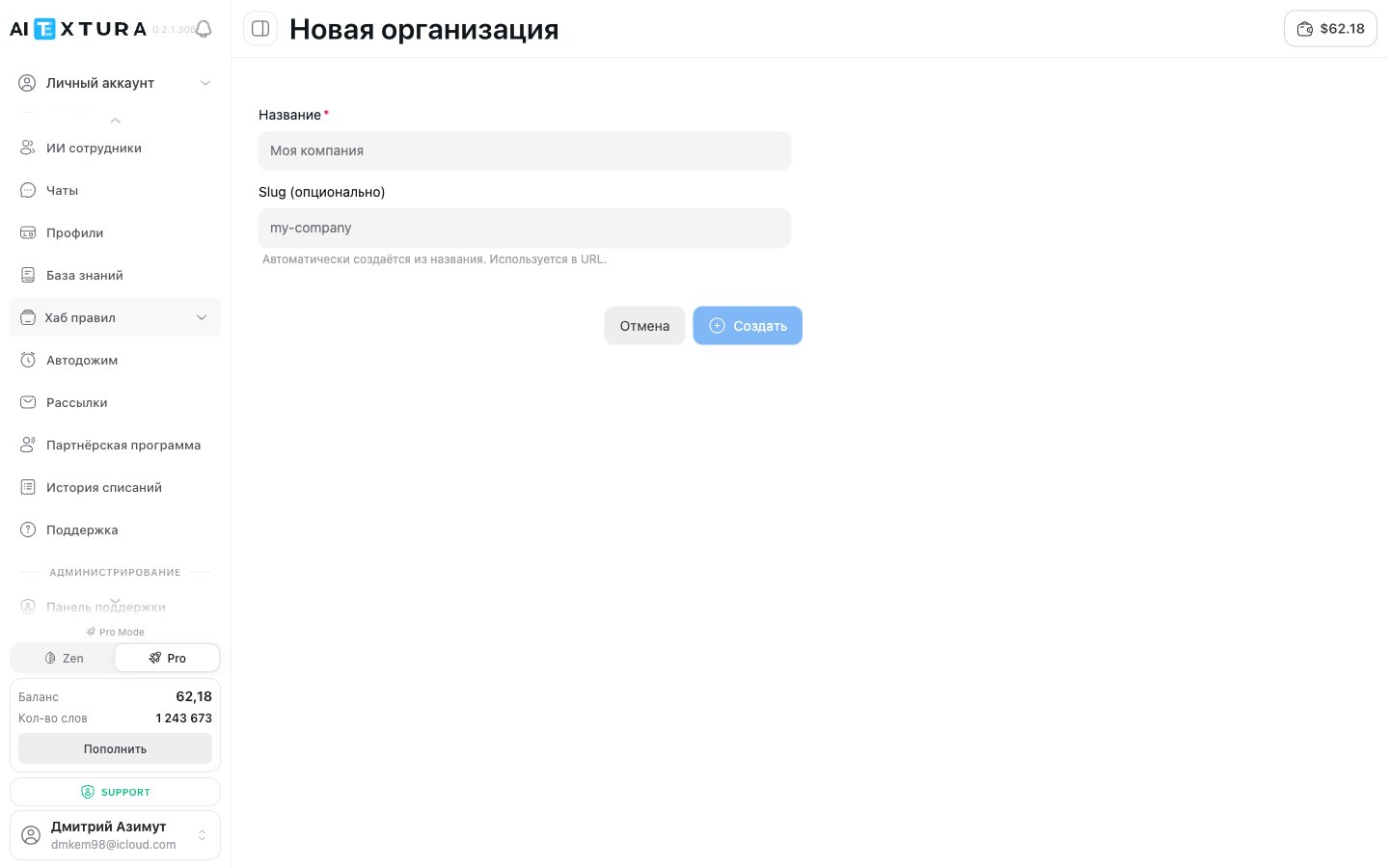 Click the context switcher button at the top of the sidebar.
The button is at the bottom of the dropdown menu.
The **Name** field is required. This is the visible name of the organization in the switcher and in the header.
The **Slug** field accepts Latin letters, digits, and hyphens. It's used in URLs (`/o//...`). If you leave it blank, one is generated automatically from the name.
The platform automatically switches context to the new organization. You are its owner.
You can create multiple organizations — for example, for different clients or business lines. They all show up in the switcher.
***
## Organization settings
The `/organization` section has two tabs: **General** and **Members**.
### General tab
Click the context switcher button at the top of the sidebar.
The button is at the bottom of the dropdown menu.
The **Name** field is required. This is the visible name of the organization in the switcher and in the header.
The **Slug** field accepts Latin letters, digits, and hyphens. It's used in URLs (`/o//...`). If you leave it blank, one is generated automatically from the name.
The platform automatically switches context to the new organization. You are its owner.
You can create multiple organizations — for example, for different clients or business lines. They all show up in the switcher.
***
## Organization settings
The `/organization` section has two tabs: **General** and **Members**.
### General tab
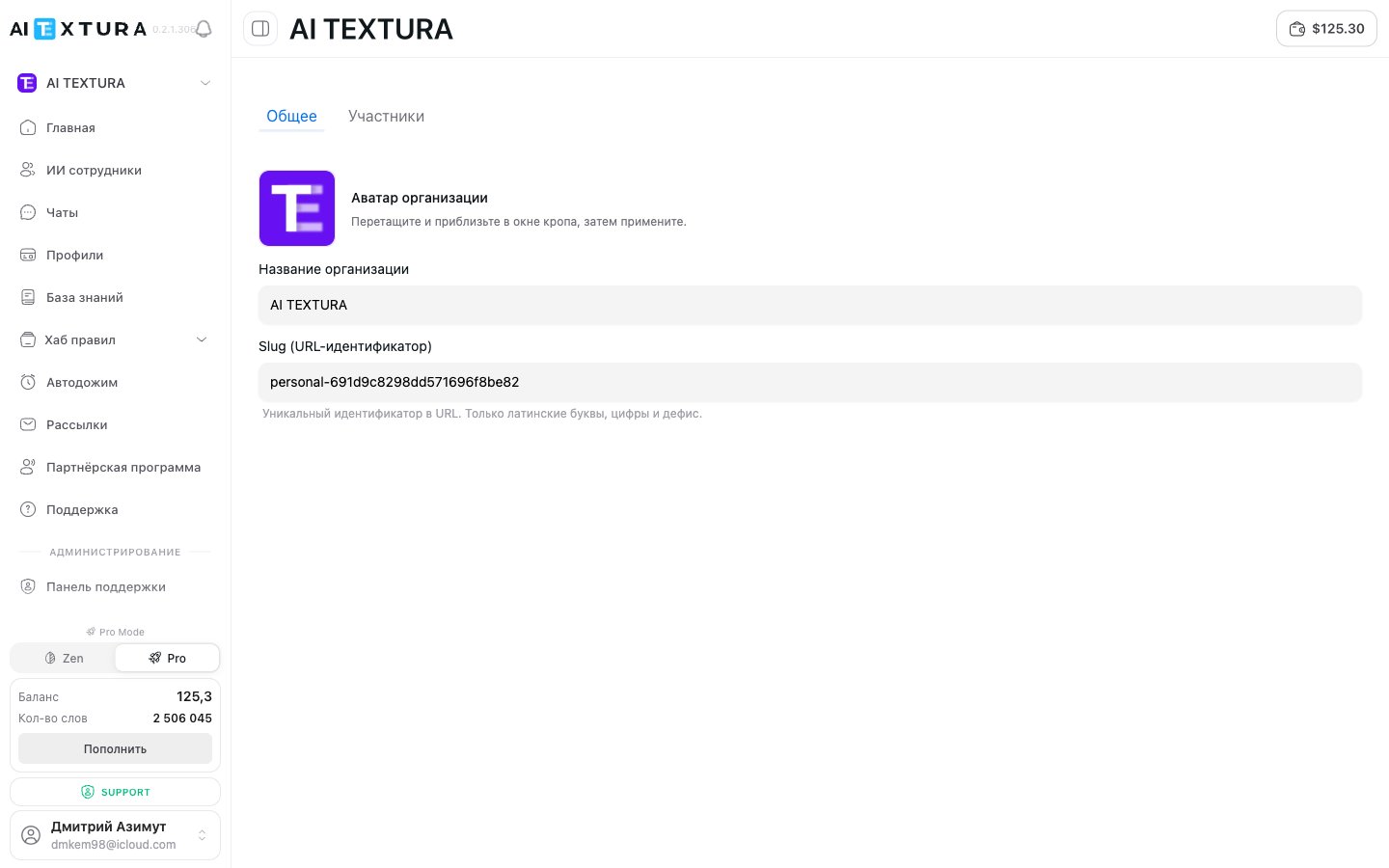 Here you can:
* Upload an organization **avatar**.
* Change the **name**.
* Change the **slug** (URL).
Changes are saved by clicking the corresponding button. Change the slug carefully — it changes public URLs.
### Members tab
Here you can:
* Upload an organization **avatar**.
* Change the **name**.
* Change the **slug** (URL).
Changes are saved by clicking the corresponding button. Change the slug carefully — it changes public URLs.
### Members tab
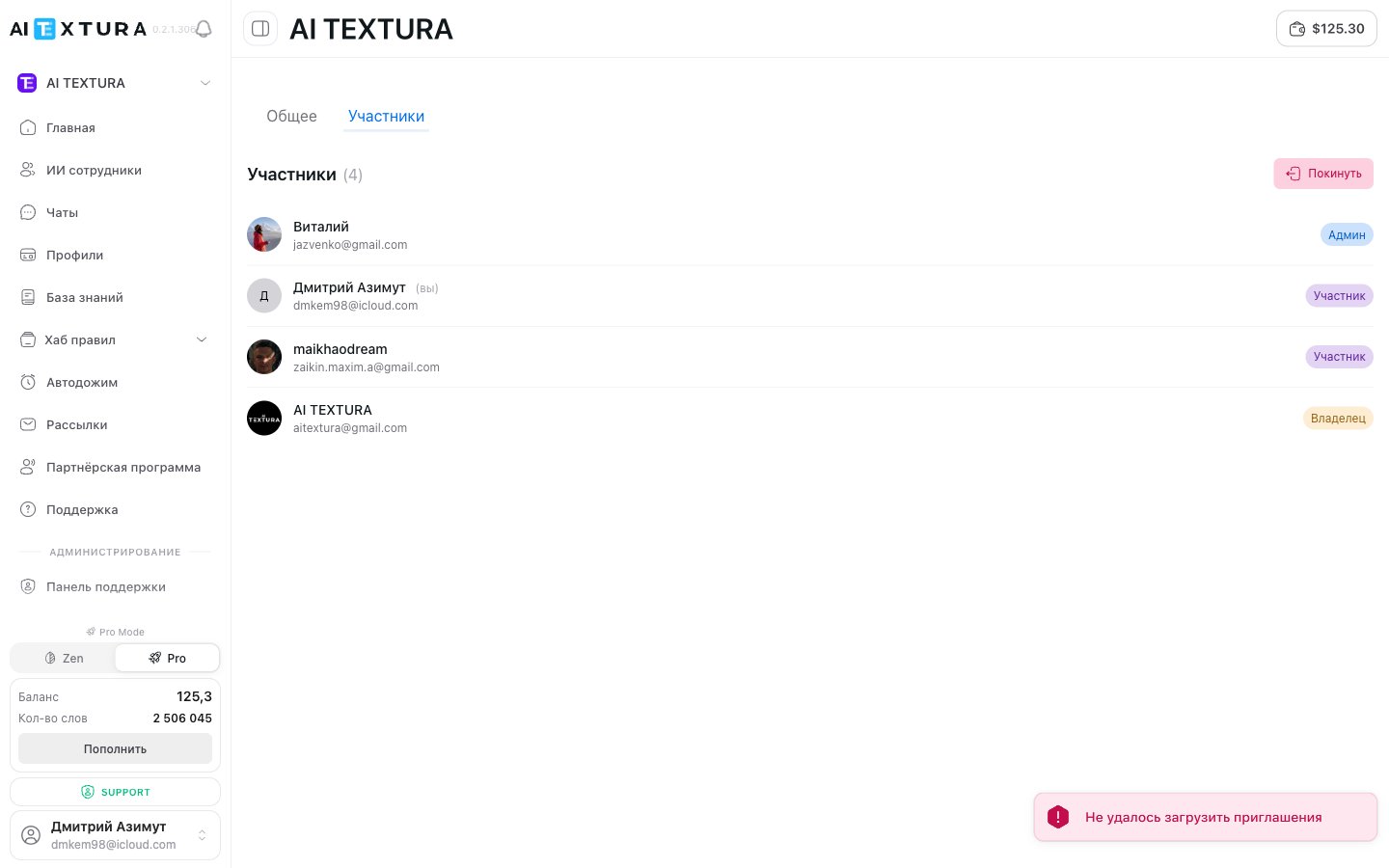 Here you'll find:
* The full list of organization members with a role badge.
* The invite button (available to owners and admins).
* Member actions — change role or remove (available to owners and admins).
If you're a member without admin rights, you'll see an alert "Failed to load invitations." This is expected: the invitation list is only shown to owners and admins.
***
## Roles
An organization has three roles with different access levels.
| Role | What they can do |
| ---------- | ----------------------------------------------------------------------------------------------------------------------------------------------- |
| **Owner** | Full control. Can do everything, including deleting the organization. Cannot leave the organization (must transfer ownership first). |
| **Admin** | Manage members (invitations, role changes except owner, removal), billing, and organization settings. |
| **Member** | Standard access to agents, chats, and broadcasts. Doesn't see member management or billing tools. The "Leave organization" button is available. |
Each organization has exactly one owner. To transfer ownership, the current owner promotes another member to Owner — after which the previous owner becomes an admin or can leave the organization.
***
## Organization billing and balance
Every organization has its **own balance** and **own plan**. Charges for the organization's agents come out of its own balance, not your personal one.
What to know:
* In the organization context, the `/billing` page shows the organization's balance, available plans, and its purchase history.
* **The "charge history" page (`/billing/words/history`) is only visible in the personal account.** This breakdown is currently hidden for organizations — track spend through the aggregate metrics in [Billing](/en/guides/finance).
* The owner and admins can top up the organization's balance.
See [Billing](/en/guides/finance) for details.
***
## Inviting members
Available to owners and admins. The basic flow:
`/organization?tab=members` in the desired organization's context.
Enter the invitee's email and pick a role (Admin or Member).
The user receives an email with a link. Once accepted, they appear in the member list.
If an invitation seems "stuck", ask the recipient to check their spam folder and double-check the email address.
***
## Removing and leaving an organization
* **Leave organization** (Member or Admin role) — button on the members page or in settings. After leaving, you lose access to the organization's agents and data; everything stays with the organization.
* **Remove a member** (Owner, Admin) — action in the member list.
* **Delete the entire organization** — Owner only, in settings. All of the organization's agents, chats, and profiles are deleted permanently.
Deleting an organization is irreversible. If there's data you need to keep, export the chats and knowledge base first.
***
## FAQ
Yes, there's no limit on the number. They all show up in the context switcher and you can switch between them with one click.
Access to its agents, chats, and settings is closed. The agents and data themselves stay with the organization — they're not deleted. If you come back via invitation, your access is restored.
Yes, but only owners and administrators can. Regular members don't see this option.
In the organization context, open [Billing](/en/guides/finance) — you'll see the balance and plans there. The detailed word-by-word charge history is hidden in the org context; use the aggregate metrics and the [Dashboard](/en/guides/dashboard).
A personal account is for a single user — your own balance, your own agents, your own history. An organization is for a team: a shared pool of agents, a shared balance, member roles, and joint management.
Yes. The contexts are independent. Personal agents live in your personal account; organization agents live in the organization. Switch between them via the context switcher.
The current owner promotes the chosen member to Owner on the Members tab. After that, the former owner becomes an admin or can leave the organization.
No — an agent is tied to a single context. If you need "the same" agent in an organization, copy the Persona and knowledge base into a new agent created inside that organization.
Here you'll find:
* The full list of organization members with a role badge.
* The invite button (available to owners and admins).
* Member actions — change role or remove (available to owners and admins).
If you're a member without admin rights, you'll see an alert "Failed to load invitations." This is expected: the invitation list is only shown to owners and admins.
***
## Roles
An organization has three roles with different access levels.
| Role | What they can do |
| ---------- | ----------------------------------------------------------------------------------------------------------------------------------------------- |
| **Owner** | Full control. Can do everything, including deleting the organization. Cannot leave the organization (must transfer ownership first). |
| **Admin** | Manage members (invitations, role changes except owner, removal), billing, and organization settings. |
| **Member** | Standard access to agents, chats, and broadcasts. Doesn't see member management or billing tools. The "Leave organization" button is available. |
Each organization has exactly one owner. To transfer ownership, the current owner promotes another member to Owner — after which the previous owner becomes an admin or can leave the organization.
***
## Organization billing and balance
Every organization has its **own balance** and **own plan**. Charges for the organization's agents come out of its own balance, not your personal one.
What to know:
* In the organization context, the `/billing` page shows the organization's balance, available plans, and its purchase history.
* **The "charge history" page (`/billing/words/history`) is only visible in the personal account.** This breakdown is currently hidden for organizations — track spend through the aggregate metrics in [Billing](/en/guides/finance).
* The owner and admins can top up the organization's balance.
See [Billing](/en/guides/finance) for details.
***
## Inviting members
Available to owners and admins. The basic flow:
`/organization?tab=members` in the desired organization's context.
Enter the invitee's email and pick a role (Admin or Member).
The user receives an email with a link. Once accepted, they appear in the member list.
If an invitation seems "stuck", ask the recipient to check their spam folder and double-check the email address.
***
## Removing and leaving an organization
* **Leave organization** (Member or Admin role) — button on the members page or in settings. After leaving, you lose access to the organization's agents and data; everything stays with the organization.
* **Remove a member** (Owner, Admin) — action in the member list.
* **Delete the entire organization** — Owner only, in settings. All of the organization's agents, chats, and profiles are deleted permanently.
Deleting an organization is irreversible. If there's data you need to keep, export the chats and knowledge base first.
***
## FAQ
Yes, there's no limit on the number. They all show up in the context switcher and you can switch between them with one click.
Access to its agents, chats, and settings is closed. The agents and data themselves stay with the organization — they're not deleted. If you come back via invitation, your access is restored.
Yes, but only owners and administrators can. Regular members don't see this option.
In the organization context, open [Billing](/en/guides/finance) — you'll see the balance and plans there. The detailed word-by-word charge history is hidden in the org context; use the aggregate metrics and the [Dashboard](/en/guides/dashboard).
A personal account is for a single user — your own balance, your own agents, your own history. An organization is for a team: a shared pool of agents, a shared balance, member roles, and joint management.
Yes. The contexts are independent. Personal agents live in your personal account; organization agents live in the organization. Switch between them via the context switcher.
The current owner promotes the chosen member to Owner on the Members tab. After that, the former owner becomes an admin or can leave the organization.
No — an agent is tied to a single context. If you need "the same" agent in an organization, copy the Persona and knowledge base into a new agent created inside that organization.