> ## Documentation Index
> Fetch the complete documentation index at: https://aitextura.mintlify.site/llms.txt
> Use this file to discover all available pages before exploring further.
# Knowledge and Knowledge Base
> How to upload, organize, and connect information sources to AI employees in AI Textura: the central repository and per-agent knowledge base configuration.
Knowledge is the foundation of accurate answers from your AI employee. Without a knowledge base, the agent relies only on instructions from the Persona and the model's general knowledge. With a knowledge base, it provides fact-backed data: prices, terms, descriptions, specifications.
Define how your agent communicates
Prepared answers and self-learning
Connect integrations and services
Manage all your virtual agents
**Knowledge is static.** After uploading, content does not update automatically. If the original document has changed, you need to delete the old source and upload the new one.
[Persona](/en/guides/persona) defines **how** the employee responds (tone, style, behavior). **Knowledge Base** defines **what** it knows (facts, data, documents). These two tools work together: an instruction in the Persona can direct the employee to specific data from the knowledge base.
***
## Video walkthrough
A short video: how to upload documents and web pages into the knowledge base and connect them to an AI employee.
***
## Two Places to Work with Knowledge
AI Textura has two related but distinct sections for working with knowledge:
| Section | Location | Purpose |
| ------------------ | ------------------------------------- | ---------------------------------------------------------------- |
| **Knowledge** | Left sidebar menu | Central repository of all sources across all employees |
| **Knowledge Base** | Tab in a specific employee's settings | Select which sources from the repository to connect to the agent |
You can upload files from both places, but there is an important difference:
* **Uploading via the agent's "Knowledge Base" tab** -- the file automatically lands in that agent's subfolder inside **Agents** and is immediately connected to the employee.
* **Uploading via the "Knowledge" section in the left menu** -- the file goes to the folder you selected, but is **not automatically connected** to any employee. You must manually check the checkbox in the desired agent's **Knowledge Base** tab.
***
## "Knowledge" Section -- Central Repository
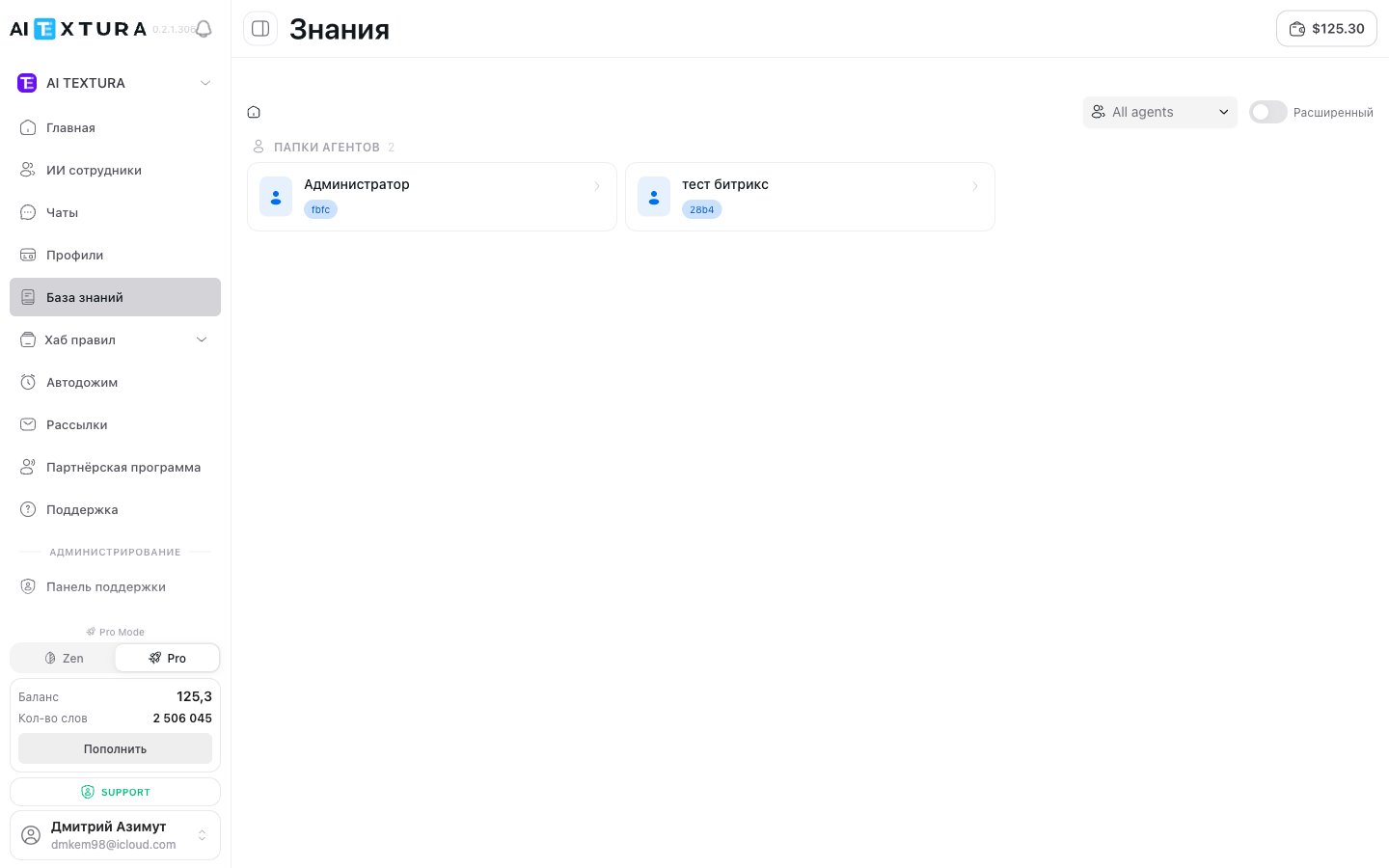
The **Knowledge** section in the left sidebar is a shared repository of files and information sources across all employees. Here you can:
* See the full picture: which sources are uploaded and which employees they are connected to
* Organize information into folders
* Add new sources
* Delete outdated data
### Interface
The screen is split into two parts:
**Left panel -- folder tree.** A hierarchical structure of all knowledge. At the top level is the root folder **All knowledge**. Click any folder to display its contents in the right panel.
**Right panel -- file table.** When you select a folder, a **Knowledge files** table appears:
| Column | What it shows |
| ----------- | ------------------------------------------- |
| **Name** | File name, URL, or text source name |
| **Type** | Element type: Folder, Text, File, Web, etc. |
| **Updated** | Date of last update |
Above the table you will find:
* **Breadcrumbs** -- navigation through folder levels
* **Agent selector** (`All agents`) -- show sources connected to a specific employee
* **Mode tabs** (`Extended` / basic) -- switch between display modes
* **Add button** -- create folders and upload sources
Each item in the table has an actions button (three dots): rename, move, or delete.
### Agent Selector
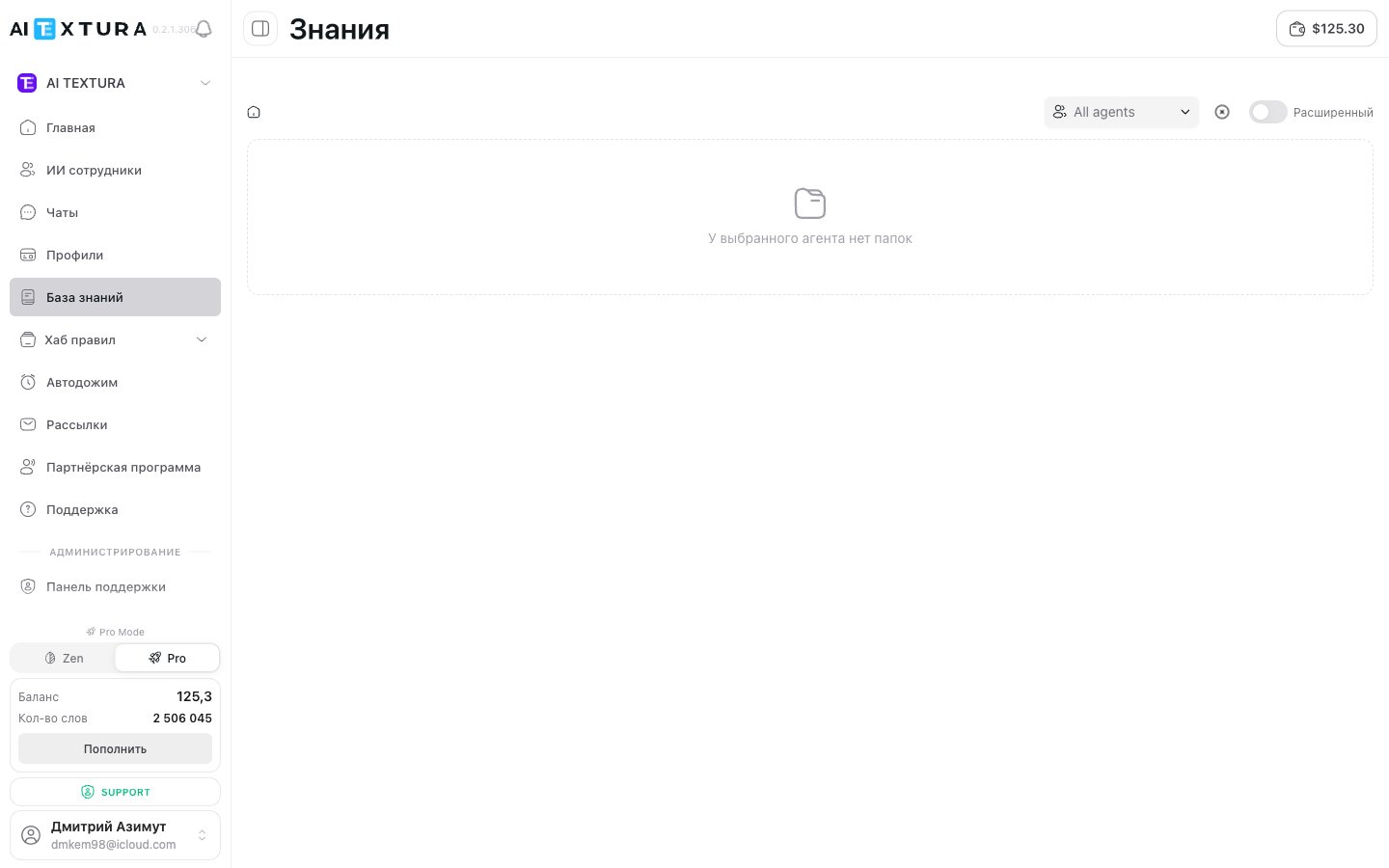
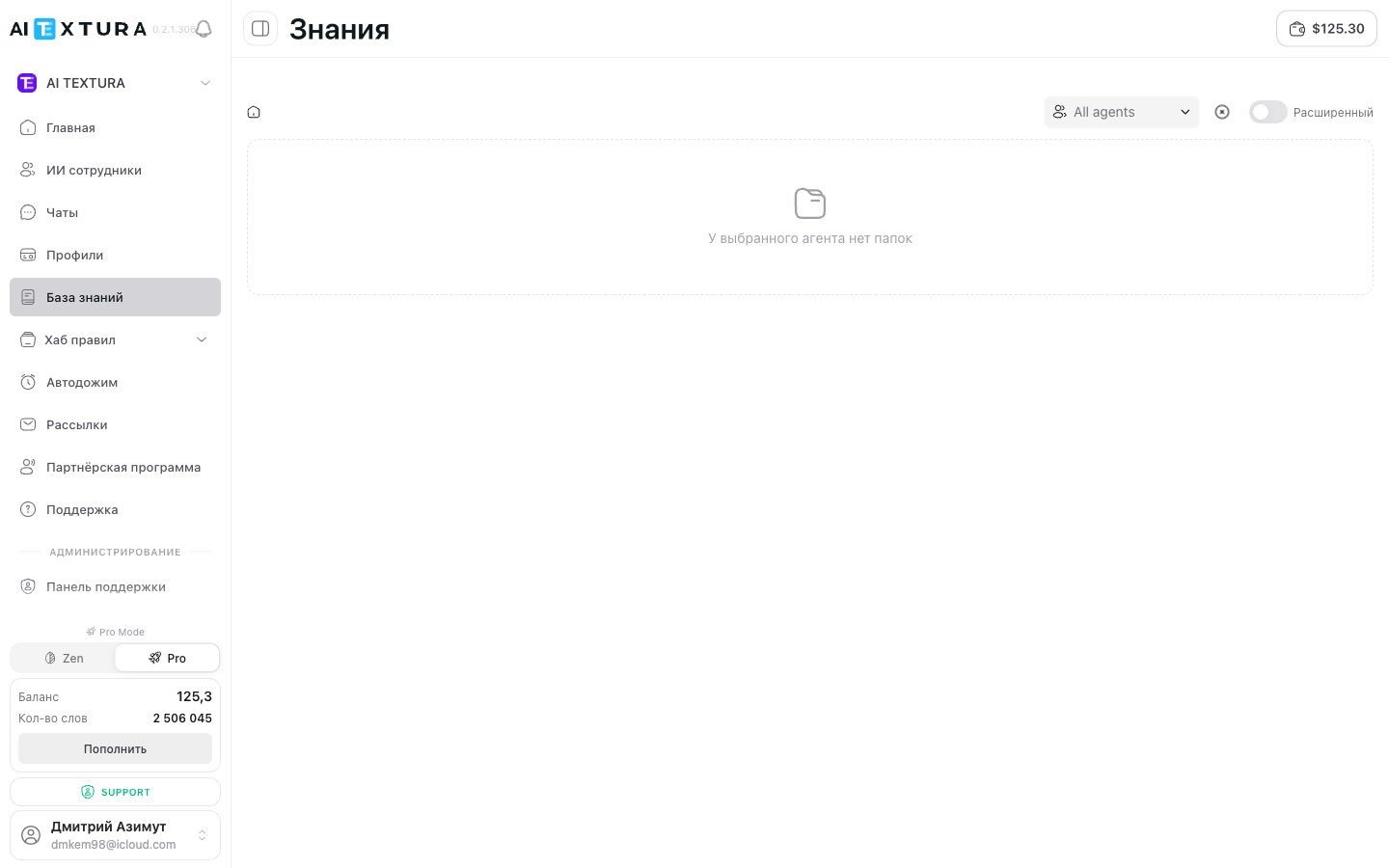
Above the table there is an **All agents** dropdown. This is the page's central filter:
| Selection | What it shows |
| ----------------- | --------------------------------------------------------------------------------------------------- |
| **All agents** | All sources and folders for all employees — overall view |
| Specific employee | Only the sources **connected** to that employee. The folder tree collapses to the relevant branches |
If you want to quickly see which knowledge a single employee actually "sees" — pick them in the selector. It's faster than going into their settings and opening the "Knowledge Base" tab.
### `Extended` and basic modes
The tabs next to the agent selector switch the page view:
| Mode | What it shows |
| ------------ | --------------------------------------------------------------------------------------------------------------------------------------------------------------------------------------------------------------- |
| **Basic** | A simple folder hierarchy and file table. Fits when there are few sources and you only need to add/remove files |
| **Extended** | Expanded navigation with **Agent folders** (a separate branch per employee), a system **FAQ** folder, and custom folders. Useful as the knowledge library grows and sources get split across multiple employees |
### Agent folders
In Extended mode, a separate subfolder is created automatically inside the **Agents** branch for each employee. Any source you upload from an employee's **Knowledge Base** tab lands here. The folder name matches the employee's name.
**Example structure:**
```
All knowledge
├── Agents
│ ├── Administrator
│ │ └── (empty)
│ └── bitrix test
│ └── ...
├── FAQ
│ └── ...
└── Price lists 2026
└── ...
```
Agent folders help keep things tidy in a large catalog: you see which sources are tied specifically to a single employee while still using shared custom folders (like `Price lists 2026`) across multiple employees at once.
### Folder Structure
By default, the system organizes knowledge as follows:
```
All knowledge
├── Agents
│ ├── [Employee 1 name]
│ │ ├── file.pdf
│ │ ├── text
│ │ └── ...
│ ├── [Employee 2 name]
│ │ └── ...
│ └── ...
├── FAQ
│ └── ...
└── [Your folders]
└── ...
```
* **Agents** -- a system folder. Subfolders are automatically created for each employee when you add sources via the **Knowledge Base** tab in the agent's settings.
* **FAQ** -- a folder for entries from the [self-learning](/en/guides/faq) section that have been sent to the knowledge base.
* **Custom folders** -- create them at any level to organize by topic, department, or project.
Folder structure does not affect how the employee works -- it searches across all connected sources regardless of their location. Folders are purely for your convenience.
### Creating a Folder
Open the **Knowledge** section in the left sidebar.
In the left panel, click the **"+"** icon next to the **Folders** heading.
Provide a clear name -- for example, "Price lists", "Policies", "Room descriptions". The folder will appear in the tree.
You can create folders within folders for deeper organization, for example: **Price lists → Summer 2026**, **Price lists → Winter 2026**.
***
## "Knowledge Base" Tab -- Per-Employee Settings
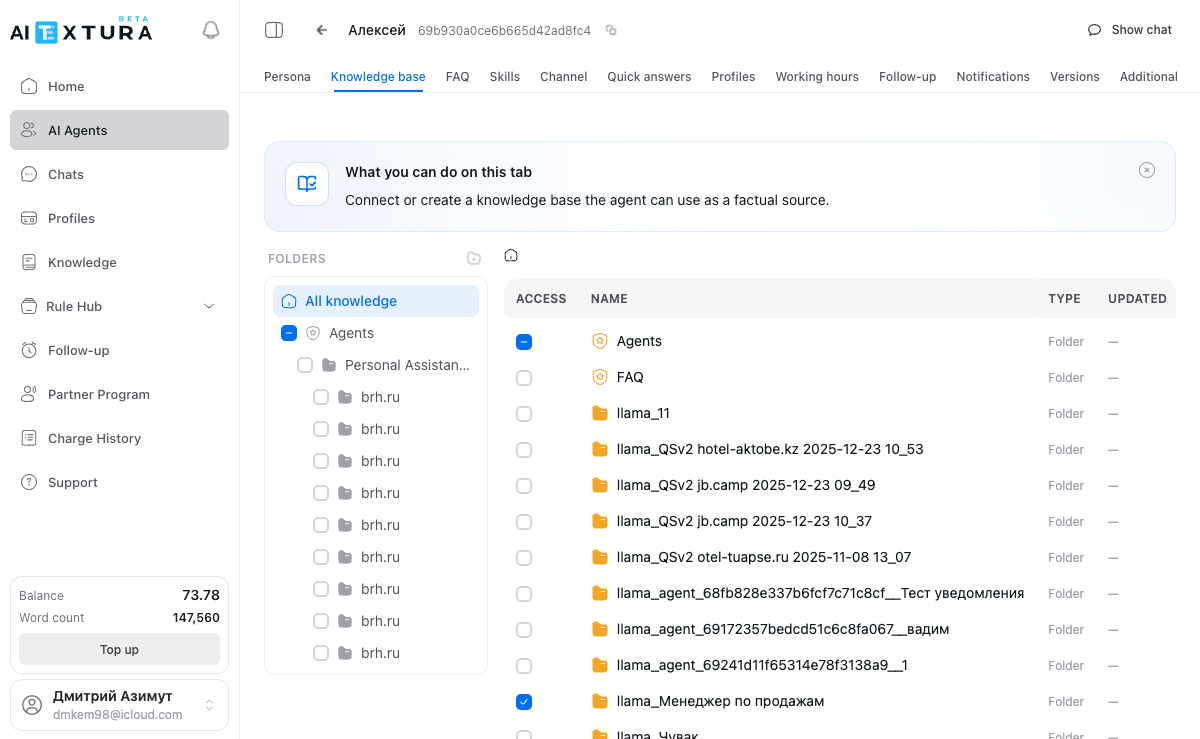
Open the desired AI employee → **Knowledge Base** tab. Here you select which sources from the shared repository to connect to this agent.
### Interface
The screen is split into two parts:
**Left panel -- folder tree.** All folders with knowledge sources. Each folder has a **checkbox**:
| Checkbox state | Meaning |
| ----------------- | -------------------------------------------------------------- |
| Checked | Sources from this folder are connected to the current employee |
| Unchecked | Sources are not in use |
| Partially checked | Some sources inside are connected, some are not |
Simply check or uncheck a box to connect or disconnect an entire folder.
**Right panel -- file table.** When you select a folder, it shows the **Knowledge files** table:
| Column | What it shows |
| ----------- | ------------------------------------------------------------ |
| **Access** | Checkbox -- whether the source is connected to this employee |
| **Name** | File name, URL, or text source name |
| **Type** | Source type (Text, Folder, etc.) |
| **Updated** | Date of last update |
Above the table -- **breadcrumbs** for folder navigation.
### Connecting Sources to an Employee
Go to the desired employee's settings → **Knowledge Base** tab.
In the left panel, locate the folder with the sources you need.
Mark the checkbox next to the folder or individual file.
Click **Save**. The same source can be connected to multiple employees.
Organize sources into folders -- for example, one folder per employee or per topic. This makes access management easier as the number of sources grows.
***
## Four Ways to Add a Knowledge Source
While in the desired folder (in either section), click the **Add source** button. Four options are available:
### 1. Upload Files
Upload documents from your computer. Supported formats:
| Format | Description |
| -------- | -------------------------------- |
| **PDF** | Documents, price lists, catalogs |
| **DOCX** | Word text documents |
| **TXT** | Plain text files |
| **CSV** | Data tables |
**When to use:** you have ready-made documents -- price lists, policies, service descriptions, manuals.
For best results, use structured documents with headings and lists. AI works much better with well-organized text than with a continuous stream of characters.
### 2. Text
Manual entry or paste text directly into the platform.
| Field | Description |
| ------------------- | ----------------------------------------- |
| **Name** (optional) | A clear name for the source |
| **Content** | The text itself -- paste or type manually |
**When to use:** you need to quickly add brief information -- an address, contacts, business hours, special terms.
### 3. YouTube Video
Import a video transcript from YouTube. Enter the **URL** -- the platform will automatically extract text from subtitles.
**When to use:** useful information is contained in video reviews, presentations, or educational videos.
Import only works with videos that have subtitles -- either automatic or uploaded by the author.
### 4. Web Page
Import content by URL. Supports regular websites, **Google Docs**, and **Google Sheets**.
| Parameter | Description |
| -------------- | ---------------------------------------------------------------------------------------- |
| **URL** | Page address |
| **Parse mode** | **Single page** -- only the specified URL. **Full site** -- recursive crawl of all pages |
**When to use:** the information is already published on a website or in a Google document.
To import from Google Docs or Google Sheets, simply paste the link -- the system will detect the format automatically. For private documents, you will need to grant access to the platform's service account -- the address is shown in the import dialog.
***
## Updating Knowledge
Uploaded sources do not update automatically. If a price list has changed, the employee will continue using the old data.
Go to the **Knowledge** section and locate the file.
Using the actions menu (three dots), delete the outdated source.
Upload the new file or re-import the page.
When you delete a source, it disappears from **all** employees it was connected to. If you only need to remove it from one agent, uncheck the box in that employee's **Knowledge Base** tab instead of deleting the file.
***
## Actions Summary Table
| Action | Where to do it |
| ------------------------------------------------------- | ----------------------------------------------------------- |
| Upload a new source | **Knowledge** (left menu) or **Knowledge Base** (agent tab) |
| Connect a source to an employee | **Knowledge Base** (agent tab) -- via checkboxes |
| View all sources across all employees | **Knowledge** (left menu) |
| Delete a source from the system | **Knowledge** (left menu) |
| Disconnect a source from an employee (without deleting) | **Knowledge Base** (agent tab) -- uncheck the box |
***
## Usage Examples
A hotel uploaded sources to the **Knowledge** section and organized them into folders:
```
All knowledge
├── Agents
│ ├── Concierge (Telegram)
│ └── Support (website widget)
├── General documents
│ ├── House rules.pdf
│ ├── Price list 2026.docx
│ └── Room descriptions.txt
├── Restaurants and spa
│ ├── Restaurant menu.pdf
│ └── Spa services.txt
└── Transfers
└── Routes and prices.txt
```
"General documents" and "Restaurants and spa" are connected to both employees. "Transfers" is connected only to the Concierge. When spa prices changed, the manager deleted the old file and uploaded a new one. Both employees immediately received up-to-date data.
Two agents: "Product Consultant" and "Customer Support".
* **Catalog** -- product descriptions, specs, availability. Connected only to the Consultant.
* **Policies** -- returns, shipping, warranty. Connected only to Customer Support.
* **General** -- contacts, business hours, promotions. Connected to both.
When a new product was added, the file went into "Catalog". The Consultant can immediately talk about it, while Customer Support does not even see it.
The school uploaded a class schedule as a CSV and connected it to the curator agent. Students ask "When is the next marketing class?" -- the curator finds the answer in the table. The schedule is updated monthly: the admin deletes the old CSV and uploads the new one.
***
## Best Practices
* **Clear file names.** "Price list 2026 March.pdf" is immediately understandable. "Document\_final\_v3(2).pdf" is not.
* **Don't upload everything.** Each extra source is context the employee searches through. More irrelevant documents mean a higher chance of inaccurate answers.
* **Structure your documents.** Use headings, lists, and tables. A long unstructured document is better split into several thematic files.
* **Test after uploading.** Open a test chat and ask questions about the uploaded information.
* **Keep data current.** Outdated data means incorrect answers. The employee does not know the information is stale.
***
## FAQ
There is no limit on the number of sources. However, more sources means more tokens spent on search -- only add what the employee truly needs.
No. All knowledge is static. If the original document has changed, you need to delete the old source and upload a new version. There is no automatic synchronization.
Yes. A source is stored in the **Knowledge** section and can be connected to any number of employees via checkboxes in each agent's **Knowledge Base** tab.
It disappears from all employees it was connected to. If you only need to remove a source from one agent, uncheck the box in the **Knowledge Base** tab instead of deleting the file.
Check three things: (1) the source is connected -- the checkbox is checked in the **Knowledge Base** tab; (2) the information is well-structured -- use headings and lists; (3) the [Persona](/en/guides/persona) includes an instruction like "answer based on knowledge base data, do not make things up."
No. Folders are a tool for your convenience. The employee searches across all connected sources regardless of their folder location.
If the information already exists in a document, upload the file. If you need a brief reference (address, contacts, a short rule), use text. For current information from a website, import the web page.
 ### Interface
The screen is split into two parts:
**Left panel -- folder tree.** A hierarchical structure of all knowledge. At the top level is the root folder **All knowledge**. Click any folder to display its contents in the right panel.
**Right panel -- file table.** When you select a folder, a **Knowledge files** table appears:
| Column | What it shows |
| ----------- | ------------------------------------------- |
| **Name** | File name, URL, or text source name |
| **Type** | Element type: Folder, Text, File, Web, etc. |
| **Updated** | Date of last update |
Above the table you will find:
* **Breadcrumbs** -- navigation through folder levels
* **Agent selector** (`All agents`) -- show sources connected to a specific employee
* **Mode tabs** (`Extended` / basic) -- switch between display modes
* **Add button** -- create folders and upload sources
Each item in the table has an actions button (three dots): rename, move, or delete.
### Agent Selector
Above the table there is an **All agents** dropdown. This is the page's central filter:
| Selection | What it shows |
| ----------------- | --------------------------------------------------------------------------------------------------- |
| **All agents** | All sources and folders for all employees — overall view |
| Specific employee | Only the sources **connected** to that employee. The folder tree collapses to the relevant branches |
### Interface
The screen is split into two parts:
**Left panel -- folder tree.** A hierarchical structure of all knowledge. At the top level is the root folder **All knowledge**. Click any folder to display its contents in the right panel.
**Right panel -- file table.** When you select a folder, a **Knowledge files** table appears:
| Column | What it shows |
| ----------- | ------------------------------------------- |
| **Name** | File name, URL, or text source name |
| **Type** | Element type: Folder, Text, File, Web, etc. |
| **Updated** | Date of last update |
Above the table you will find:
* **Breadcrumbs** -- navigation through folder levels
* **Agent selector** (`All agents`) -- show sources connected to a specific employee
* **Mode tabs** (`Extended` / basic) -- switch between display modes
* **Add button** -- create folders and upload sources
Each item in the table has an actions button (three dots): rename, move, or delete.
### Agent Selector
Above the table there is an **All agents** dropdown. This is the page's central filter:
| Selection | What it shows |
| ----------------- | --------------------------------------------------------------------------------------------------- |
| **All agents** | All sources and folders for all employees — overall view |
| Specific employee | Only the sources **connected** to that employee. The folder tree collapses to the relevant branches |
 ### Agent folders
In Extended mode, a separate subfolder is created automatically inside the **Agents** branch for each employee. Any source you upload from an employee's **Knowledge Base** tab lands here. The folder name matches the employee's name.
**Example structure:**
```
All knowledge
├── Agents
│ ├── Administrator
│ │ └── (empty)
│ └── bitrix test
│ └── ...
├── FAQ
│ └── ...
└── Price lists 2026
└── ...
```
Agent folders help keep things tidy in a large catalog: you see which sources are tied specifically to a single employee while still using shared custom folders (like `Price lists 2026`) across multiple employees at once.
### Folder Structure
By default, the system organizes knowledge as follows:
```
All knowledge
├── Agents
│ ├── [Employee 1 name]
│ │ ├── file.pdf
│ │ ├── text
│ │ └── ...
│ ├── [Employee 2 name]
│ │ └── ...
│ └── ...
├── FAQ
│ └── ...
└── [Your folders]
└── ...
```
* **Agents** -- a system folder. Subfolders are automatically created for each employee when you add sources via the **Knowledge Base** tab in the agent's settings.
* **FAQ** -- a folder for entries from the [self-learning](/en/guides/faq) section that have been sent to the knowledge base.
* **Custom folders** -- create them at any level to organize by topic, department, or project.
### Agent folders
In Extended mode, a separate subfolder is created automatically inside the **Agents** branch for each employee. Any source you upload from an employee's **Knowledge Base** tab lands here. The folder name matches the employee's name.
**Example structure:**
```
All knowledge
├── Agents
│ ├── Administrator
│ │ └── (empty)
│ └── bitrix test
│ └── ...
├── FAQ
│ └── ...
└── Price lists 2026
└── ...
```
Agent folders help keep things tidy in a large catalog: you see which sources are tied specifically to a single employee while still using shared custom folders (like `Price lists 2026`) across multiple employees at once.
### Folder Structure
By default, the system organizes knowledge as follows:
```
All knowledge
├── Agents
│ ├── [Employee 1 name]
│ │ ├── file.pdf
│ │ ├── text
│ │ └── ...
│ ├── [Employee 2 name]
│ │ └── ...
│ └── ...
├── FAQ
│ └── ...
└── [Your folders]
└── ...
```
* **Agents** -- a system folder. Subfolders are automatically created for each employee when you add sources via the **Knowledge Base** tab in the agent's settings.
* **FAQ** -- a folder for entries from the [self-learning](/en/guides/faq) section that have been sent to the knowledge base.
* **Custom folders** -- create them at any level to organize by topic, department, or project.
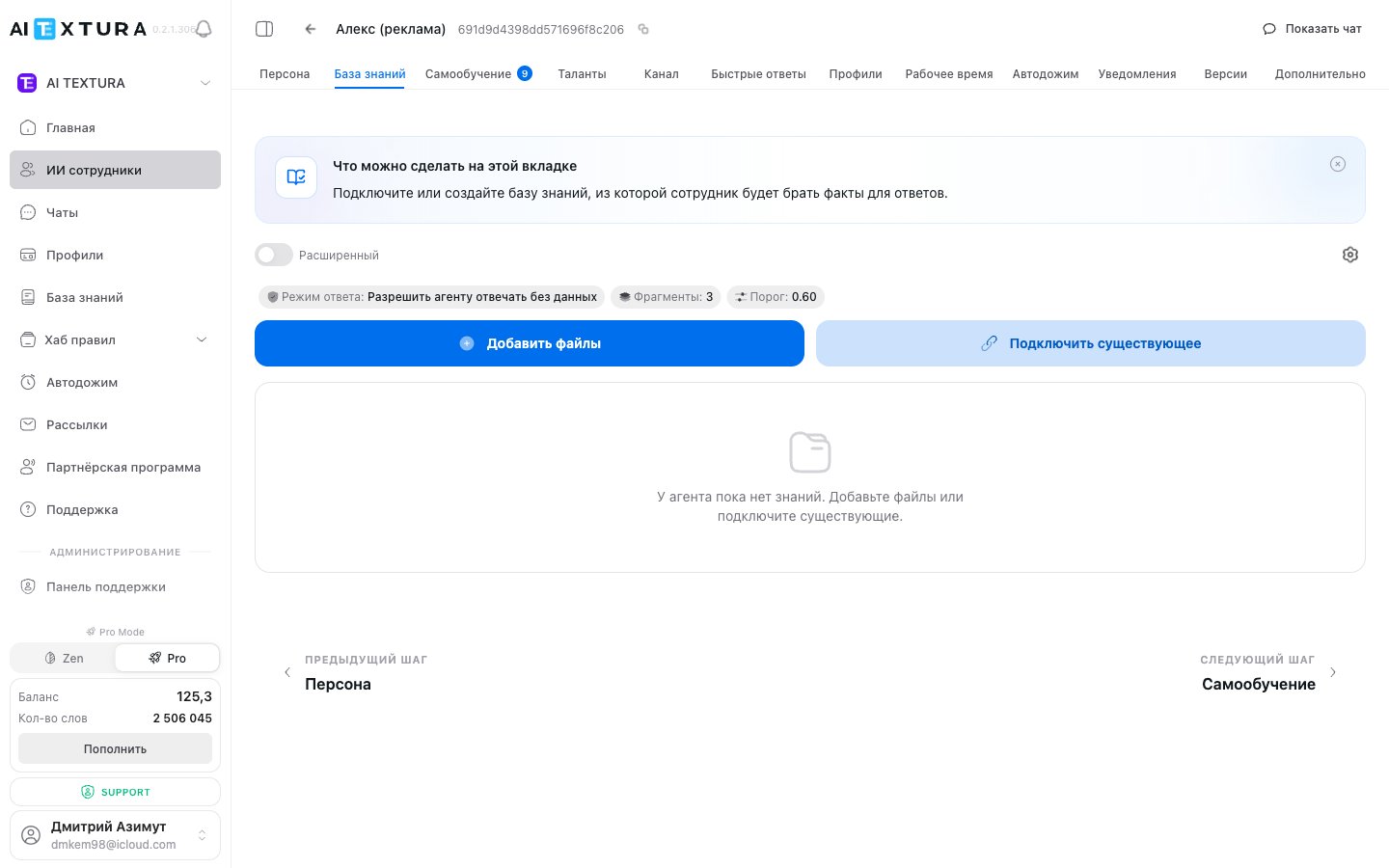 ### Interface
The screen is split into two parts:
**Left panel -- folder tree.** All folders with knowledge sources. Each folder has a **checkbox**:
| Checkbox state | Meaning |
| ----------------- | -------------------------------------------------------------- |
| Checked | Sources from this folder are connected to the current employee |
| Unchecked | Sources are not in use |
| Partially checked | Some sources inside are connected, some are not |
Simply check or uncheck a box to connect or disconnect an entire folder.
**Right panel -- file table.** When you select a folder, it shows the **Knowledge files** table:
| Column | What it shows |
| ----------- | ------------------------------------------------------------ |
| **Access** | Checkbox -- whether the source is connected to this employee |
| **Name** | File name, URL, or text source name |
| **Type** | Source type (Text, Folder, etc.) |
| **Updated** | Date of last update |
Above the table -- **breadcrumbs** for folder navigation.
### Connecting Sources to an Employee
### Interface
The screen is split into two parts:
**Left panel -- folder tree.** All folders with knowledge sources. Each folder has a **checkbox**:
| Checkbox state | Meaning |
| ----------------- | -------------------------------------------------------------- |
| Checked | Sources from this folder are connected to the current employee |
| Unchecked | Sources are not in use |
| Partially checked | Some sources inside are connected, some are not |
Simply check or uncheck a box to connect or disconnect an entire folder.
**Right panel -- file table.** When you select a folder, it shows the **Knowledge files** table:
| Column | What it shows |
| ----------- | ------------------------------------------------------------ |
| **Access** | Checkbox -- whether the source is connected to this employee |
| **Name** | File name, URL, or text source name |
| **Type** | Source type (Text, Folder, etc.) |
| **Updated** | Date of last update |
Above the table -- **breadcrumbs** for folder navigation.
### Connecting Sources to an Employee