> ## Documentation Index
> Fetch the complete documentation index at: https://aitextura.mintlify.site/llms.txt
> Use this file to discover all available pages before exploring further.
# Billing History
> Monitor expenses on the AI Textura platform: word balance, analytics, charts, billing table, pricing plans, and tips for cost optimization.
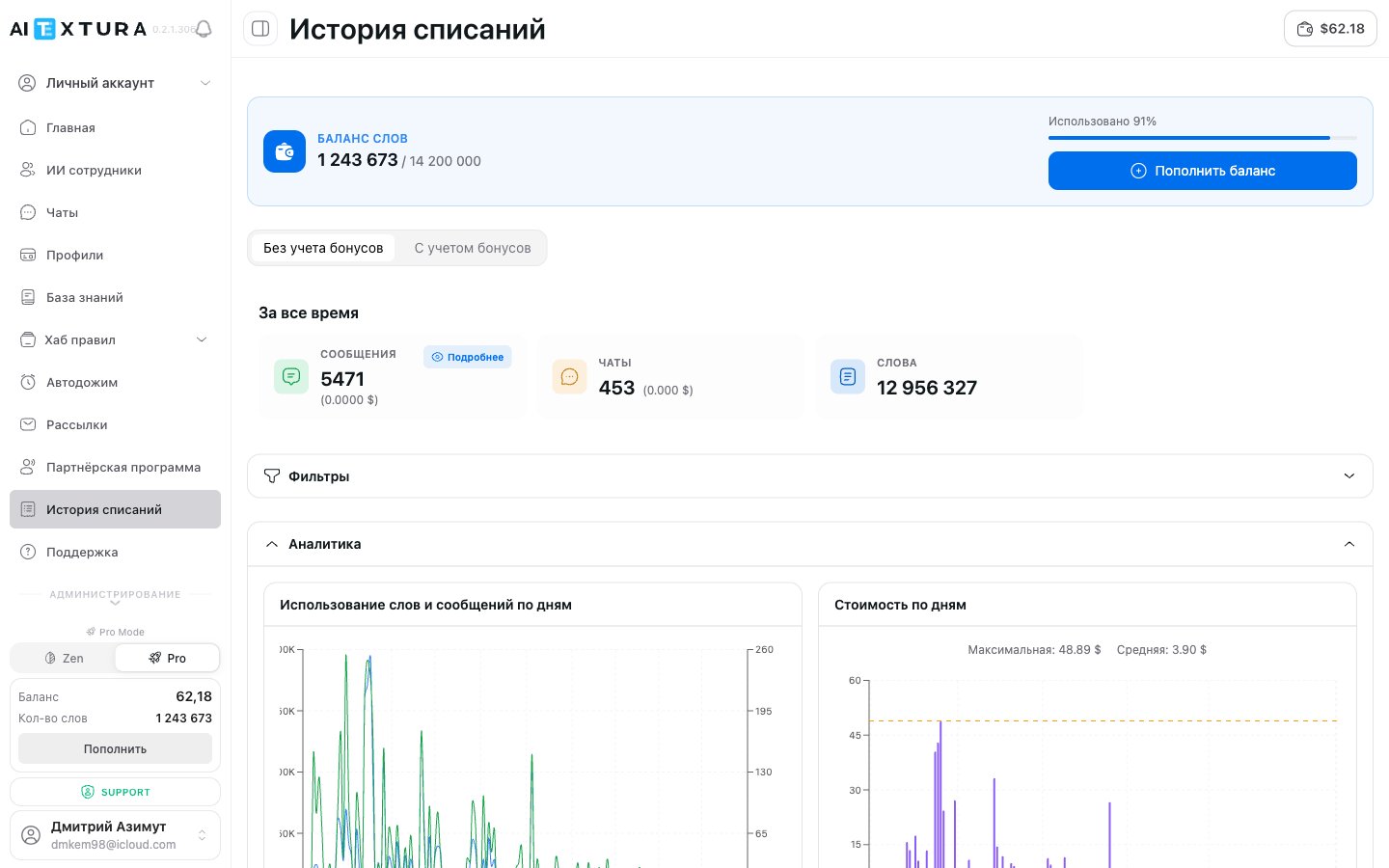
**Billing History** is the platform's financial center, where all the statistics on word usage and spending are collected. Here you can see how many words each AI employee has used, how much it cost, how expenses changed by day and month, and you can manage plans and top up your balance.
 Manage your employees
Platform-wide analytics
Tone and instruction settings
Connected data sources
The section is located in the platform's left menu: **Billing History**.
***
## Page overview
When you open the section, you see several blocks from top to bottom:
| # | Block | Purpose |
| - | ------------------------- | ---------------------------------- |
| 1 | **Word Balance** | Progress bar and usage numbers |
| 2 | **Bonus Mode** | Toggle between bonus / paid words |
| 3 | **Summary Cards** | Key totals: messages, chats, words |
| 4 | **Filters** | Period and employee selection |
| 5 | **Analytics** | Four charts |
| 6 | **Billing History Table** | Daily breakdown |
***
## Word Balance
At the top of the page you'll find the balance block:
| Element | What it shows |
| ------------------------- | ------------------------------------------------------------------------------------- |
| **Words used** | How many words have been spent out of the total limit (e.g., 1,475,624 of 14,200,000) |
| **Progress bar** | Visual bar with usage percentage (e.g., "90% used") |
| **Top Up Balance button** | Navigate to the top-up page |
When usage approaches 90-95%, it is time to top up your balance. If words run out, all AI employees pause and clients stop receiving responses.
The balance is also displayed in two places on every page:
* In the **bottom left corner** of the sidebar — dollar amount and remaining words
* In the **top right corner** — button showing the current balance in dollars
***
## Bonus Mode
Below the balance block there is a toggle with two tabs:
| Mode | What it shows |
| --------------------- | --------------------------------------------------------------------------- |
| **Excluding Bonuses** | Actual expenses — only what was deducted from your paid balance |
| **Including Bonuses** | Total usage, including words received through bonus programs and promotions |
The default mode is **Excluding Bonuses**. If you participate in the [referral program](/en/guides/referral) or have received bonus words, switch to the second mode to see the full picture.
***
## Summary Cards
Three cards with key figures for the selected period:
| Metric | What it means | Example |
| ------------ | --------------------------------------------------- | ---------------- |
| **Messages** | Total number of messages and their total cost | 5,308 (\$0.0000) |
| **Chats** | Number of unique conversations and their total cost | 424 (\$0.000) |
| **Words** | Total number of words used | 12,724,376 |
The header above the cards shows the period — by default **"All time"**. When filters are applied, the numbers recalculate. The **Messages** card is clickable — press **Details** for a breakdown.
***
## Filters
The **Filters** button lets you narrow down data by two parameters:
* **By period** — a specific date range (week, month, or custom interval)
* **By employee** — expenses for a specific AI employee
The employee filter is especially useful when you have multiple AI employees. You'll quickly identify which one consumes the most resources, so you can optimize its instructions or [knowledge base](/en/guides/knowledge).
After applying filters, all data on the page — summary cards, charts, and table — recalculates accordingly.
***
## Analytics — four charts
The **Analytics** section contains four charts available at `/billing/words/history`. The block can be collapsed and expanded.
| # | Chart | What it shows |
| - | ----------------------------- | ------------------------------------------------------------------- |
| 1 | **Words and messages by day** | How many words and messages were used each day in the period |
| 2 | **Cost by day** | Daily spending in dollars + maximum and average daily cost |
| 3 | **Chats and messages by day** | Client activity: number of new dialogs and messages |
| 4 | **Monthly cost trend** | Long-term dynamics — total spending and average daily cost by month |
### 1. Words and messages by day
A combined chart with two axes:
* **Left axis** — number of words (thousands)
* **Right axis** — number of messages
Shows the relationship between words and messages: some days have few messages but high word usage (long dialogs), and vice versa.
### 2. Cost by day
A line chart of daily expenses in dollars. Above the chart:
* **Maximum** daily cost (e.g., \$48.89)
* **Average** daily cost (e.g., \$4.42)
Helps identify peak days and understand their cause.
### 3. Chats and messages by day
A combined chart:
* **Left axis** — number of chats (dialogs)
* **Right axis** — number of messages
Shows client activity: how many new dialogs were opened and how many messages were processed.
### 4. Monthly cost trend
A long-term chart with two lines:
* **Total expenses (\$)** — total spending per month
* **Average daily expenses (\$)** — averaged daily cost
Shows the overall trend for budget planning.
***
## Billing History table
A detailed table broken down by day. Each row represents one day with charges.
| Column | What it shows |
| --------------- | --------------------------------- |
| **Date** | Day of the charge (DD.MM.YYYY) |
| **Type** | Charge type (if applicable) |
| **Words** | Number of words used that day |
| **Messages** | Number of messages that day |
| **Cost** | Total cost for the day in dollars |
| **Dialogs** | Number of unique chats that day |
| **Per dialog** | Average cost per dialog |
| **Per message** | Average cost per message |
Table rows are clickable — click any row to see a detailed breakdown for that day.
Pagination is available at the bottom of the table for navigating through pages.
***
## Pricing plans
AI Textura uses a word-based pricing model:
**Cost = Number of words x Price per word**
The price per word depends on your plan. The larger the word package, the lower the cost per word.
### Current plans
| Plan | Price | Word volume | Best for |
| ------------ | ------ | ---------------- | --------------------------------------------------------------------------------------- |
| **Starter** | \$100 | 2,000,000 words | Launch, testing, 1–2 AI employees |
| **Pro** | \$500 | 10,000,000 words | Active use, several AI employees, mid-volume client traffic |
| **Business** | \$1000 | 20,000,000 words | Chains, agencies, high client traffic, or large [knowledge bases](/en/guides/knowledge) |
Manage your employees
Platform-wide analytics
Tone and instruction settings
Connected data sources
The section is located in the platform's left menu: **Billing History**.
***
## Page overview
When you open the section, you see several blocks from top to bottom:
| # | Block | Purpose |
| - | ------------------------- | ---------------------------------- |
| 1 | **Word Balance** | Progress bar and usage numbers |
| 2 | **Bonus Mode** | Toggle between bonus / paid words |
| 3 | **Summary Cards** | Key totals: messages, chats, words |
| 4 | **Filters** | Period and employee selection |
| 5 | **Analytics** | Four charts |
| 6 | **Billing History Table** | Daily breakdown |
***
## Word Balance
At the top of the page you'll find the balance block:
| Element | What it shows |
| ------------------------- | ------------------------------------------------------------------------------------- |
| **Words used** | How many words have been spent out of the total limit (e.g., 1,475,624 of 14,200,000) |
| **Progress bar** | Visual bar with usage percentage (e.g., "90% used") |
| **Top Up Balance button** | Navigate to the top-up page |
When usage approaches 90-95%, it is time to top up your balance. If words run out, all AI employees pause and clients stop receiving responses.
The balance is also displayed in two places on every page:
* In the **bottom left corner** of the sidebar — dollar amount and remaining words
* In the **top right corner** — button showing the current balance in dollars
***
## Bonus Mode
Below the balance block there is a toggle with two tabs:
| Mode | What it shows |
| --------------------- | --------------------------------------------------------------------------- |
| **Excluding Bonuses** | Actual expenses — only what was deducted from your paid balance |
| **Including Bonuses** | Total usage, including words received through bonus programs and promotions |
The default mode is **Excluding Bonuses**. If you participate in the [referral program](/en/guides/referral) or have received bonus words, switch to the second mode to see the full picture.
***
## Summary Cards
Three cards with key figures for the selected period:
| Metric | What it means | Example |
| ------------ | --------------------------------------------------- | ---------------- |
| **Messages** | Total number of messages and their total cost | 5,308 (\$0.0000) |
| **Chats** | Number of unique conversations and their total cost | 424 (\$0.000) |
| **Words** | Total number of words used | 12,724,376 |
The header above the cards shows the period — by default **"All time"**. When filters are applied, the numbers recalculate. The **Messages** card is clickable — press **Details** for a breakdown.
***
## Filters
The **Filters** button lets you narrow down data by two parameters:
* **By period** — a specific date range (week, month, or custom interval)
* **By employee** — expenses for a specific AI employee
The employee filter is especially useful when you have multiple AI employees. You'll quickly identify which one consumes the most resources, so you can optimize its instructions or [knowledge base](/en/guides/knowledge).
After applying filters, all data on the page — summary cards, charts, and table — recalculates accordingly.
***
## Analytics — four charts
The **Analytics** section contains four charts available at `/billing/words/history`. The block can be collapsed and expanded.
| # | Chart | What it shows |
| - | ----------------------------- | ------------------------------------------------------------------- |
| 1 | **Words and messages by day** | How many words and messages were used each day in the period |
| 2 | **Cost by day** | Daily spending in dollars + maximum and average daily cost |
| 3 | **Chats and messages by day** | Client activity: number of new dialogs and messages |
| 4 | **Monthly cost trend** | Long-term dynamics — total spending and average daily cost by month |
### 1. Words and messages by day
A combined chart with two axes:
* **Left axis** — number of words (thousands)
* **Right axis** — number of messages
Shows the relationship between words and messages: some days have few messages but high word usage (long dialogs), and vice versa.
### 2. Cost by day
A line chart of daily expenses in dollars. Above the chart:
* **Maximum** daily cost (e.g., \$48.89)
* **Average** daily cost (e.g., \$4.42)
Helps identify peak days and understand their cause.
### 3. Chats and messages by day
A combined chart:
* **Left axis** — number of chats (dialogs)
* **Right axis** — number of messages
Shows client activity: how many new dialogs were opened and how many messages were processed.
### 4. Monthly cost trend
A long-term chart with two lines:
* **Total expenses (\$)** — total spending per month
* **Average daily expenses (\$)** — averaged daily cost
Shows the overall trend for budget planning.
***
## Billing History table
A detailed table broken down by day. Each row represents one day with charges.
| Column | What it shows |
| --------------- | --------------------------------- |
| **Date** | Day of the charge (DD.MM.YYYY) |
| **Type** | Charge type (if applicable) |
| **Words** | Number of words used that day |
| **Messages** | Number of messages that day |
| **Cost** | Total cost for the day in dollars |
| **Dialogs** | Number of unique chats that day |
| **Per dialog** | Average cost per dialog |
| **Per message** | Average cost per message |
Table rows are clickable — click any row to see a detailed breakdown for that day.
Pagination is available at the bottom of the table for navigating through pages.
***
## Pricing plans
AI Textura uses a word-based pricing model:
**Cost = Number of words x Price per word**
The price per word depends on your plan. The larger the word package, the lower the cost per word.
### Current plans
| Plan | Price | Word volume | Best for |
| ------------ | ------ | ---------------- | --------------------------------------------------------------------------------------- |
| **Starter** | \$100 | 2,000,000 words | Launch, testing, 1–2 AI employees |
| **Pro** | \$500 | 10,000,000 words | Active use, several AI employees, mid-volume client traffic |
| **Business** | \$1000 | 20,000,000 words | Chains, agencies, high client traffic, or large [knowledge bases](/en/guides/knowledge) |
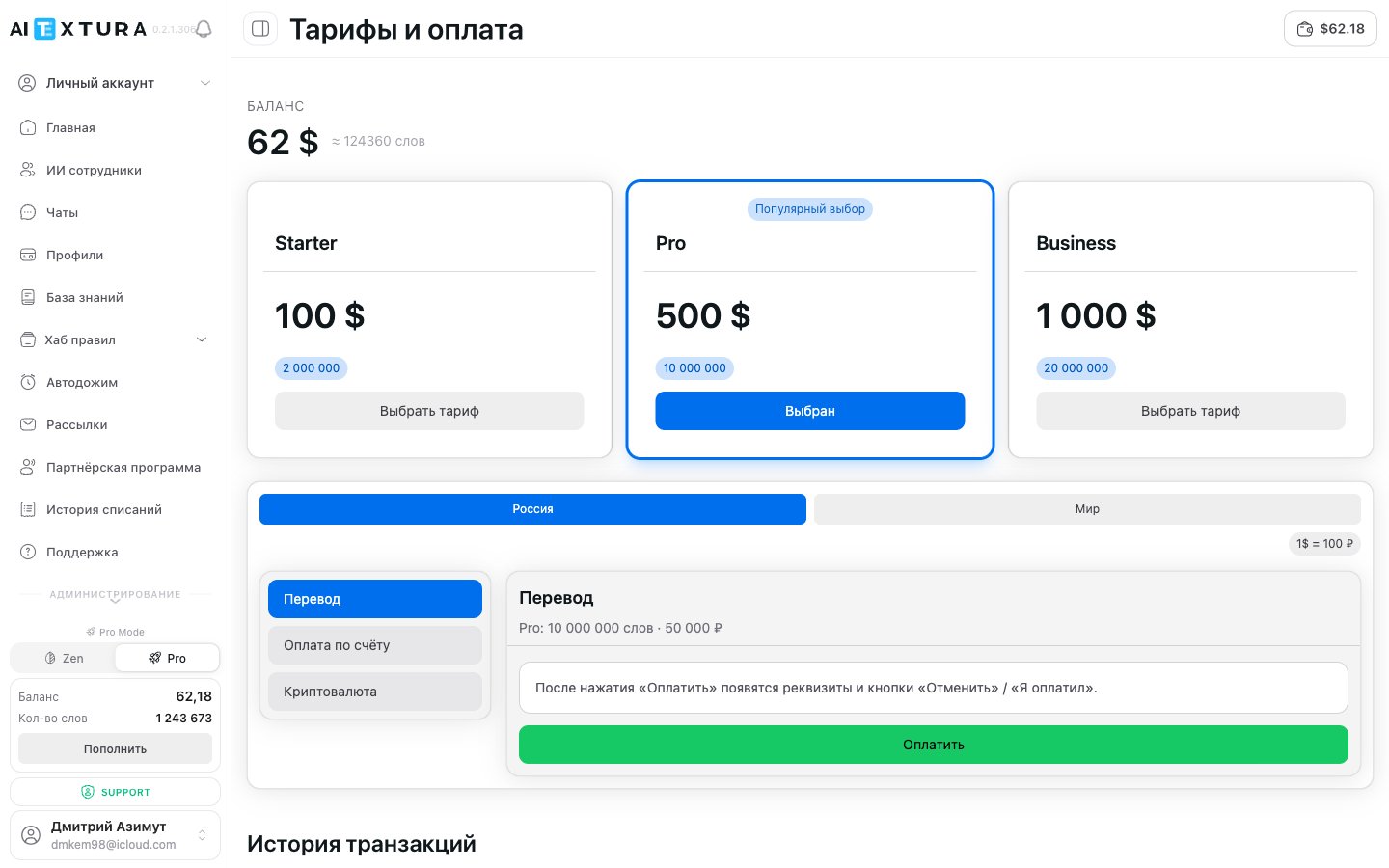 The price per word on the **Business** plan is lower than on **Starter** because of the package size. If you steadily spend more than 2M words a month, switching to a larger package is more economical. Track current consumption in the [Billing History table](#billing-history-table) and on the charts.
### Regions and payment methods
The platform supports two regional payment gateways:
| Region | Payment methods |
| ---------- | --------------------------------------------------------------------------------------------------------- |
| **Russia** | Bank transfer (to a settlement account), invoice payment (the platform issues an invoice), cryptocurrency |
| **World** | International cards and payment systems |
Conversion rate for ruble payments: **\$1 = 100 ₽**.
The **Cryptocurrency** method is available in the "Russia" region — convenient if you don't have Russian payment details or if your card doesn't pass through international gateways.
### Transaction history
After topping up the balance, entries appear in the **Transaction history** table on the plans page:
| Column | Description |
| ------------ | ---------------------------------------------------------------------------- |
| **Date** | Date and time of the transaction |
| **Amount** | Top-up amount |
| **Currency** | Payment currency (\$ or ₽) |
| **Words** | How many words were added to the balance |
| **Gateway** | Payment gateway — e.g., "International" or the corresponding Russian gateway |
| **Plan** | Which plan was applied (Starter / Pro / Business) |
| **Method** | Payment method (card, transfer, cryptocurrency) |
| **Status** | Successful transaction or error |
### Factors affecting word consumption
| Factor | Impact |
| ---------------------------------------------- | ---------------------------------------------------------------- |
| **AI employee response length** | Longer responses use more words |
| **Conversation context** | Longer dialogs consume more — the AI considers previous messages |
| **[Knowledge Base](/en/guides/knowledge)** | Querying the knowledge base increases usage |
| **[Profiles](/en/guides/profiles) (Realtime)** | Updating the profile after each message adds words |
| **[Talents](/en/guides/talents)** | Using external integrations may increase usage |
***
## Tips for reducing costs
Add an instruction to the [Persona](/en/guides/persona) tone: "reply briefly, no more than 2-3 sentences." This can cut word usage several times.
Change Realtime mode to scheduled updates (e.g., once every 24 hours). This significantly reduces consumption.
Remove outdated and redundant documents. The more compact the [base](/en/guides/knowledge), the fewer words are used per query.
Set up [FAQ](/en/guides/faq) for common questions — they use fewer resources than full response generation.
***
## Step-by-step guides
### How to view expenses for a period
Navigate to **Billing History** in the left menu.
Click the **Filters** button.
Choose the desired date range.
Click **Apply** — all data will recalculate for the selected period.
### How to find which employee spends the most
In the **Billing History** section, click **Filters**.
Choose a specific AI employee in the employee field.
Check the summary cards and charts — they will show usage for that specific employee.
Repeat for another employee and compare results.
### How to top up your balance
Use the button at the bottom of the sidebar or **"Top Up Balance"** on the billing history page.
Select an amount or word package.
Confirm and complete the payment.
***
## FAQ
Words are the unit of measurement on the platform. Every message (from both the client and the AI employee) consumes a certain number of words. This includes the message text, conversation context, [knowledge base](/en/guides/knowledge) queries, and [talent](/en/guides/talents) operations. A typical AI employee message can consume from a few hundred to several thousand words.
The cost is affected by response length, context size (length of the previous dialog), [knowledge base](/en/guides/knowledge) and [talent](/en/guides/talents) usage, and the [profile](/en/guides/profiles) update mode. An employee with short responses and scheduled profile updates will cost significantly less.
The "Type" column shows the charge category. If no type data is available, "No data" is displayed.
All active AI employees will pause. Clients will stop receiving responses until you top up your balance. We recommend topping up in advance and monitoring the progress bar.
"Excluding Bonuses" shows only paid word usage. "Including Bonuses" also counts words received through the [referral program](/en/guides/referral) or promotions. If you do not participate in bonus programs, there will be no difference.
Yes. Click **Filters** and select the desired AI employee. All data on the page will recalculate for that employee only.
Data is updated in real time. Every new message is immediately reflected in the statistics.
The balance is always visible at the bottom of the sidebar (dollar amount and word count) and in the top right corner of any page (button with the dollar amount).
If you're just launching 1–2 AI employees and want to try the platform — go with **Starter ($100 / 2,000,000 words)**. With steady usage of more than 2M words a month, move to **Pro ($500 / 10,000,000)** — the price per word drops. Chains and agencies with high client traffic pick **Business (\$1000 / 20,000,000)**.
Yes. In the "Russia" region three methods are available: bank transfer, invoice payment, and cryptocurrency. Conversion rate \$1 = 100 ₽.
The gateway is the payment system that processed the transaction. For example, "International" if you paid with a foreign card. For Russian payments, the corresponding Russian gateway is shown.
The price per word on the **Business** plan is lower than on **Starter** because of the package size. If you steadily spend more than 2M words a month, switching to a larger package is more economical. Track current consumption in the [Billing History table](#billing-history-table) and on the charts.
### Regions and payment methods
The platform supports two regional payment gateways:
| Region | Payment methods |
| ---------- | --------------------------------------------------------------------------------------------------------- |
| **Russia** | Bank transfer (to a settlement account), invoice payment (the platform issues an invoice), cryptocurrency |
| **World** | International cards and payment systems |
Conversion rate for ruble payments: **\$1 = 100 ₽**.
The **Cryptocurrency** method is available in the "Russia" region — convenient if you don't have Russian payment details or if your card doesn't pass through international gateways.
### Transaction history
After topping up the balance, entries appear in the **Transaction history** table on the plans page:
| Column | Description |
| ------------ | ---------------------------------------------------------------------------- |
| **Date** | Date and time of the transaction |
| **Amount** | Top-up amount |
| **Currency** | Payment currency (\$ or ₽) |
| **Words** | How many words were added to the balance |
| **Gateway** | Payment gateway — e.g., "International" or the corresponding Russian gateway |
| **Plan** | Which plan was applied (Starter / Pro / Business) |
| **Method** | Payment method (card, transfer, cryptocurrency) |
| **Status** | Successful transaction or error |
### Factors affecting word consumption
| Factor | Impact |
| ---------------------------------------------- | ---------------------------------------------------------------- |
| **AI employee response length** | Longer responses use more words |
| **Conversation context** | Longer dialogs consume more — the AI considers previous messages |
| **[Knowledge Base](/en/guides/knowledge)** | Querying the knowledge base increases usage |
| **[Profiles](/en/guides/profiles) (Realtime)** | Updating the profile after each message adds words |
| **[Talents](/en/guides/talents)** | Using external integrations may increase usage |
***
## Tips for reducing costs
Add an instruction to the [Persona](/en/guides/persona) tone: "reply briefly, no more than 2-3 sentences." This can cut word usage several times.
Change Realtime mode to scheduled updates (e.g., once every 24 hours). This significantly reduces consumption.
Remove outdated and redundant documents. The more compact the [base](/en/guides/knowledge), the fewer words are used per query.
Set up [FAQ](/en/guides/faq) for common questions — they use fewer resources than full response generation.
***
## Step-by-step guides
### How to view expenses for a period
Navigate to **Billing History** in the left menu.
Click the **Filters** button.
Choose the desired date range.
Click **Apply** — all data will recalculate for the selected period.
### How to find which employee spends the most
In the **Billing History** section, click **Filters**.
Choose a specific AI employee in the employee field.
Check the summary cards and charts — they will show usage for that specific employee.
Repeat for another employee and compare results.
### How to top up your balance
Use the button at the bottom of the sidebar or **"Top Up Balance"** on the billing history page.
Select an amount or word package.
Confirm and complete the payment.
***
## FAQ
Words are the unit of measurement on the platform. Every message (from both the client and the AI employee) consumes a certain number of words. This includes the message text, conversation context, [knowledge base](/en/guides/knowledge) queries, and [talent](/en/guides/talents) operations. A typical AI employee message can consume from a few hundred to several thousand words.
The cost is affected by response length, context size (length of the previous dialog), [knowledge base](/en/guides/knowledge) and [talent](/en/guides/talents) usage, and the [profile](/en/guides/profiles) update mode. An employee with short responses and scheduled profile updates will cost significantly less.
The "Type" column shows the charge category. If no type data is available, "No data" is displayed.
All active AI employees will pause. Clients will stop receiving responses until you top up your balance. We recommend topping up in advance and monitoring the progress bar.
"Excluding Bonuses" shows only paid word usage. "Including Bonuses" also counts words received through the [referral program](/en/guides/referral) or promotions. If you do not participate in bonus programs, there will be no difference.
Yes. Click **Filters** and select the desired AI employee. All data on the page will recalculate for that employee only.
Data is updated in real time. Every new message is immediately reflected in the statistics.
The balance is always visible at the bottom of the sidebar (dollar amount and word count) and in the top right corner of any page (button with the dollar amount).
If you're just launching 1–2 AI employees and want to try the platform — go with **Starter ($100 / 2,000,000 words)**. With steady usage of more than 2M words a month, move to **Pro ($500 / 10,000,000)** — the price per word drops. Chains and agencies with high client traffic pick **Business (\$1000 / 20,000,000)**.
Yes. In the "Russia" region three methods are available: bank transfer, invoice payment, and cryptocurrency. Conversion rate \$1 = 100 ₽.
The gateway is the payment system that processed the transaction. For example, "International" if you paid with a foreign card. For Russian payments, the corresponding Russian gateway is shown.