> ## Documentation Index
> Fetch the complete documentation index at: https://aitextura.mintlify.site/llms.txt
> Use this file to discover all available pages before exploring further.
# FAQ / Self-Learning
> AI employee self-learning system: automatic extraction of questions and answers from dialogs, record status management, and strict mode configuration.
Pre-configured reactions to common questions with higher priority than FAQ
Central repository of information the AI employee uses to answer questions
Configure personality, tone, and behavioral instructions for your AI employee
Create and manage your AI employees
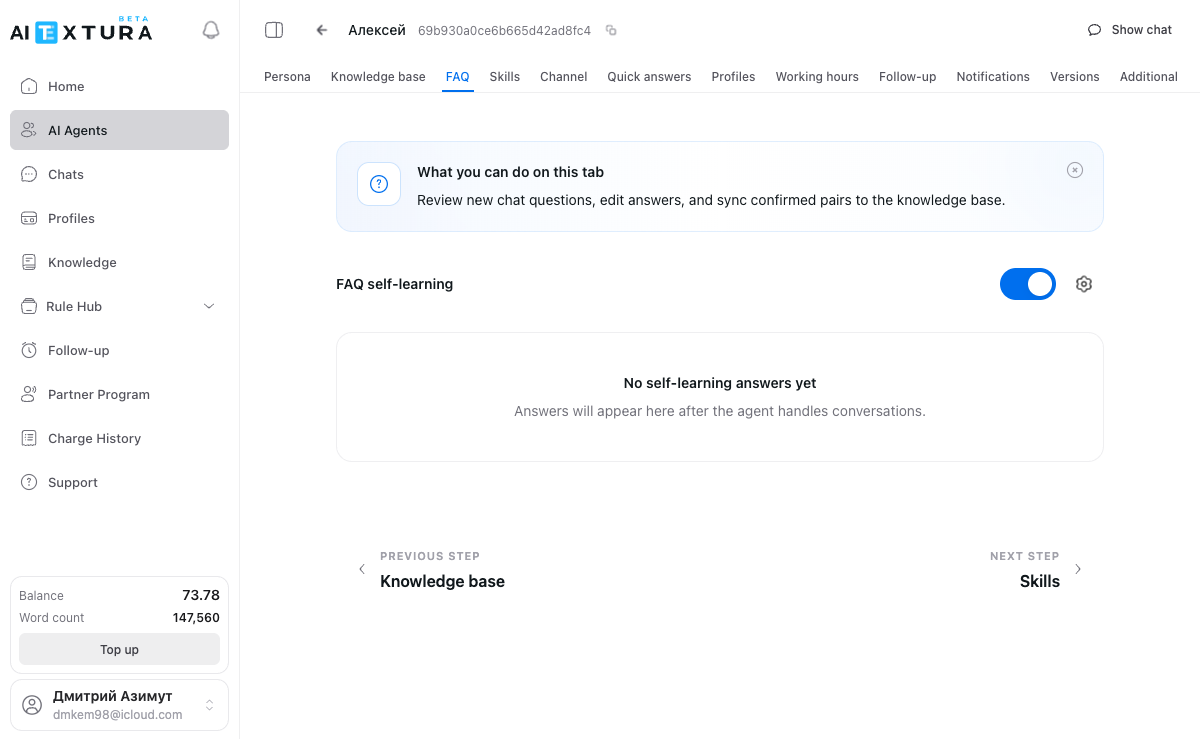
The **FAQ** section is a self-learning system: the AI employee analyzes real customer conversations, extracts question-answer pairs, and builds a database of verified responses. With each passing day, the agent responds more accurately.
You control the process: review records, edit answers, confirm successful ones, and push them to the knowledge base.
 ***
## How It Works
With self-learning enabled, the AI employee automatically processes real customer conversations and extracts question-answer pairs from them.
Extracted pairs are added to the FAQ list with the status **New**. You review them, edit if necessary, and confirm.
After confirmation, a record can be pushed to the agent's knowledge base, where it will be used to improve response accuracy.
The first records will appear after the agent processes several real conversations. This usually happens within the first few days of operation.
***
## Record Statuses
FAQ records go through three statuses:
| Status | Description |
| ---------------- | -------------------------------------------------------------------------- |
| **New** | Record was automatically added from a dialog and has not been reviewed yet |
| **Confirmed** | You have reviewed and approved the record |
| **In Knowledge** | Record has been pushed to the agent's knowledge base and is actively used |
Each row in the table contains:
| Column | Description |
| ------------ | ------------------------------------------- |
| **Question** | Customer question extracted from the dialog |
| **Answer** | Agent's response |
| **Status** | New, Confirmed, or In Knowledge |
For each record, the following actions are available: **confirm**, **push to knowledge base**, **delete**. You can select multiple records and perform bulk actions. A **search bar** is also available to filter by questions and answers.
***
## How to Enable Self-Learning
Navigate to the desired AI employee and open the **FAQ** tab.
Switch the **FAQ Self-Learning** toggle at the top of the tab to the "on" position.
The agent will start analyzing dialogs and building a response database automatically.
***
## Processing Records
Go to the **New** sub-tab — this is where records automatically added by the agent are listed.
Check the question and answer. Edit the text if necessary.
If everything looks correct, click **Confirm**.
Confirmed records can be **pushed to the knowledge base** to improve the accuracy of future responses.
***
## Strict Mode
Strict mode determines how the agent behaves when it cannot find an answer in the FAQ database. To open the settings, click the **gear icon** next to the self-learning toggle.
| Option | Behavior |
| ------------------------------ | ------------------------------------------------------------------------------------------------------------------------- |
| **Allow the agent to respond** | The agent will answer in its own words using the [Persona](/en/guides/persona) and [Knowledge Base](/en/guides/knowledge) |
| **Do not respond** | The agent will remain silent |
| **Send a preset phrase** | The agent will send a phrase that you specify in the text field (up to 450 characters) |
The "Do not respond" option may result in the customer receiving no reply at all. Use it with caution — it is better to set up a preset phrase instead.
**Example preset phrase:**
> Let me check with my colleagues
***
## FAQ and Quick Answers
**[Quick Answers](/en/guides/quick-answers) have higher priority** than FAQ. If both a Quick Answer and an FAQ record exist for the same question, the Quick Answer will be used. FAQ is designed for automatic population from dialogs. For manually adding prepared responses, use the **[Quick Answers](/en/guides/quick-answers)** section instead.
***
## Usage Examples
* **Hotel** — within a week, the agent accumulated 50 question-answer pairs about check-in, Wi-Fi, and parking. It now responds to them instantly and accurately.
* **Law firm** — enabled strict mode with a preset phrase: "To answer your question, I need to verify information with a lawyer." This eliminates the risk of incorrect recommendations.
* **Online school** — reviews records once a week, corrects inaccuracies, and pushes them to the knowledge base. Response quality improves every week.
***
## Frequently Asked Questions
The first records appear after processing several dialogs. Usually within the first few days of working with real customers.
Yes. All records can be viewed and edited directly in the FAQ list.
The agent will stop adding new records, but the already accumulated answers will remain and continue to be used.
FAQ is designed for automatic population from dialogs. For manually adding prepared responses, the **[Quick Answers](/en/guides/quick-answers)** section is a better fit.
They complement each other. Quick Answers have higher priority — if both a Quick Answer and an FAQ record exist for the same question, the Quick Answer will take effect.
***
Regularly review FAQ records — the agent learns from real dialogs, and sometimes answers may need corrections. We recommend reviewing once a week.
***
## How It Works
With self-learning enabled, the AI employee automatically processes real customer conversations and extracts question-answer pairs from them.
Extracted pairs are added to the FAQ list with the status **New**. You review them, edit if necessary, and confirm.
After confirmation, a record can be pushed to the agent's knowledge base, where it will be used to improve response accuracy.
The first records will appear after the agent processes several real conversations. This usually happens within the first few days of operation.
***
## Record Statuses
FAQ records go through three statuses:
| Status | Description |
| ---------------- | -------------------------------------------------------------------------- |
| **New** | Record was automatically added from a dialog and has not been reviewed yet |
| **Confirmed** | You have reviewed and approved the record |
| **In Knowledge** | Record has been pushed to the agent's knowledge base and is actively used |
Each row in the table contains:
| Column | Description |
| ------------ | ------------------------------------------- |
| **Question** | Customer question extracted from the dialog |
| **Answer** | Agent's response |
| **Status** | New, Confirmed, or In Knowledge |
For each record, the following actions are available: **confirm**, **push to knowledge base**, **delete**. You can select multiple records and perform bulk actions. A **search bar** is also available to filter by questions and answers.
***
## How to Enable Self-Learning
Navigate to the desired AI employee and open the **FAQ** tab.
Switch the **FAQ Self-Learning** toggle at the top of the tab to the "on" position.
The agent will start analyzing dialogs and building a response database automatically.
***
## Processing Records
Go to the **New** sub-tab — this is where records automatically added by the agent are listed.
Check the question and answer. Edit the text if necessary.
If everything looks correct, click **Confirm**.
Confirmed records can be **pushed to the knowledge base** to improve the accuracy of future responses.
***
## Strict Mode
Strict mode determines how the agent behaves when it cannot find an answer in the FAQ database. To open the settings, click the **gear icon** next to the self-learning toggle.
| Option | Behavior |
| ------------------------------ | ------------------------------------------------------------------------------------------------------------------------- |
| **Allow the agent to respond** | The agent will answer in its own words using the [Persona](/en/guides/persona) and [Knowledge Base](/en/guides/knowledge) |
| **Do not respond** | The agent will remain silent |
| **Send a preset phrase** | The agent will send a phrase that you specify in the text field (up to 450 characters) |
The "Do not respond" option may result in the customer receiving no reply at all. Use it with caution — it is better to set up a preset phrase instead.
**Example preset phrase:**
> Let me check with my colleagues
***
## FAQ and Quick Answers
**[Quick Answers](/en/guides/quick-answers) have higher priority** than FAQ. If both a Quick Answer and an FAQ record exist for the same question, the Quick Answer will be used. FAQ is designed for automatic population from dialogs. For manually adding prepared responses, use the **[Quick Answers](/en/guides/quick-answers)** section instead.
***
## Usage Examples
* **Hotel** — within a week, the agent accumulated 50 question-answer pairs about check-in, Wi-Fi, and parking. It now responds to them instantly and accurately.
* **Law firm** — enabled strict mode with a preset phrase: "To answer your question, I need to verify information with a lawyer." This eliminates the risk of incorrect recommendations.
* **Online school** — reviews records once a week, corrects inaccuracies, and pushes them to the knowledge base. Response quality improves every week.
***
## Frequently Asked Questions
The first records appear after processing several dialogs. Usually within the first few days of working with real customers.
Yes. All records can be viewed and edited directly in the FAQ list.
The agent will stop adding new records, but the already accumulated answers will remain and continue to be used.
FAQ is designed for automatic population from dialogs. For manually adding prepared responses, the **[Quick Answers](/en/guides/quick-answers)** section is a better fit.
They complement each other. Quick Answers have higher priority — if both a Quick Answer and an FAQ record exist for the same question, the Quick Answer will take effect.
***
Regularly review FAQ records — the agent learns from real dialogs, and sometimes answers may need corrections. We recommend reviewing once a week.