> ## Documentation Index
> Fetch the complete documentation index at: https://aitextura.mintlify.site/llms.txt
> Use this file to discover all available pages before exploring further.
# Chats — Dialog Management Center
> A unified inbox for all conversations between your AI employees and clients: monitoring, search, manager intervention, escalation mechanics, and agent control commands.
The **Chats** section in the AI Textura platform's left menu is a single place where the entire conversation history between your AI employees and clients is collected. Here you can see every dialog, monitor response quality, intervene in a conversation, reply to a client personally, and analyze every AI response.
Think of it as a control room: all conversations are in front of you, you can see what is happening right now, and you can step in at any moment.
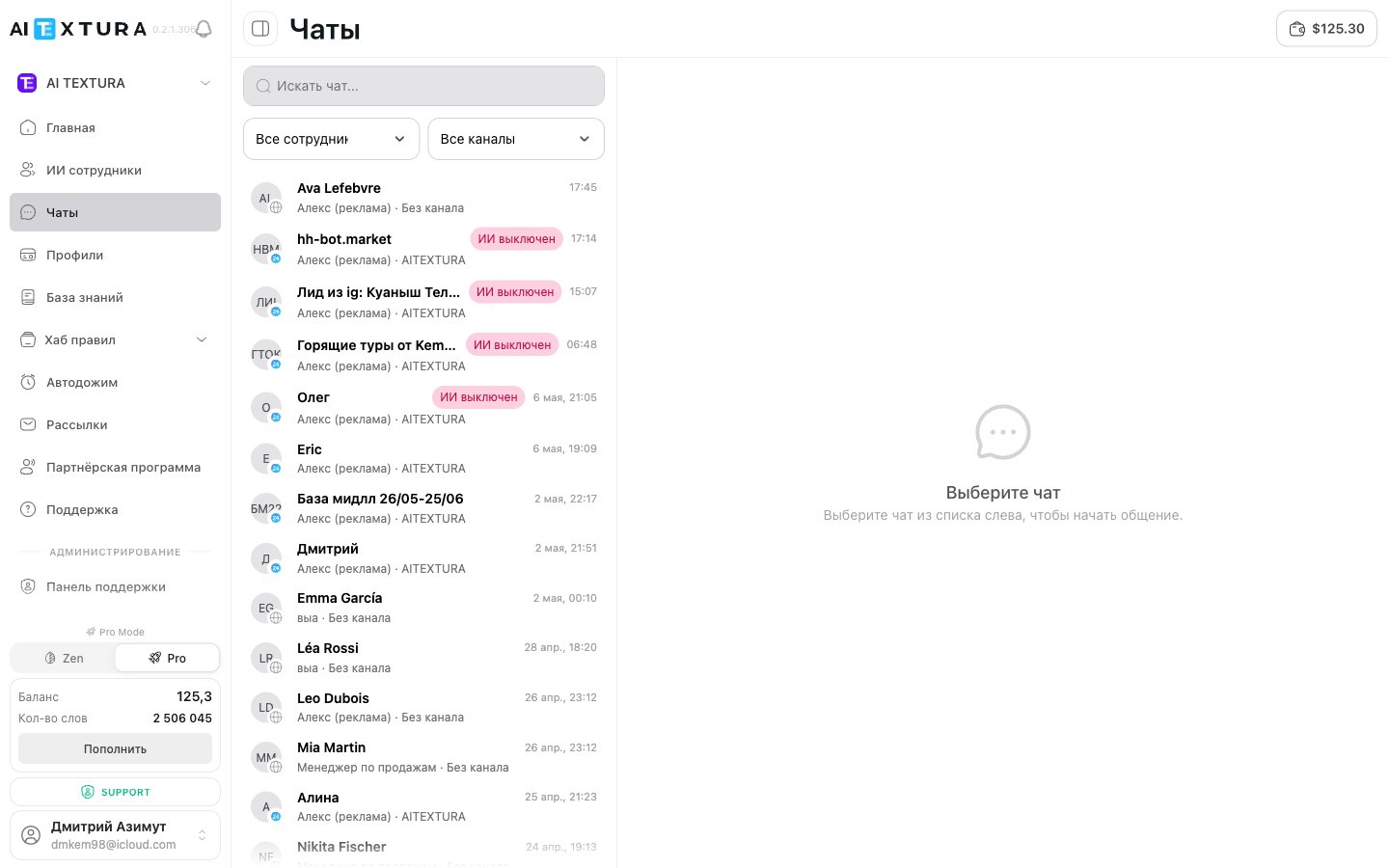 The **Chats** section is accessible in two ways: via the left menu (all dialogs across all employees) or via the **Live chat** button in the [AI employees](/en/guides/ai-employees) list (dialogs for a specific employee).
How the employee runs a dialog and when to call a manager
Escalation triggers and alerts
Templates and chat management
Client data inside the dialog
***
## Why open Chats
* Watch how AI employees communicate with clients
* Quickly find a specific dialog by client name, channel, or employee
* Intervene in a conversation when the situation requires a human
* Handle escalations -- cases when an employee handed the dialog to a manager
* Evaluate AI employee performance on real conversations
***
## Interface overview
### Dialog list (left panel)
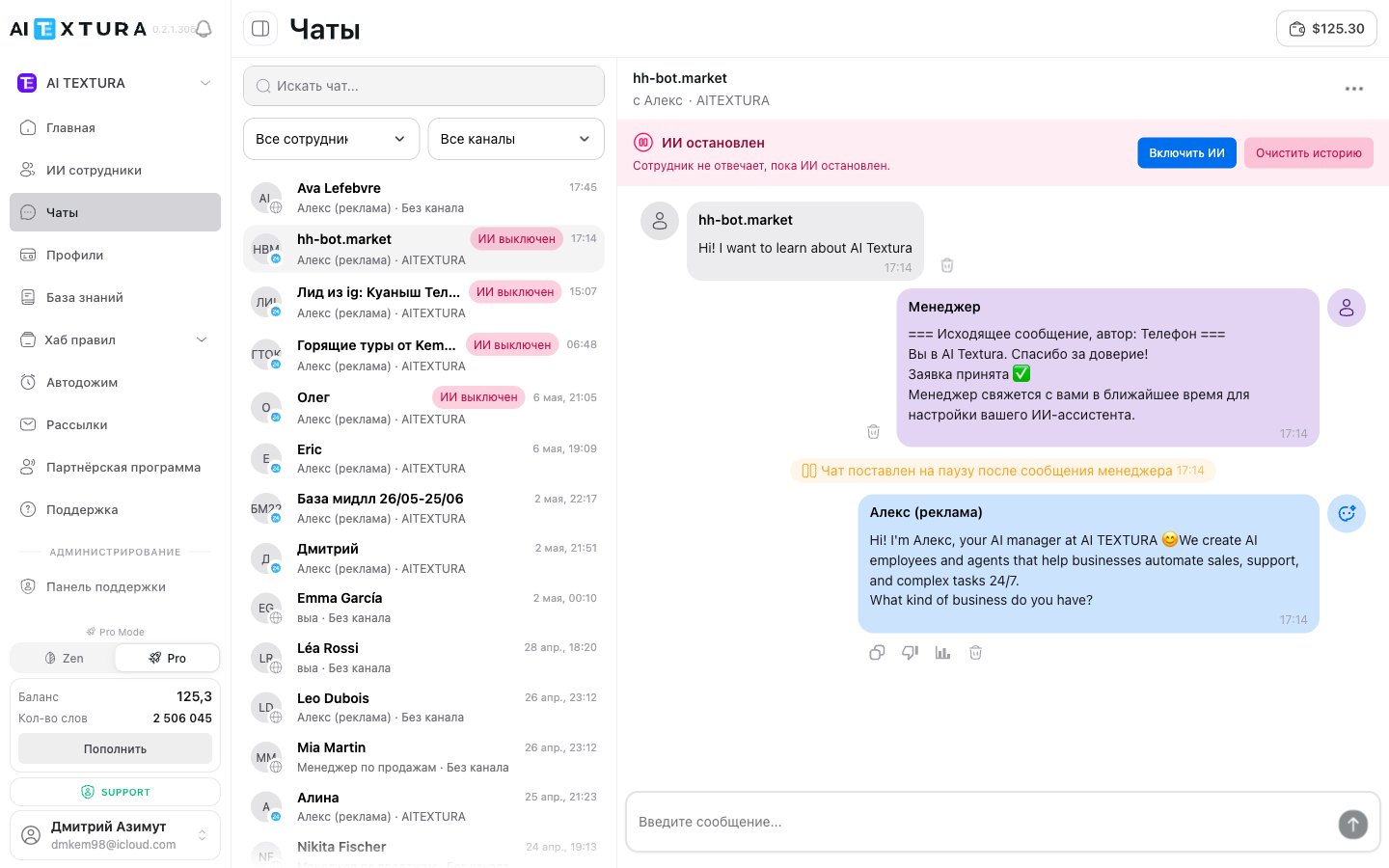
The left side of the screen displays a list of all chats. Each list item is a separate dialog with a client. Dialogs are sorted by time: the most recent ones appear at the top.
| Element | Description |
| -------------------- | ---------------------------------------------------------------------------- |
| **Client name** | Name or identifier if the name is not available |
| **AI employee name** | Which employee is handling the dialog |
| **Channel** | Where the client came from: Telegram, amoCRM, Bitrix24, website widget, etc. |
| **Time** | Time of the last message |
| **Message preview** | A snippet of the last message |
| **Status** | Active, paused, or completed |
### Conversation view (center panel)
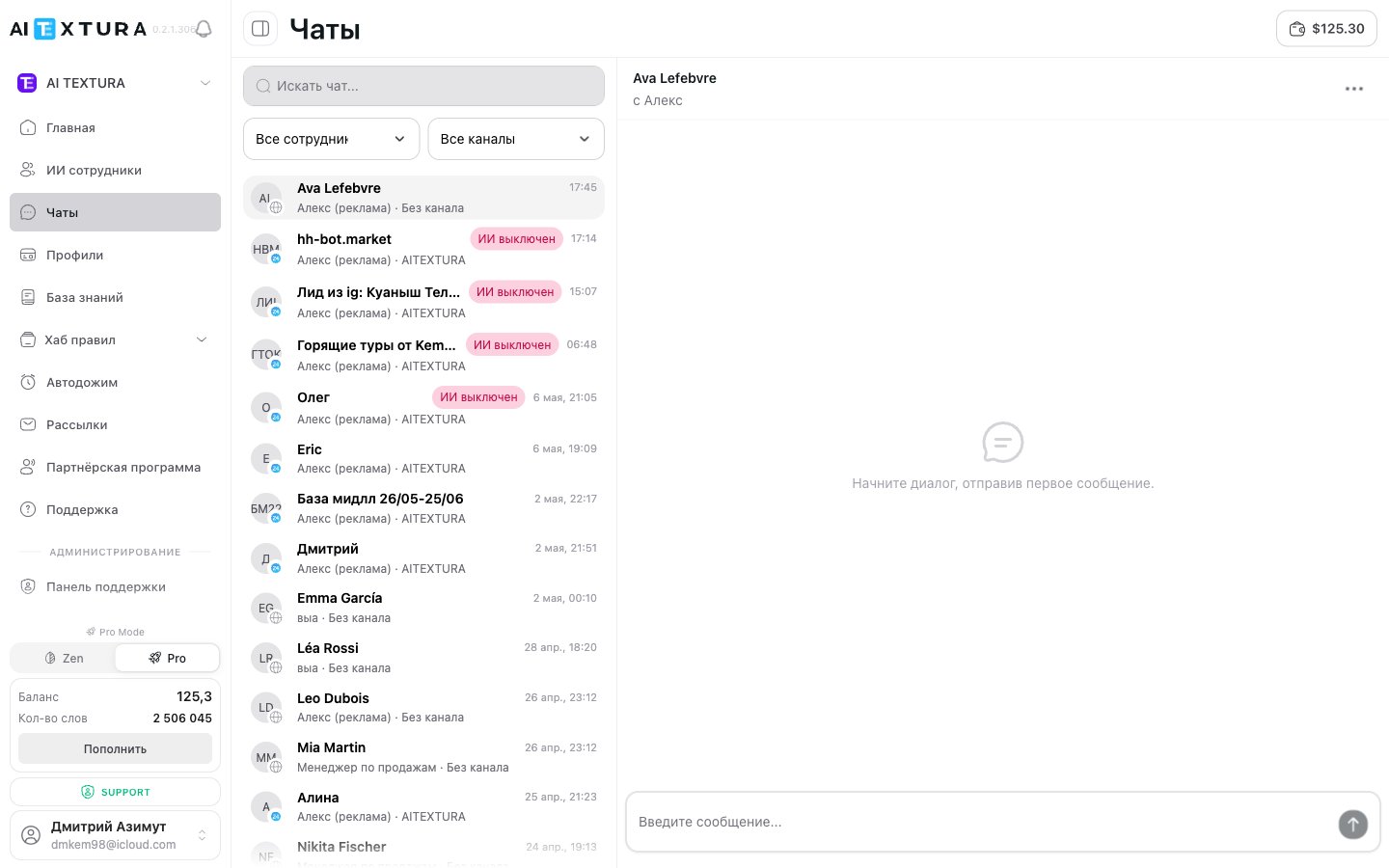
Click any dialog in the list -- the full conversation history opens on the right. Messages are displayed like a regular messenger: client on the left, employee on the right. Each message includes a timestamp.
The chat header shows: client name, AI employee name (`with {agent}`), channel (`· {channel}`), and the `⋮` menu button on the right — it opens the [chat action menu](#chat-action-menu).
At the bottom of the window is the **message input field** -- this is how a manager can reply to the client manually.
The **Chats** section is accessible in two ways: via the left menu (all dialogs across all employees) or via the **Live chat** button in the [AI employees](/en/guides/ai-employees) list (dialogs for a specific employee).
How the employee runs a dialog and when to call a manager
Escalation triggers and alerts
Templates and chat management
Client data inside the dialog
***
## Why open Chats
* Watch how AI employees communicate with clients
* Quickly find a specific dialog by client name, channel, or employee
* Intervene in a conversation when the situation requires a human
* Handle escalations -- cases when an employee handed the dialog to a manager
* Evaluate AI employee performance on real conversations
***
## Interface overview
### Dialog list (left panel)
The left side of the screen displays a list of all chats. Each list item is a separate dialog with a client. Dialogs are sorted by time: the most recent ones appear at the top.
| Element | Description |
| -------------------- | ---------------------------------------------------------------------------- |
| **Client name** | Name or identifier if the name is not available |
| **AI employee name** | Which employee is handling the dialog |
| **Channel** | Where the client came from: Telegram, amoCRM, Bitrix24, website widget, etc. |
| **Time** | Time of the last message |
| **Message preview** | A snippet of the last message |
| **Status** | Active, paused, or completed |
### Conversation view (center panel)
Click any dialog in the list -- the full conversation history opens on the right. Messages are displayed like a regular messenger: client on the left, employee on the right. Each message includes a timestamp.
The chat header shows: client name, AI employee name (`with {agent}`), channel (`· {channel}`), and the `⋮` menu button on the right — it opens the [chat action menu](#chat-action-menu).
At the bottom of the window is the **message input field** -- this is how a manager can reply to the client manually.
 ### Chat info panel (right column)
The right column displays additional information about the current dialog: client profile, channel, employee name, and status. See [Dialog details](#dialog-details) for more.
### Chat info panel (right column)
The right column displays additional information about the current dialog: client profile, channel, employee name, and status. See [Dialog details](#dialog-details) for more.
 ***
## Status indicators and quick buttons
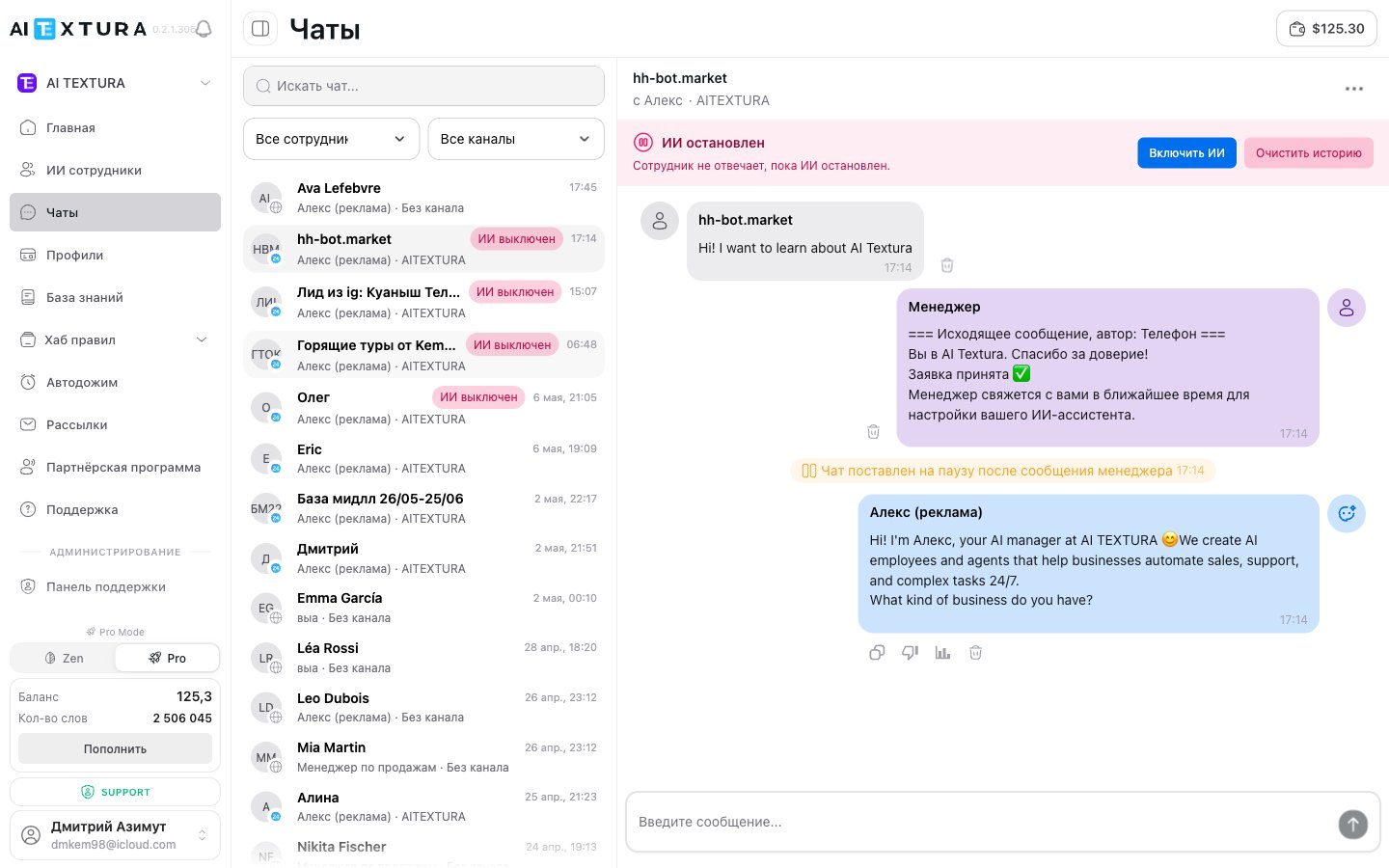
Above the conversation feed and within the message stream, the platform shows several state indicators — they help you understand whether the AI employee is active in this dialog.
| Indicator | When it appears | What it means |
| ----------------------------------------- | --------------------------------------------------------------------------- | ---------------------------------------------------------------------------------------------------------------------------------------- |
| **"Chat paused after a manager message"** | Right after a manager writes a message into the chat | The AI employee is temporarily disconnected from this dialog — the manager is writing. See [Manager intervention](#manager-intervention) |
| **"AI stopped"** | When the employee is disabled in this chat (by command, pause, or manually) | The client is writing into the void — the AI will not reply until it is started |
| **"Enabled"** / **"AI is working"** | The employee is active in the chat | All incoming messages will be processed by the AI |
Above the feed there are quick buttons:
| Button | Action |
| ----------------- | -------------------------------------------------------------------------------------------------------------------------------- |
| **Enable AI** | Resumes AI employee work in this chat immediately. Appears when AI is stopped or paused |
| **Clear history** | Wipes the current dialog context. The AI employee will forget everything said before. Use for testing or to reset a conversation |
The **Clear history** button does not delete the conversation from your chat history — it only resets the context the AI employee considers for its next reply. The same is done by the **Wipe memory** action in the action menu and by the text command (default `delete all`, see [Account Settings](/en/guides/account-settings)).
***
## Chat action menu
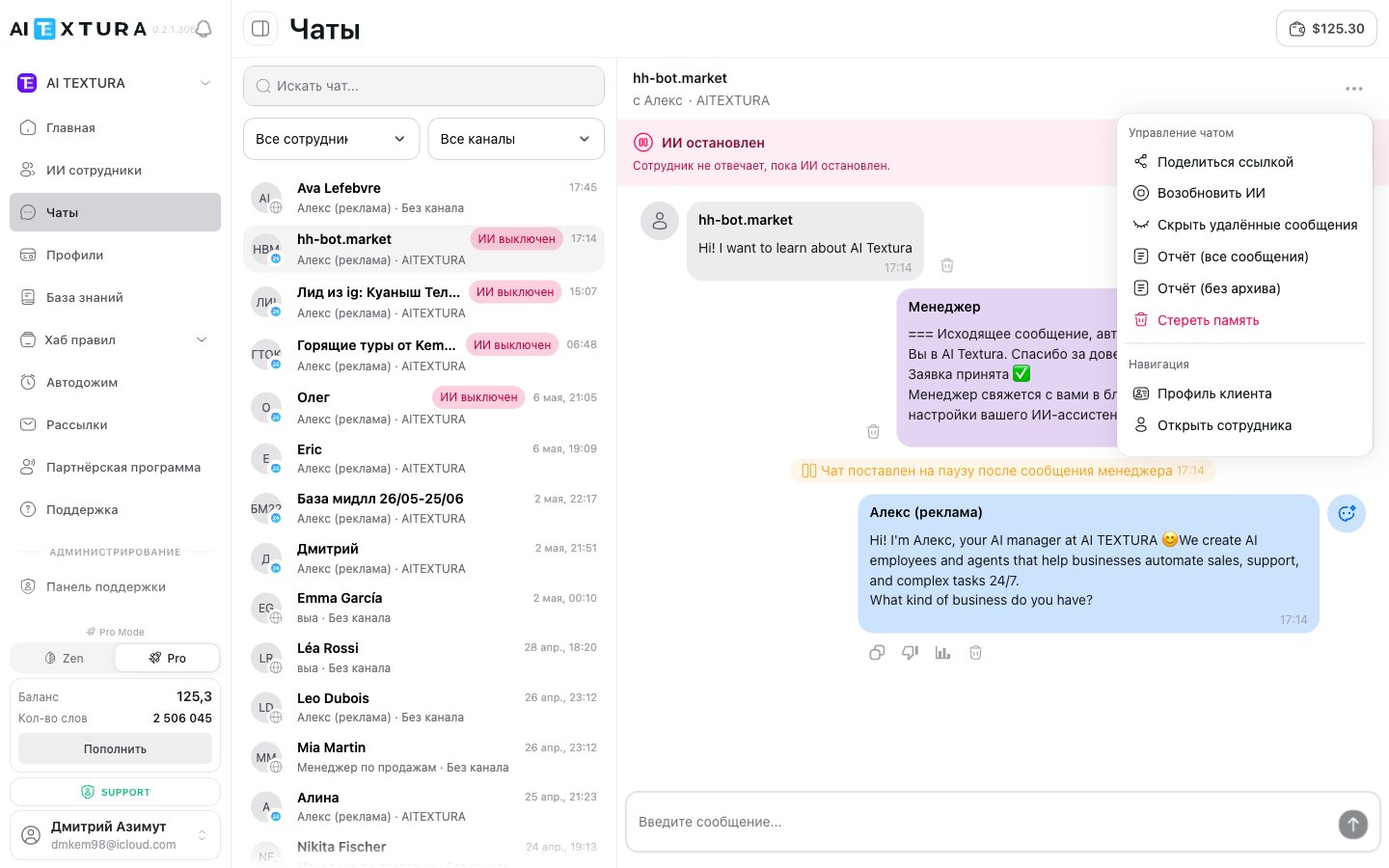
The `⋮` button on the right side of the chat header opens the action menu — this is the **central control panel** for a specific dialog. It exposes commands that are not in the main interface.
***
## Status indicators and quick buttons
Above the conversation feed and within the message stream, the platform shows several state indicators — they help you understand whether the AI employee is active in this dialog.
| Indicator | When it appears | What it means |
| ----------------------------------------- | --------------------------------------------------------------------------- | ---------------------------------------------------------------------------------------------------------------------------------------- |
| **"Chat paused after a manager message"** | Right after a manager writes a message into the chat | The AI employee is temporarily disconnected from this dialog — the manager is writing. See [Manager intervention](#manager-intervention) |
| **"AI stopped"** | When the employee is disabled in this chat (by command, pause, or manually) | The client is writing into the void — the AI will not reply until it is started |
| **"Enabled"** / **"AI is working"** | The employee is active in the chat | All incoming messages will be processed by the AI |
Above the feed there are quick buttons:
| Button | Action |
| ----------------- | -------------------------------------------------------------------------------------------------------------------------------- |
| **Enable AI** | Resumes AI employee work in this chat immediately. Appears when AI is stopped or paused |
| **Clear history** | Wipes the current dialog context. The AI employee will forget everything said before. Use for testing or to reset a conversation |
The **Clear history** button does not delete the conversation from your chat history — it only resets the context the AI employee considers for its next reply. The same is done by the **Wipe memory** action in the action menu and by the text command (default `delete all`, see [Account Settings](/en/guides/account-settings)).
***
## Chat action menu
The `⋮` button on the right side of the chat header opens the action menu — this is the **central control panel** for a specific dialog. It exposes commands that are not in the main interface.
 | Action | What it does |
| ---------------------------- | ---------------------------------------------------------------------------------------------------------------------------------------------------------------------------------------------------- |
| **Share link** | Creates a public link of the form `/live/:id` — you can send it to a colleague or client so they can see the chat and reply from a browser if needed. See [Live chat](#live-chat--public-view) |
| **Resume AI** | Lifts the pause: the AI employee starts processing messages in this dialog again. Equivalent to the AI start command |
| **Hide deleted messages** | Hides messages marked as deleted from the feed. Useful for a clean stream without service noise |
| **Report (all messages)** | Generates a complete dialog report — all messages, including archived ones. Used to analyze a specific case or attach to a [Support](/en/guides/support) ticket |
| **Report (without archive)** | A short report — only active messages, without deleted or archived ones. Convenient for quickly sharing the gist of the conversation |
| **Wipe memory** | Fully clears the dialog context, just like the `delete all` command in chat. The employee continues with a clean slate |
| **Client profile** | Opens the [Client profile](/en/guides/profiles) — a card with fields the AI extracted from the conversation (name, language, custom fields) |
| **Open employee** | Jumps to the AI employee settings handling this dialog — a fast way to tweak the [Persona](/en/guides/persona), [knowledge base](/en/guides/knowledge), or [notifications](/en/guides/notifications) |
| Action | What it does |
| ---------------------------- | ---------------------------------------------------------------------------------------------------------------------------------------------------------------------------------------------------- |
| **Share link** | Creates a public link of the form `/live/:id` — you can send it to a colleague or client so they can see the chat and reply from a browser if needed. See [Live chat](#live-chat--public-view) |
| **Resume AI** | Lifts the pause: the AI employee starts processing messages in this dialog again. Equivalent to the AI start command |
| **Hide deleted messages** | Hides messages marked as deleted from the feed. Useful for a clean stream without service noise |
| **Report (all messages)** | Generates a complete dialog report — all messages, including archived ones. Used to analyze a specific case or attach to a [Support](/en/guides/support) ticket |
| **Report (without archive)** | A short report — only active messages, without deleted or archived ones. Convenient for quickly sharing the gist of the conversation |
| **Wipe memory** | Fully clears the dialog context, just like the `delete all` command in chat. The employee continues with a clean slate |
| **Client profile** | Opens the [Client profile](/en/guides/profiles) — a card with fields the AI extracted from the conversation (name, language, custom fields) |
| **Open employee** | Jumps to the AI employee settings handling this dialog — a fast way to tweak the [Persona](/en/guides/persona), [knowledge base](/en/guides/knowledge), or [notifications](/en/guides/notifications) |
 **Report (all messages)** and **Report (without archive)** are especially useful when contacting [Support](/en/guides/support): the ticket already includes the context, and the team can investigate faster. The same is done automatically by the [thumbs-down button](/en/guides/support#how-to-report-an-ai-response-thumbs-down) — it attaches a "Context report" on its own.
***
## Per-message actions
Every AI employee message has its own set of buttons — they appear on hover or below the message.
| Button | What it does |
| -------------------------------------------- | ------------------------------------------------------------------------------------------------------------------------------------------------------------------------------------------------------------------------------------------------------------------------- |
| **Copy** | Copies the message text to the clipboard |
| **Delete message** | Marks the message as deleted. It is also removed from the AI's context — the next reply will not consider deleted text |
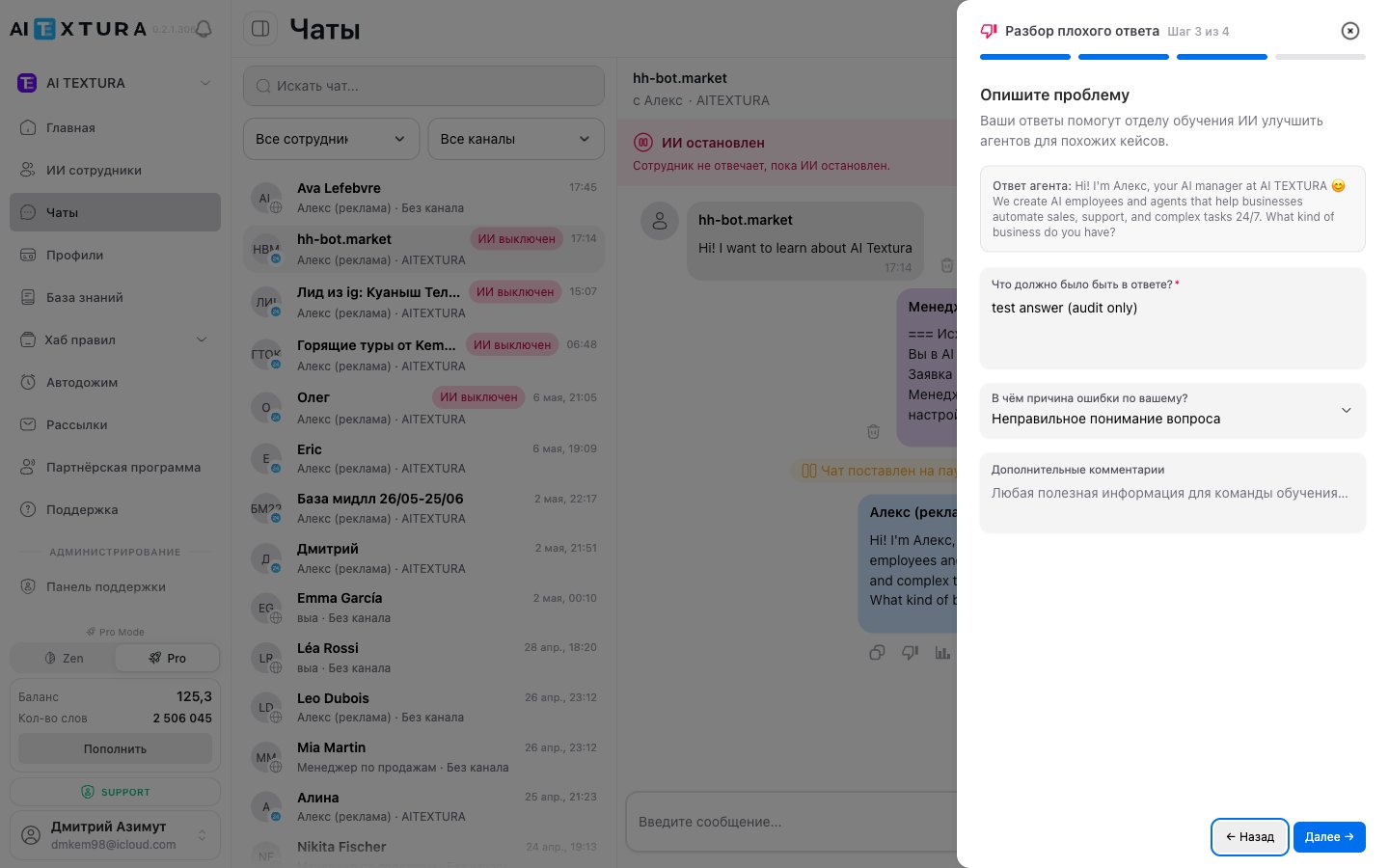
| **Mark response as unhelpful** (thumbs down) | Triggers the 4-step bad-response review with automatic ticket creation in support. See [How to report an AI response](/en/guides/support#how-to-report-an-ai-response-thumbs-down) for details |
| **Response analysis** | Opens a technical breakdown: which language the agent detected, which [talents](/en/guides/talents) it used, what it found in the [knowledge base](/en/guides/knowledge), and how it reached the final decision. Helps you understand why the AI responded the way it did |
Thumbs down is **not just a rating**. The button launches a full support flow: auto-diagnostics → instruction check → your problem description → automatic report attachment. Use it whenever the AI employee gave a wrong answer — the AI training team typically replies within 3 business days. See [How to report an AI response](/en/guides/support#how-to-report-an-ai-response-thumbs-down).
**Response analysis** is the best debugging tool. Before changing the [Persona](/en/guides/persona) or [instructions](/en/guides/rules-hub), look at the analysis: maybe the AI simply didn't call the right [talent](/en/guides/talents) or didn't find the document in the [knowledge base](/en/guides/knowledge).
***
## Search and filtering
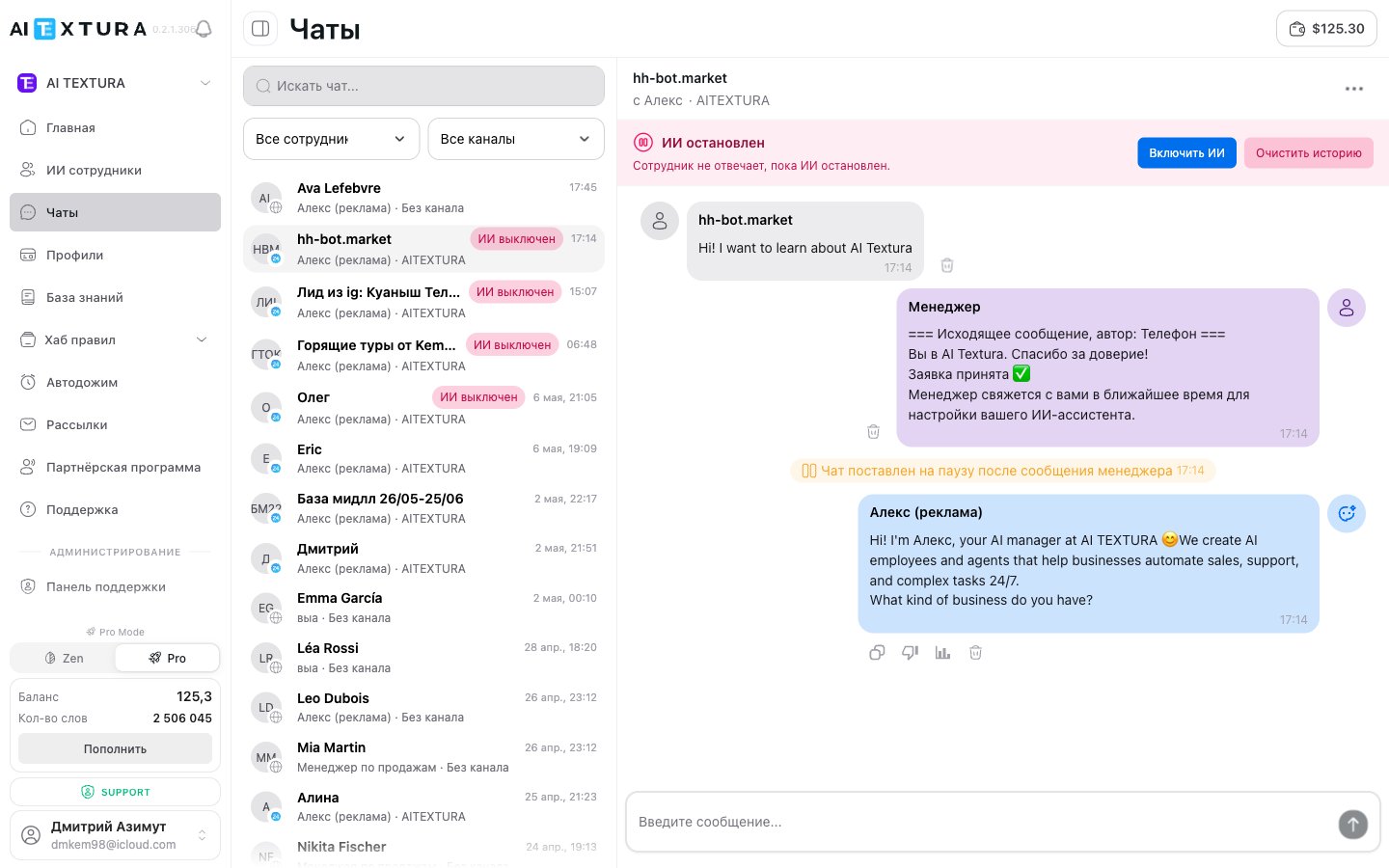
At the top of the dialog list there is a search bar (`Search chat...`). Enter a client name, keyword, or conversation fragment -- the list filters in real time.
Shows dialogs for a specific AI employee only. Useful when you have multiple employees and want to analyze the work of one of them.
Filters by source: Telegram, amoCRM, Bitrix24, Wazzup, web widget, and any other connected channels. The channel list is built automatically from your connected channels.
Combine filters. For example, pick a specific employee and the Telegram channel — you'll only see that employee's Telegram conversations. This is convenient for analyzing performance in a specific channel.
**Report (all messages)** and **Report (without archive)** are especially useful when contacting [Support](/en/guides/support): the ticket already includes the context, and the team can investigate faster. The same is done automatically by the [thumbs-down button](/en/guides/support#how-to-report-an-ai-response-thumbs-down) — it attaches a "Context report" on its own.
***
## Per-message actions
Every AI employee message has its own set of buttons — they appear on hover or below the message.
| Button | What it does |
| -------------------------------------------- | ------------------------------------------------------------------------------------------------------------------------------------------------------------------------------------------------------------------------------------------------------------------------- |
| **Copy** | Copies the message text to the clipboard |
| **Delete message** | Marks the message as deleted. It is also removed from the AI's context — the next reply will not consider deleted text |
| **Mark response as unhelpful** (thumbs down) | Triggers the 4-step bad-response review with automatic ticket creation in support. See [How to report an AI response](/en/guides/support#how-to-report-an-ai-response-thumbs-down) for details |
| **Response analysis** | Opens a technical breakdown: which language the agent detected, which [talents](/en/guides/talents) it used, what it found in the [knowledge base](/en/guides/knowledge), and how it reached the final decision. Helps you understand why the AI responded the way it did |
Thumbs down is **not just a rating**. The button launches a full support flow: auto-diagnostics → instruction check → your problem description → automatic report attachment. Use it whenever the AI employee gave a wrong answer — the AI training team typically replies within 3 business days. See [How to report an AI response](/en/guides/support#how-to-report-an-ai-response-thumbs-down).
**Response analysis** is the best debugging tool. Before changing the [Persona](/en/guides/persona) or [instructions](/en/guides/rules-hub), look at the analysis: maybe the AI simply didn't call the right [talent](/en/guides/talents) or didn't find the document in the [knowledge base](/en/guides/knowledge).
***
## Search and filtering
At the top of the dialog list there is a search bar (`Search chat...`). Enter a client name, keyword, or conversation fragment -- the list filters in real time.
Shows dialogs for a specific AI employee only. Useful when you have multiple employees and want to analyze the work of one of them.
Filters by source: Telegram, amoCRM, Bitrix24, Wazzup, web widget, and any other connected channels. The channel list is built automatically from your connected channels.
Combine filters. For example, pick a specific employee and the Telegram channel — you'll only see that employee's Telegram conversations. This is convenient for analyzing performance in a specific channel.
 ***
## Manager intervention
One of the key capabilities of the **Chats** section is manual manager intervention in a conversation handled by an AI employee.
### How to step in
From the left menu or via the **Live chat** button in the employees list.
Use search or filters to find the dialog, then click on it.
Assess the context and decide whether intervention is needed.
Type your message in the input field at the bottom and send it. The client will see your reply in their messenger.
### What happens after intervention
As soon as the manager sends a message, the AI employee **automatically pauses** in that specific dialog. It will not interrupt the human.
| Behavior | Description |
| ------------------- | ------------------------------------------------------------------------------- |
| **Client messages** | Continue to arrive and are saved in history |
| **AI employee** | Remains paused while the manager handles the dialog |
| **Auto-resume** | After 10-20 minutes of manager inactivity, the AI may automatically resume work |
Auto-resume after a pause is a configurable behavior. For 24/7 support, auto-start after a pause is almost always useful. For premium sales where a human touch matters, it is better to disable it.
***
## Agent control commands
Managers can control an AI employee directly from a messenger using service commands. Commands are configured in the [Additional Settings](/en/guides/additional-settings) tab for each employee.
| Command | What it does |
| ------------------------ | ----------------------------------------------------------------------------------------- |
| **AI start command** | Activates the employee in the chat (you set the text) |
| **AI stop command** | Pauses the employee (you set the text) |
| **Clear memory command** | Resets the dialog context -- the conversation starts from scratch (default: `delete all`) |
| **Protection command** | Activates protection against prompt injection attempts (you set the text) |
Start and stop commands are especially convenient for managers who work directly in a messenger. They can quickly enable or disable an employee in a specific chat without opening the AI Textura dashboard.
***
## Escalation -- when an employee hands off to a manager
Escalation is a situation when an AI employee recognizes it cannot or should not handle a request on its own and transfers the dialog to a human.
### When escalation triggers
Escalation triggers in cases that you define in advance:
* In the employee's [Persona](/en/guides/persona) (the "When to call a manager" or "Escalation" block)
* In [Notifications](/en/guides/notifications) (triggers that send an alert and pause the chat)
* In [Quick Answers](/en/guides/quick-answers) (actions of the "Chat management" type with a pause)
### What it looks like for a manager
The manager receives a notification in Telegram (or via webhook) that the employee handed off the dialog.
In the **Chats** section, the dialog is displayed with a status indicating that intervention is needed.
Open the conversation, read the context, and reply to the client.
### Employee behavior on escalation
| Trigger setting | Behavior |
| ------------------------- | ------------------------------------------------------------------------------------------------------------------- |
| **Pause chat for N time** | The employee pauses for the specified duration. If the manager does not connect, the employee resumes automatically |
| **Forced pause** | The employee stops completely. Work resumes only manually (via the start command or the interface) |
***
## Dialog details
When you open a specific chat, in addition to the conversation history, additional information is available:
* **Client profile** -- filled fields: name, language, preferences, and any data the AI extracted from the conversation (see [Profiles](/en/guides/profiles))
* **Channel** -- which messenger or CRM the conversation is going through
* **AI employee name** -- which employee is handling this dialog
* **Dialog status** -- whether the employee is active or paused
***
## Manager intervention
One of the key capabilities of the **Chats** section is manual manager intervention in a conversation handled by an AI employee.
### How to step in
From the left menu or via the **Live chat** button in the employees list.
Use search or filters to find the dialog, then click on it.
Assess the context and decide whether intervention is needed.
Type your message in the input field at the bottom and send it. The client will see your reply in their messenger.
### What happens after intervention
As soon as the manager sends a message, the AI employee **automatically pauses** in that specific dialog. It will not interrupt the human.
| Behavior | Description |
| ------------------- | ------------------------------------------------------------------------------- |
| **Client messages** | Continue to arrive and are saved in history |
| **AI employee** | Remains paused while the manager handles the dialog |
| **Auto-resume** | After 10-20 minutes of manager inactivity, the AI may automatically resume work |
Auto-resume after a pause is a configurable behavior. For 24/7 support, auto-start after a pause is almost always useful. For premium sales where a human touch matters, it is better to disable it.
***
## Agent control commands
Managers can control an AI employee directly from a messenger using service commands. Commands are configured in the [Additional Settings](/en/guides/additional-settings) tab for each employee.
| Command | What it does |
| ------------------------ | ----------------------------------------------------------------------------------------- |
| **AI start command** | Activates the employee in the chat (you set the text) |
| **AI stop command** | Pauses the employee (you set the text) |
| **Clear memory command** | Resets the dialog context -- the conversation starts from scratch (default: `delete all`) |
| **Protection command** | Activates protection against prompt injection attempts (you set the text) |
Start and stop commands are especially convenient for managers who work directly in a messenger. They can quickly enable or disable an employee in a specific chat without opening the AI Textura dashboard.
***
## Escalation -- when an employee hands off to a manager
Escalation is a situation when an AI employee recognizes it cannot or should not handle a request on its own and transfers the dialog to a human.
### When escalation triggers
Escalation triggers in cases that you define in advance:
* In the employee's [Persona](/en/guides/persona) (the "When to call a manager" or "Escalation" block)
* In [Notifications](/en/guides/notifications) (triggers that send an alert and pause the chat)
* In [Quick Answers](/en/guides/quick-answers) (actions of the "Chat management" type with a pause)
### What it looks like for a manager
The manager receives a notification in Telegram (or via webhook) that the employee handed off the dialog.
In the **Chats** section, the dialog is displayed with a status indicating that intervention is needed.
Open the conversation, read the context, and reply to the client.
### Employee behavior on escalation
| Trigger setting | Behavior |
| ------------------------- | ------------------------------------------------------------------------------------------------------------------- |
| **Pause chat for N time** | The employee pauses for the specified duration. If the manager does not connect, the employee resumes automatically |
| **Forced pause** | The employee stops completely. Work resumes only manually (via the start command or the interface) |
***
## Dialog details
When you open a specific chat, in addition to the conversation history, additional information is available:
* **Client profile** -- filled fields: name, language, preferences, and any data the AI extracted from the conversation (see [Profiles](/en/guides/profiles))
* **Channel** -- which messenger or CRM the conversation is going through
* **AI employee name** -- which employee is handling this dialog
* **Dialog status** -- whether the employee is active or paused
 ***
## Live chat — public view
"Live chat" is a public chat page at `/live/:id`, accessible by direct link without logging into the platform. It is useful for:
* **Sharing a dialog with a colleague** who doesn't have a platform account.
* **Giving the client an alternative way to reply** — straight from the page, without a messenger.
* **Testing AI responses** in a regular web-chat format (handy when developing a prompt).
### How to create the link
Go to the **Chats** section and pick the dialog.
Click the `⋮` button on the right of the chat header.
The platform will generate a public link to this chat.
Copy the URL and send it to the recipient any way you like.
***
## Live chat — public view
"Live chat" is a public chat page at `/live/:id`, accessible by direct link without logging into the platform. It is useful for:
* **Sharing a dialog with a colleague** who doesn't have a platform account.
* **Giving the client an alternative way to reply** — straight from the page, without a messenger.
* **Testing AI responses** in a regular web-chat format (handy when developing a prompt).
### How to create the link
Go to the **Chats** section and pick the dialog.
Click the `⋮` button on the right of the chat header.
The platform will generate a public link to this chat.
Copy the URL and send it to the recipient any way you like.
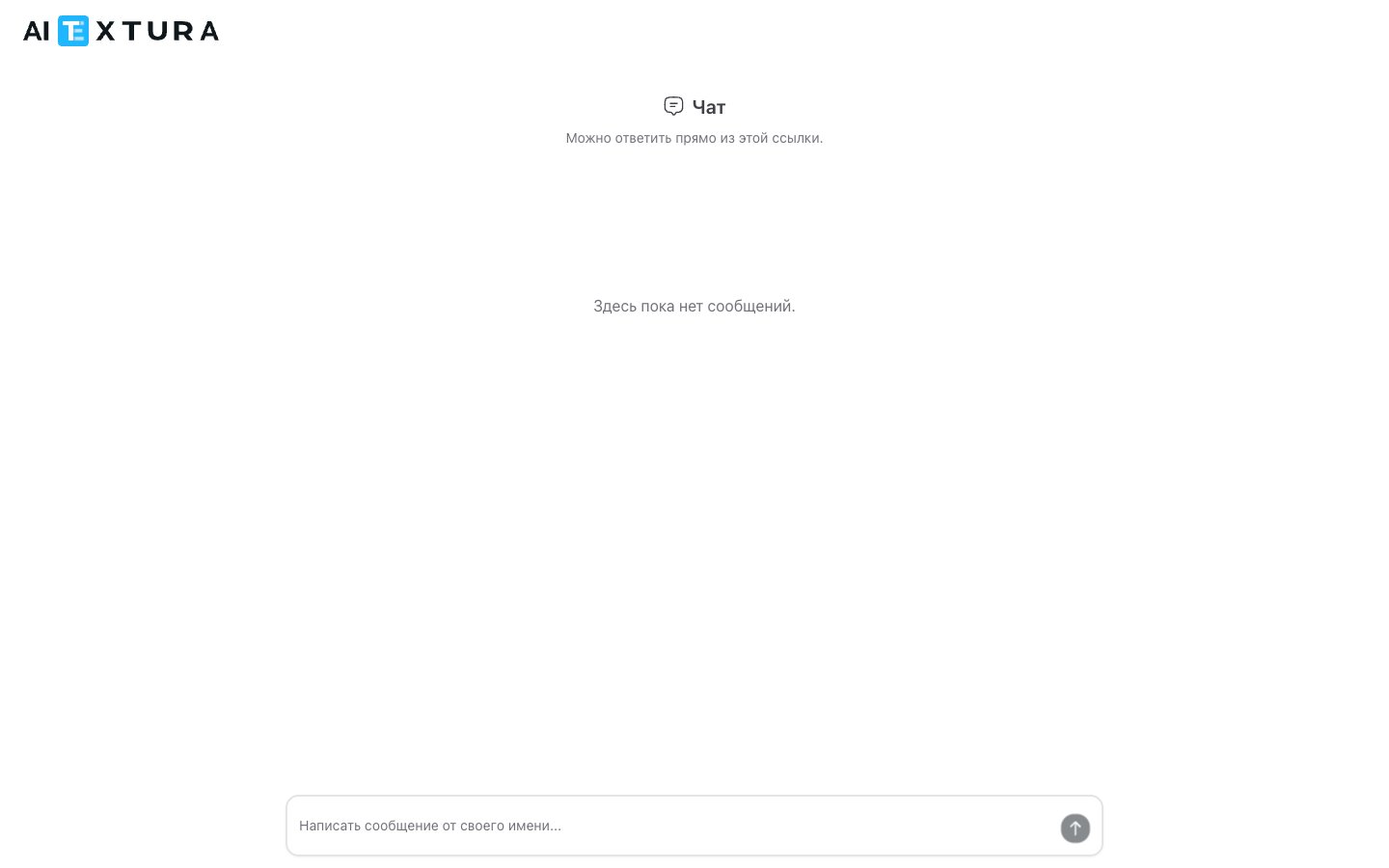 Anyone with the `/live/:id` link will see the chat contents. Don't share the link if the dialog contains confidential client data.
***
## Related sections
| Section | How it relates to Chats |
| --------------------------------------------------------- | ----------------------------------------------------------------------------------------------- |
| **[Persona](/en/guides/persona)** | Defines how the employee runs dialogs and when it calls a manager |
| **[Notifications](/en/guides/notifications)** | Configures escalation triggers: when and how the manager learns about problematic dialogs |
| **[Quick Answers](/en/guides/quick-answers)** | Can manage the chat: pause, transfer to another employee |
| **[Profiles](/en/guides/profiles)** | Client data visible in the chat |
| **[Auto Follow-up](/en/guides/auto-followup)** | Follow-up messages if the client goes silent |
| **[Additional Settings](/en/guides/additional-settings)** | Agent control commands from the messenger, message limits |
| **[Channels](/en/channels/index)** | Sources through which messages arrive in the chat |
| **[Support](/en/guides/support)** | The thumbs-down button on an AI response triggers the review and creates a ticket automatically |
***
## Practical tips
Especially in the first days after launch. Browse conversations in the **Chats** section at least once a day during the first week.
Filter dialogs by a specific employee and review the last 10-15 conversations. This gives you an understanding of where the employee performs well and where adjustments to the persona or knowledge base are needed.
If you see that the employee is not responding correctly, jump in and reply yourself. The employee will automatically pause. After the conversation, adjust the settings.
Create triggers in the [Notifications](/en/guides/notifications) section for complaints, returns, VIP clients, and questions outside the employee's competency. You'll get an alert in Telegram and can quickly step in.
If your managers work in a messenger, configure start and stop commands in the [Additional Settings](/en/guides/additional-settings) tab and share them with the team.
***
## FAQ
Chat history is kept on the platform. For some channels an **Auto-clear history** setting is available in the [Channel](/en/channels/index) tab — it allows automatic deletion of old dialogs.
Yes. When you send a message through the **Chats** section, the client receives it in whichever messenger they used to reach out. You don't need to open Telegram or amoCRM — everything is handled from one window.
The client will receive both messages. It is recommended to coordinate within your team who handles a specific dialog to avoid duplication.
Three options: (1) wait 10-20 minutes — if auto-resume is configured, the employee will start on its own; (2) send the **AI start command** in the messenger; (3) manage from the platform interface.
Yes. The **Chats** section in the left menu shows dialogs across all employees. Use the employee filter to narrow the selection.
In most cases, the client sees messages from the same contact (bot or account) through which the AI employee was communicating. The transition is visually seamless for the client.
Yes. In the [Additional Settings](/en/guides/additional-settings) tab for each employee there is a **Message limit** setting — a cap on the number of messages in one chat per 24 hours. If no limit is set, there are no restrictions.
Click the **thumbs down** button on the specific AI message — it launches a 4-step review: auto-diagnostics → instruction check → your problem description → automatic context report attachment. The ticket is sent to the AI training team. See [How to report an AI response](/en/guides/support#how-to-report-an-ai-response-thumbs-down) for details.
**Response analysis** is a technical breakdown: which language was detected, which [talents](/en/guides/talents) were called, what was found in the [knowledge base](/en/guides/knowledge), how the final decision was made. It only shows information — nothing is sent anywhere. **Thumbs down** uses the same diagnostics and **submits** it to support together with your description.
Open the `⋮` menu → **Share link**. The platform generates a public `/live/:id` link — you can send it to anyone. See [Live chat](#live-chat--public-view) for details.
Three ways: (1) the **Clear history** button above the feed; (2) `⋮` menu → **Wipe memory**; (3) the text command (default `delete all`) right in the chat. The command can be changed in [Account Settings](/en/guides/account-settings).
Anyone with the `/live/:id` link will see the chat contents. Don't share the link if the dialog contains confidential client data.
***
## Related sections
| Section | How it relates to Chats |
| --------------------------------------------------------- | ----------------------------------------------------------------------------------------------- |
| **[Persona](/en/guides/persona)** | Defines how the employee runs dialogs and when it calls a manager |
| **[Notifications](/en/guides/notifications)** | Configures escalation triggers: when and how the manager learns about problematic dialogs |
| **[Quick Answers](/en/guides/quick-answers)** | Can manage the chat: pause, transfer to another employee |
| **[Profiles](/en/guides/profiles)** | Client data visible in the chat |
| **[Auto Follow-up](/en/guides/auto-followup)** | Follow-up messages if the client goes silent |
| **[Additional Settings](/en/guides/additional-settings)** | Agent control commands from the messenger, message limits |
| **[Channels](/en/channels/index)** | Sources through which messages arrive in the chat |
| **[Support](/en/guides/support)** | The thumbs-down button on an AI response triggers the review and creates a ticket automatically |
***
## Practical tips
Especially in the first days after launch. Browse conversations in the **Chats** section at least once a day during the first week.
Filter dialogs by a specific employee and review the last 10-15 conversations. This gives you an understanding of where the employee performs well and where adjustments to the persona or knowledge base are needed.
If you see that the employee is not responding correctly, jump in and reply yourself. The employee will automatically pause. After the conversation, adjust the settings.
Create triggers in the [Notifications](/en/guides/notifications) section for complaints, returns, VIP clients, and questions outside the employee's competency. You'll get an alert in Telegram and can quickly step in.
If your managers work in a messenger, configure start and stop commands in the [Additional Settings](/en/guides/additional-settings) tab and share them with the team.
***
## FAQ
Chat history is kept on the platform. For some channels an **Auto-clear history** setting is available in the [Channel](/en/channels/index) tab — it allows automatic deletion of old dialogs.
Yes. When you send a message through the **Chats** section, the client receives it in whichever messenger they used to reach out. You don't need to open Telegram or amoCRM — everything is handled from one window.
The client will receive both messages. It is recommended to coordinate within your team who handles a specific dialog to avoid duplication.
Three options: (1) wait 10-20 minutes — if auto-resume is configured, the employee will start on its own; (2) send the **AI start command** in the messenger; (3) manage from the platform interface.
Yes. The **Chats** section in the left menu shows dialogs across all employees. Use the employee filter to narrow the selection.
In most cases, the client sees messages from the same contact (bot or account) through which the AI employee was communicating. The transition is visually seamless for the client.
Yes. In the [Additional Settings](/en/guides/additional-settings) tab for each employee there is a **Message limit** setting — a cap on the number of messages in one chat per 24 hours. If no limit is set, there are no restrictions.
Click the **thumbs down** button on the specific AI message — it launches a 4-step review: auto-diagnostics → instruction check → your problem description → automatic context report attachment. The ticket is sent to the AI training team. See [How to report an AI response](/en/guides/support#how-to-report-an-ai-response-thumbs-down) for details.
**Response analysis** is a technical breakdown: which language was detected, which [talents](/en/guides/talents) were called, what was found in the [knowledge base](/en/guides/knowledge), how the final decision was made. It only shows information — nothing is sent anywhere. **Thumbs down** uses the same diagnostics and **submits** it to support together with your description.
Open the `⋮` menu → **Share link**. The platform generates a public `/live/:id` link — you can send it to anyone. See [Live chat](#live-chat--public-view) for details.
Three ways: (1) the **Clear history** button above the feed; (2) `⋮` menu → **Wipe memory**; (3) the text command (default `delete all`) right in the chat. The command can be changed in [Account Settings](/en/guides/account-settings).