> ## Documentation Index
> Fetch the complete documentation index at: https://aitextura.mintlify.site/llms.txt
> Use this file to discover all available pages before exploring further.
# Broadcasts
> Mass messages to customer segments through your connected channels.
Broadcasts let you send a single message to a group of customers at once — through a chosen channel and segment. Useful for announcements, reminders, reactivating "sleeping" customers, and post-purchase surveys.
 Which channels you can broadcast through
Segment by customer data
Alerts to your team about events
Choose which agent sends on your behalf
***
## What broadcasts are
A broadcast is the delivery of the same (or personalized) message to a list of recipients through the channel they already use to talk to you. This is **not** cold outreach — only customers who have already had a conversation with your AI employee and accepted communication via that channel will receive it.
Typical scenarios:
* Announcing a promotion or a new service.
* Reminders about an unfinished order or abandoned cart.
* Reactivating customers who haven't written in a while.
* Collecting feedback after a purchase.
* Notifying customers about company changes (hours, new services).
Broadcasts are channel-sensitive: in a Telegram bot, the message will only reach users who started the dialog themselves; in CRM channels — only customers with an open conversation. Follow each platform's policy.
***
## Where it lives
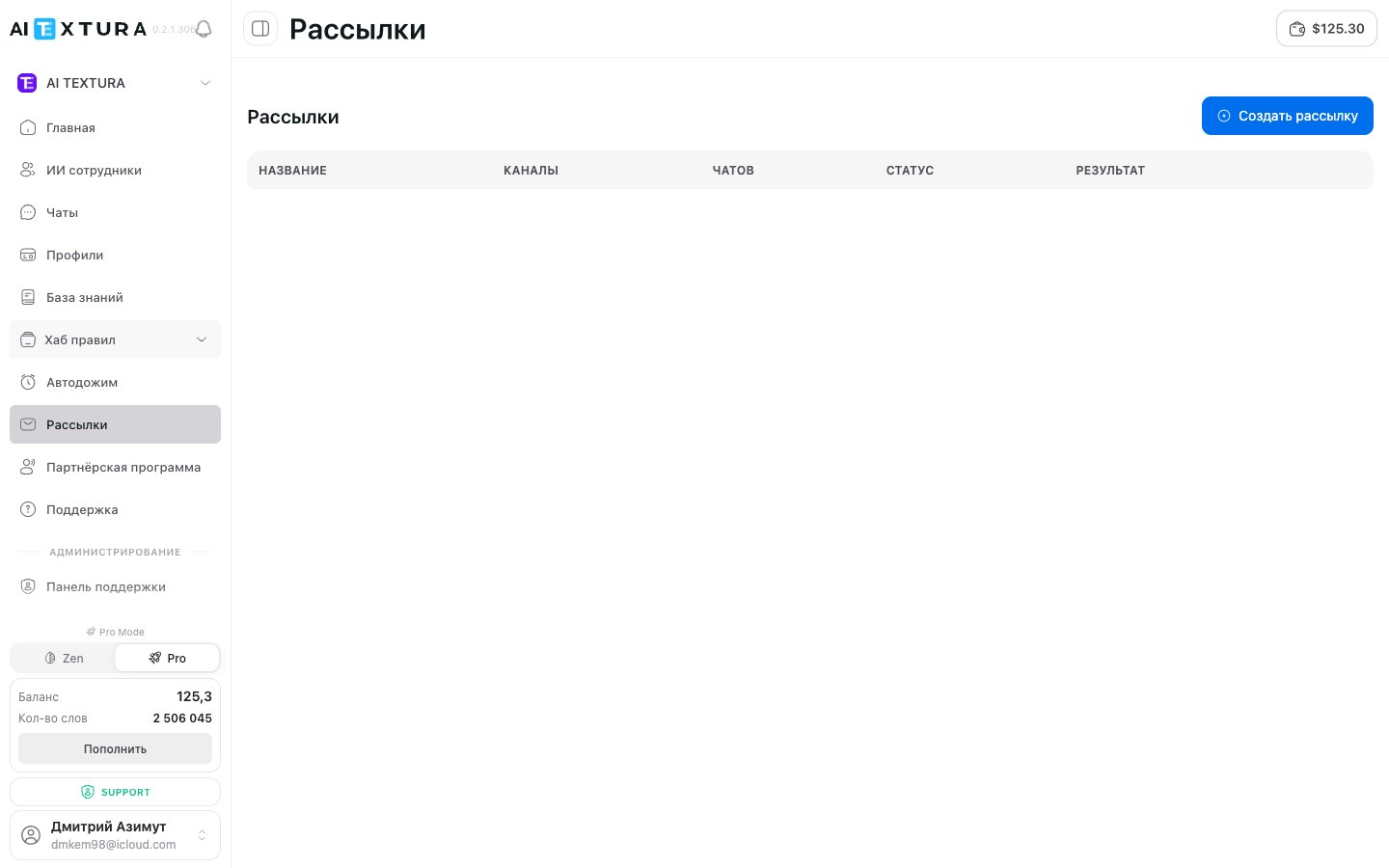
The **Broadcasts** item is in the platform sidebar (URL `/broadcast`). The section is available in any context — your personal account or an [organization](/en/guides/organization).
***
## How to create a broadcast
In the sidebar, click **Broadcasts** (`/broadcast`).
Click the create button in the top-right corner of the page.
Specify which connected channel to send through and exactly who — a customer segment or a specific recipient list.
Enter the broadcast text. Where possible, use personalization — address by name, link to a specific product.
You can send immediately or schedule for a specific time.
An expanded description of the creation fields will be added after the next platform audit. If you have questions about a specific field, please write to [Support](/en/guides/support).
***
## Related sections
* **Channels.** A broadcast goes through a channel that's already connected to one of your AI employees. See [Channels](/en/channels/index).
* **Customer Profiles.** Segmenting by [Profiles](/en/guides/profiles) lets you message just the right group — for example, only those who purchased in the last 30 days.
* **Notifications.** Don't confuse the two: [Notifications](/en/guides/notifications) are alerts to your team about chat events. Broadcasts are messages to your customers.
* **Billing.** Each broadcast message consumes words just like a regular conversation. Watch your balance — see [Billing](/en/guides/finance).
***
## Best practices
The narrower the segment, the better the response. Don't blast the same message to everyone; split your audience by interest, recency of dialog, customer status.
Insert the name, region, last order. Generic "Hello, we have a sale" performs the worst.
Before a mass send, run a pilot to 10–20 customers and gauge the response.
Once a week is the norm. Daily is the path to unsubscribes and blocks.
***
## FAQ
Only customers with an active dialog in the chosen channel — that is, those who have already written to your AI employee. Cold outreach to strangers is not supported.
If a broadcast is scheduled for the future, you can cancel or edit it before launch. Once sending starts, you can't fully halt it, but further delivery can be stopped.
Each sent message consumes words from your plan — the same as a regular agent reply in chat. See [Billing](/en/guides/finance).
Through any channel connected to your AI employee. Technical limits depend on the specific platform — for example, in Telegram you cannot message someone first if they haven't started the dialog themselves.
Yes — switch context to the [organization](/en/guides/organization), and that organization's channels and agents become available.
On the broadcast page itself — sent / read / replied. Customer replies land in the regular chat of the corresponding AI employee.
Which channels you can broadcast through
Segment by customer data
Alerts to your team about events
Choose which agent sends on your behalf
***
## What broadcasts are
A broadcast is the delivery of the same (or personalized) message to a list of recipients through the channel they already use to talk to you. This is **not** cold outreach — only customers who have already had a conversation with your AI employee and accepted communication via that channel will receive it.
Typical scenarios:
* Announcing a promotion or a new service.
* Reminders about an unfinished order or abandoned cart.
* Reactivating customers who haven't written in a while.
* Collecting feedback after a purchase.
* Notifying customers about company changes (hours, new services).
Broadcasts are channel-sensitive: in a Telegram bot, the message will only reach users who started the dialog themselves; in CRM channels — only customers with an open conversation. Follow each platform's policy.
***
## Where it lives
The **Broadcasts** item is in the platform sidebar (URL `/broadcast`). The section is available in any context — your personal account or an [organization](/en/guides/organization).
***
## How to create a broadcast
In the sidebar, click **Broadcasts** (`/broadcast`).
Click the create button in the top-right corner of the page.
Specify which connected channel to send through and exactly who — a customer segment or a specific recipient list.
Enter the broadcast text. Where possible, use personalization — address by name, link to a specific product.
You can send immediately or schedule for a specific time.
An expanded description of the creation fields will be added after the next platform audit. If you have questions about a specific field, please write to [Support](/en/guides/support).
***
## Related sections
* **Channels.** A broadcast goes through a channel that's already connected to one of your AI employees. See [Channels](/en/channels/index).
* **Customer Profiles.** Segmenting by [Profiles](/en/guides/profiles) lets you message just the right group — for example, only those who purchased in the last 30 days.
* **Notifications.** Don't confuse the two: [Notifications](/en/guides/notifications) are alerts to your team about chat events. Broadcasts are messages to your customers.
* **Billing.** Each broadcast message consumes words just like a regular conversation. Watch your balance — see [Billing](/en/guides/finance).
***
## Best practices
The narrower the segment, the better the response. Don't blast the same message to everyone; split your audience by interest, recency of dialog, customer status.
Insert the name, region, last order. Generic "Hello, we have a sale" performs the worst.
Before a mass send, run a pilot to 10–20 customers and gauge the response.
Once a week is the norm. Daily is the path to unsubscribes and blocks.
***
## FAQ
Only customers with an active dialog in the chosen channel — that is, those who have already written to your AI employee. Cold outreach to strangers is not supported.
If a broadcast is scheduled for the future, you can cancel or edit it before launch. Once sending starts, you can't fully halt it, but further delivery can be stopped.
Each sent message consumes words from your plan — the same as a regular agent reply in chat. See [Billing](/en/guides/finance).
Through any channel connected to your AI employee. Technical limits depend on the specific platform — for example, in Telegram you cannot message someone first if they haven't started the dialog themselves.
Yes — switch context to the [organization](/en/guides/organization), and that organization's channels and agents become available.
On the broadcast page itself — sent / read / replied. Customer replies land in the regular chat of the corresponding AI employee.