> ## Documentation Index
> Fetch the complete documentation index at: https://aitextura.mintlify.site/llms.txt
> Use this file to discover all available pages before exploring further.
# AI Employees
> Manage your virtual agents: full list, three ways to create (from the template library, by website URL, blank agent), 12-tab editor, and status control on the AI TEXTURA platform.
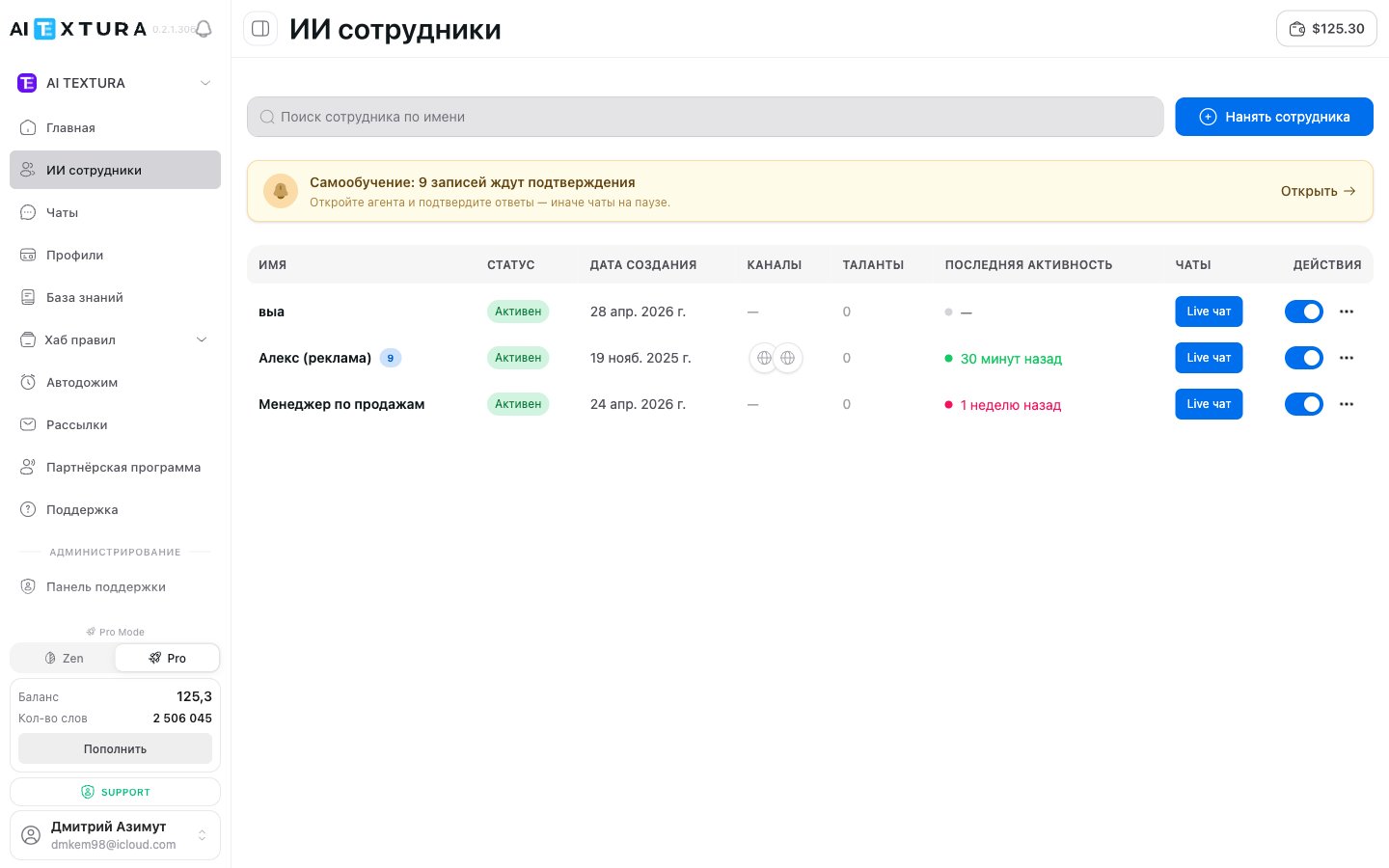
The **AI Employees** section is the control center for all your virtual agents. Here you can see the full list of employees, their statuses, connected channels, and the latest activity. This is also where you create new agents and open their settings.
Character, style, and role of your employee
Documents and information sources
Integrations and agent skills
Messengers and platform connections
***
## Video walkthrough
A full end-to-end overview: from creating an AI employee to connecting your CRM — in 30 minutes. The fastest way to get up to speed with the product.
***
## Self-Learning informer
A banner like the following may appear at the top of the list page:
> **Self-Learning: N entries are awaiting confirmation. Open the agent and confirm the answers — otherwise the chats stay paused.**
This is a signal that one or more employees have accumulated training entries (FAQ self-learning) that require manual confirmation. Until you confirm them, the relevant chats are paused. Open the employee → **Self-Learning** tab and review the entries.
Don't ignore this banner. Each confirmation makes the agent more accurate, and any paused chats won't get AI responses until you decide.
For details, see [FAQ / Self-Learning](/en/guides/faq).
***
## Employee table
The main part of the page is a table with name search and a **Hire Employee** button in the top-right corner. Click any row to open the employee editor.
| Column | Description |
| ----------------- | ------------------------------------------------------------------------------------------------------------------- |
| **Name** | Technical name of the employee. Click to open settings |
| **Status** | Current state: green **Active** badge or gray **Inactive** |
| **Channels** | Connected messengers and platforms (for example, `@BotName · Telegram`) |
| **Talents** | Number of active integrations (MCP tools) |
| **Last Activity** | Date and time of the employee's most recent action |
| **Live Chat** | Button/link to the public Live chat at `/live/:id` — handy for sharing an agent preview or quickly testing behavior |
| **Actions** | On/off toggle and **...** menu with additional actions |
The **Live Chat** field opens a public dialog page — accessible without authentication, so you can show the employee to colleagues or a client before fully connecting a channel.
***
## Creating a new employee
Click **Hire Employee** in the top panel. The **New Employee** dialog opens with three creation paths.
Pick a ready-made template from the library. Available presets:
* **Personal Assistant** — general-purpose personal assistant
* **Learning Companion** — tutor and learning companion
* **Creative Helper** — creative helper for copy, ideas, and concepts
* **Health & Wellness** — health and lifestyle consultant
* **Task Management** — task and planning manager
* **Research Assistant** — research and analytics assistant
* **Other** — empty template with no preset instructions
The platform offers a scaffolded template for a typical task — just adapt it in the [Persona](/en/guides/persona) tab.
Paste your website address — the platform will analyze its contents, gather key facts (what business it is, services, tone) and prepare a starting employee profile. Convenient if you already have a landing page or a website describing your services and products.
No instructions, no templates — you configure everything from zero. Best for experienced users who know exactly which prompt they want to write.
When in doubt — start with **Manual** using the **Other** or **Personal Assistant** preset. It's faster than blank and more universal than the niche-specific templates.
After creation, the employee appears in the table. Next, configure the [Persona](/en/guides/persona), connect a [Channel](/en/channels/index), and add the necessary [Talents](/en/guides/talents).
***
## 12 tabs in the employee editor
Clicking an employee in the table takes you to the **employee editor**. The top navigation has 12 tabs. Each is documented on its own page.
1. [Persona](/en/guides/persona) — technical name, display name, avatar, instructions by section (plus Raw XML mode)
2. [Knowledge Base](/en/guides/knowledge) — folders/documents/articles, tied to "Agent Folders" mode
3. [Self-Learning](/en/guides/faq) — badge with the number of entries (`Self-Learning N`) awaiting confirmation
4. [Talents](/en/guides/talents) — catalog of 30+ integrations via MCP
5. [Channel](/en/channels/index) — messenger and CRM channel connections
6. [Quick Answers](/en/guides/quick-answers) — instant-reply templates
7. [Profiles](/en/guides/profiles) — client profile field configuration
8. [Working Hours](/en/guides/working-hours) — employee work schedule
9. [Auto Follow-up](/en/guides/auto-followup) — fallback messaging to clients
10. [Notifications](/en/guides/notifications) — alert triggers
11. [Versions](/en/guides/versions) — configuration version history
12. [Additional](/en/guides/additional-settings) — response language, voice (PRO/ElevenLabs), agent commands, behavior toggles
At the top of any tab there's a **Show chat** toggle: it opens an embedded test chat on the right side, where you can verify the agent's behavior without connecting real channels.
At the bottom — **"Previous step" / "Next step"** navigation between tabs and a floating panel **"You have unsaved changes / Cancel / Save"**.
Every press of **Save** creates a new entry in [Versions](/en/guides/versions) — don't be afraid to experiment.
***
## Enabling and disabling an employee
In the **Actions** column next to each employee there is a toggle:
* **Enabled** — the employee is active and handles messages
* **Disabled** — the employee is paused and new messages are not processed
When an employee is disabled, clients will not receive a response. If you need to limit availability temporarily — consider configuring [Working Hours](/en/guides/working-hours) instead of fully disabling.
***
## Actions menu
The **...** button in the **Actions** column contains:
* **Edit settings** — open the employee editor
* **Duplicate employee** — create a copy with all settings
* **Delete employee** — permanently delete the employee
Deletion is irreversible. Make sure you've saved everything you need before deleting.
***
## Frequently asked questions
The number depends on your subscription plan.
The fastest path is **Manual** with a preset from the library (for example, **Personal Assistant** or a niche-specific template). If you have a website — try **Automatic from URL**: the platform builds the initial instructions from your site's content for you.
Yes. Click **...** next to the employee and select **Duplicate**. A copy with all settings will be created.
Check three things:
1. Status — must be **Active**
2. At least one [Channel](/en/channels/index) is connected
3. [Working Hours](/en/guides/working-hours) — the employee may not be on shift right now
Also check the "Self-Learning: N entries awaiting confirmation" banner — if it's there, chats may be paused due to unconfirmed training entries.
The employee is deleted together with all settings. Deletion is irreversible.
It's a public page at `/live/:id` — accessible without authentication, so you can test the employee or share a preview with a colleague. No need to connect real channels for this.
***
## Best practice
**One employee — one job.** Two narrowly specialized employees outperform a single universal one. Narrow instructions produce higher-quality responses.
**Test through `Show chat`.** Before connecting a production channel, verify behavior in the embedded test chat on the employee page — it's free and instant.