> ## Documentation Index
> Fetch the complete documentation index at: https://aitextura.mintlify.site/llms.txt
> Use this file to discover all available pages before exploring further.
# Additional Settings
> Fine-tune your AI employee: response language, word limit, image recognition, voice (Normal / PRO ElevenLabs), agent commands from chat, and behavior toggles — jailbreak protection, pauses, and auto-resume.
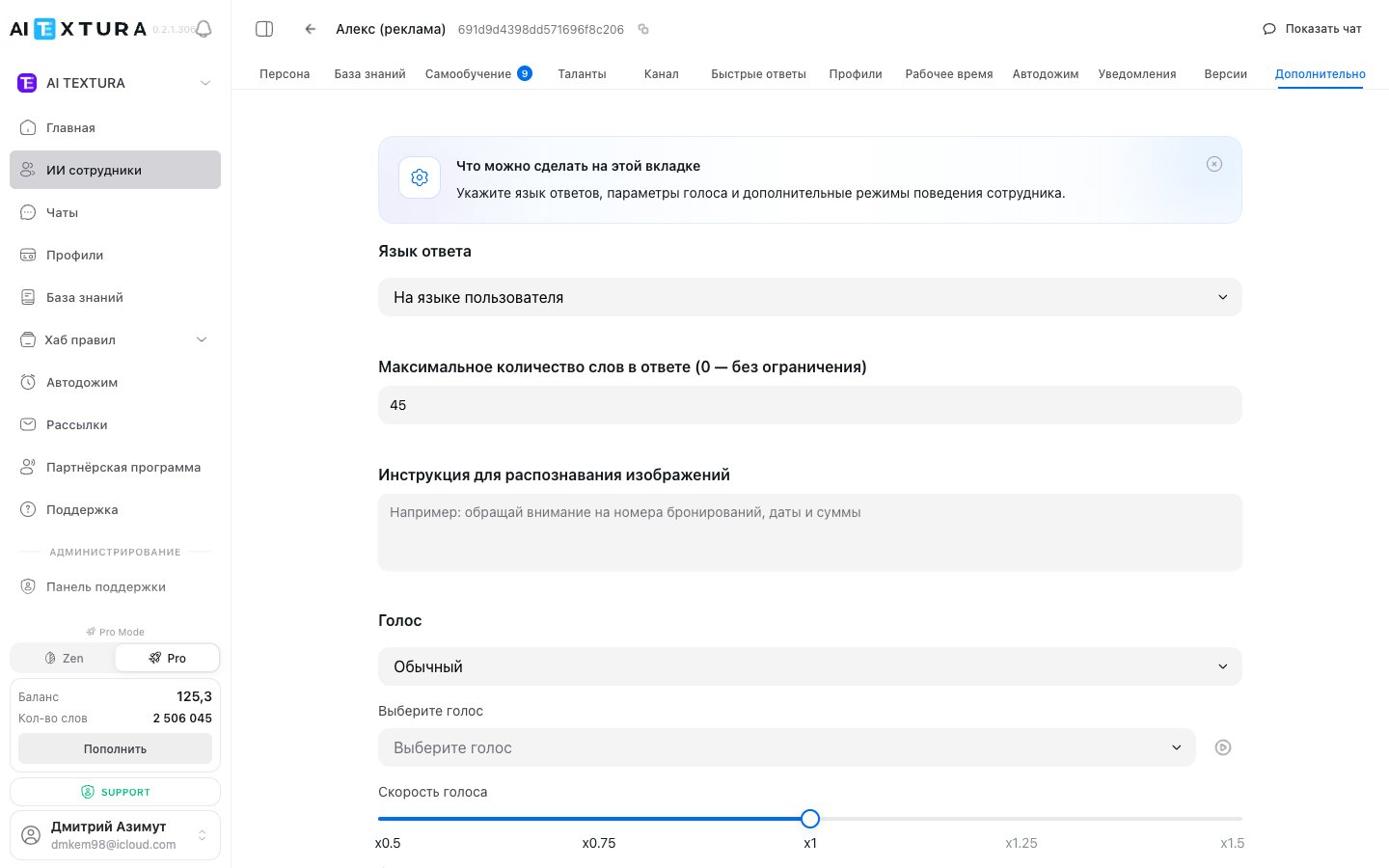
The **Additional** section gathers settings that fine-tune your AI employee's behavior: response language, message length, image recognition, voice (including PRO voices via ElevenLabs), service commands for controlling the agent, and behavior toggles (jailbreak protection, auto-pause, auto-resume).
Role, tone, and instructions
Configuration change history
Global commands and ElevenLabs integration
Voice works in Telegram
These settings are not required for basic operation — the employee will work without them. But this is exactly where you can tailor behavior to specific scenarios and brand style.
Open the AI employee and switch to the **Additional** tab — it's the last (12th) tab in the employee editor.
***
## Video walkthrough
A short video: an overview of the **Additional** tab — jailbreak protection, pause on manager reply, auto-resume with configurable delay, "silent by default" testing mode, and conversation completion detection.
***
## Response language
A selector that determines the language the employee responds in.
| Value | Behavior |
| ------------------------------------------------------- | ------------------------------------------------------------------------------ |
| **User's language** (default) | The employee auto-detects the client's language and replies in it |
| **Specific language** (Russian, English, Қазақша, etc.) | The employee always replies in the chosen language, regardless of the client's |
If a specific language is set, the employee will not stop *understanding* messages in other languages. It will understand everything — but only reply in the chosen language.
Lock the language if all clients speak the same language or the employee gets confused with auto-detection. Keep **User's language** for international business and tourism.
***
## Response word limit
A numeric field that limits the length of the employee's responses.
| Value | Behavior |
| --------------------------------------- | ----------------------------------------------------- |
| **0** (default) | No limit — the employee chooses the length |
| **Any number** (for example, 50 or 100) | The employee tries to stay within the specified limit |
This is a **soft limit**. The employee doesn't cut off mid-sentence — it phrases the answer more concisely. It may slightly exceed the limit at times.
For Telegram/WhatsApp, 50–80 words works well. For complex consultations (legal, medical) — 0 or 150–200.
***
## Image recognition
A text field with instructions on what the employee should focus on when analyzing photos, screenshots, and images sent by clients.
Empty by default — the employee analyzes images in a generic way. Filling this field focuses it on what matters for your business.
### Example instructions
| Business | Example instruction |
| ------------ | ------------------------------------------------------------------------------------------------------- |
| Hotel | "Pay attention to the booking number, check-in and check-out dates, number of guests, and total amount" |
| Online store | "Identify the product in the photo, its condition (new, used, damaged), and any defects" |
| Auto service | "Describe visible vehicle damage, its location, and approximate severity" |
| Restaurant | "Identify the dish in the photo and its approximate ingredients" |
The more specific the instruction, the more accurate the result. Instead of "analyze the photo," write: "Find the order number, date, and amount on the screenshot. If there's no number — ask the client."
***
## Voice settings
A block for voice-response settings. Lets the employee reply with voice messages.
Voice messages work only in [Telegram](/en/channels/telegram). For IP telephony, contact [Support](/en/guides/support).
### Normal mode vs PRO
| Mode | Description | When to use |
| ---------- | ----------------------------------------------------------------------------------------------------------------------------------------------- | ---------------------------------------------------------- |
| **Normal** | Built-in platform voices. Connects instantly, no integrations | For basic voicing, MVP, testing |
| **PRO** | Voices via **ElevenLabs** (professional TTS quality). Requires an ElevenLabs API key in [/settings → Integrations](/en/guides/account-settings) | For premium scenarios, branded sound, multilingual voicing |
### PRO voices (ElevenLabs)
In PRO mode, branded ElevenLabs voices are available:
| Voice | Type |
| ----------- | ----------------------- |
| **ash** | male, neutral |
| **coral** | female, soft |
| **sage** | male, calm |
| **onyx** | male, deep |
| **alloy** | neutral, all-purpose |
| **echo** | male, expressive |
| **fable** | storytelling, narrative |
| **nova** | female, energetic |
| **shimmer** | female, warm |
Below the voice selector — a **speed control** for speech (from x0.5 to x1.5).
### Connecting the ElevenLabs API key
The API key is configured **globally for the account**, not per agent.
Sign up / log into [ElevenLabs](https://elevenlabs.io/) and copy the API key from your profile settings.
In AI TEXTURA: profile menu (bottom-left) → **Settings** → **Integrations** tab. Details in the [Account settings](/en/guides/account-settings) guide.
Enter the key in the **ElevenLabs API key** field and save.
Return to the agent editor → **Additional** → **Voice** → switch the mode to **PRO**, pick a voice and speed.
For business communications (legal, medical, finance), the **sage** or **ash** voices at x1.0 work well. For youth-oriented projects, try **nova** or **shimmer** at x1.1–x1.2.
### Voice parameters
| Parameter | Type | Description |
| -------------------------- | ---------- | ----------------------------------------------------------------- |
| **Voice type** | Toggle | Normal / PRO (ElevenLabs) |
| **Voice** | Selector | In PRO: ash, coral, sage, onyx, alloy, echo, fable, nova, shimmer |
| **Speed** | Slider | x0.5 – x1.5 |
| **Style and emotions** | Text field | Style description: "calm and confident", "energetic and friendly" |
| **Voice message response** | Selector | Voice + text / Voice only / Text only |
***
## Agent commands
Service commands let you control the employee **right from the chat** — without opening the control panel. Convenient for managers who work in the same chat as the employee.
**Agent commands are global.** Their text is set **once for the entire account** in [/settings → General](/en/guides/account-settings) ("General settings" tab). On a specific agent's **Additional** page you see the same commands and can be sure they're current for all your agents at once.
### Full command list
| Command | What it does | When to use |
| ---------------------------- | ------------------------------------------------------------------------------------------------------ | ----------------------------------------------------------------------------------------------- |
| **Start AI** | Activates the employee in the chat — it starts replying again | The manager finished intervening and is handing the chat back to the AI |
| **Stop AI** | Pauses the employee — it stops replying but still "sees" messages | The manager wants to reply themselves |
| **Clear memory** | Resets the current dialogue context — the employee "forgets" prior messages | The client arrived with a new question while the employee was still anchored to the old context |
| **Jailbreak protection** | Toggles prompt-injection protection in this chat | Suspicious messages trying to "hack" instructions |
| **Retraining** | Switches the employee's response into training mode — adds an entry to [Self-Learning](/en/guides/faq) | The manager wants to train the agent on this case |
| **Report (all messages)** | Generates a dialogue report — all messages including the archive | Handing the case to another manager, audit |
| **Report (without archive)** | Same, but excluding archived messages | A short summary without noise |
### How commands work
The manager types the command in the chat — the employee recognizes it and performs the service action. The command **doesn't go to the client** — it's interpreted by the system.
Use unique, non-obvious commands (for example, `/aiti_pause` or `<>`) so a client doesn't accidentally type them. Plain verbs like "stop" are risky.
Profile menu (bottom-left) → **Settings** → **General settings**.
For each command (Start AI, Stop AI, etc.), specify the trigger phrase.
Make sure all managers know the current commands.
***
## Behavior toggles
A set of settings that control automation around the agent-manager interaction and the response to unusual situations.
### Jailbreak protection
Blocks prompt-injection attempts — when a client tries to make the agent "forget instructions", "break character", or reveal a confidential prompt.
Enable for agents that handle sensitive data or are publicly accessible (bot channel, widget). For internal demo agents, you can leave it off.
### Stop after manager reply
When enabled — as soon as the manager writes in the chat themselves, the employee automatically pauses. This protects against situations where the AI "interrupts" a live specialist.
By default, this works in tandem with **auto-resume**: the AI pauses for 10–20 minutes, and if the client writes during that time and no one reacts, the AI resumes.
### Pause on bot messages
When enabled — the employee ignores messages from other bots in the same chat (for example, a CRM chat-bot doesn't trigger the agent's reaction). Protects from "bot writes — bot replies — bot writes" loops.
### Auto-resume after pause
The employee automatically returns to work after a pause (10–20 minutes by default) — if the client wrote and the manager didn't react.
For 24/7 support, auto-resume is useful — the client won't be left without a response at night. For premium sales where a "human" feel matters, manage the employee manually via commands.
### Conversation completion detection
The employee analyzes the conversation flow and decides on its own that the dialogue is over (the client said goodbye, the question is resolved). This affects [Auto Follow-up](/en/guides/auto-followup) and [Notifications](/en/guides/notifications).
***
## Settings summary
| Setting | Type | Default |
| ------------------------------------- | ------------- | --------------- |
| **Response language** | Selector | User's language |
| **Response word limit** | Numeric field | 0 (no limit) |
| **Image recognition** | Text field | Empty |
| **Voice: mode** | Toggle | Normal |
| **Voice (PRO)** | Selector | — |
| **Voice speed** | Slider | x1.0 |
| **Style and emotions** | Text field | Empty |
| **Voice message response** | Selector | Voice + text |
| **Jailbreak protection** | Toggle | Off |
| **Stop after manager reply** | Toggle | On |
| **Pause on bot messages** | Toggle | On |
| **Auto-resume after pause** | Toggle | On |
| **Conversation completion detection** | Toggle | On |
***
## FAQ
No. The employee continues to understand messages in any language — but only replies in the chosen one.
PRO delivers significantly more natural sound (lifelike pronunciation, emotion, pauses). Important for premium businesses and audio content. Built-in voices are good enough for routine answers and tests.
Sign up at [elevenlabs.io](https://elevenlabs.io/), copy the key from your profile settings, and paste it into AI TEXTURA: [/settings → Integrations](/en/guides/account-settings). PRO mode then activates for all your agents.
Yes, today only Telegram. For IP telephony, contact [Support](/en/guides/support).
The employee detects prompt injections (attempts to break character, reveal instructions, or ignore restrictions) and neutralizes them. Enable for public agents and scenarios with sensitive data.
Globally, at the account level: [/settings → General settings](/en/guides/account-settings). On a specific agent's "Additional" tab you see the same commands — they can only be edited in one place.
The employee resets the entire current dialogue context — as if the conversation just started. Useful when the employee is "stuck" in old context.
Use unique, non-obvious commands (with non-standard symbols or prefixes). If the incident already happened — re-enable the employee with the **Start AI** command.
After a pause (for example, after a manager's reply), the employee automatically returns to work in 10–20 minutes — if the client wrote and the manager didn't react. Protects against "forgotten" chats.
No. All settings have sensible defaults. Fill in only what you actually need.