> ## Documentation Index
> Fetch the complete documentation index at: https://aitextura.mintlify.site/llms.txt
> Use this file to discover all available pages before exploring further.
# Account Settings
> Manage theme, language, AI commands, personal data, security, integrations, and experimental features in AI Textura.
Account Settings is your personal control panel for the platform. It contains everything related to appearance, security, integrations, notifications, global commands for AI employees, and experimental features.
 Manage your employees
Fine-tuning per employee
Balance and billing history
Contact the AI Textura team
## How to access settings
At the bottom of the sidebar, find the block with your name and email — click on it.
In the dropdown menu, click **Settings**. A page with seven tabs will open.
| Tab | What's inside |
| -------------------- | ----------------------------------------------------------------------------------------------------------------------------------------------- |
| **General** | Theme (Light / Dark / System), interface language (English / Russian), [agent commands](#agent-commands) — text commands for controlling the AI |
| **Account Settings** | First name, last name, company, phone, email, password change |
| **Notifications** | Platform-level notification settings |
| **Security** | Sessions, two-factor authentication, linked accounts |
| **Integrations** | ElevenLabs API key for PRO voices |
| **Activity** | Account action log — recent sign-ins, settings changes, security events |
| **Experimental** | Beta features in testing |
***
## 1. General
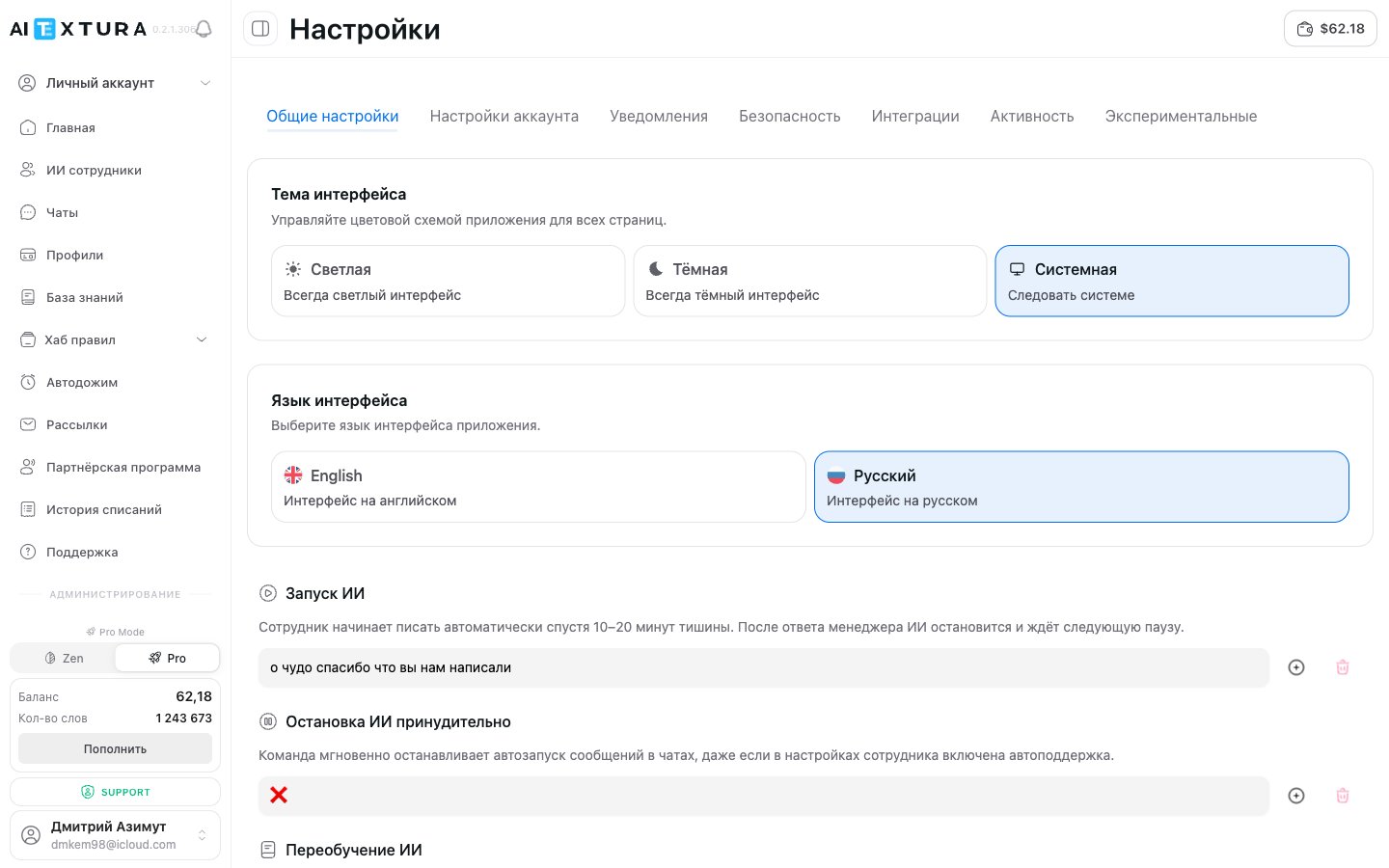
The first tab, open by default. It contains appearance settings and global commands for managing AI employees.
### Interface theme
Control the color scheme of the application. The setting applies to all pages at once.
| Option | What it does |
| ---------- | ----------------------------------------------------------------------------------------------------- |
| **Light** | Always light interface |
| **Dark** | Always dark interface |
| **System** | Follows your OS settings — if dark mode is enabled on your device, the platform also switches to dark |
### Interface language
Choose the language for the platform interface.
| Option | Description |
| ----------- | -------------------- |
| **English** | Interface in English |
| **Russian** | Interface in Russian |
The interface language does not affect the language AI employees use with clients. An employee responds in the language set in their [Persona](/en/guides/persona), or adapts to the client's language.
### Agent commands
Global text commands that can be sent directly in a chat with an AI employee. Each command is a word, phrase, or set of emoji that triggers a specific action. You can change the command text to anything you prefer.
| Command | What it does | Default |
| ---------------------------- | --------------------------------------------------------------------------------------------------------------------------------------------------------- | -------------- |
| **Start AI** | The employee begins writing automatically after 10-20 minutes of silence. After a manager replies, the AI stops and waits for the next pause | `😇` |
| **Stop AI** | Immediately stops automatic messages, even if auto-support is enabled in the employee's settings | `❌` |
| **Retrain AI** | The employee re-reads instructions and knowledge, including connected documents. Can be sent from any chat | `📚📕📙📗📓📖` |
| **Toggle protection** | Enables and disables corporate protection across all chats simultaneously | `🔒🔒🔒🔒🔒🔒` |
| **Wipe memory** | Completely clears the active dialog history. Use for testing knowledge from a clean slate | `delete all` |
| **Report (all)** | Generates a complete dialog report including archived messages. The same report is available in the [chat action menu](/en/guides/chats#chat-action-menu) | set by you |
| **Report (without archive)** | A short report — only active messages, without deleted or archived ones | set by you |
The **Wipe memory** command permanently deletes the conversation from the employee's context. This action cannot be undone.
To change a command, enter new text in the field next to the description and click **Save commands**. The **Reset** button restores all commands to their default values.
The **Report (all)** and **Report (without archive)** commands are convenient when contacting [Support](/en/guides/support): send the command in the chat — get the formatted report right in the messenger, without opening the platform.
***
## 2. Account Settings
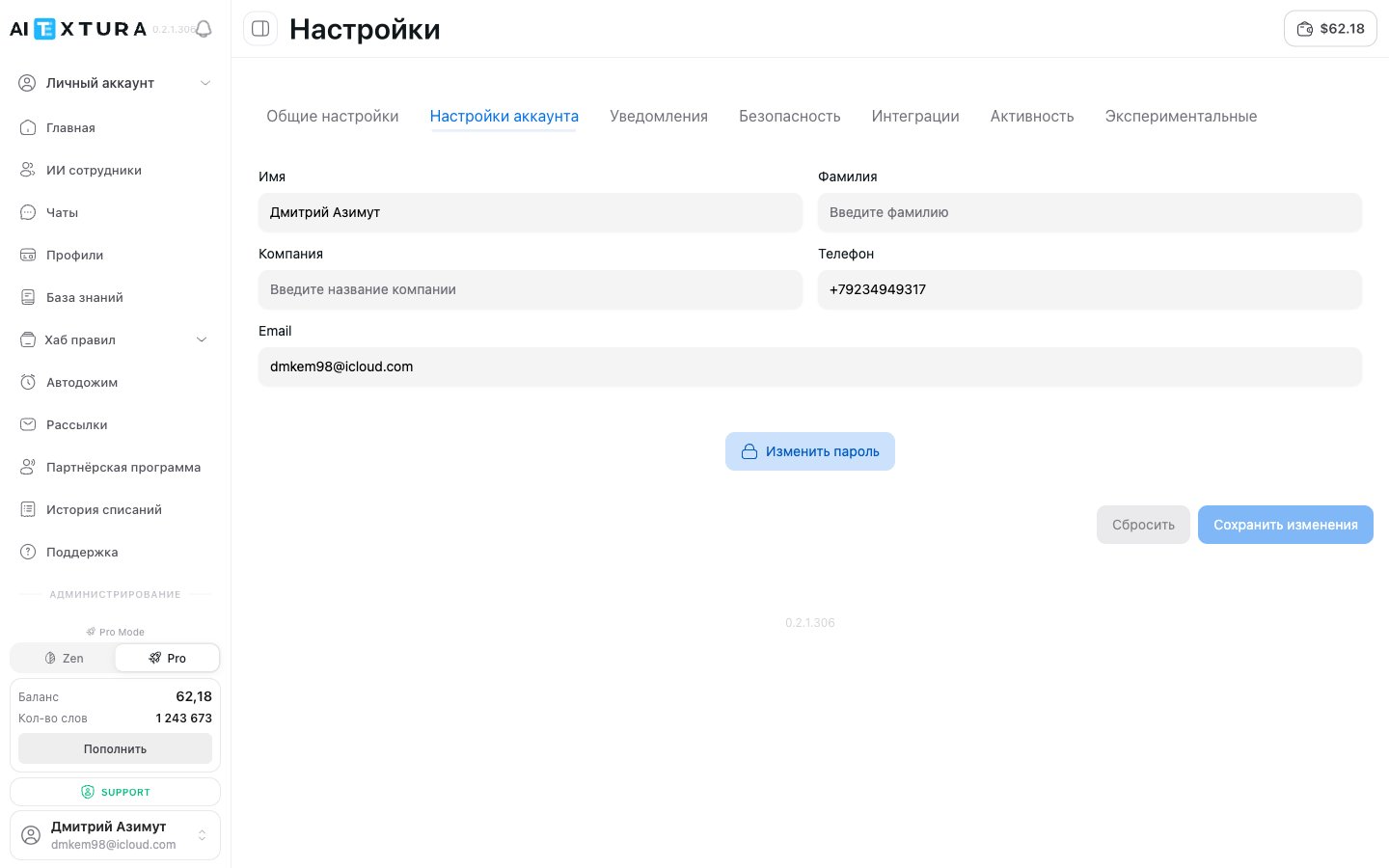
This is where your personal data is stored. The information is used for identification in the system and is displayed in the interface — for example, in the sidebar and in support tickets.
### Profile fields
| Field | Description | Required |
| -------------- | ------------------------------------------ | -------- |
| **First name** | Displayed in the interface | Yes |
| **Last name** | Displayed next to the first name | No |
| **Company** | Your company or project name | No |
| **Phone** | Contact phone number | No |
| **Email** | Address used for sign-in and notifications | Yes |
After making changes, click **Save changes**. The **Reset** button discards unsaved edits.
### Changing your password
The same tab has a **Change password** button. Clicking it opens a form: enter your current password and the new password twice, then confirm.
Use a strong password of at least 8 characters, with mixed-case letters and numbers. If you sign in via a linked account (Apple, Google, etc.), setting a password for added security is still recommended.
Manage your employees
Fine-tuning per employee
Balance and billing history
Contact the AI Textura team
## How to access settings
At the bottom of the sidebar, find the block with your name and email — click on it.
In the dropdown menu, click **Settings**. A page with seven tabs will open.
| Tab | What's inside |
| -------------------- | ----------------------------------------------------------------------------------------------------------------------------------------------- |
| **General** | Theme (Light / Dark / System), interface language (English / Russian), [agent commands](#agent-commands) — text commands for controlling the AI |
| **Account Settings** | First name, last name, company, phone, email, password change |
| **Notifications** | Platform-level notification settings |
| **Security** | Sessions, two-factor authentication, linked accounts |
| **Integrations** | ElevenLabs API key for PRO voices |
| **Activity** | Account action log — recent sign-ins, settings changes, security events |
| **Experimental** | Beta features in testing |
***
## 1. General
The first tab, open by default. It contains appearance settings and global commands for managing AI employees.
### Interface theme
Control the color scheme of the application. The setting applies to all pages at once.
| Option | What it does |
| ---------- | ----------------------------------------------------------------------------------------------------- |
| **Light** | Always light interface |
| **Dark** | Always dark interface |
| **System** | Follows your OS settings — if dark mode is enabled on your device, the platform also switches to dark |
### Interface language
Choose the language for the platform interface.
| Option | Description |
| ----------- | -------------------- |
| **English** | Interface in English |
| **Russian** | Interface in Russian |
The interface language does not affect the language AI employees use with clients. An employee responds in the language set in their [Persona](/en/guides/persona), or adapts to the client's language.
### Agent commands
Global text commands that can be sent directly in a chat with an AI employee. Each command is a word, phrase, or set of emoji that triggers a specific action. You can change the command text to anything you prefer.
| Command | What it does | Default |
| ---------------------------- | --------------------------------------------------------------------------------------------------------------------------------------------------------- | -------------- |
| **Start AI** | The employee begins writing automatically after 10-20 minutes of silence. After a manager replies, the AI stops and waits for the next pause | `😇` |
| **Stop AI** | Immediately stops automatic messages, even if auto-support is enabled in the employee's settings | `❌` |
| **Retrain AI** | The employee re-reads instructions and knowledge, including connected documents. Can be sent from any chat | `📚📕📙📗📓📖` |
| **Toggle protection** | Enables and disables corporate protection across all chats simultaneously | `🔒🔒🔒🔒🔒🔒` |
| **Wipe memory** | Completely clears the active dialog history. Use for testing knowledge from a clean slate | `delete all` |
| **Report (all)** | Generates a complete dialog report including archived messages. The same report is available in the [chat action menu](/en/guides/chats#chat-action-menu) | set by you |
| **Report (without archive)** | A short report — only active messages, without deleted or archived ones | set by you |
The **Wipe memory** command permanently deletes the conversation from the employee's context. This action cannot be undone.
To change a command, enter new text in the field next to the description and click **Save commands**. The **Reset** button restores all commands to their default values.
The **Report (all)** and **Report (without archive)** commands are convenient when contacting [Support](/en/guides/support): send the command in the chat — get the formatted report right in the messenger, without opening the platform.
***
## 2. Account Settings
This is where your personal data is stored. The information is used for identification in the system and is displayed in the interface — for example, in the sidebar and in support tickets.
### Profile fields
| Field | Description | Required |
| -------------- | ------------------------------------------ | -------- |
| **First name** | Displayed in the interface | Yes |
| **Last name** | Displayed next to the first name | No |
| **Company** | Your company or project name | No |
| **Phone** | Contact phone number | No |
| **Email** | Address used for sign-in and notifications | Yes |
After making changes, click **Save changes**. The **Reset** button discards unsaved edits.
### Changing your password
The same tab has a **Change password** button. Clicking it opens a form: enter your current password and the new password twice, then confirm.
Use a strong password of at least 8 characters, with mixed-case letters and numbers. If you sign in via a linked account (Apple, Google, etc.), setting a password for added security is still recommended.
 ***
## 3. Notifications
Platform-level notification settings — control delivery channels and alert categories at the account level.
***
## 3. Notifications
Platform-level notification settings — control delivery channels and alert categories at the account level.
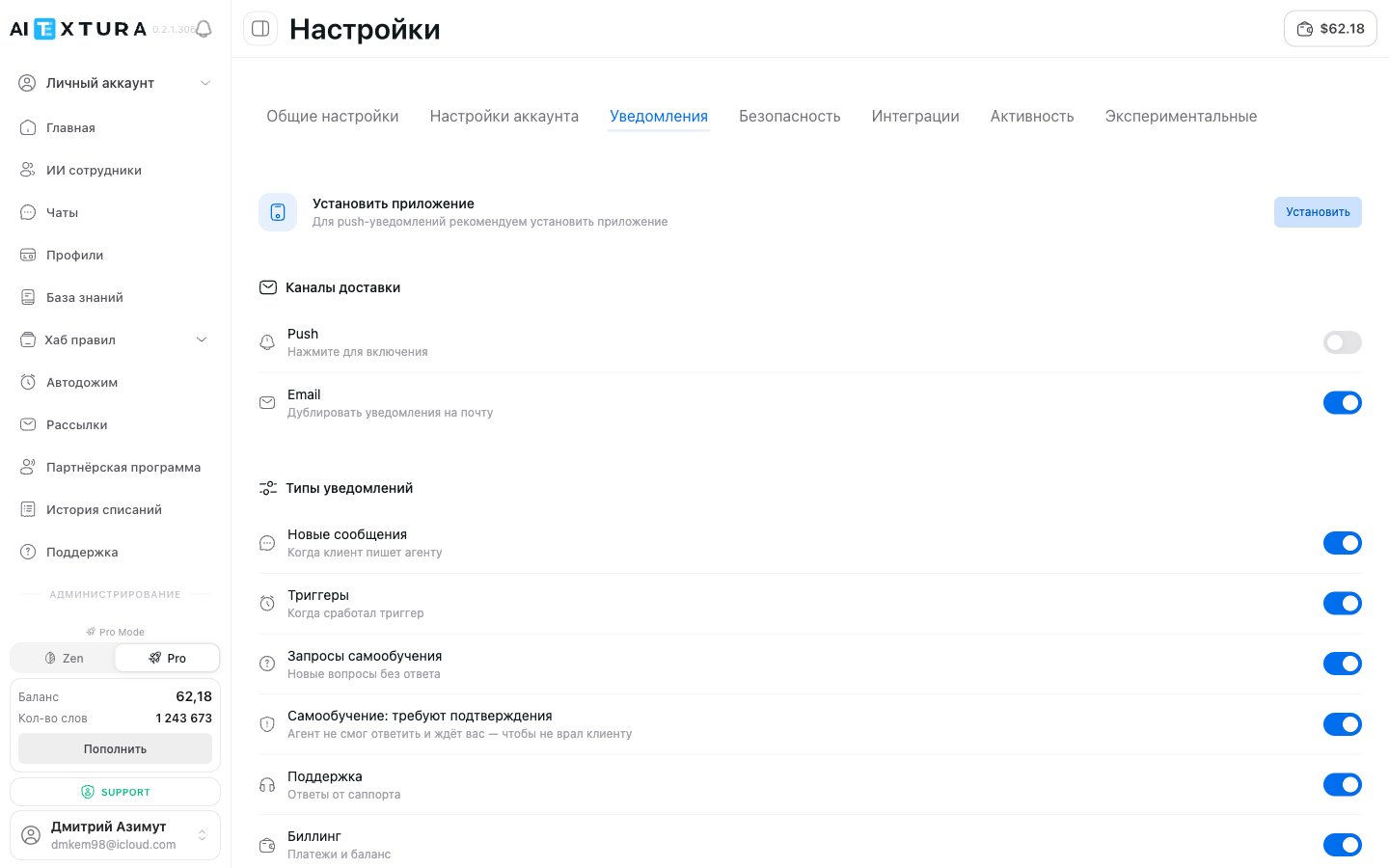 These settings cover **platform notifications** (news, updates, account events). The **escalation triggers** for specific AI employees are configured separately: see [Notifications](/en/guides/notifications) inside the agent tab.
***
## 4. Security
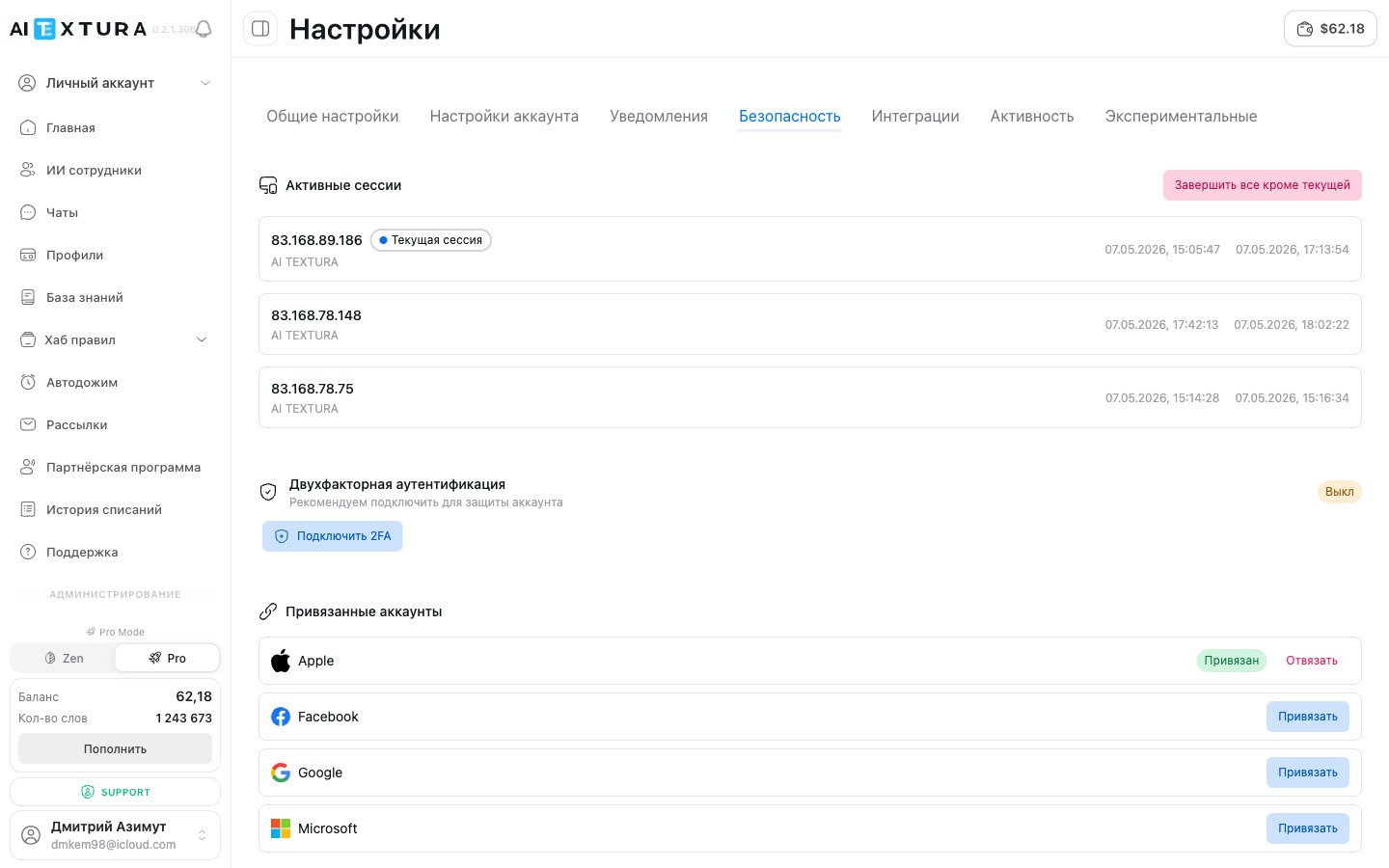
Tab for keeping your account under control. It has three blocks: active sessions, two-factor authentication, and linked accounts.
These settings cover **platform notifications** (news, updates, account events). The **escalation triggers** for specific AI employees are configured separately: see [Notifications](/en/guides/notifications) inside the agent tab.
***
## 4. Security
Tab for keeping your account under control. It has three blocks: active sessions, two-factor authentication, and linked accounts.
 ### Active sessions
A list of all devices and browsers where your account is currently signed in.
| Parameter | What it shows |
| ----------------- | -------------------------------------------------- |
| **IP address** | The address used to sign in |
| **Label** | The current session is marked as "Current session" |
| **Platform** | Application name — AI TEXTURA |
| **Created** | When the session was opened |
| **Last activity** | When the session was last used |
If you see an unfamiliar session — change your password immediately and enable two-factor authentication.
### Two-factor authentication (2FA)
An additional layer of protection. When signing in, the system requests a one-time code from an authenticator app (Google Authenticator, Authy, etc.).
The button is located in the two-factor authentication block.
Open the authenticator app on your phone and scan the QR code displayed on screen.
Enter the one-time code from the app to complete setup.
We strongly recommend enabling 2FA, especially if you use paid plans and have funds on your balance. It protects your account even if your password is compromised.
### Linked accounts
Link external accounts for quick passwordless sign-in. Four services are supported:
| Service | Action |
| ------------- | ------------- |
| **Apple** | Link / Unlink |
| **Facebook** | Link / Unlink |
| **Google** | Link / Unlink |
| **Microsoft** | Link / Unlink |
If an account is linked, its status shows **Linked** with an **Unlink** button. If not — a **Link** button redirects you to the service's authorization page.
Linking an external account is convenient for quick sign-in but does not replace a password. We recommend having both a password and a linked account — so you don't lose access if one method fails.
***
## 5. Integrations
This tab configures connections to external services that extend the platform's capabilities.
### Active sessions
A list of all devices and browsers where your account is currently signed in.
| Parameter | What it shows |
| ----------------- | -------------------------------------------------- |
| **IP address** | The address used to sign in |
| **Label** | The current session is marked as "Current session" |
| **Platform** | Application name — AI TEXTURA |
| **Created** | When the session was opened |
| **Last activity** | When the session was last used |
If you see an unfamiliar session — change your password immediately and enable two-factor authentication.
### Two-factor authentication (2FA)
An additional layer of protection. When signing in, the system requests a one-time code from an authenticator app (Google Authenticator, Authy, etc.).
The button is located in the two-factor authentication block.
Open the authenticator app on your phone and scan the QR code displayed on screen.
Enter the one-time code from the app to complete setup.
We strongly recommend enabling 2FA, especially if you use paid plans and have funds on your balance. It protects your account even if your password is compromised.
### Linked accounts
Link external accounts for quick passwordless sign-in. Four services are supported:
| Service | Action |
| ------------- | ------------- |
| **Apple** | Link / Unlink |
| **Facebook** | Link / Unlink |
| **Google** | Link / Unlink |
| **Microsoft** | Link / Unlink |
If an account is linked, its status shows **Linked** with an **Unlink** button. If not — a **Link** button redirects you to the service's authorization page.
Linking an external account is convenient for quick sign-in but does not replace a password. We recommend having both a password and a linked account — so you don't lose access if one method fails.
***
## 5. Integrations
This tab configures connections to external services that extend the platform's capabilities.
 ### ElevenLabs API key
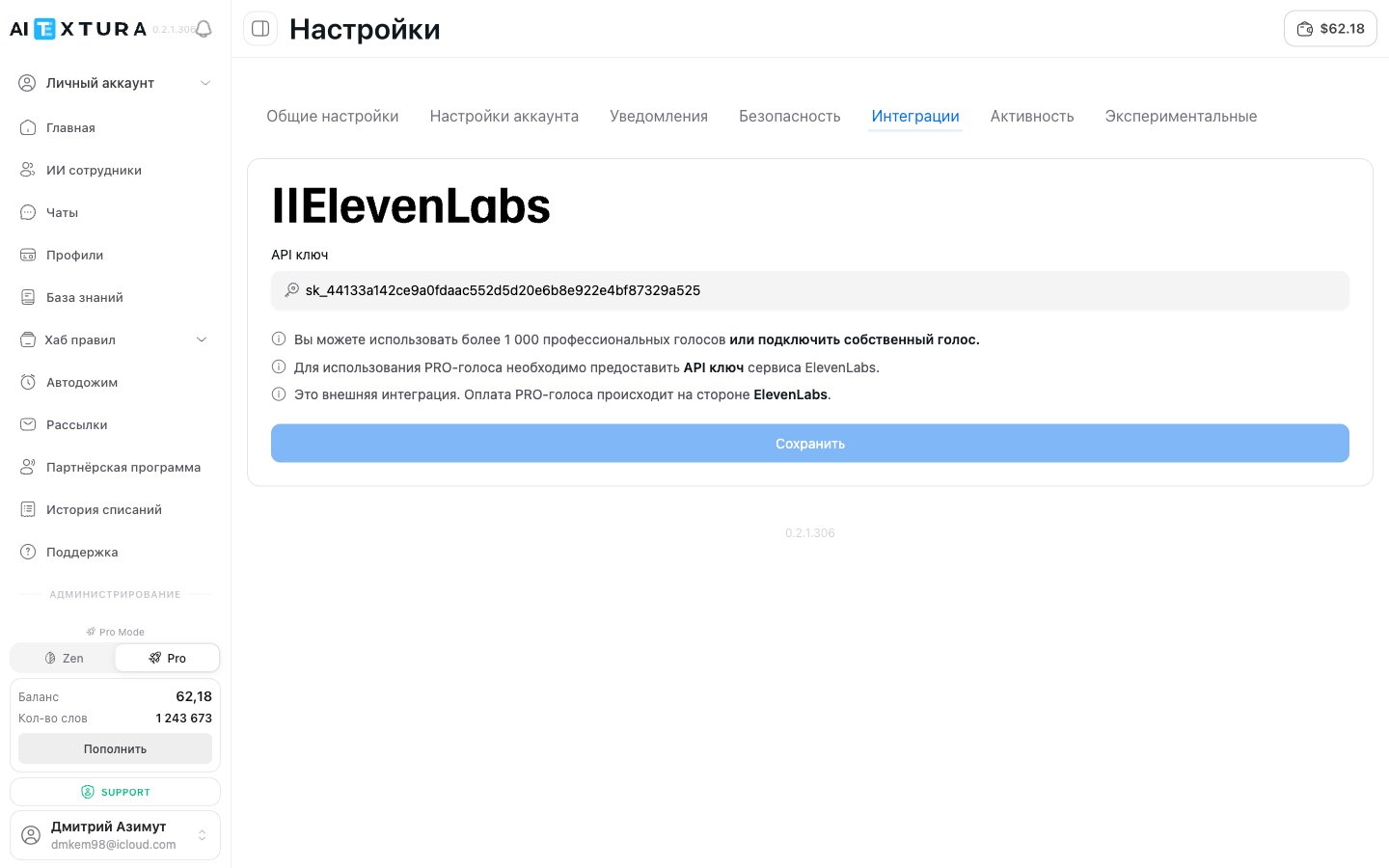
AI Textura supports PRO voices through integration with **ElevenLabs** — over 1,000 professional voices, plus the ability to connect your own custom voice.
Register at [ElevenLabs](https://elevenlabs.io) and obtain an API key from your account.
Go to **Settings** → **Integrations**.
Paste the key into the **API key** field and click **Save**.
After this, PRO voices become available in voice employee settings.
This is an external integration. PRO voice charges are handled by ElevenLabs — the cost depends on your plan with their service. AI Textura does not charge extra for using PRO voices.
If you don't use voice employees or are satisfied with the built-in voices — you can skip this tab. Built-in voices (the "Standard" category) are available without a key and at no additional cost.
***
## 6. Activity
Action log for your account: sign-ins, settings changes, security events, adding and removing [AI employees](/en/guides/ai-employees), connecting [channels](/en/channels/index) and [talents](/en/guides/talents).
### ElevenLabs API key
AI Textura supports PRO voices through integration with **ElevenLabs** — over 1,000 professional voices, plus the ability to connect your own custom voice.
Register at [ElevenLabs](https://elevenlabs.io) and obtain an API key from your account.
Go to **Settings** → **Integrations**.
Paste the key into the **API key** field and click **Save**.
After this, PRO voices become available in voice employee settings.
This is an external integration. PRO voice charges are handled by ElevenLabs — the cost depends on your plan with their service. AI Textura does not charge extra for using PRO voices.
If you don't use voice employees or are satisfied with the built-in voices — you can skip this tab. Built-in voices (the "Standard" category) are available without a key and at no additional cost.
***
## 6. Activity
Action log for your account: sign-ins, settings changes, security events, adding and removing [AI employees](/en/guides/ai-employees), connecting [channels](/en/channels/index) and [talents](/en/guides/talents).
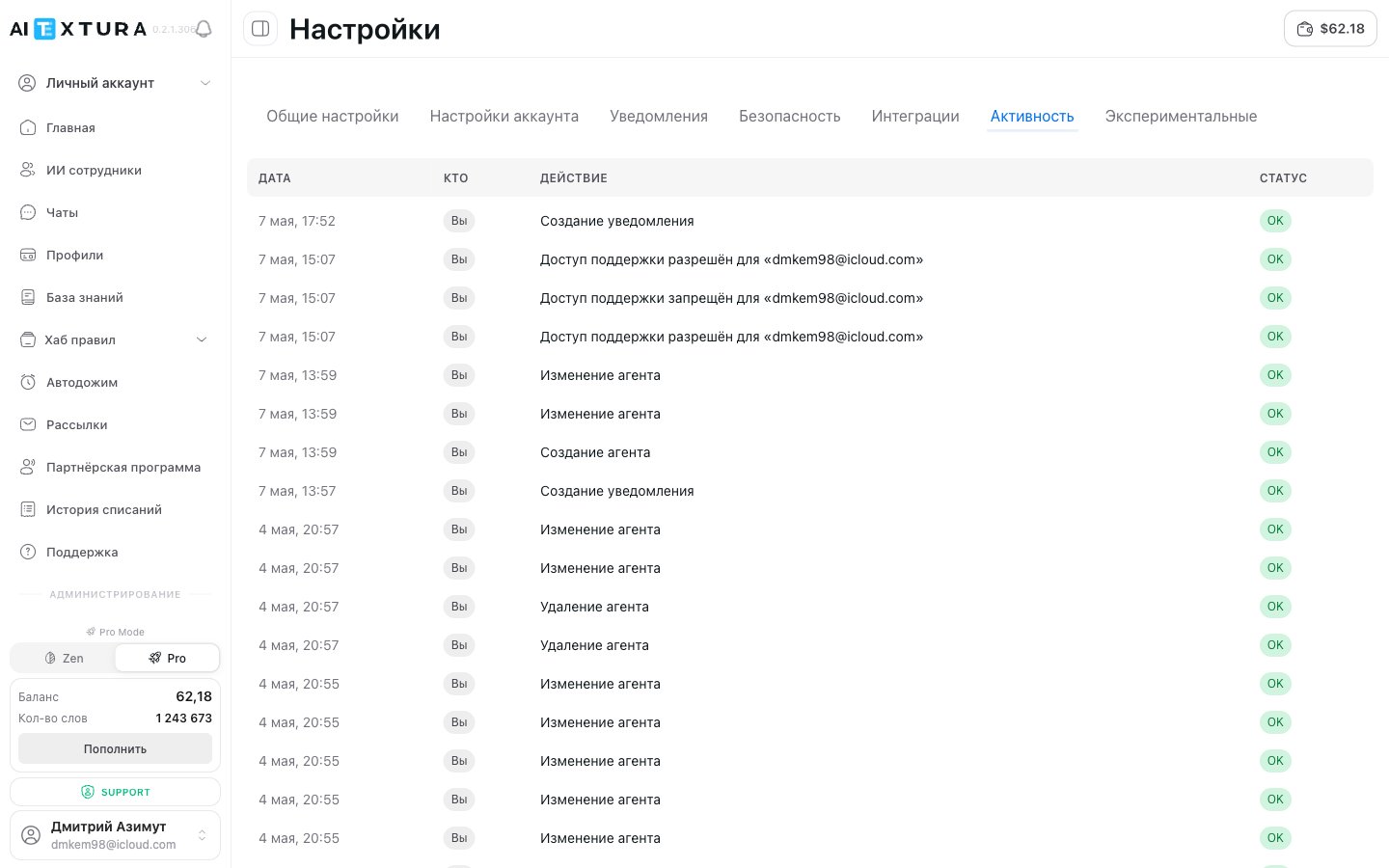 | Field | What it shows |
| ----------------- | -------------------------------------------------------------- |
| **Date and time** | When the event occurred |
| **Action** | What was done (sign-in, settings change, employee added, etc.) |
| **IP address** | Address from which the action was performed |
| **Platform** | Browser or application |
Check the log if you suspect unauthorized access — every sign-in is visible. If you see unfamiliar events, change your password on the **Account Settings** tab and enable 2FA on the **Security** tab.
***
## 7. Experimental
Features that are still in testing. They may be unstable or change in future updates, but you can try them now.
| Field | What it shows |
| ----------------- | -------------------------------------------------------------- |
| **Date and time** | When the event occurred |
| **Action** | What was done (sign-in, settings change, employee added, etc.) |
| **IP address** | Address from which the action was performed |
| **Platform** | Browser or application |
Check the log if you suspect unauthorized access — every sign-in is visible. If you see unfamiliar events, change your password on the **Account Settings** tab and enable 2FA on the **Security** tab.
***
## 7. Experimental
Features that are still in testing. They may be unstable or change in future updates, but you can try them now.
 ### Page transition animations
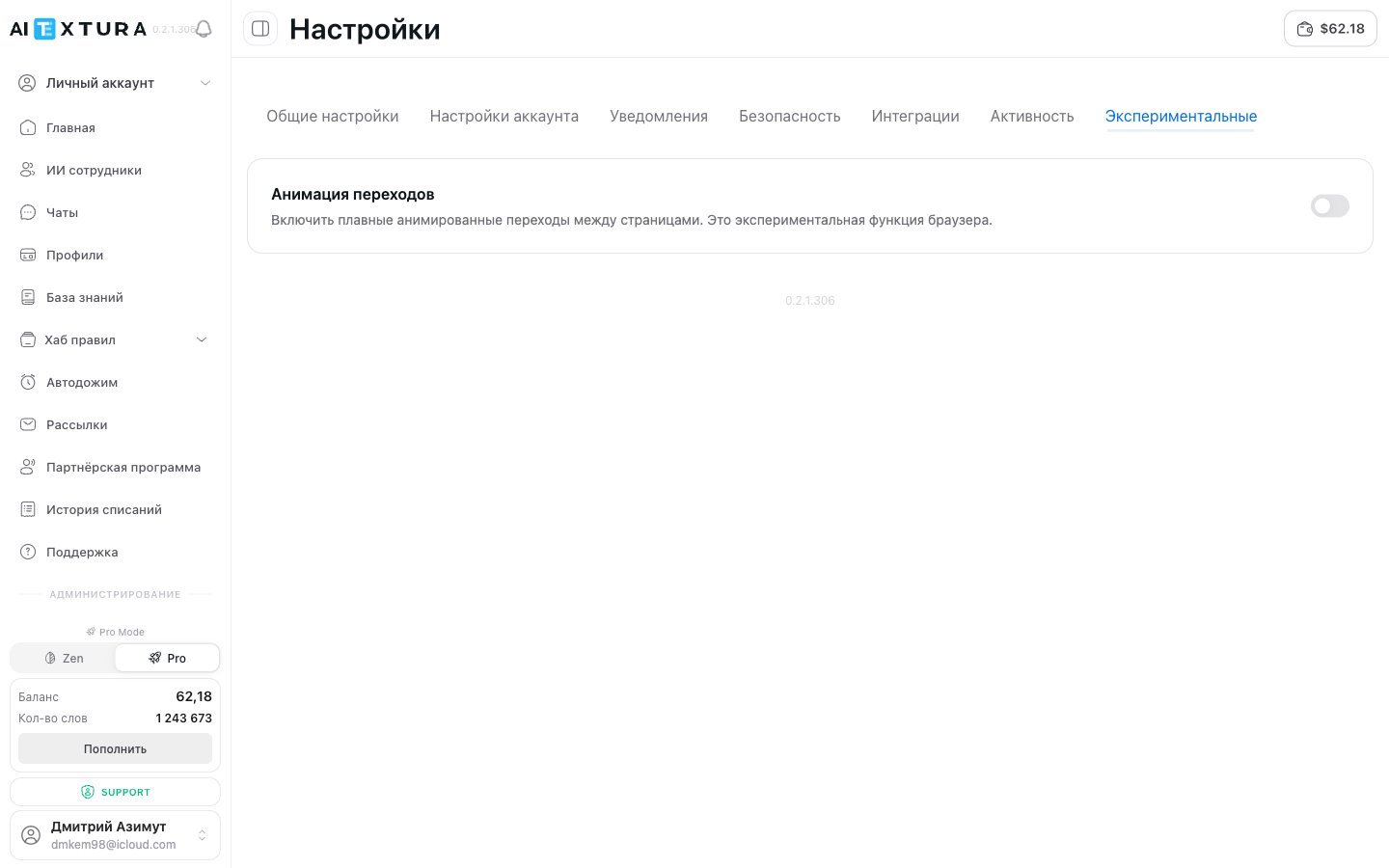
Enables smooth animated transitions between platform pages. An experimental browser feature — it makes navigation visually smoother, but in rare cases may cause lag on low-powered devices.
| Parameter | Description |
| ---------- | -------------------------------------------- |
| **Toggle** | On / Off — enables or disables the animation |
Animation is disabled by default. Enable it if you want to try — you can turn it off at any time.
The Experimental section will be updated with new features over time. Check back after platform updates.
***
## FAQ
Click on your name and email at the bottom of the sidebar. In the dropdown menu, select **Settings**.
After changing your email, make sure you saved the changes with the **Save changes** button. If the issue persists, contact support via the [Support](/en/guides/support) section in the left menu.
Yes. If you registered through an external service, you can sign in through it only. However, for added security we recommend setting a password on the **Account Settings** tab.
Immediately change your password on the **Account Settings** tab → **Change password**. Then enable two-factor authentication. If you suspect unauthorized access, contact support.
Only for PRO voices. If you don't use voice employees or are satisfied with built-in voices, you don't need a key.
Yes. Commands configured on the **General** tab apply globally — across all chats with all AI employees in your account.
The employee re-reads all its instructions, [knowledge base](/en/guides/knowledge), and connected documents. This is useful if you updated data and want the employee to start using it immediately.
No. All features in the Experimental section are free. These are beta capabilities that the AI Textura team tests before full release.
### Page transition animations
Enables smooth animated transitions between platform pages. An experimental browser feature — it makes navigation visually smoother, but in rare cases may cause lag on low-powered devices.
| Parameter | Description |
| ---------- | -------------------------------------------- |
| **Toggle** | On / Off — enables or disables the animation |
Animation is disabled by default. Enable it if you want to try — you can turn it off at any time.
The Experimental section will be updated with new features over time. Check back after platform updates.
***
## FAQ
Click on your name and email at the bottom of the sidebar. In the dropdown menu, select **Settings**.
After changing your email, make sure you saved the changes with the **Save changes** button. If the issue persists, contact support via the [Support](/en/guides/support) section in the left menu.
Yes. If you registered through an external service, you can sign in through it only. However, for added security we recommend setting a password on the **Account Settings** tab.
Immediately change your password on the **Account Settings** tab → **Change password**. Then enable two-factor authentication. If you suspect unauthorized access, contact support.
Only for PRO voices. If you don't use voice employees or are satisfied with built-in voices, you don't need a key.
Yes. Commands configured on the **General** tab apply globally — across all chats with all AI employees in your account.
The employee re-reads all its instructions, [knowledge base](/en/guides/knowledge), and connected documents. This is useful if you updated data and want the employee to start using it immediately.
No. All features in the Experimental section are free. These are beta capabilities that the AI Textura team tests before full release.