> ## Documentation Index
> Fetch the complete documentation index at: https://aitextura.mintlify.site/llms.txt
> Use this file to discover all available pages before exploring further.
# Connecting a PMS
> PMS talents let your hotel AI employee work with the property management system: check availability, create bookings, and pull rates. Supported systems: MEWS, Travelline, Bnovo, RealtyCalendar, Bronirui Online, MeHotel.
What a channel is and how it works in AI Textura
Catalog of MCP tools and integrations
Connect a guest-facing communication channel
Information about the hotel and its services
## What a PMS talent is
PMS (Property Management System) is the system that runs a hotel's or rental property's room inventory. A hotel AI employee **absolutely needs** an integration with the PMS: without one, the bot can't answer "Is anything free on November 5?" or "How much is a suite?" — let alone create a booking.
In AI Textura, PMS systems connect through **talents** — MCP servers (Model Context Protocol) that the AI uses to perform PMS operations live during a conversation.
A PMS isn't a channel — it's a **talent**. Channels handle the conversation with the guest (Telegram, WhatsApp, a booking-platform messenger). Talents handle the room inventory. To make a hotel AI employee fully functional, you need both: a channel + at least one PMS talent.
***
## Supported PMS systems
The talent catalog includes **6 PMS systems**:
| PMS | Region | Property type | Authorization |
| ------------------- | ----------------- | ------------------------------ | ---------------------------------- |
| **MEWS** | Global | Hotels, hotel chains | Configuration ID + Connector Token |
| **Travelline** | RU, BY, worldwide | Hotels | Hotel ID + Region |
| **Bnovo** | RU, CIS | Small hotels, guest houses | Hotel ID + Login + Password |
| **RealtyCalendar** | RU | Apartments, short-term rentals | API key |
| **Bronirui Online** | RU | Guest houses, mini-hotels | API key |
| **MeHotel** | RU | Hotels, apartments | API key |
If your PMS isn't in the list, write to [Support](/en/guides/support). We expand the catalog regularly. You can also connect a custom MCP server through **"Create talent"**.
***
## Video walkthrough
***
## How to connect a PMS talent
Go to [AI Employees](/en/guides/ai-employees) → pick the employee → **Talents** tab → **Browse apps** sub-tab.
In the category filter pick **Travel & Hospitality** (or use search by name). The PMS talents are `MEWS`, `Travelline`, `Bnovo`, `RealtyCalendar`, `Bronirui Online`, `MeHotel`.
Click the relevant card — the modal with authorization fields opens.
See the per-PMS field descriptions below. Some values you'll need to get from your PMS administrator or directly from the vendor.
Click **Connect**. The talent appears in the **Connected** tab on the agent page.
Open the agent's built-in test chat and ask about availability for specific dates. The AI should call the PMS and return an answer.
PMS credentials grant access to the hotel's commercial data (bookings, rates, guests). Store them securely. Don't share logins/passwords with third parties or publish them anywhere.
***
## Connection parameters per system
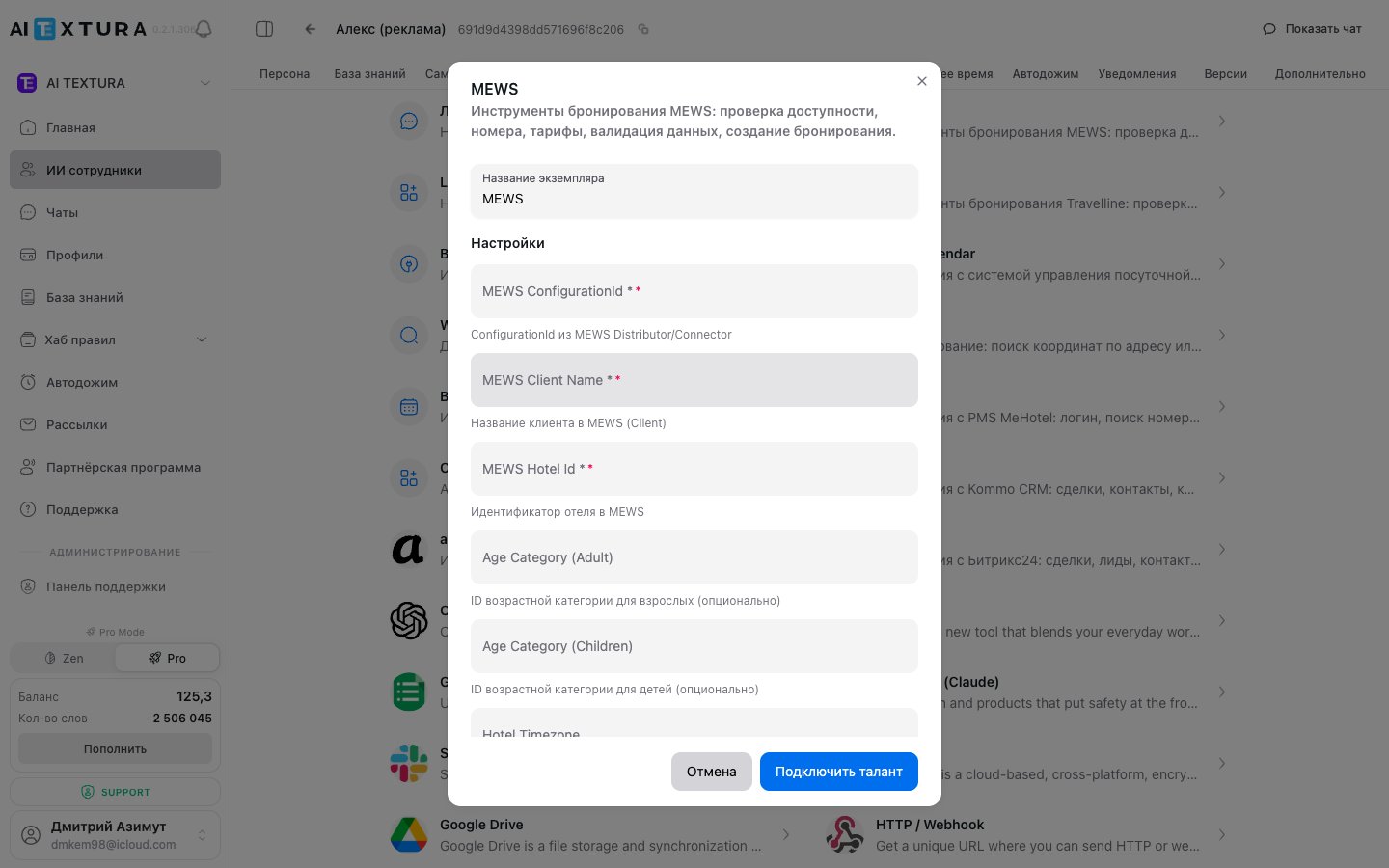
### MEWS
MEWS is a cloud PMS for hotel chains and independent hotels at a global scale. It connects via MEWS connector tokens.
| Field | Description | Where to get it |
| -------------------------- | --------------------------------- | ----------------------------------------- |
| **Configuration ID** | The MEWS configuration identifier | From your administrator in the MEWS panel |
| **Client Name** | Client (hotel) name | In MEWS settings |
| **Hotel ID** | Hotel identifier in MEWS | In MEWS settings |
| **Age Category Adult** | ID for the "Adult" age category | Guest categories in MEWS |
| **Age Category Children** | ID for the "Child" age category | Guest categories in MEWS |
| **Hotel Timezone** | Hotel timezone | Hotel settings |
| **Connector Client Token** | Connector client token | Requested from MEWS |
| **Access Token** | Access token | Requested from MEWS |
| **Client** | Client application identifier | Requested from MEWS |
| **Enterprise ID** | Enterprise ID (for chains) | In MEWS settings |
For a hotel chain, connect a separate MEWS talent per hotel — each with its own Configuration ID and Hotel ID. Set up a dedicated AI employee for each hotel in the chain.
### Travelline
Travelline is a Russian/international PMS, especially popular across the CIS.
| Field | Description | Values |
| ------------ | --------------------------------- | ------------------------------------- |
| **Hotel ID** | Hotel identifier in Travelline | Numeric ID from the Travelline portal |
| **Region** | Which Travelline region you're in | `RU` / `BY` / `WORLD` |
The region determines which Travelline API endpoint receives the requests. If your hotel is in Russia, pick `RU`; in Belarus — `BY`; otherwise — `WORLD`.
### Bnovo
Bnovo is a cloud PMS for small hotels and guest houses.
| Field | Description |
| ------------ | ------------------------- |
| **Hotel ID** | Hotel identifier in Bnovo |
| **Login** | Bnovo account login |
| **Password** | Bnovo account password |
Create a dedicated "technical" account in Bnovo for the AI Textura integration — it makes permission management easier and lets you revoke access cleanly when needed.
### RealtyCalendar
A PMS for apartments and short-term rentals. Connects with an API key from your RealtyCalendar account.
| Field | Description |
| ----------- | ------------------------------------ |
| **API Key** | API key from RealtyCalendar settings |
### Bronirui Online
A PMS for guest houses and mini-hotels. Connects with an API key.
| Field | Description |
| ----------- | ----------------------------------------- |
| **API Key** | API key from your Bronirui Online account |
### MeHotel
A Russian PMS for hotels and apartments.
| Field | Description |
| ----------- | --------------------------------- |
| **API Key** | API key from your MeHotel account |
***
## What the AI can do with a PMS
Once a PMS talent is connected, the AI employee can:
* **Check room availability** for specific dates.
* **Show rates** and room category descriptions.
* **Create a draft booking** or hand the data off to a manager.
* **Answer questions about a specific reservation** (when the guest provides a booking number).
* **Check check-in / check-out status** during the day.
The exact set of operations depends on what the specific PMS API supports and on the permissions granted to the integration account.
***
## Setup after connecting
1. **Describe in the agent's [Persona](/en/guides/persona)** that the AI is the hotel's front-desk administrator. Include the hotel name, room types, booking policy, and so on.
2. **Connect a channel** — Telegram, WhatsApp via Wazzup, or whichever messenger you use. See [Channels](/en/channels).
3. **Add a [knowledge base](/en/guides/knowledge)** with descriptions of services, the cancellation policy, and house rules. The PMS supplies the room numbers; the knowledge base supplies everything else.
4. **Test the scenarios**: booking, date changes, breakfast questions, cancellation requests.
***
## Hotel chains
If you operate several hotels, create a **separate AI employee** for each one with its **own PMS talent** (its own Hotel ID / Configuration ID). You can route guests between employees through the rules system or channel routing.
For a chain, it's convenient to use a single channel aggregator and one WhatsApp number, but **a different AI employee for each hotel** — each with its own PMS, knowledge base, and persona.
***
## FAQ
Write to [Support](/en/guides/support) — the talent catalog is expanded regularly. As an alternative, you can connect a custom MCP server through **"Create talent"** (server type SSE / Streamable HTTP, authorization via API Key or Bearer Token).
Technically yes — both talents will appear in the connected list. In practice it rarely makes sense: one hotel = one PMS. It might apply to multiple properties under a single agent account, but in that case it's better to split them across separate AI employees.
Check: (1) the PMS talent is connected and active; (2) the credentials (Hotel ID, tokens, logins) are current and haven't been revoked on the PMS side; (3) the integration account in the PMS has permission to read the calendar and rates; (4) the agent's instructions explicitly say to use the PMS tool for booking-related questions.
Yes — provided the PMS talent has write permission (booking creation) and the agent's instructions explicitly allow it. For safety, we recommend running the "draft booking + manager confirmation" flow first and only switching to fully automated creation once you trust the conversation quality.
If your hotel is in Russia — pick `RU`; in Belarus — `BY`; in any other country — `WORLD`. This determines which Travelline API endpoint receives the requests.
A Configuration ID is issued separately for each integration in MEWS. Ask your MEWS partner manager for a "Configuration for the AI Textura integration" — they'll activate the connector and send all the identifiers you need (Configuration ID, Client, Enterprise ID, tokens).
Credentials are stored encrypted and are only used for API requests to the PMS on behalf of the integration. We still recommend creating a **separate account** for the integration in your PMS (with the minimum required permissions) — that way you can revoke access at any time without affecting your main users.
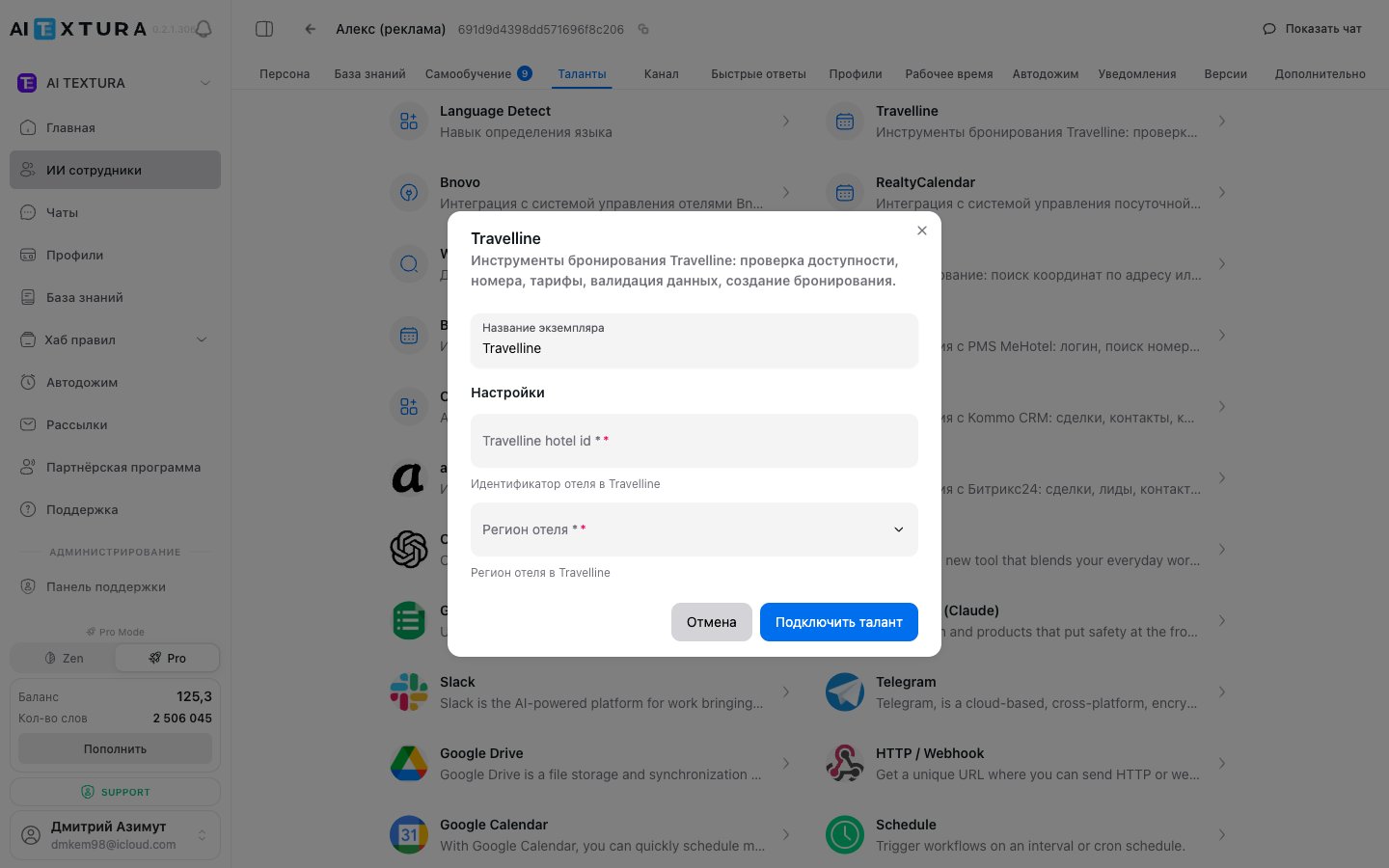 Travelline is a Russian/international PMS, especially popular across the CIS.
| Field | Description | Values |
| ------------ | --------------------------------- | ------------------------------------- |
| **Hotel ID** | Hotel identifier in Travelline | Numeric ID from the Travelline portal |
| **Region** | Which Travelline region you're in | `RU` / `BY` / `WORLD` |
Travelline is a Russian/international PMS, especially popular across the CIS.
| Field | Description | Values |
| ------------ | --------------------------------- | ------------------------------------- |
| **Hotel ID** | Hotel identifier in Travelline | Numeric ID from the Travelline portal |
| **Region** | Which Travelline region you're in | `RU` / `BY` / `WORLD` |
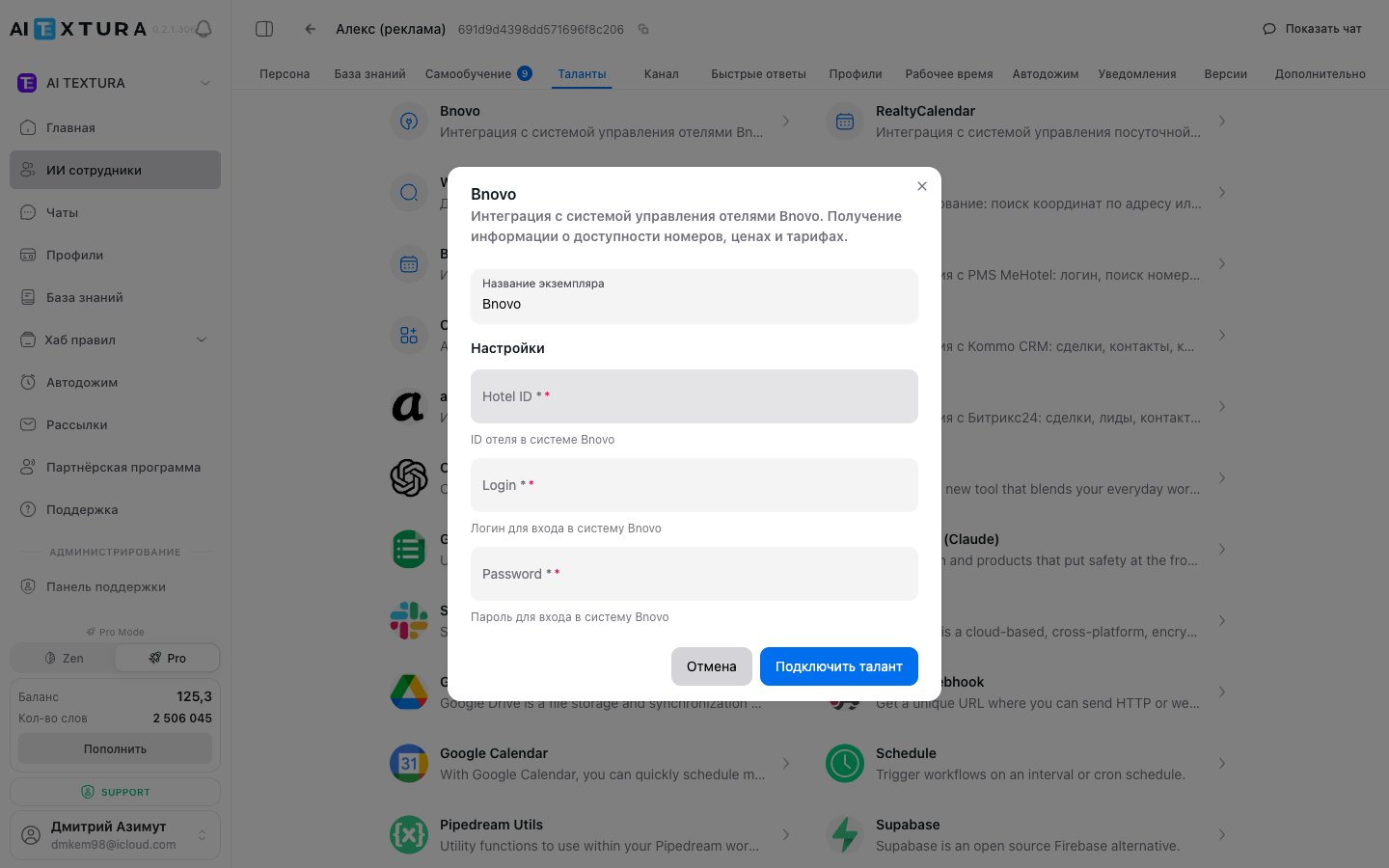 Bnovo is a cloud PMS for small hotels and guest houses.
| Field | Description |
| ------------ | ------------------------- |
| **Hotel ID** | Hotel identifier in Bnovo |
| **Login** | Bnovo account login |
| **Password** | Bnovo account password |
Bnovo is a cloud PMS for small hotels and guest houses.
| Field | Description |
| ------------ | ------------------------- |
| **Hotel ID** | Hotel identifier in Bnovo |
| **Login** | Bnovo account login |
| **Password** | Bnovo account password |