> ## Documentation Index
> Fetch the complete documentation index at: https://aitextura.mintlify.site/llms.txt
> Use this file to discover all available pages before exploring further.
# HelpDeskEddy
> Connect HelpDeskEddy as a channel: your AI Employee handles tickets as the first line and hands complex cases to a manager in the right department.
If you handle support through tickets, you don't need to connect messengers separately: everything set up in HelpDeskEddy (WhatsApp, Telegram, live chat, email) reaches your AI Employee through a single connection. It handles tickets as the first line, and whatever needs a human, it hands to a manager and goes quiet.
## What you need
* HelpDeskEddy administrator rights: only an administrator can access the API key and the **Dispatcher** section.
* Your system address, a domain like `service.example.ru`.
* A dedicated employee in HelpDeskEddy for the AI to work under. You'll need their email and ID during setup.
## Connection
**Administration → Global Settings → System → API Key**. The same key is also in the profile of the user the AI Employee will work under.
Open the AI Employee → **Channel** tab → **Connect New** → **HelpDeskEddy** and fill in the three access fields.
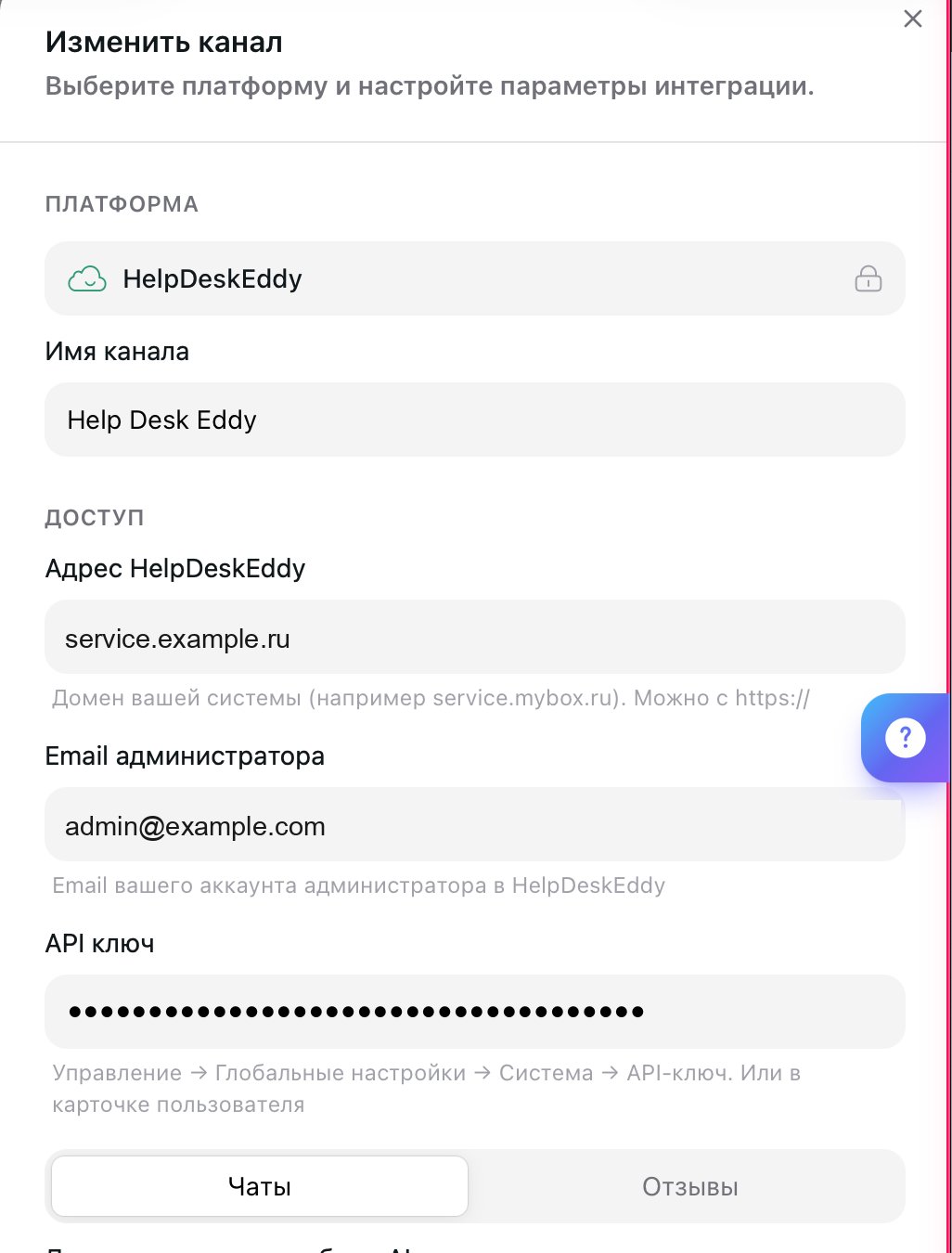 | Field | What to enter |
| ------------------------ | --------------------------------------------------------------------------------------------------------------------- |
| **HelpDeskEddy Address** | Your system's domain, `service.example.ru`. You can paste it with `https://`; the extra part is removed automatically |
| **Administrator Email** | The email of the HelpDeskEddy account the AI Employee works under |
| **API Key** | The key from the first step |
Click **Create**. The channel appears on the **Connected** tab.
Open the channel by clicking it on the **Connected** tab and go through the settings: mode, departments, handoff rules. Until you select departments, the AI Employee has nowhere to reply.
The rule is what makes HelpDeskEddy call AI TEXTURA on every new message. Open **Administration → Dispatcher** and create a rule.
| Field | What to enter |
| ------------------------ | --------------------------------------------------------------------------------------------------------------------- |
| **HelpDeskEddy Address** | Your system's domain, `service.example.ru`. You can paste it with `https://`; the extra part is removed automatically |
| **Administrator Email** | The email of the HelpDeskEddy account the AI Employee works under |
| **API Key** | The key from the first step |
Click **Create**. The channel appears on the **Connected** tab.
Open the channel by clicking it on the **Connected** tab and go through the settings: mode, departments, handoff rules. Until you select departments, the AI Employee has nowhere to reply.
The rule is what makes HelpDeskEddy call AI TEXTURA on every new message. Open **Administration → Dispatcher** and create a rule.
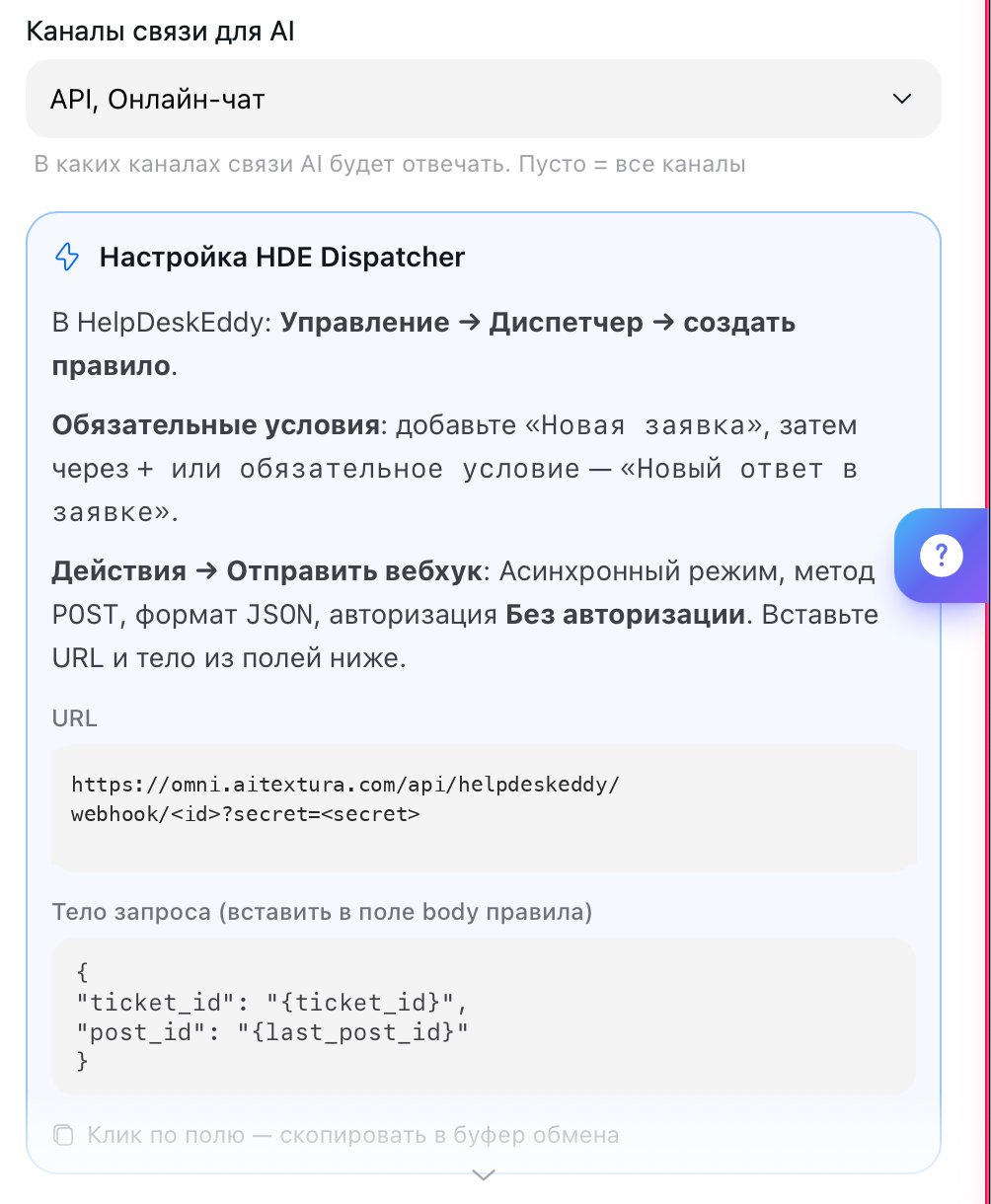 * **Conditions**: "New ticket" and "New reply in ticket."
* **Actions → Send webhook**: asynchronous mode, `POST` method, `JSON` format, **No authorization**.
* Take the **URL** and **request body** from the **HDE Dispatcher Setup** block in the channel card: clicking a field copies it to the clipboard.
The request body looks like this:
```json theme={null}
{
"ticket_id": "{ticket_id}",
"post_id": "{last_post_id}"
}
```
The webhook URL contains the channel's secret key. Anyone who knows it can send messages to your AI Employee on behalf of customers. Don't publish it.
## Test it
Write to any channel set up in HelpDeskEddy, for example your website live chat. A ticket appears in HelpDeskEddy, your AI Employee replies in it, and the conversation shows up in AI TEXTURA [Chats](/en/guides/chats).
## Handoff to a manager
The AI Employee handles the conversation as long as it's the ticket's assignee. As soon as a human manager becomes the assignee, the AI Employee goes quiet. It can hand off a ticket in two ways, and each is configured separately.
**First-line handoff** keeps the ticket in the same department: the AI Employee sets the **Operator Needed** status, and the HelpDeskEddy distribution rule then picks an available manager. Use this for questions a first-line operator can resolve.
* **Conditions**: "New ticket" and "New reply in ticket."
* **Actions → Send webhook**: asynchronous mode, `POST` method, `JSON` format, **No authorization**.
* Take the **URL** and **request body** from the **HDE Dispatcher Setup** block in the channel card: clicking a field copies it to the clipboard.
The request body looks like this:
```json theme={null}
{
"ticket_id": "{ticket_id}",
"post_id": "{last_post_id}"
}
```
The webhook URL contains the channel's secret key. Anyone who knows it can send messages to your AI Employee on behalf of customers. Don't publish it.
## Test it
Write to any channel set up in HelpDeskEddy, for example your website live chat. A ticket appears in HelpDeskEddy, your AI Employee replies in it, and the conversation shows up in AI TEXTURA [Chats](/en/guides/chats).
## Handoff to a manager
The AI Employee handles the conversation as long as it's the ticket's assignee. As soon as a human manager becomes the assignee, the AI Employee goes quiet. It can hand off a ticket in two ways, and each is configured separately.
**First-line handoff** keeps the ticket in the same department: the AI Employee sets the **Operator Needed** status, and the HelpDeskEddy distribution rule then picks an available manager. Use this for questions a first-line operator can resolve.
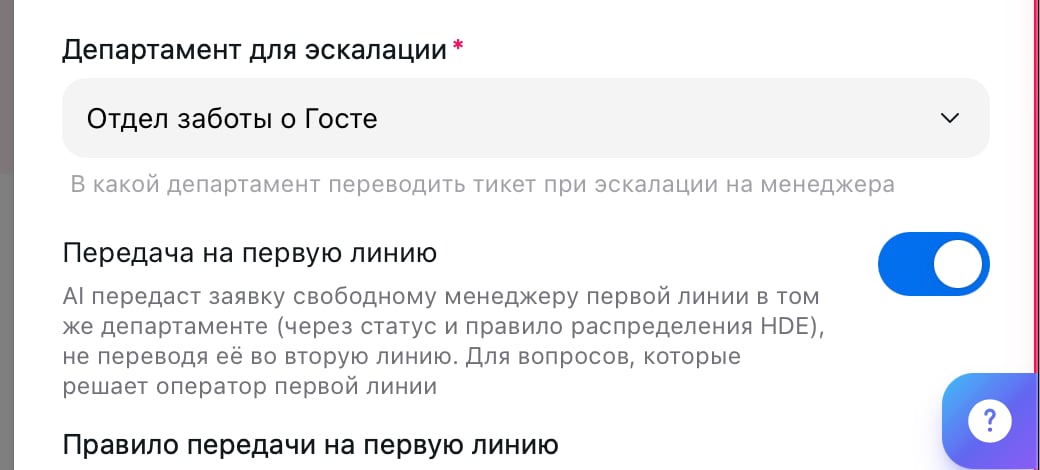 **Second-line handoff** moves the ticket to a separate managers' department, the one selected in the **Escalation Department** field.
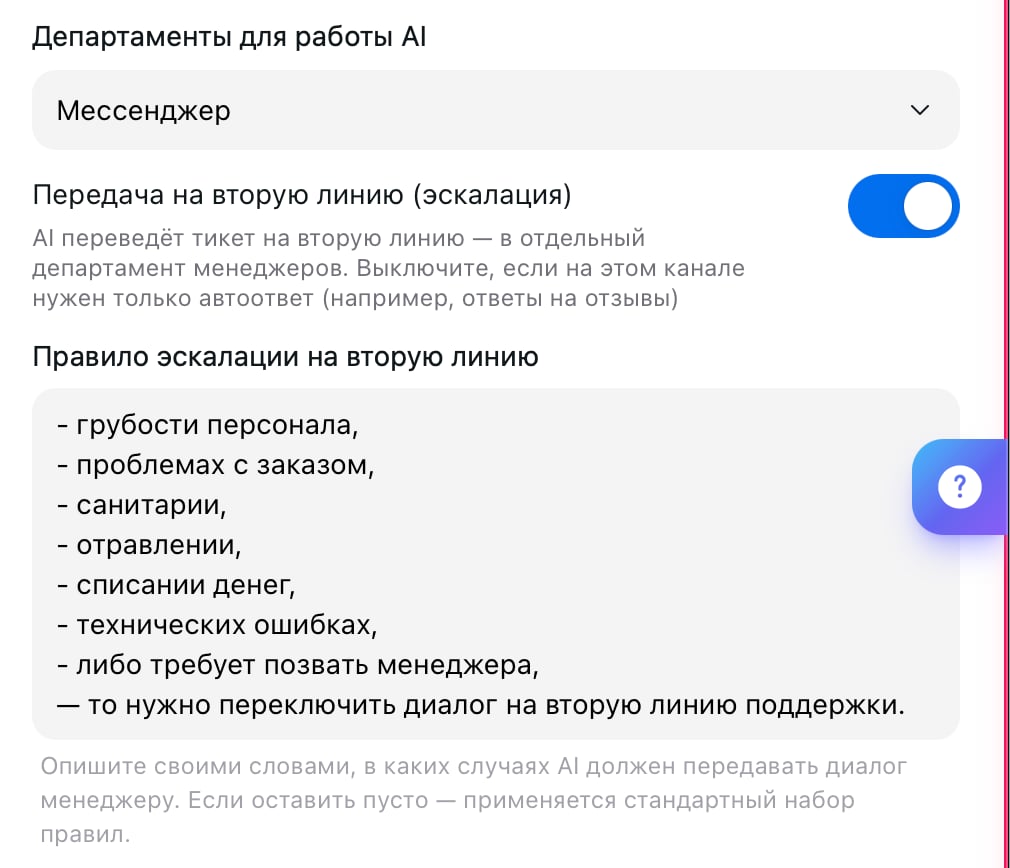 In both cases, there's a rule field next to the toggle: describe in your own words when the AI Employee should hand the ticket to a human, for example "if the customer complains about rude staff, reports a billing error, or asks for a manager." If you leave it empty, the default rule set applies.
Turn off **Second-Line Handoff** if this channel only needs auto-replies, for example when the AI Employee responds to reviews.
## Channel settings
The defaults don't suit every support team, so go through the settings right away.
| Setting | What it does |
| --------------------------------- | ---------------------------------------------------------------------------------------------------------------------------------------------------- |
| **Chats / Reviews** | Channel mode: handle conversations in tickets or respond to reviews |
| **Departments for AI** | Which departments the AI Employee replies in. Until you select at least one, it stays silent |
| **Communication Channels for AI** | Which communication channels it replies in: API, live chat, messengers. Empty means all |
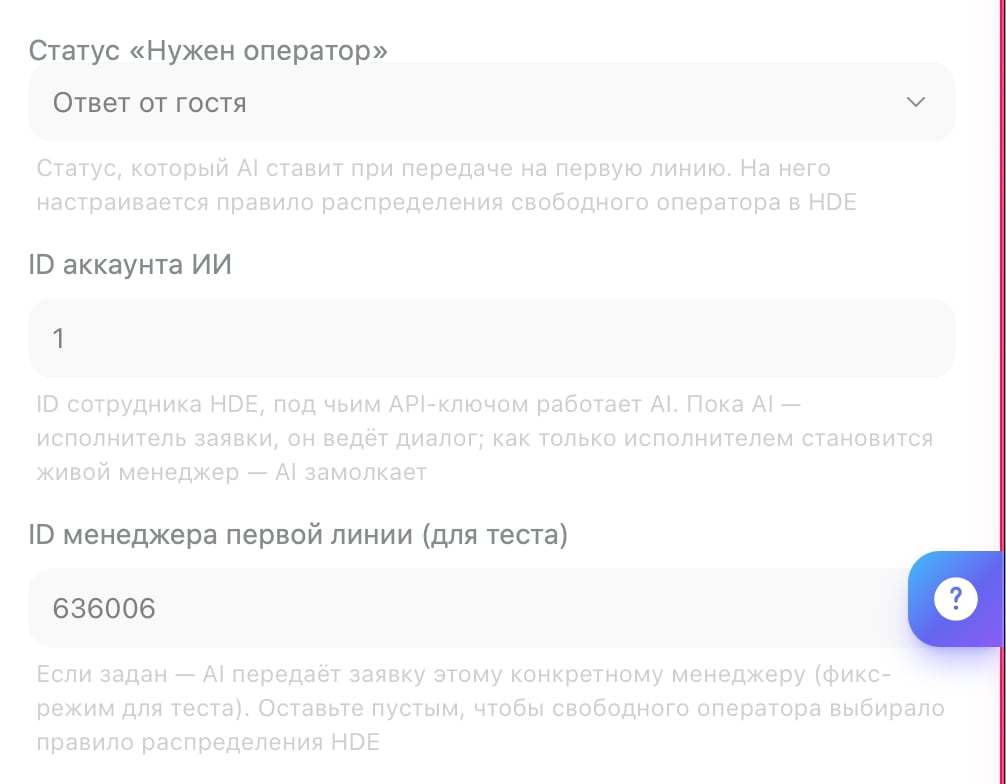
| **Operator Needed Status** | The status the AI Employee sets on first-line handoff. Set up your HelpDeskEddy distribution rule to trigger on it |
| **AI Account ID** | The ID of the HelpDeskEddy employee whose API key the AI uses |
| **First-Line Manager ID** | The ticket goes to this specific manager. This field is for testing: leave it empty so the distribution rule applies |
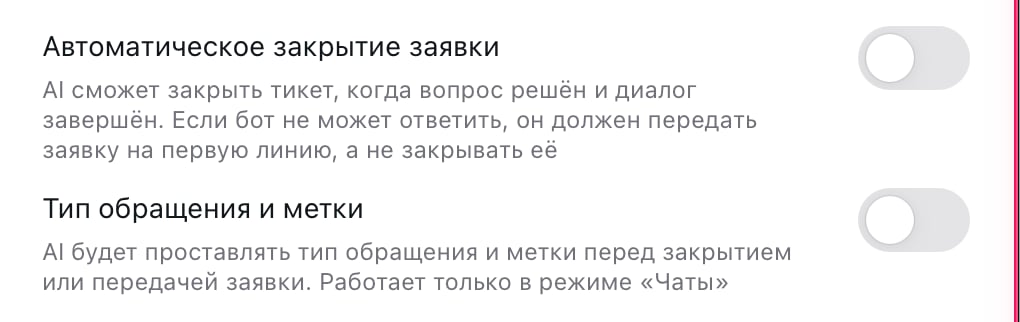
| **Auto-Close Ticket** | The AI Employee closes the ticket once the issue is resolved |
| **Request Type and Tags** | The AI Employee sets the type and tags before closing or handing off. Works only in **Chats** mode |
| **Message Buffer** | The AI Employee waits for the **Buffer Time** (10 seconds by default) before replying, since customers often split one thought into several messages |
| **History Auto-Cleanup** | Deletes the conversation on a schedule, permanently |
In both cases, there's a rule field next to the toggle: describe in your own words when the AI Employee should hand the ticket to a human, for example "if the customer complains about rude staff, reports a billing error, or asks for a manager." If you leave it empty, the default rule set applies.
Turn off **Second-Line Handoff** if this channel only needs auto-replies, for example when the AI Employee responds to reviews.
## Channel settings
The defaults don't suit every support team, so go through the settings right away.
| Setting | What it does |
| --------------------------------- | ---------------------------------------------------------------------------------------------------------------------------------------------------- |
| **Chats / Reviews** | Channel mode: handle conversations in tickets or respond to reviews |
| **Departments for AI** | Which departments the AI Employee replies in. Until you select at least one, it stays silent |
| **Communication Channels for AI** | Which communication channels it replies in: API, live chat, messengers. Empty means all |
| **Operator Needed Status** | The status the AI Employee sets on first-line handoff. Set up your HelpDeskEddy distribution rule to trigger on it |
| **AI Account ID** | The ID of the HelpDeskEddy employee whose API key the AI uses |
| **First-Line Manager ID** | The ticket goes to this specific manager. This field is for testing: leave it empty so the distribution rule applies |
| **Auto-Close Ticket** | The AI Employee closes the ticket once the issue is resolved |
| **Request Type and Tags** | The AI Employee sets the type and tags before closing or handing off. Works only in **Chats** mode |
| **Message Buffer** | The AI Employee waits for the **Buffer Time** (10 seconds by default) before replying, since customers often split one thought into several messages |
| **History Auto-Cleanup** | Deletes the conversation on a schedule, permanently |
 ## What's next
The other ticket system: replies as comments in tasks
Where to describe what the AI Employee handles itself and what it hands to a human
A Telegram alert when a ticket needs a manager
All the ways to connect customers to your AI Employee
## What's next
The other ticket system: replies as comments in tasks
Where to describe what the AI Employee handles itself and what it hands to a human
A Telegram alert when a ticket needs a manager
All the ways to connect customers to your AI Employee