> ## Documentation Index
> Fetch the complete documentation index at: https://aitextura.mintlify.site/llms.txt
> Use this file to discover all available pages before exploring further.
# amoCRM
> The amoCRM integration lets your AI employee handle incoming inquiries directly in your CRM. amoCRM connects in two ways — as a channel (a source of messages) and as a talent (CRM operations via MCP). Both use OAuth.
 What a channel is and how it works in AI Textura
A similar CRM with channel / talent split
WhatsApp, Instagram, VK via aggregators and Kommo
Catalog of MCP tools and integrations
## Two ways to connect amoCRM
amoCRM integrates with AI Textura in two independent ways. Both rely on amoCRM OAuth, but they solve different problems:
| | **Channel** | **Talent** |
| ---------------------- | ------------------------------------------------------------- | ------------------------------------------------------------------------------------------------------------------ |
| Where it is configured | The agent's **Channel** tab | The agent's **Talents** tab |
| What it does | The AI receives and replies to messages that arrive in amoCRM | The AI performs CRM actions: creates deals and contacts, finds existing ones, schedules tasks, adds notes and tags |
| Technology | OAuth + message forwarding to AI Textura | MCP server (Model Context Protocol) |
| Minimum to work | An authorized amoCRM account | An authorized amoCRM account (the same one or another) |
Both connections share the same OAuth bridge — after you authorize amoCRM once, the second connection type can pick the same account without signing in again.
AI employees do not create leads or deals **automatically** just because the channel is connected — that requires the **talent**. The channel only forwards messages to AI Textura.
***
## Connecting amoCRM as a channel
The channel ensures that all messages arriving in amoCRM reach the AI employee, who can then reply directly from the deal card.
### What the channel provides
* The AI employee responds to customers directly from amoCRM.
* Managers see the full conversation in the deal card.
* You can route messages from WhatsApp, Telegram, Instagram, and other channels configured in amoCRM.
### How to connect the channel
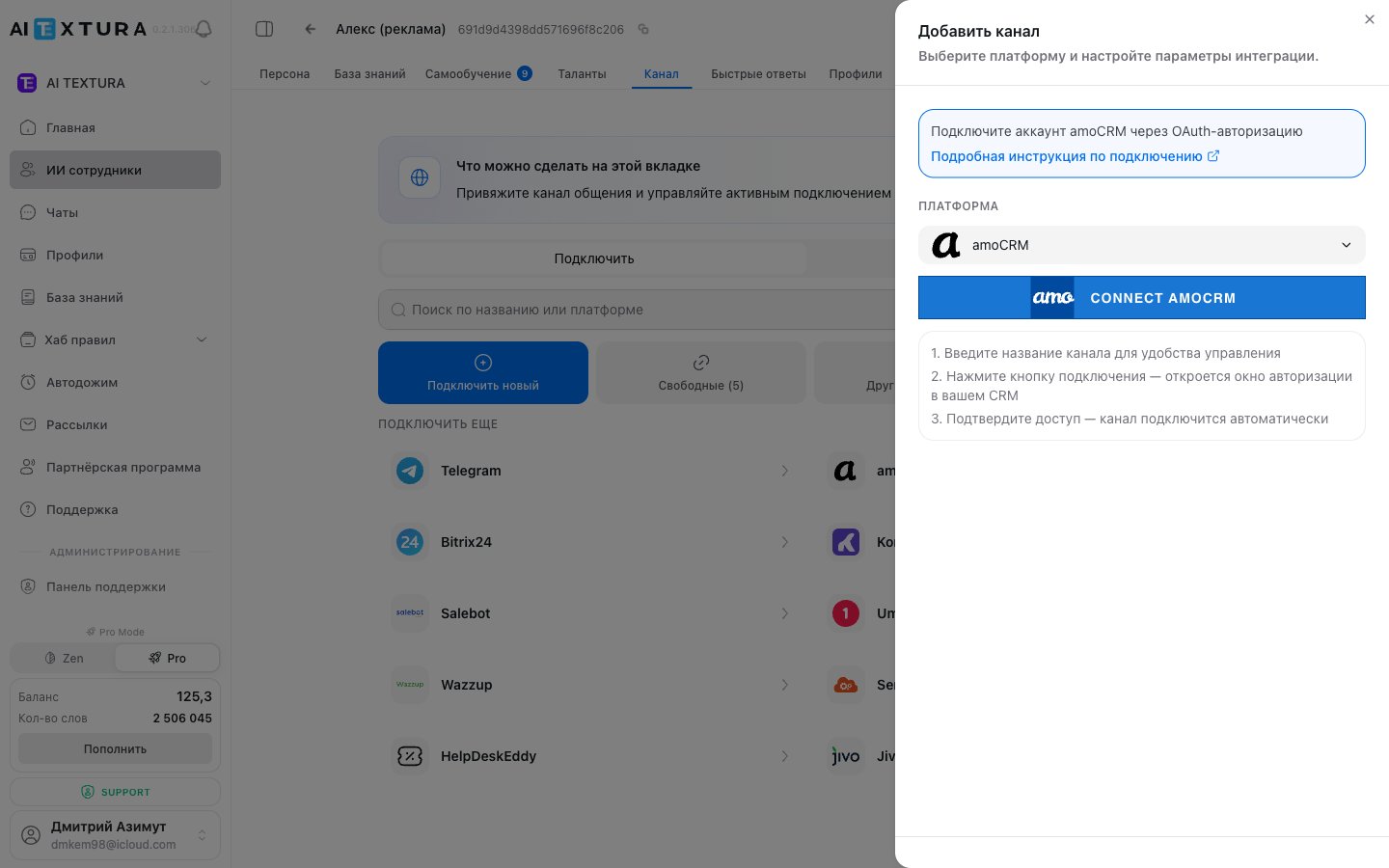
Go to [AI Employees](/en/guides/ai-employees) → select the agent → **Channel** tab → **Connect new** sub-tab.
In the platform list, find **amoCRM** and click on it.
In the side panel, choose **Create**.
Click **Connect amoCRM channel** — an amoCRM window will open. Sign in to your account and confirm access.
* **Platform**: already selected — amoCRM.
* **Channel name**: any name convenient for you.
* **Long-term token**: filled in automatically after OAuth (or paste it manually from amoCRM settings).
Click **Connect**. The channel will appear in the **Connected** tab.
### Where to get the amoCRM token (fallback path)
If OAuth does not work, you can connect the channel using a long-term token:
Go to amoCRM → **Settings** → **Integrations**.
Find or create the AI Textura integration.
In the **"Keys and access"** section, copy the long-term token.
***
## Connecting amoCRM as a talent (MCP)
What a channel is and how it works in AI Textura
A similar CRM with channel / talent split
WhatsApp, Instagram, VK via aggregators and Kommo
Catalog of MCP tools and integrations
## Two ways to connect amoCRM
amoCRM integrates with AI Textura in two independent ways. Both rely on amoCRM OAuth, but they solve different problems:
| | **Channel** | **Talent** |
| ---------------------- | ------------------------------------------------------------- | ------------------------------------------------------------------------------------------------------------------ |
| Where it is configured | The agent's **Channel** tab | The agent's **Talents** tab |
| What it does | The AI receives and replies to messages that arrive in amoCRM | The AI performs CRM actions: creates deals and contacts, finds existing ones, schedules tasks, adds notes and tags |
| Technology | OAuth + message forwarding to AI Textura | MCP server (Model Context Protocol) |
| Minimum to work | An authorized amoCRM account | An authorized amoCRM account (the same one or another) |
Both connections share the same OAuth bridge — after you authorize amoCRM once, the second connection type can pick the same account without signing in again.
AI employees do not create leads or deals **automatically** just because the channel is connected — that requires the **talent**. The channel only forwards messages to AI Textura.
***
## Connecting amoCRM as a channel
The channel ensures that all messages arriving in amoCRM reach the AI employee, who can then reply directly from the deal card.
### What the channel provides
* The AI employee responds to customers directly from amoCRM.
* Managers see the full conversation in the deal card.
* You can route messages from WhatsApp, Telegram, Instagram, and other channels configured in amoCRM.
### How to connect the channel
Go to [AI Employees](/en/guides/ai-employees) → select the agent → **Channel** tab → **Connect new** sub-tab.
In the platform list, find **amoCRM** and click on it.
In the side panel, choose **Create**.
Click **Connect amoCRM channel** — an amoCRM window will open. Sign in to your account and confirm access.
* **Platform**: already selected — amoCRM.
* **Channel name**: any name convenient for you.
* **Long-term token**: filled in automatically after OAuth (or paste it manually from amoCRM settings).
Click **Connect**. The channel will appear in the **Connected** tab.
### Where to get the amoCRM token (fallback path)
If OAuth does not work, you can connect the channel using a long-term token:
Go to amoCRM → **Settings** → **Integrations**.
Find or create the AI Textura integration.
In the **"Keys and access"** section, copy the long-term token.
***
## Connecting amoCRM as a talent (MCP)
 The talent is an **MCP server** through which the AI can work with amoCRM **deals, contacts, companies, pipelines, tasks, and notes** during a conversation.
### When you need the talent
* The AI should create deals automatically based on the conversation outcome.
* You need to look up an existing customer in the database before responding.
* The AI should schedule tasks for managers or assign a responsible manager.
* You want notes and tags maintained based on the dialog.
### How to connect the talent
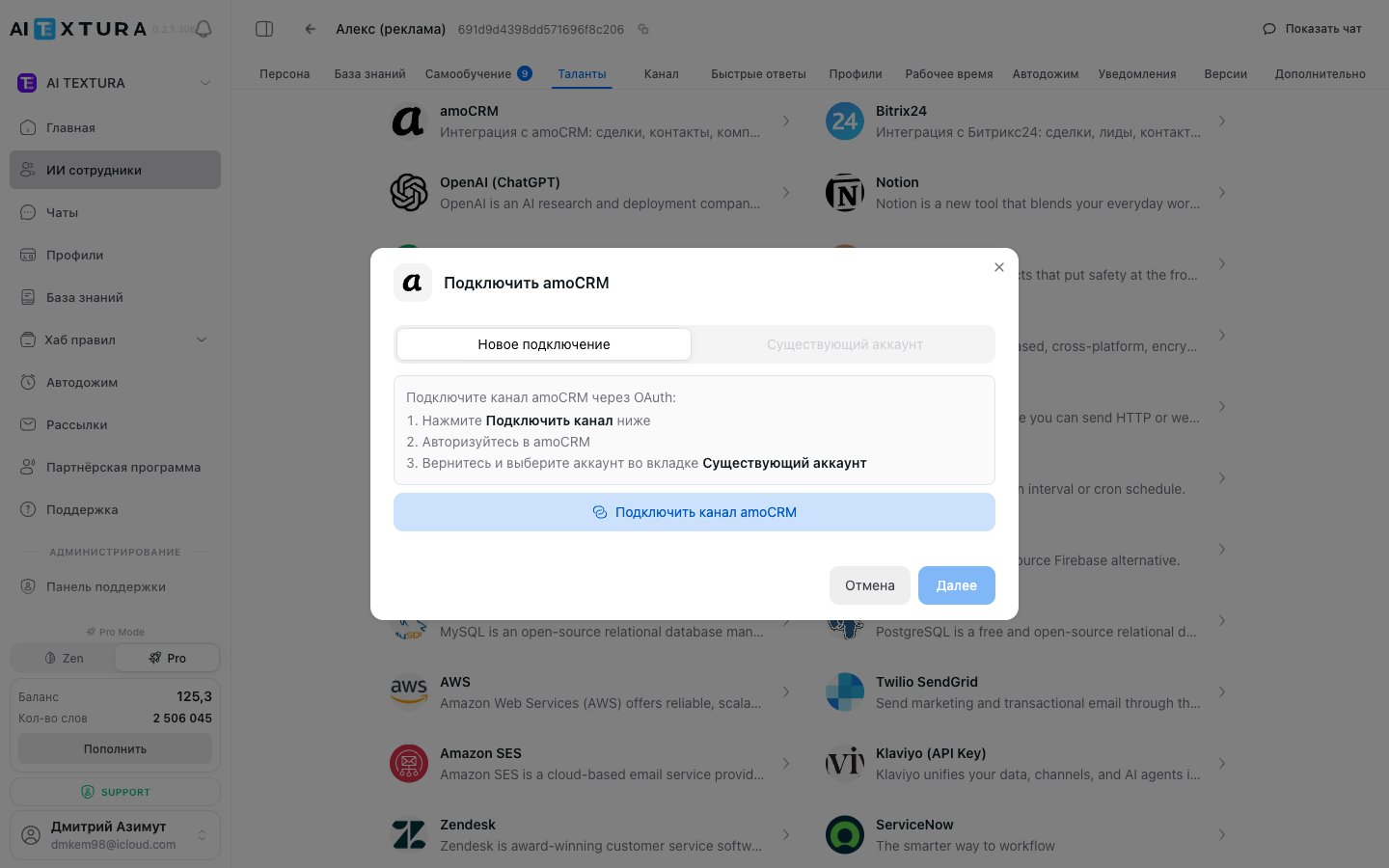
On the agent page, go to the **Talents** tab → **Browse apps**.
The amoCRM card lives in the **Business Management** category.
The "Connect amoCRM" modal has two tabs:
* **New connection** — starts the OAuth flow with amoCRM.
* **Existing account** — pick a previously authorized account (if you already have an amoCRM channel connected, or if another agent used the same login).
On the "New connection" tab, click **Connect amoCRM channel**, sign in to amoCRM, and confirm access.
The talent will appear in the **Connected** tab on the agent page.
The talent and channel **can share a single amoCRM account** — the OAuth bridge remembers the authorization, so picking "Existing account" for the second connection skips the sign-in.
The talent acts on behalf of the authorized user. Mind their permissions in amoCRM — if the user has no access to a pipeline or task, the talent cannot work with it either.
***
## Kommo
Kommo (the international version of amoCRM) is connected the same way — both as a channel and as a talent. It uses the same OAuth bridge, but with a Kommo endpoint.
On the **Channel** or **Talents** tab, select the **Kommo** platform.
In the modal, click **Connect KommoCRM**.
Log in to your Kommo account and confirm access.
Click **Add** — the connection is ready.
Kommo includes built-in channels: WhatsApp, Telegram, Instagram, VK. Every messenger connected in Kommo automatically becomes available to the AI employee through the Kommo channel.
***
## FAQ
It depends on what you need. If you only want **conversations** in the deal card, the channel is enough. If the AI should **create deals on its own, schedule tasks, or look up customers in the database**, you need the talent. Most setups use both.
Yes. After the first amoCRM authorization, the second connection (channel or talent) can select "Existing account" — no login or password is required again.
Make sure your browser is not blocking pop-ups for the AI Textura domain. If the integration has been removed in amoCRM or the permissions revoked, recreate the integration and use the long-term token from the "Keys and access" section.
Yes. They are two separate platforms and work independently. Connect them one at a time — each requires its own OAuth.
Check: (1) the amoCRM channel is active and not disabled in AI Textura; (2) the chosen agent is "Active"; (3) the agent's working hours allow it to operate right now; (4) inside amoCRM the messenger is routed to the correct agent.
The talent is an **MCP server** through which the AI can work with amoCRM **deals, contacts, companies, pipelines, tasks, and notes** during a conversation.
### When you need the talent
* The AI should create deals automatically based on the conversation outcome.
* You need to look up an existing customer in the database before responding.
* The AI should schedule tasks for managers or assign a responsible manager.
* You want notes and tags maintained based on the dialog.
### How to connect the talent
On the agent page, go to the **Talents** tab → **Browse apps**.
The amoCRM card lives in the **Business Management** category.
The "Connect amoCRM" modal has two tabs:
* **New connection** — starts the OAuth flow with amoCRM.
* **Existing account** — pick a previously authorized account (if you already have an amoCRM channel connected, or if another agent used the same login).
On the "New connection" tab, click **Connect amoCRM channel**, sign in to amoCRM, and confirm access.
The talent will appear in the **Connected** tab on the agent page.
The talent and channel **can share a single amoCRM account** — the OAuth bridge remembers the authorization, so picking "Existing account" for the second connection skips the sign-in.
The talent acts on behalf of the authorized user. Mind their permissions in amoCRM — if the user has no access to a pipeline or task, the talent cannot work with it either.
***
## Kommo
Kommo (the international version of amoCRM) is connected the same way — both as a channel and as a talent. It uses the same OAuth bridge, but with a Kommo endpoint.
On the **Channel** or **Talents** tab, select the **Kommo** platform.
In the modal, click **Connect KommoCRM**.
Log in to your Kommo account and confirm access.
Click **Add** — the connection is ready.
Kommo includes built-in channels: WhatsApp, Telegram, Instagram, VK. Every messenger connected in Kommo automatically becomes available to the AI employee through the Kommo channel.
***
## FAQ
It depends on what you need. If you only want **conversations** in the deal card, the channel is enough. If the AI should **create deals on its own, schedule tasks, or look up customers in the database**, you need the talent. Most setups use both.
Yes. After the first amoCRM authorization, the second connection (channel or talent) can select "Existing account" — no login or password is required again.
Make sure your browser is not blocking pop-ups for the AI Textura domain. If the integration has been removed in amoCRM or the permissions revoked, recreate the integration and use the long-term token from the "Keys and access" section.
Yes. They are two separate platforms and work independently. Connect them one at a time — each requires its own OAuth.
Check: (1) the amoCRM channel is active and not disabled in AI Textura; (2) the chosen agent is "Active"; (3) the agent's working hours allow it to operate right now; (4) inside amoCRM the messenger is routed to the correct agent.