> ## Documentation Index
> Fetch the complete documentation index at: https://aitextura.mintlify.site/llms.txt
> Use this file to discover all available pages before exploring further.
# Channels
> A channel is a messenger, CRM system, or other platform through which your AI employee communicates with real customers. Without a connected channel, the agent only works in the test chat inside AI Textura.
 Direct connection of a Telegram bot or personal account
WhatsApp via Wazzup, Umnico, SendAPI, Jivo, and more
Connect your CRM via OAuth — channel and/or talent
Bitrix24 open channels + CRM operations via talent
## What is a channel
A channel is a messenger, CRM system, or other platform through which your AI employee communicates with real customers. A Telegram bot, an amoCRM integration, a WhatsApp connection through Wazzup — these are all channels.
Without a connected channel, the agent only works in the test chat inside AI Textura. This is convenient for setup and debugging, but to have the employee start responding to real customers, you need to connect at least one channel.
**One channel = one employee.** You cannot assign multiple AI employees to a single channel.\
However, one employee can be connected to multiple channels — for example, Telegram + amoCRM.
The work schedule is configured at the agent level and applies to **all** of its channels simultaneously. If you need different schedules for different channels, create separate AI employees.
***
## Supported platforms
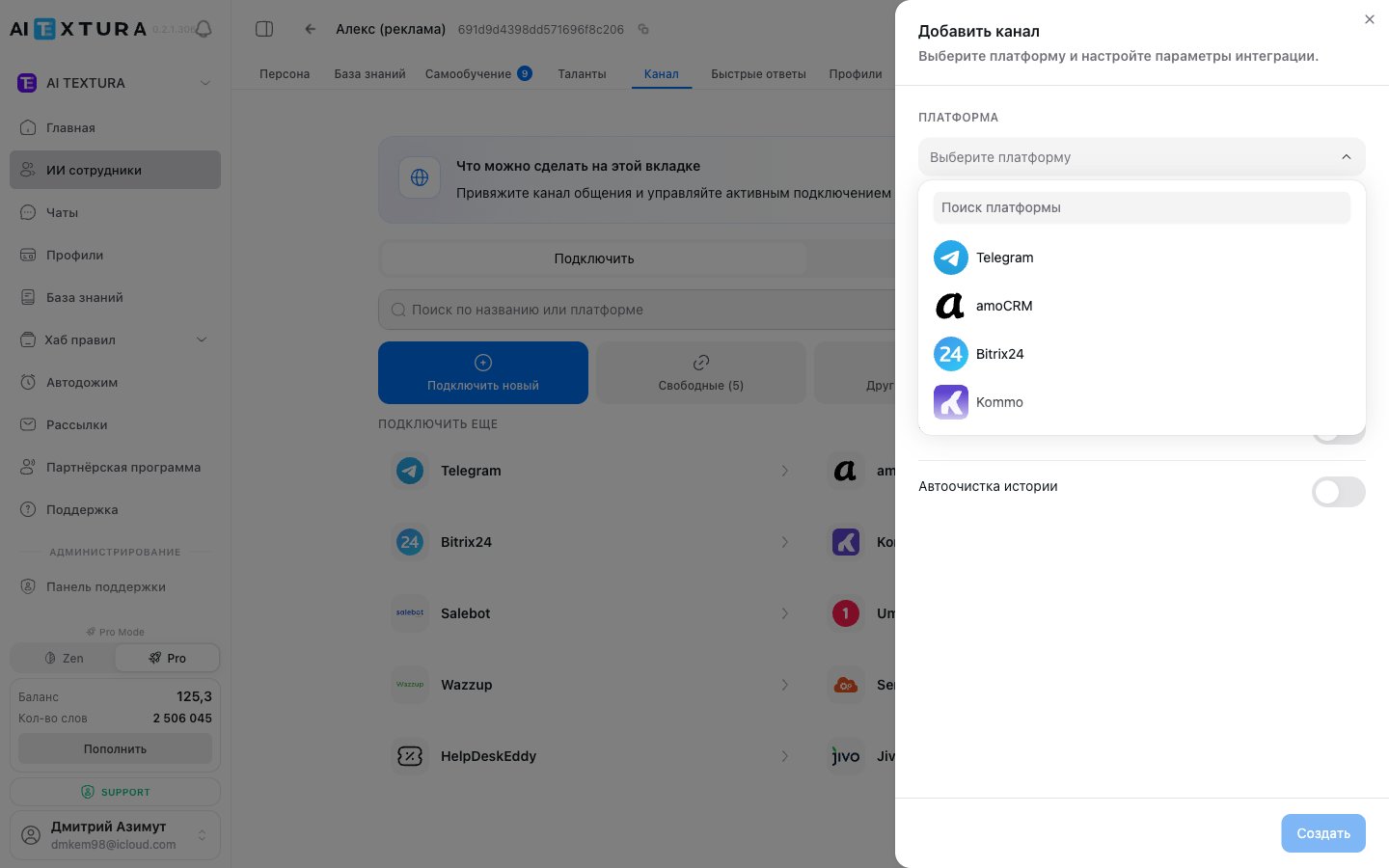
The "Connect new channel" dropdown currently lists **11 platforms**:
| Channel | Type | Purpose |
| ---------------- | ------------------------- | -------------------------------------------------------------------------------------------------- |
| **Telegram** | Messenger | Direct connection via a bot token from @BotFather. Personal and Group channel types are supported |
| **amoCRM** | CRM system | OAuth connection. Managers see conversations in the deal card |
| **Bitrix24** | CRM system | REST webhook for Bitrix24 open channels |
| **Planfix** | Work management system | Replies as comments inside tasks. Planfix delivers them to the customer's own messenger |
| **Kommo** | CRM with messengers | International counterpart of amoCRM. WhatsApp, Telegram, Instagram, and VK are built in |
| **Salebot** | Automation platform | Bot and funnel builder. WhatsApp, Telegram, VK, Viber |
| **Umnico** | Messenger aggregator | Combines WhatsApp, Telegram, Instagram, VK, Viber, Facebook, and others |
| **Wazzup** | WhatsApp integration | Specializes in WhatsApp connections (personal and Business API). Also Instagram / Avito / Telegram |
| **SendAPI** | Universal API | For custom integrations via HTTP webhooks |
| **HelpDeskEddy** | Helpdesk platform | Ticket system with messenger support |
| **Jivo** | Live chat and omnichannel | Website widgets, messengers, and email in one window |
Direct connection of a Telegram bot or personal account
WhatsApp via Wazzup, Umnico, SendAPI, Jivo, and more
Connect your CRM via OAuth — channel and/or talent
Bitrix24 open channels + CRM operations via talent
## What is a channel
A channel is a messenger, CRM system, or other platform through which your AI employee communicates with real customers. A Telegram bot, an amoCRM integration, a WhatsApp connection through Wazzup — these are all channels.
Without a connected channel, the agent only works in the test chat inside AI Textura. This is convenient for setup and debugging, but to have the employee start responding to real customers, you need to connect at least one channel.
**One channel = one employee.** You cannot assign multiple AI employees to a single channel.\
However, one employee can be connected to multiple channels — for example, Telegram + amoCRM.
The work schedule is configured at the agent level and applies to **all** of its channels simultaneously. If you need different schedules for different channels, create separate AI employees.
***
## Supported platforms
The "Connect new channel" dropdown currently lists **11 platforms**:
| Channel | Type | Purpose |
| ---------------- | ------------------------- | -------------------------------------------------------------------------------------------------- |
| **Telegram** | Messenger | Direct connection via a bot token from @BotFather. Personal and Group channel types are supported |
| **amoCRM** | CRM system | OAuth connection. Managers see conversations in the deal card |
| **Bitrix24** | CRM system | REST webhook for Bitrix24 open channels |
| **Planfix** | Work management system | Replies as comments inside tasks. Planfix delivers them to the customer's own messenger |
| **Kommo** | CRM with messengers | International counterpart of amoCRM. WhatsApp, Telegram, Instagram, and VK are built in |
| **Salebot** | Automation platform | Bot and funnel builder. WhatsApp, Telegram, VK, Viber |
| **Umnico** | Messenger aggregator | Combines WhatsApp, Telegram, Instagram, VK, Viber, Facebook, and others |
| **Wazzup** | WhatsApp integration | Specializes in WhatsApp connections (personal and Business API). Also Instagram / Avito / Telegram |
| **SendAPI** | Universal API | For custom integrations via HTTP webhooks |
| **HelpDeskEddy** | Helpdesk platform | Ticket system with messenger support |
| **Jivo** | Live chat and omnichannel | Website widgets, messengers, and email in one window |
 **WhatsApp, Avito, and the website widget** cannot be connected as standalone channels.
* **WhatsApp** is connected through **Wazzup** (or Umnico, Kommo, SendAPI). See [Messengers via aggregators](/en/channels/messengers).
* **Avito** and the **website widget** are not yet available as separate channels — stay tuned for updates.
If you need to connect WhatsApp, Instagram, or other messengers but do not use a CRM system, an aggregator (Umnico, Wazzup) is the simplest solution.
***
## Channel vs Talent
Many platforms (Bitrix24, amoCRM, Kommo) can be connected **twice** — as a channel and as a talent:
| | **Channel** | **Talent** |
| -------------------------- | --------------------------- | ------------------------------------------------------------------------------ |
| Where it is configured | The agent's **Channel** tab | The agent's **Talents** tab |
| Purpose | Source of incoming messages | CRM actions (creating deals, finding contacts, assigning responsible managers) |
| Technology | REST webhook / OAuth | MCP server (Model Context Protocol) |
| Can work without the other | Yes | Yes |
The channel and the talent for the same CRM can be connected **at the same time**. The channel handles the conversation with the customer; the talent performs CRM operations on behalf of the AI employee.
Learn more: [Bitrix24 as a talent](/en/channels/bittrix24#connecting-bitrix24-as-a-talent-mcp), [amoCRM as a talent](/en/channels/amocrm#connecting-amocrm-as-a-talent-mcp).
***
## Connection types
| Connection type | When to use | What you need |
| -------------------------------- | --------------------------------------------------------- | ------------------------------------------------------- |
| **Direct connection (Telegram)** | Quick and free AI launch | A Telegram account and a bot |
| **Connection via CRM** | If you have amoCRM, Kommo, or Bitrix24 | OAuth authorization or a webhook |
| **Connection via aggregator** | If you have no CRM but need WhatsApp, VK, Instagram, etc. | Registration and an API key from the aggregator service |
***
## Channel section interface
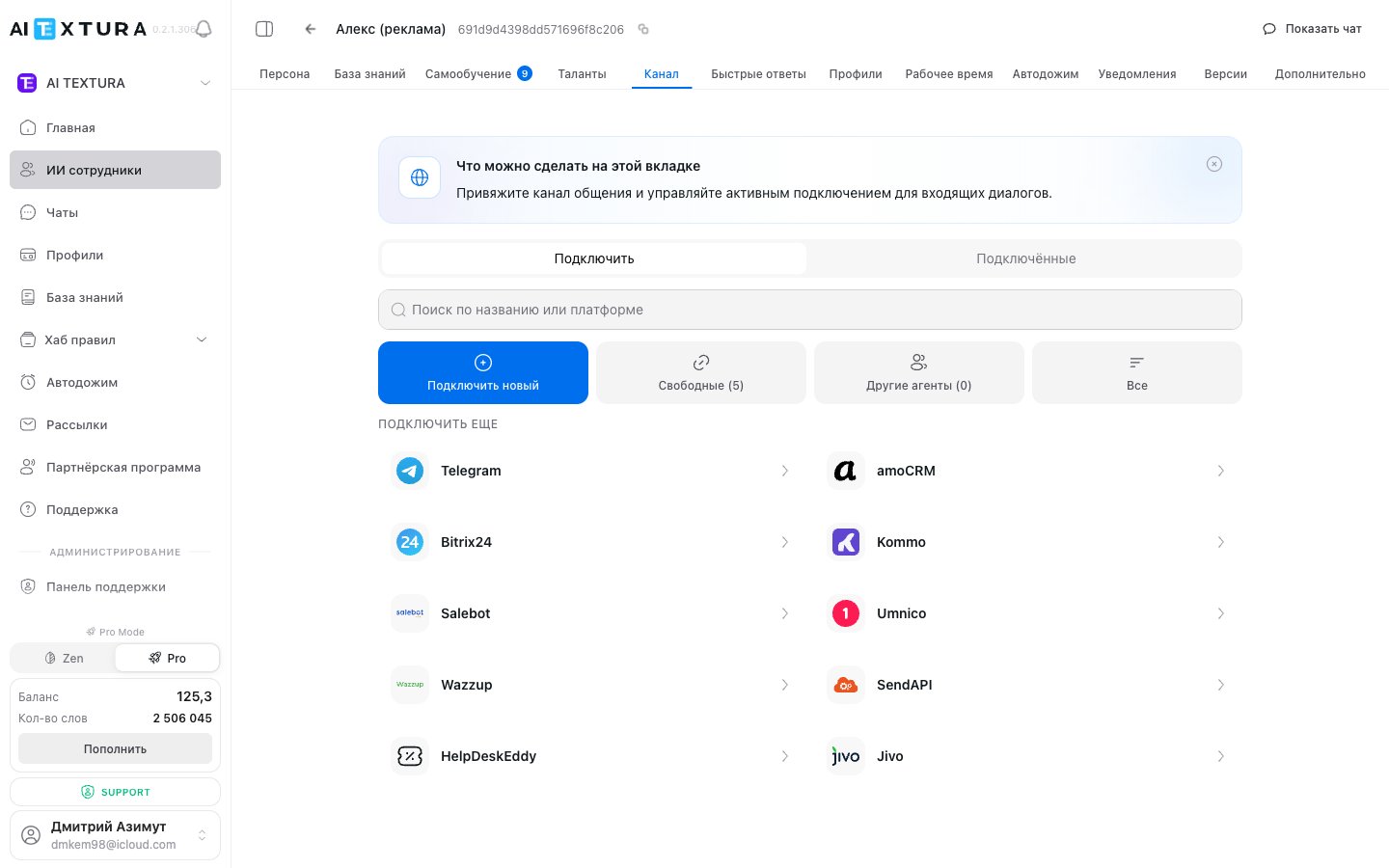
Open the desired AI employee and go to the **Channel** tab. Inside there are two sub-tabs:
| Sub-tab | What's inside |
| --------------- | ------------------------------------------------------------------------------------------------------------ |
| **Connect new** | Catalog of all available platforms. Filters: **Available** (not yet bound to any agent) and **Other agents** |
| **Connected** | Channels already linked to this employee |
A **search bar** at the top lets you search by channel name or platform.
For each connected channel you can see:
* **Bot name** — for example, @my\_hotel\_bot
* **Platform** — for example, Telegram
* **Owner** — the user who connected the channel
***
## Connected channel settings
After connecting a channel, click on it in the **Connected** tab to open settings.
| Setting | Values | Description |
| -------------------------- | ---------------- | ------------------------------------------------------------------------------------------------------ |
| **Active** | On / Off | Enables or disables the channel. A disabled channel remains in the list but the agent stops responding |
| **Free** | On / Off | Messages through this channel are not billed. Useful for testing |
| **AI inline buttons** | On / Off | The agent can send quick-select buttons directly in the chat |
| **Message buffer** | On / Off | The agent waits a few seconds before responding so the customer can finish their thought |
| **Buffer time** | Slider (seconds) | How long to wait for new messages. Appears when the buffer is enabled |
| **Auto-clear history** | On / Off | Old chat messages are automatically deleted on a schedule |
| **Channel type: Personal** | — | The bot communicates with the customer one-on-one |
| **Channel type: Group** | — | The bot works in a group chat |
### Message buffer
The buffer is useful when customers send a single thought across multiple consecutive messages. Without the buffer, the agent will start responding after the first message without waiting for the rest.
Click the connected channel in the **Connected** tab.
Toggle on the **Message buffer** switch.
Adjust the **Buffer time** — 3-5 seconds is recommended.
Click **Save**.
The recommended buffer time is 3-5 seconds. That's enough for a customer to finish their thought. More than 10 seconds is too long; less than 1 second has no effect.
***
## How to connect a channel to an employee
Go to [AI Employees](/en/guides/ai-employees) and select the desired agent.
Open the **Connect new** sub-tab and pick a platform from the list.
In the side panel, choose **Create** (a new connection) or **Existing** (a previously created channel).
Enter the channel name, paste the token / API key / webhook, and click **Connect**.
***
## How to transfer a channel between employees
1. Disconnect the channel from the current agent.
2. Open the desired agent and go to the **Channel** tab.
3. Connect the channel through the **Existing** sub-tab.
***
## Important rules
**Disabling a channel and disabling an employee are different actions.** If you disable the channel, the system stops seeing incoming messages. If you disable the employee, messages keep coming in but the AI does not respond to them.
If you need to temporarily switch to manual responses by managers, disable the employee, not the channel. That way the conversation history is preserved.
***
## FAQ
Yes, you can connect as many channels as you like. For example, one employee can simultaneously work in Telegram and amoCRM.
The schedule is configured at the agent level and applies to all of its channels simultaneously. If you need different schedules, create separate AI employees.
WhatsApp cannot be connected directly — use an aggregator. The simplest path: register with [Wazzup](/en/channels/messengers) or Umnico, connect WhatsApp there, then integrate the aggregator with AI Textura via API key.
Avito and the website widget are not currently available as standalone channels. Avito can be connected via aggregators (Umnico, Wazzup, SendAPI) that support it. The website widget is still in development.
Check three things: (1) agent status — it should be "Active"; (2) at least one channel is connected; (3) the work schedule is configured — the agent might currently be "off shift."
No. Currently voice messages are only supported in Telegram. If you need IP telephony, contact support.
A Personal channel is a one-on-one conversation between the bot and the customer. A Group channel allows the bot to work in group chats. For most tasks, the Personal channel is recommended.
A channel is the **source of incoming messages** from the CRM (via webhook or OAuth). A talent is an **MCP server** through which the AI performs operations in the CRM (creating deals, finding contacts, assigning managers). They can be connected at the same time. See [Bitrix24](/en/channels/bittrix24) and [amoCRM](/en/channels/amocrm).
**WhatsApp, Avito, and the website widget** cannot be connected as standalone channels.
* **WhatsApp** is connected through **Wazzup** (or Umnico, Kommo, SendAPI). See [Messengers via aggregators](/en/channels/messengers).
* **Avito** and the **website widget** are not yet available as separate channels — stay tuned for updates.
If you need to connect WhatsApp, Instagram, or other messengers but do not use a CRM system, an aggregator (Umnico, Wazzup) is the simplest solution.
***
## Channel vs Talent
Many platforms (Bitrix24, amoCRM, Kommo) can be connected **twice** — as a channel and as a talent:
| | **Channel** | **Talent** |
| -------------------------- | --------------------------- | ------------------------------------------------------------------------------ |
| Where it is configured | The agent's **Channel** tab | The agent's **Talents** tab |
| Purpose | Source of incoming messages | CRM actions (creating deals, finding contacts, assigning responsible managers) |
| Technology | REST webhook / OAuth | MCP server (Model Context Protocol) |
| Can work without the other | Yes | Yes |
The channel and the talent for the same CRM can be connected **at the same time**. The channel handles the conversation with the customer; the talent performs CRM operations on behalf of the AI employee.
Learn more: [Bitrix24 as a talent](/en/channels/bittrix24#connecting-bitrix24-as-a-talent-mcp), [amoCRM as a talent](/en/channels/amocrm#connecting-amocrm-as-a-talent-mcp).
***
## Connection types
| Connection type | When to use | What you need |
| -------------------------------- | --------------------------------------------------------- | ------------------------------------------------------- |
| **Direct connection (Telegram)** | Quick and free AI launch | A Telegram account and a bot |
| **Connection via CRM** | If you have amoCRM, Kommo, or Bitrix24 | OAuth authorization or a webhook |
| **Connection via aggregator** | If you have no CRM but need WhatsApp, VK, Instagram, etc. | Registration and an API key from the aggregator service |
***
## Channel section interface
Open the desired AI employee and go to the **Channel** tab. Inside there are two sub-tabs:
| Sub-tab | What's inside |
| --------------- | ------------------------------------------------------------------------------------------------------------ |
| **Connect new** | Catalog of all available platforms. Filters: **Available** (not yet bound to any agent) and **Other agents** |
| **Connected** | Channels already linked to this employee |
A **search bar** at the top lets you search by channel name or platform.
For each connected channel you can see:
* **Bot name** — for example, @my\_hotel\_bot
* **Platform** — for example, Telegram
* **Owner** — the user who connected the channel
***
## Connected channel settings
After connecting a channel, click on it in the **Connected** tab to open settings.
| Setting | Values | Description |
| -------------------------- | ---------------- | ------------------------------------------------------------------------------------------------------ |
| **Active** | On / Off | Enables or disables the channel. A disabled channel remains in the list but the agent stops responding |
| **Free** | On / Off | Messages through this channel are not billed. Useful for testing |
| **AI inline buttons** | On / Off | The agent can send quick-select buttons directly in the chat |
| **Message buffer** | On / Off | The agent waits a few seconds before responding so the customer can finish their thought |
| **Buffer time** | Slider (seconds) | How long to wait for new messages. Appears when the buffer is enabled |
| **Auto-clear history** | On / Off | Old chat messages are automatically deleted on a schedule |
| **Channel type: Personal** | — | The bot communicates with the customer one-on-one |
| **Channel type: Group** | — | The bot works in a group chat |
### Message buffer
The buffer is useful when customers send a single thought across multiple consecutive messages. Without the buffer, the agent will start responding after the first message without waiting for the rest.
Click the connected channel in the **Connected** tab.
Toggle on the **Message buffer** switch.
Adjust the **Buffer time** — 3-5 seconds is recommended.
Click **Save**.
The recommended buffer time is 3-5 seconds. That's enough for a customer to finish their thought. More than 10 seconds is too long; less than 1 second has no effect.
***
## How to connect a channel to an employee
Go to [AI Employees](/en/guides/ai-employees) and select the desired agent.
Open the **Connect new** sub-tab and pick a platform from the list.
In the side panel, choose **Create** (a new connection) or **Existing** (a previously created channel).
Enter the channel name, paste the token / API key / webhook, and click **Connect**.
***
## How to transfer a channel between employees
1. Disconnect the channel from the current agent.
2. Open the desired agent and go to the **Channel** tab.
3. Connect the channel through the **Existing** sub-tab.
***
## Important rules
**Disabling a channel and disabling an employee are different actions.** If you disable the channel, the system stops seeing incoming messages. If you disable the employee, messages keep coming in but the AI does not respond to them.
If you need to temporarily switch to manual responses by managers, disable the employee, not the channel. That way the conversation history is preserved.
***
## FAQ
Yes, you can connect as many channels as you like. For example, one employee can simultaneously work in Telegram and amoCRM.
The schedule is configured at the agent level and applies to all of its channels simultaneously. If you need different schedules, create separate AI employees.
WhatsApp cannot be connected directly — use an aggregator. The simplest path: register with [Wazzup](/en/channels/messengers) or Umnico, connect WhatsApp there, then integrate the aggregator with AI Textura via API key.
Avito and the website widget are not currently available as standalone channels. Avito can be connected via aggregators (Umnico, Wazzup, SendAPI) that support it. The website widget is still in development.
Check three things: (1) agent status — it should be "Active"; (2) at least one channel is connected; (3) the work schedule is configured — the agent might currently be "off shift."
No. Currently voice messages are only supported in Telegram. If you need IP telephony, contact support.
A Personal channel is a one-on-one conversation between the bot and the customer. A Group channel allows the bot to work in group chats. For most tasks, the Personal channel is recommended.
A channel is the **source of incoming messages** from the CRM (via webhook or OAuth). A talent is an **MCP server** through which the AI performs operations in the CRM (creating deals, finding contacts, assigning managers). They can be connected at the same time. See [Bitrix24](/en/channels/bittrix24) and [amoCRM](/en/channels/amocrm).