> ## Documentation Index
> Fetch the complete documentation index at: https://aitextura.mintlify.site/llms.txt
> Use this file to discover all available pages before exploring further.
# Agent Files
> A look inside the agent's working environment: the container folder tree, the file editor, and sensitive-data markers. What's safe to touch and what's better left closed.
The agent doesn't work in the chat — it works on its own disk: it downloads exports, stores results, and keeps notes. The **Files** tab shows this entire environment — the tree on the left, the selected file's contents on the right, with the option to edit and save.
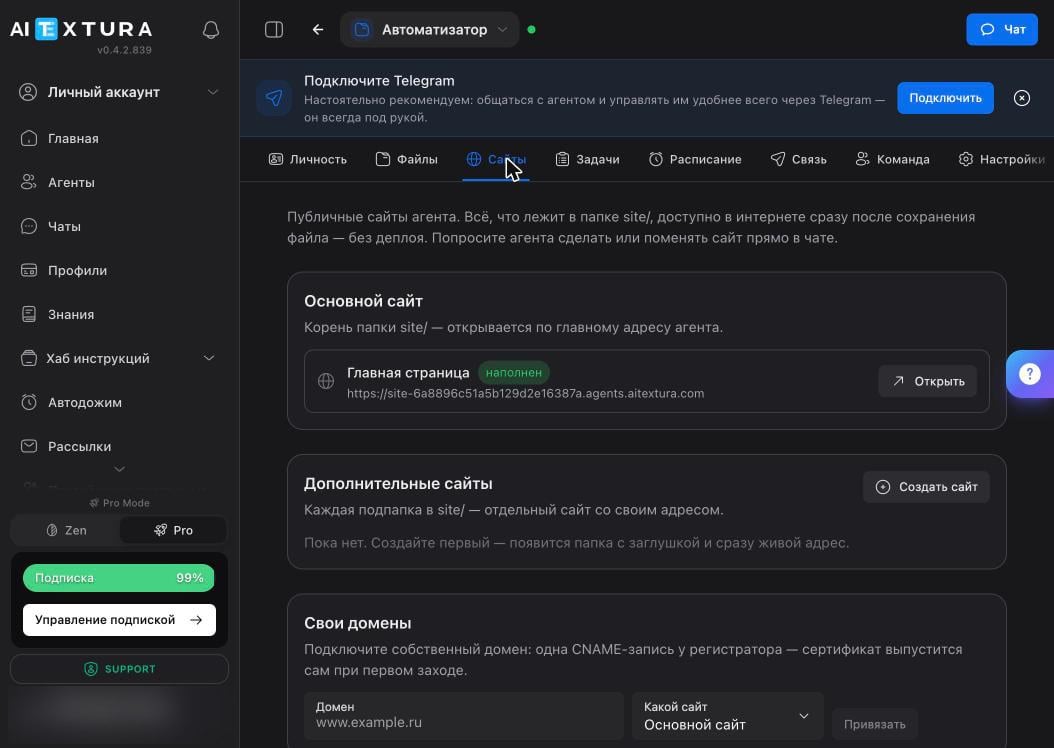 Above the list are three icons: create a file, create a folder, and refresh the tree.
## What lives where
| Folder | What's inside |
| ---------------------------------------------- | ------------------------------------------------------------------------------------------------- |
| `workspace` | The working folder: whatever the agent is working on for your tasks |
| `identity` | Character and memory files — the same ones shown on the [Personality](/en/agents/personality) tab |
| `plugins` · `plugin-skills` · `skill-workshop` | [Skills and plugins](/en/agents/skills): installed ones and the ones the agent builds for itself |
| `logs` | The technical log, also known as the [Log](/en/agents/maintenance) |
| `agents` · `devices` · `state` · `npm` | Container system folders |
Configuration files sit in the root. A ⚠ icon next to a name marks sensitive data — keys and connection settings.
Don't edit files marked ⚠ — `.env` and `openclaw.json` — by hand, and don't show them in screenshots: they contain access keys. If something breaks in them, don't fix it manually — use **Settings → Management → Diagnostics**.
The **Show backup copies** toggle at the bottom of the list reveals technical backup files. It's off by default, and that's the right setting: you don't need them in everyday work.
Above the list are three icons: create a file, create a folder, and refresh the tree.
## What lives where
| Folder | What's inside |
| ---------------------------------------------- | ------------------------------------------------------------------------------------------------- |
| `workspace` | The working folder: whatever the agent is working on for your tasks |
| `identity` | Character and memory files — the same ones shown on the [Personality](/en/agents/personality) tab |
| `plugins` · `plugin-skills` · `skill-workshop` | [Skills and plugins](/en/agents/skills): installed ones and the ones the agent builds for itself |
| `logs` | The technical log, also known as the [Log](/en/agents/maintenance) |
| `agents` · `devices` · `state` · `npm` | Container system folders |
Configuration files sit in the root. A ⚠ icon next to a name marks sensitive data — keys and connection settings.
Don't edit files marked ⚠ — `.env` and `openclaw.json` — by hand, and don't show them in screenshots: they contain access keys. If something breaks in them, don't fix it manually — use **Settings → Management → Diagnostics**.
The **Show backup copies** toggle at the bottom of the list reveals technical backup files. It's off by default, and that's the right setting: you don't need them in everyday work.
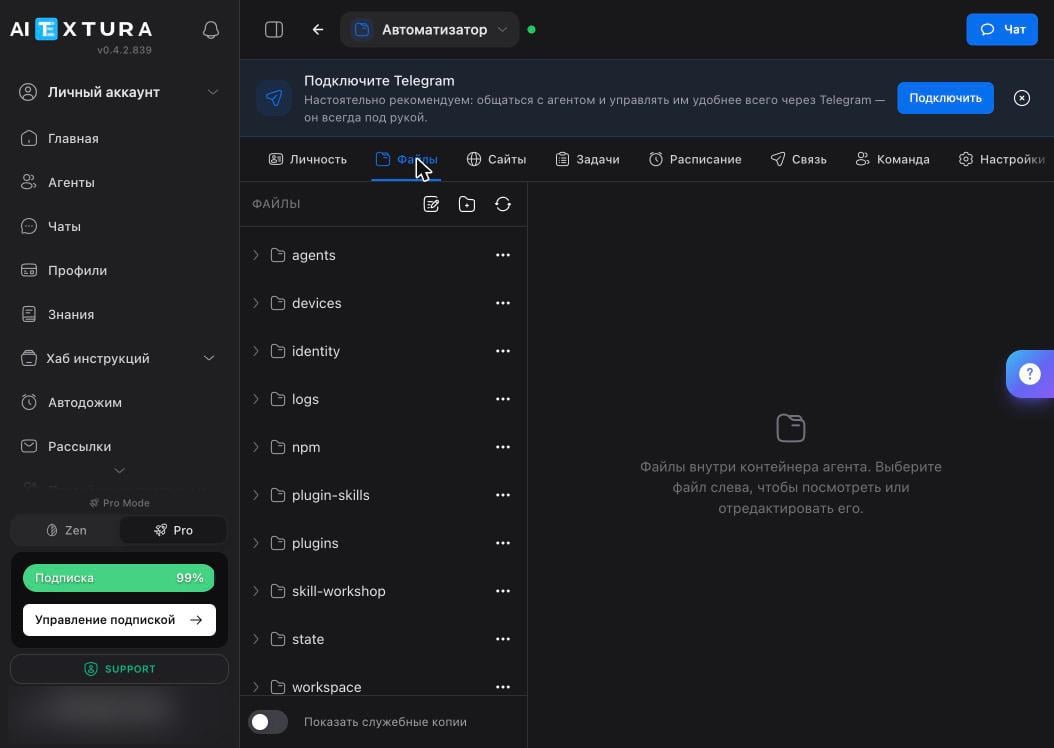 The tree changes as the agent works: install a skill or enable the task board, and new folders appear. That's normal.
## Why you'd open this tab
Most of the time, you won't need to: the agent manages the files. Open the tab in four cases.
| Situation | What to do |
| ------------------------ | ------------------------------------------------ |
| Get a result | Find the file in `workspace` and download it |
| Give the agent materials | Create a file or folder and paste in the content |
| See what the agent did | Check which files appeared and what's in them |
| Correct its notes | Open a document in `identity`, edit it, and save |
Asking the agent to handle files is usually faster than doing it by hand: "put the July report in workspace/reports and show me the result." The **Files** tab is for checking, not for daily work.
## FAQ
They shouldn't: the container disk survives restarts. Make sure you're not looking in the wrong folder — the agent may have saved the result to a subfolder in `workspace`. If the file really is gone, look for traces in the [Log](/en/agents/maintenance).
Yes — create a file with the icon in the panel and paste in the content. The second way is easier: send the file to the agent in chat and ask it to put it in the right folder.
Give it the full path: `workspace/reports/july.csv`. The agent doesn't scan the disk continuously — it goes where you send it.
They're deleted with it and can't be recovered. Before deleting, download a [backup](/en/agents/maintenance) — an archive with the agent's entire state.
The interface has no separate usage counter. Rule of thumb: the container is a working environment, not storage. Keep large archives on your side, and give the agent only what it's working with right now.
## What's next
A folder that instantly becomes a live website
The same files, presented for easy editing
Backup, diagnostics, terminal
Why you shouldn't touch files with keys
The tree changes as the agent works: install a skill or enable the task board, and new folders appear. That's normal.
## Why you'd open this tab
Most of the time, you won't need to: the agent manages the files. Open the tab in four cases.
| Situation | What to do |
| ------------------------ | ------------------------------------------------ |
| Get a result | Find the file in `workspace` and download it |
| Give the agent materials | Create a file or folder and paste in the content |
| See what the agent did | Check which files appeared and what's in them |
| Correct its notes | Open a document in `identity`, edit it, and save |
Asking the agent to handle files is usually faster than doing it by hand: "put the July report in workspace/reports and show me the result." The **Files** tab is for checking, not for daily work.
## FAQ
They shouldn't: the container disk survives restarts. Make sure you're not looking in the wrong folder — the agent may have saved the result to a subfolder in `workspace`. If the file really is gone, look for traces in the [Log](/en/agents/maintenance).
Yes — create a file with the icon in the panel and paste in the content. The second way is easier: send the file to the agent in chat and ask it to put it in the right folder.
Give it the full path: `workspace/reports/july.csv`. The agent doesn't scan the disk continuously — it goes where you send it.
They're deleted with it and can't be recovered. Before deleting, download a [backup](/en/agents/maintenance) — an archive with the agent's entire state.
The interface has no separate usage counter. Rule of thumb: the container is a working environment, not storage. Keep large archives on your side, and give the agent only what it's working with right now.
## What's next
A folder that instantly becomes a live website
The same files, presented for easy editing
Backup, diagnostics, terminal
Why you shouldn't touch files with keys